1. Introduction
LUCA BDS is a web-based analytics application that enables data-driven decision-making across the organization. As a web application, it can be accessed from any device with a compatible browser by navigating to the URL of the corresponding instance.
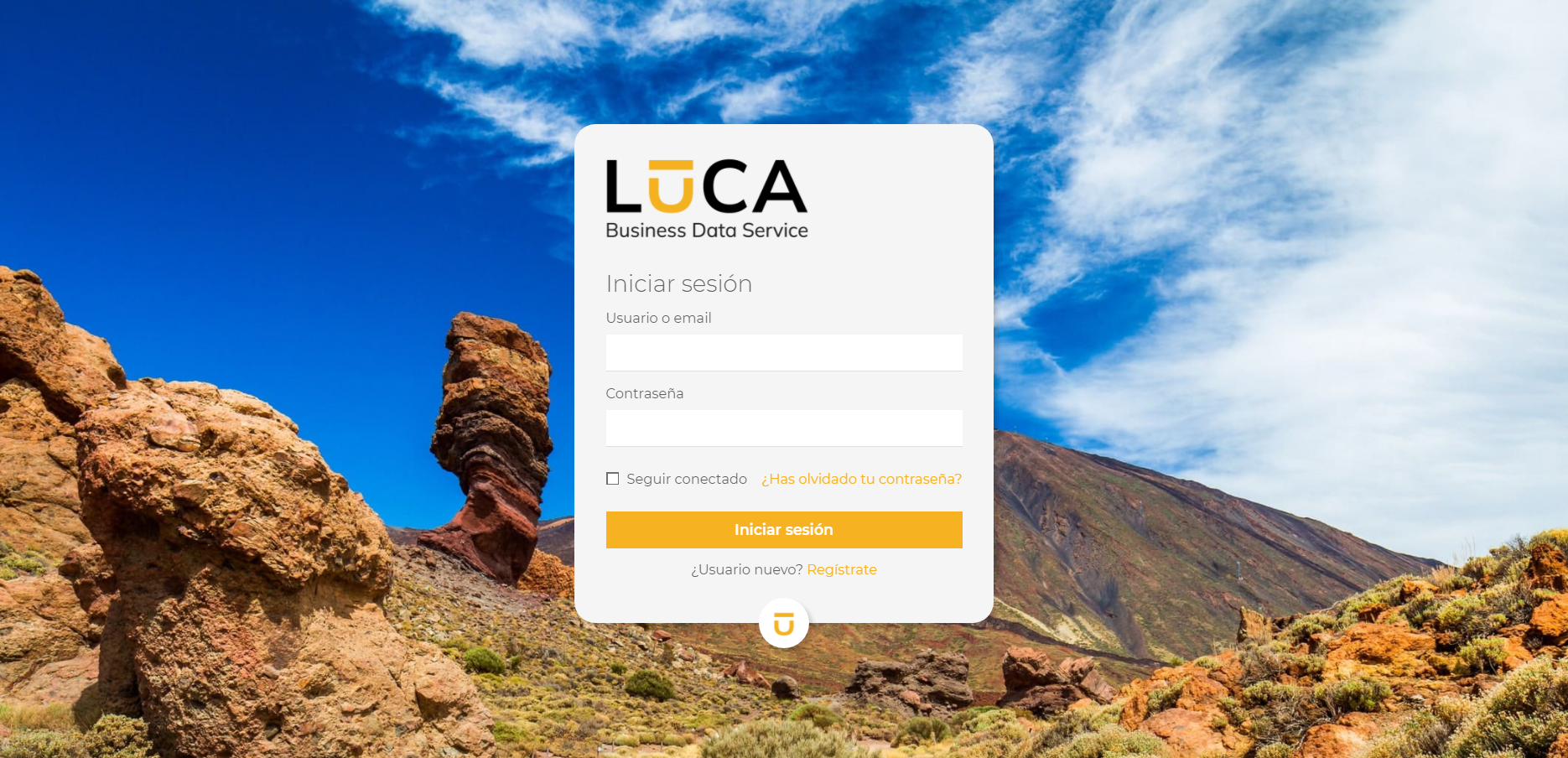
Access to the platform is protected by authentication. To sign in, users must enter their credentials (username and password) on the login page.
1.1. Desktop
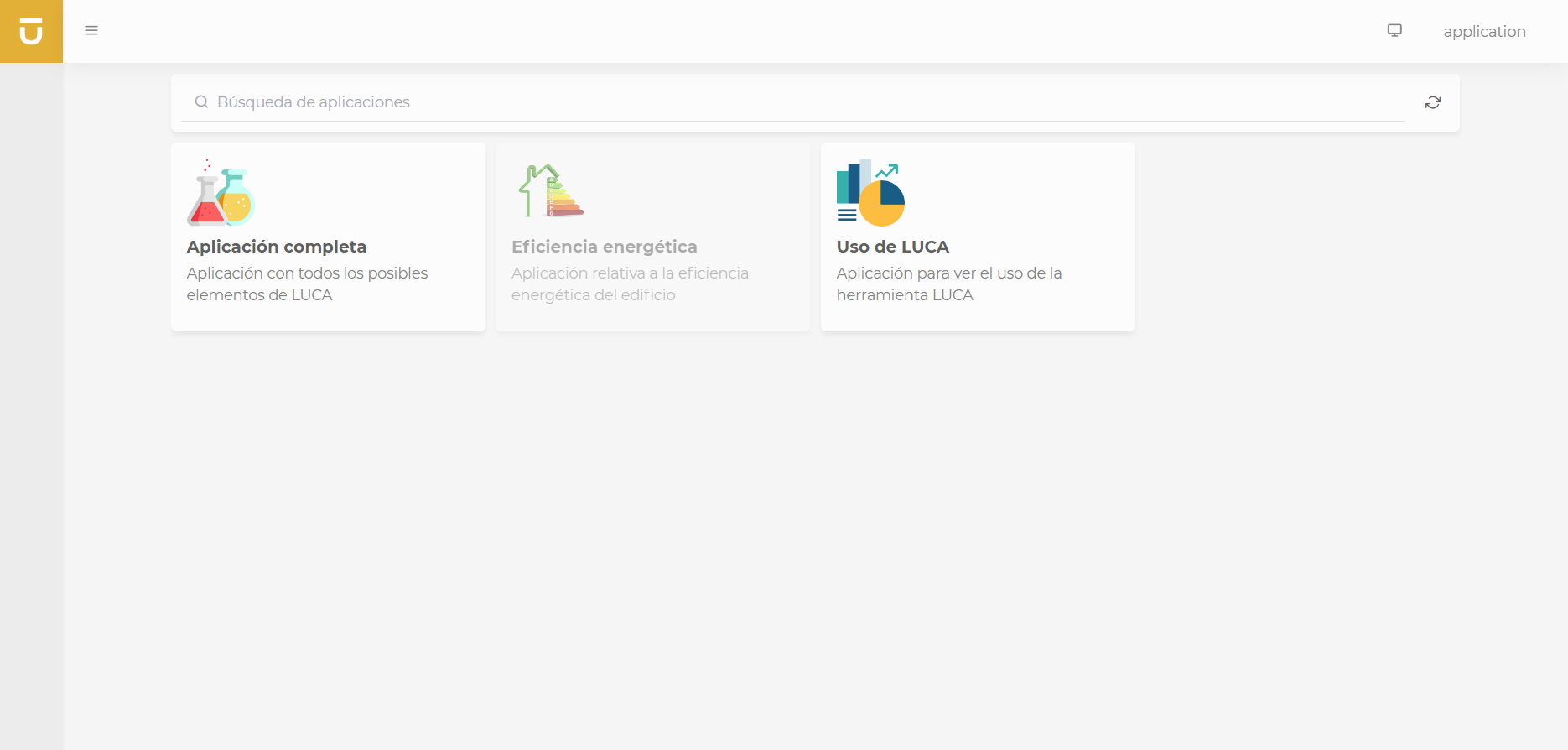
Once logged in, the application desktop is displayed, showing the applications to which the user has access. Some applications may be temporarily unavailable due to maintenance. In such cases, they will not be accessible until the required updates are completed and the applications are republished.
In the upper menu bar, on the right, we have a button to open our application desktop when we are in any other location and want to return to the desktop.
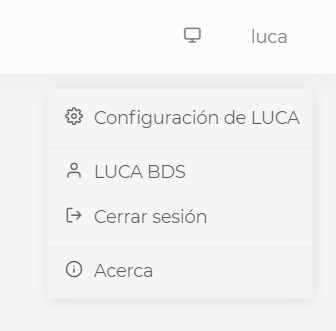
Next to the button to go to the desktop, it shows the name of the user currently logged into LUCA. By clicking on the name, it will display a contextual menu with the following options:
- LUCA Settings
-
This menu will only be visible if the user has permissions to configure elements (queries, charts, dashboards…)
- Username
-
Displays the name of the authenticated user, which can be clicked to edit user information and update the password. From this section, we will also be able to change the theme of LUCA and choose between the light (default) and the dark themes. For more information go to the User Information.
- Logout
-
Allows us to log out.
- About
-
Displays information about LUCA BDS, the version used, licensing details…
1.2. Applications
Once we select an application from our desktop, it will take us to the screen where we will find the following structure.
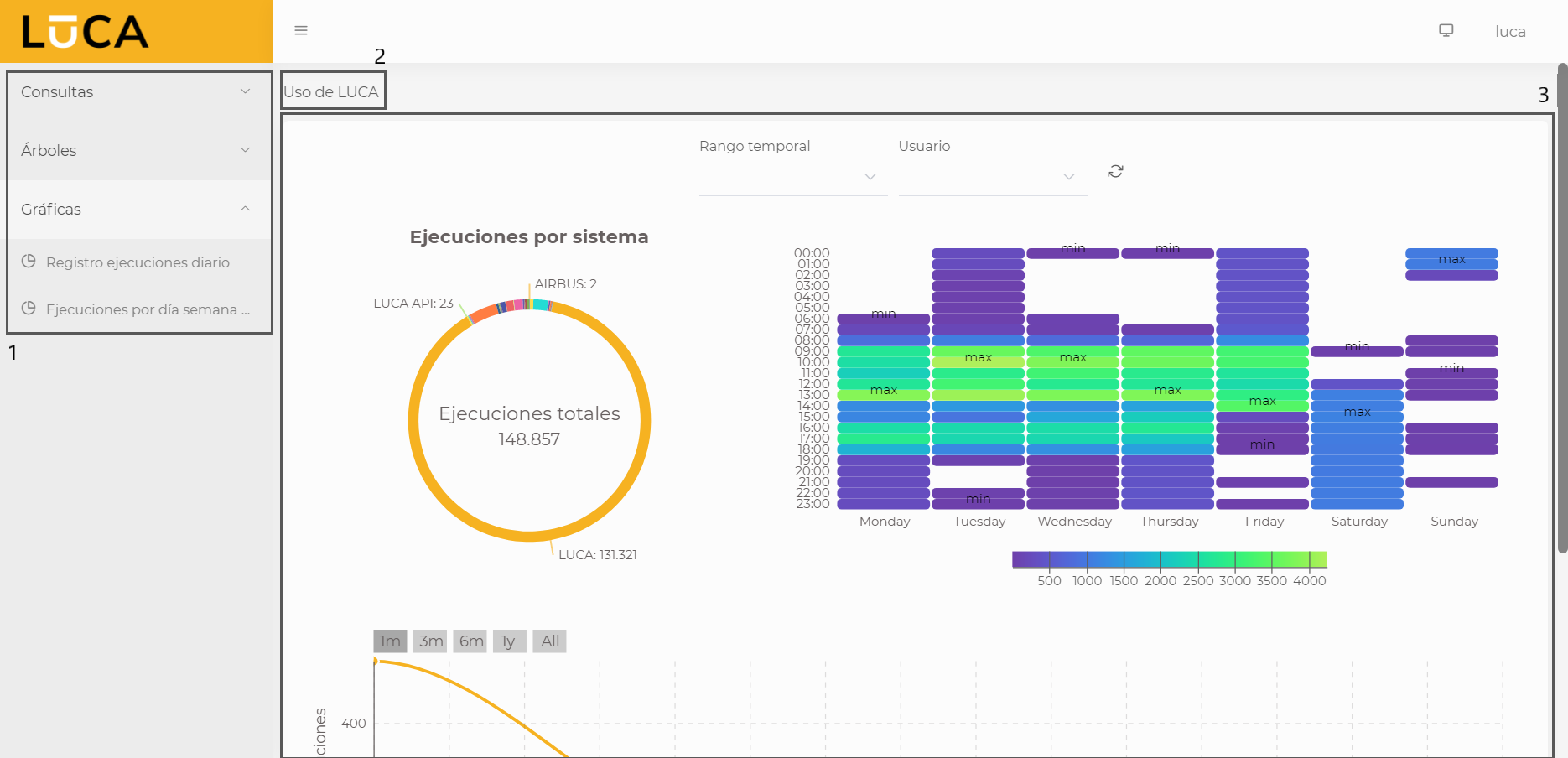
- Menu (1)
-
The application menu contains the menus and submenus configured for each application. A menu can contain as many submenus as desired. The submenus open the various elements that have been configured, which can be links to queries, trees, forms, charts, or dashboards. We will further explore each of these later.
- Breadcrumb (2)
-
Always visible, it provides a clear indication of the user’s current location within the application. As we navigate through the different submenus, it will change, and if the application has a main dashboard, we can navigate to it by clicking on the first element of the breadcrumb, which matches the name of the application.
- Dashboard (3)
-
This is the container of the application. Applications can have a defined main dashboard, meaning that upon entry, it will load a dashboard with the desired information. If there is no configured dashboard, no information will be displayed. When navigating through the various submenus, the content of these will be shown here.
1.3. User Information
To access user information, you need to click on the authenticated user in the top bar and select the option that displays the username from the contextual menu.
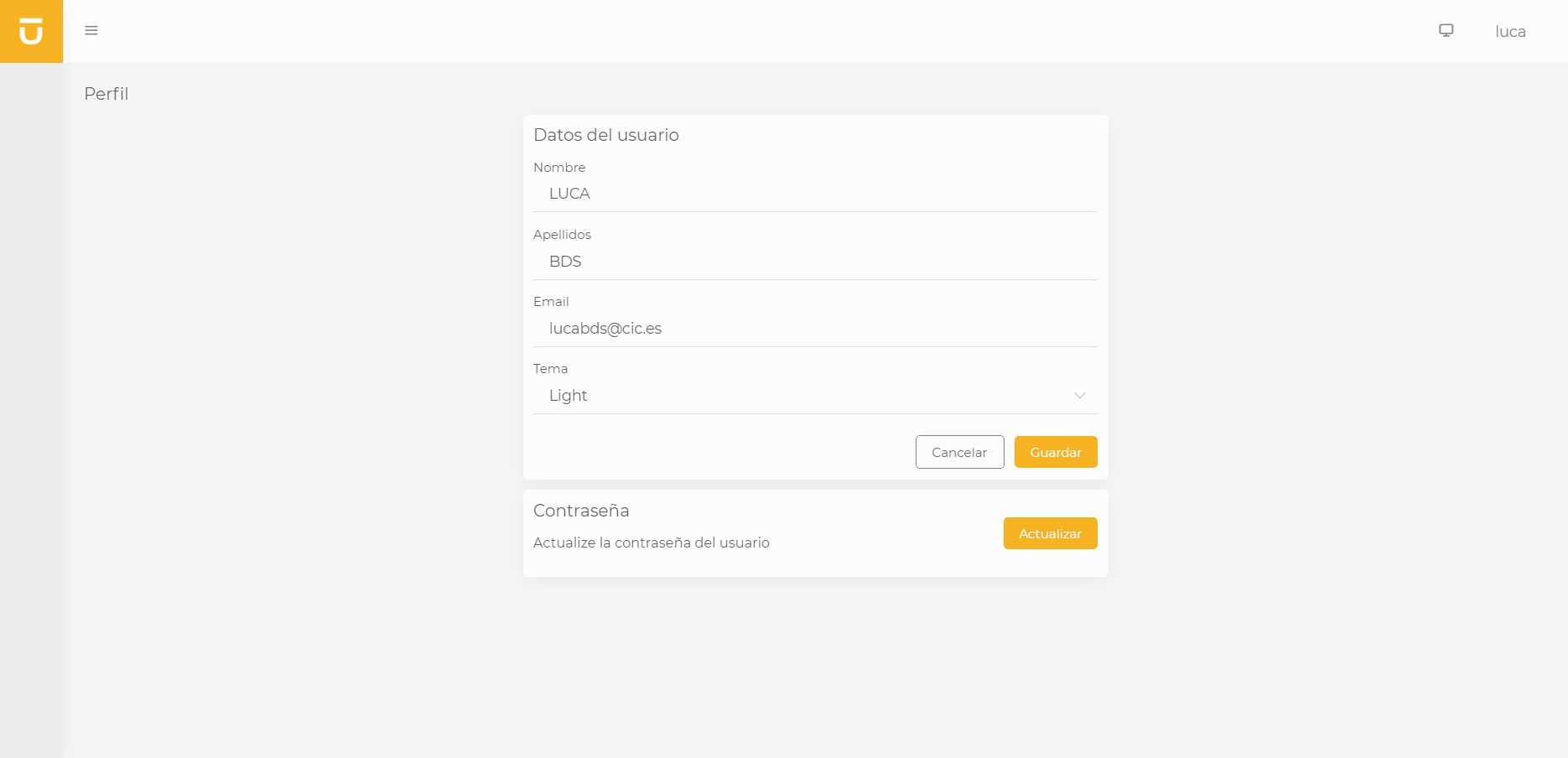
From here, each user can update basic information related to their profile, change the password if the user type allows it, and choose between the light and dark themes. All changes made require confirmation for them to be applied correctly.
1.4. LUCA Settings
Users with configuration permissions in LUCA can access this section from the contextual menu that appears when clicking on the authenticated user in the top bar. If the user has the appropriate permissions, the LUCA Settings option will be visible to them.
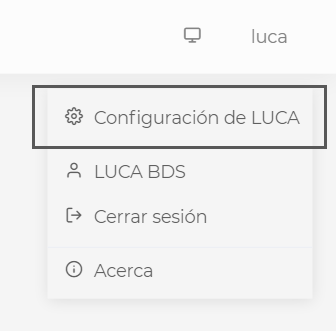
Once inside, a user with all configuration permissions will see the following screen.
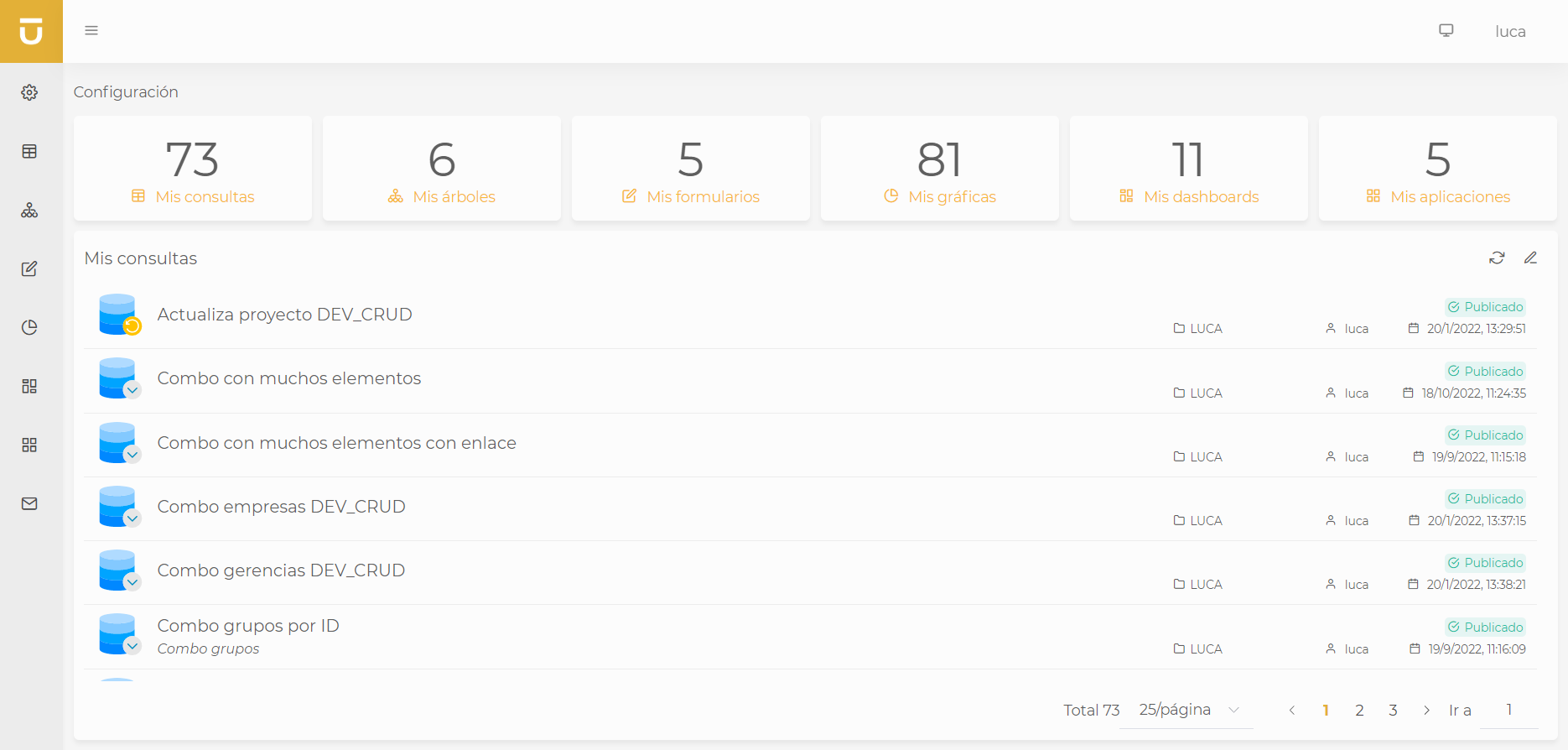
As the main content, we have a small dashboard with quick access to My Elements. These are all elements of LUCA that have been edited by the authenticated user. This allows us to swiftly access the latest elements edited by us.
The left sidebar contains access to administration views of the different configurable elements in LUCA: Administration, Queries, Trees, Forms, Charts, Dashboards, Applications, and Mailing. We can expand and collapse the sidebar by clicking on the three-line button located in the top navigation bar, next to the LUCA icon.
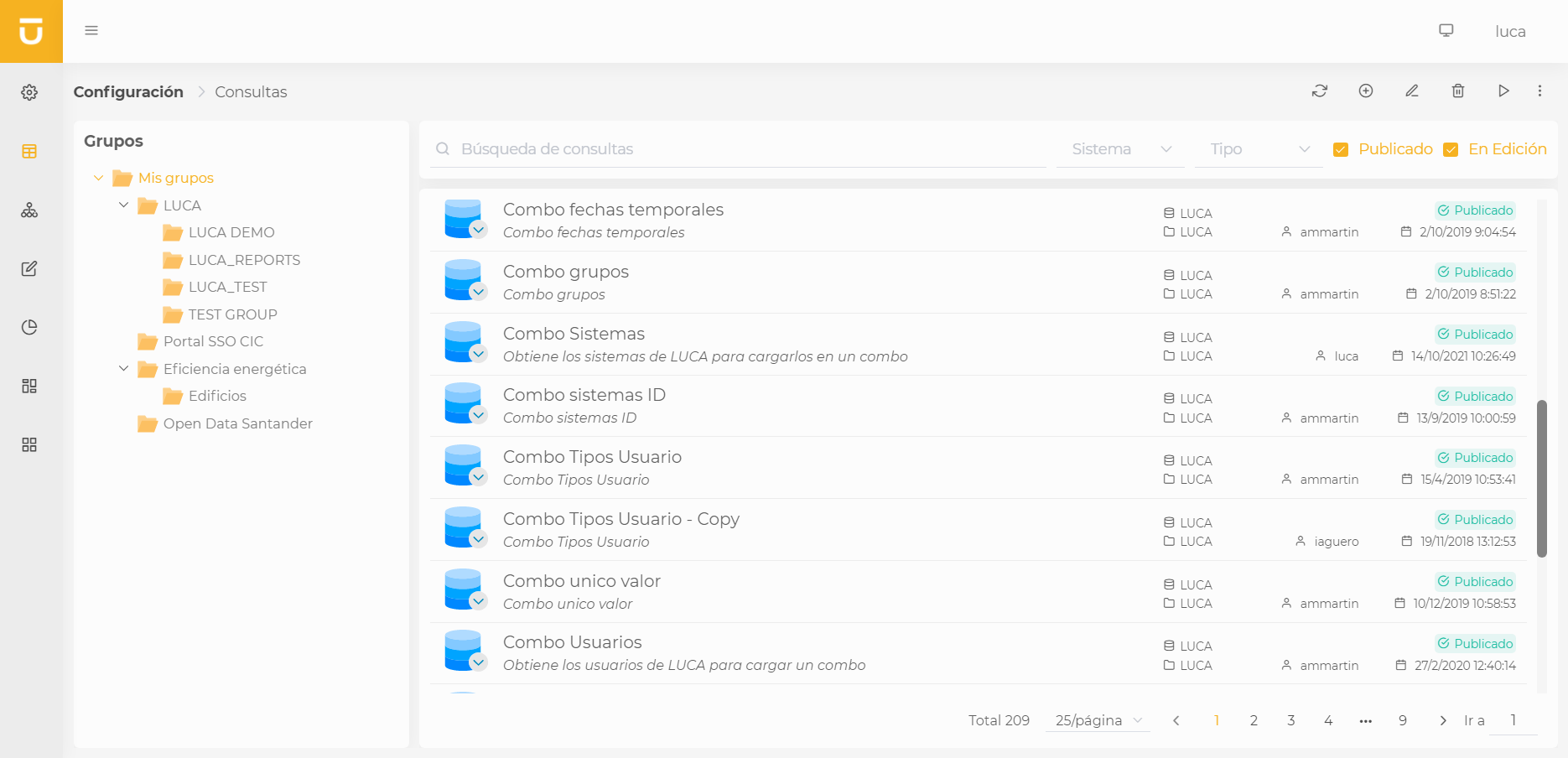
The administration screens for items share the same structure:
| Users will only see the groups and elements to which they have access. A user has access to an element if it belongs to a group to which they have permissions. |
| Unlike version 2.X, in version 3.0, users will only see the groups for which they have permissions. In previous versions, for example, if a user had permission for 'Query Administration', they could see all groups from the query management even without explicit access to them. |
On one side, on the left, we have the tree with the different available groups, through which we can easily navigate by clicking on the desired group. This will filter the elements that belong to that group. Additionally, we can collapse the various folders to have a clearer view of the different groups.
On the top right, we find the action buttons. These will allow us to perform actions on a selected element from the table:
- Update
-
Refresh the results of the table.
- Create
-
Create a new element.
- Edit
-
Edit an existing element.
- Delete
-
Remove an already created element.
- Execute
-
Run an element.
- Others
-
-
Clone an element. Cloning is only available for queries, charts, dashboards, and applications.
-
Create link for an element. This will allow us to easily share the elements.
-
Usage of the element. We will be able to visualize where the element is being utilized within LUCA.
-
Below the actions, we find the filters, which we can use to quickly search for the desired elements. The text search will filter searching by the name, description, and editor user fields. It is necessary to press enter once the desired search is written.
Finally, we have the table of elements where the available items for the authenticated user are displayed. For each element, the name, description, group, edit date, and editing user are shown. Below the table is the paginator, which we can use to navigate through the different pages.
1.5. Changes in Version 3.0
If you are coming from a previous version, LUCA 3.0 has significant changes compared to earlier versions. Please review these changes before migrating to version 3.0 to adapt to them if necessary.
| The Join module has been deprecated and version 3.0 does not include this functionality. Due to almost non-existent usage, it has been decided not to support it any longer, and it is removed for this and future versions. |
| The Reporting module has been deprecated and version 3.0 does not include this functionality. In future versions, it is planned to develop exportable dashboards, which will be much more useful and easier to use. |
| Asynchronous and scheduled query executions are not implemented in version 3.0. |
| Funnel, Pyramid, Waterfall, and Risk Map chart types are not implemented in version 3.0. |
| Carousel type dashboards are not implemented in version 3.0. |
2. Administration
From the administration menu, we can control everything related to the security of LUCA, the available connection data to execute queries, and a series of additional configuration settings for the application.
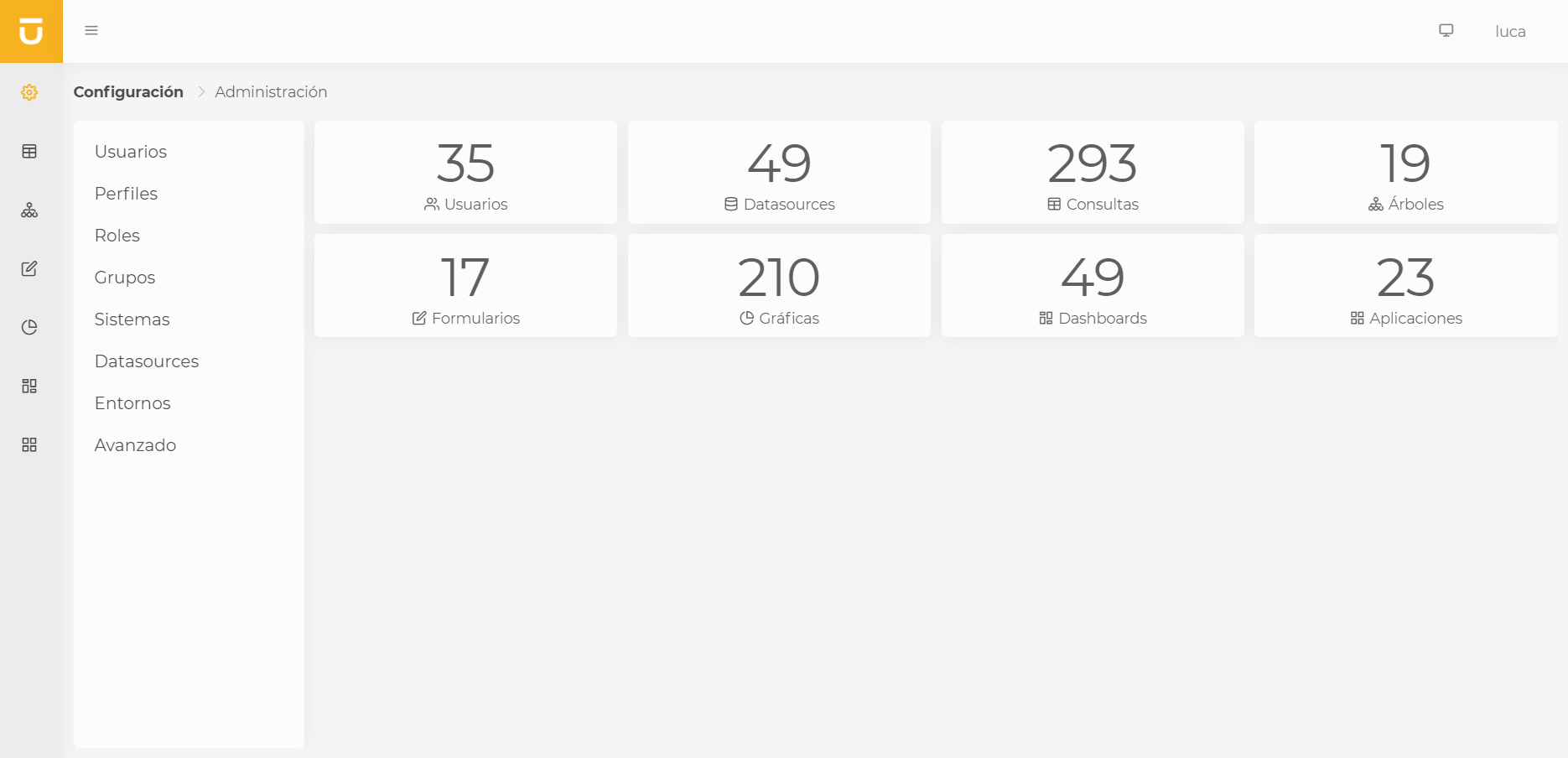
The administration view shows us a small dashboard with a summary of the various components existing in LUCA. Each of these has links to different administration screens.
| Depending on the user’s permissions, they may see more or fewer options in the side menu. Figure 2.1 is created with a user who has all administrative permissions in LUCA. |
2.1. Users
As explained earlier, to access LUCA, it is necessary to have a username and password. Users are associated with security permissions (actions they can perform within the application), connection data permissions (data they can view), and group permissions in LUCA (folders where LUCA elements are stored). With these three levels of security, access is covered, ensuring that users only see what we configure for them.
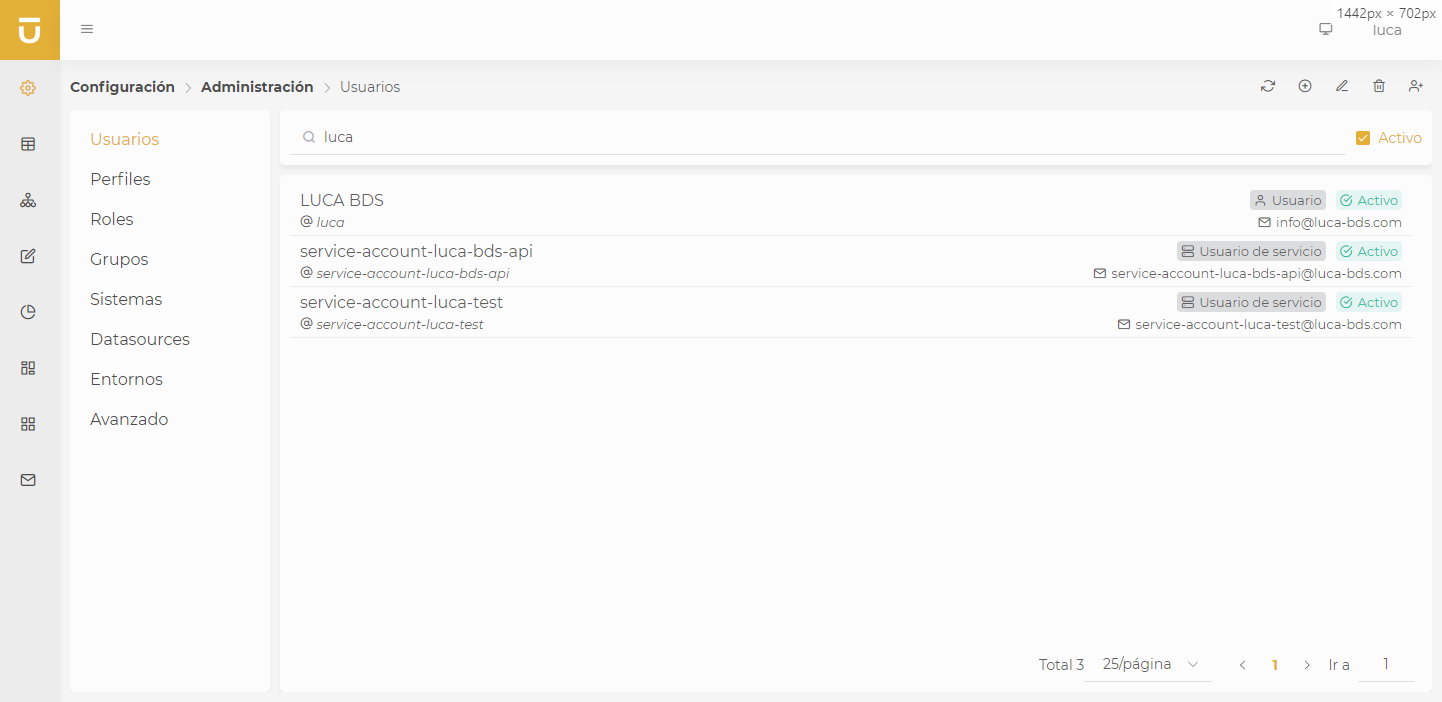
Version 3.0 of LUCA uses a Single Sign On as the authentication and authorization system. Users are registered in this SSO, and the user administration of LUCA simply serves as a gateway to perform actions on the SSO. For more information, refer to the section on SSO.
| Unlike versions prior to 3.0, the user types Internal, Internal LDAP, and External LDAP are no longer available. Now, all users come from the SSO, which may register them as users with passwords or from external identity providers (LDAP, Active Directory, or Kerberos). |
2.1.1. Creating Users
LUCA allows us to register users with passwords in the LUCA SSO. To create a new user, simply click the create button and fill in the requested fields.
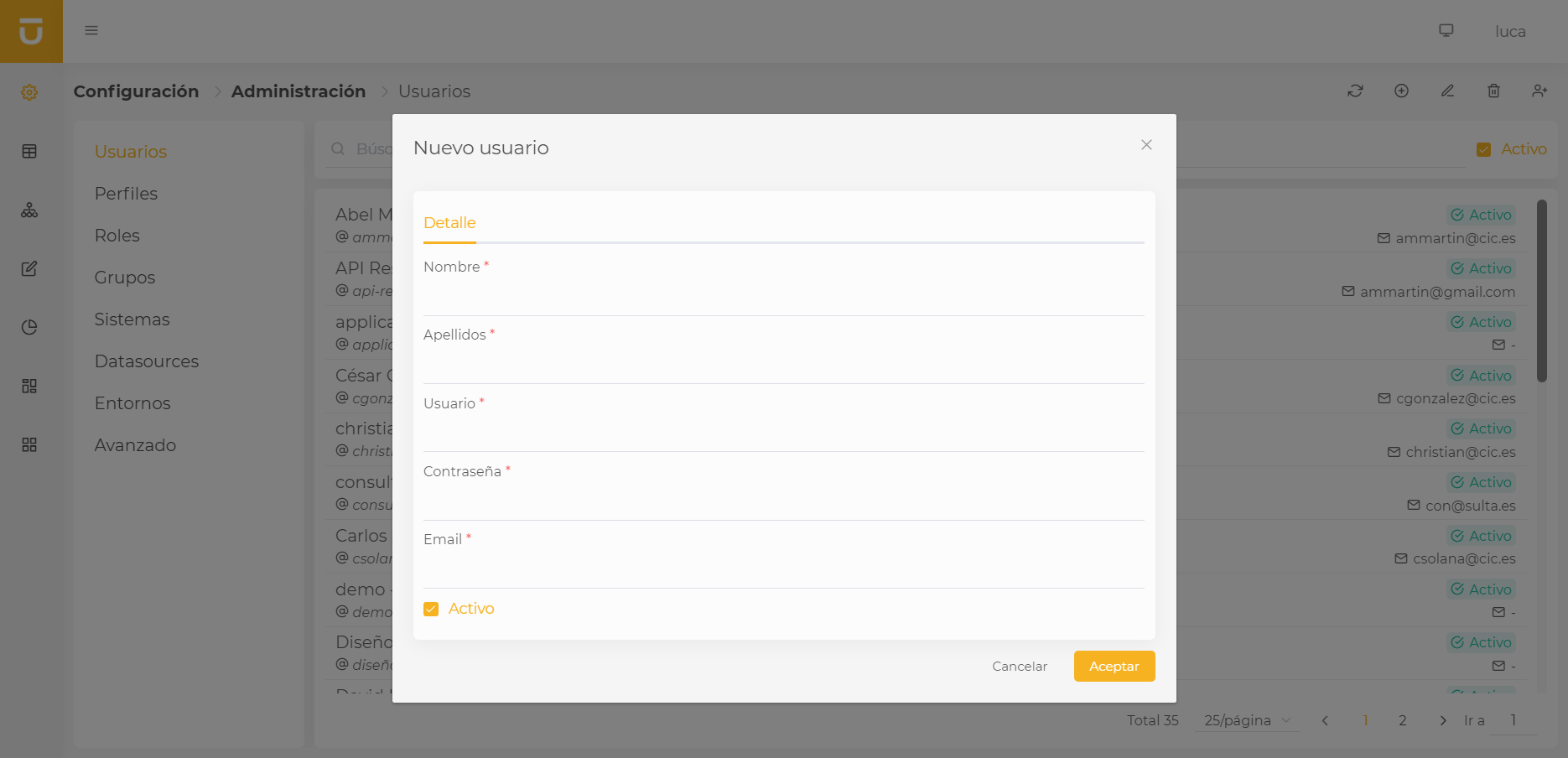
If we have previously registered the user in the SSO and want to add them to LUCA, we must import the user.
2.1.2. Importing Users
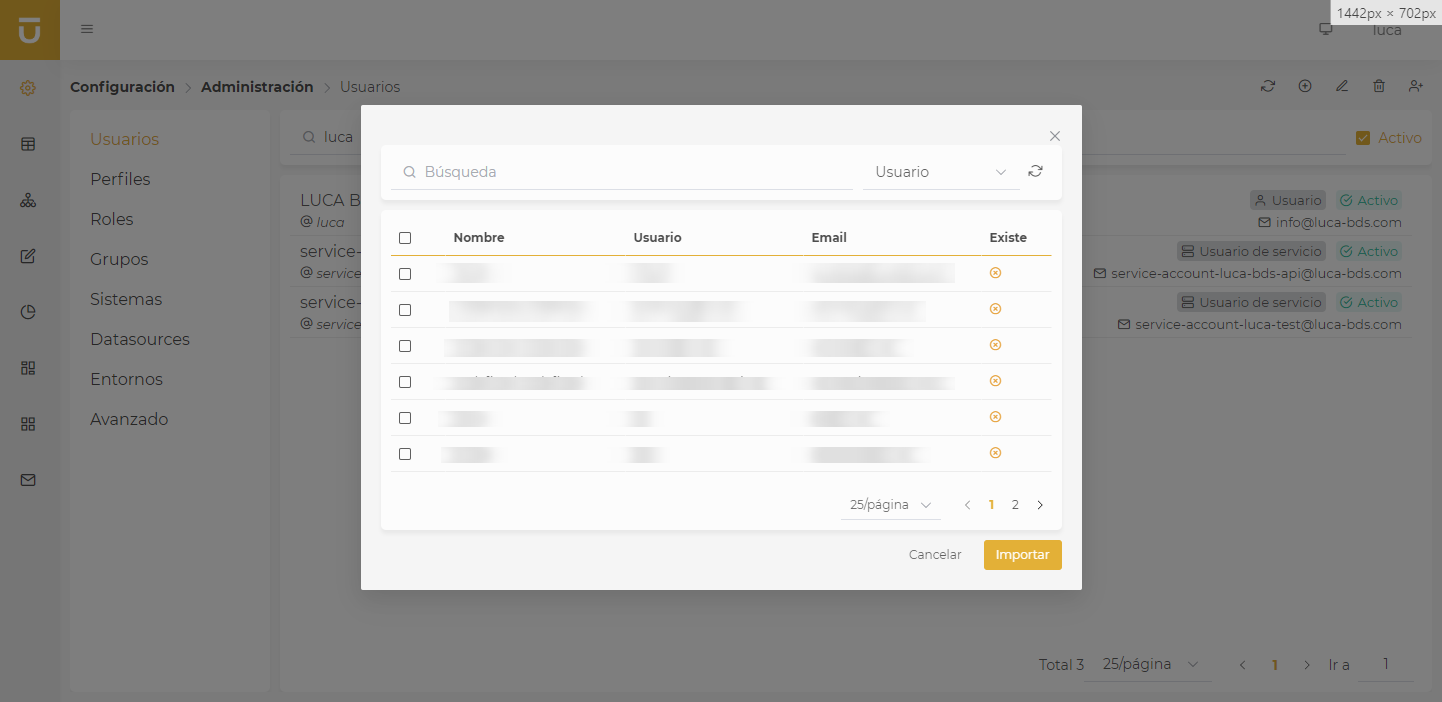
This option allows us to import users that have been previously created in the SSO. We can also import Service Account users, which correspond to client users of the Client Credentials type that are registered in Keycloak.
To import users, we must click the last button in the user administration action bar and search for the user or users we want to import.
2.1.3. Editing Users
We can edit a user by selecting them in the table and clicking the edit button. A form will open with the fields to edit. The username cannot be edited, and if the user comes from an external identity provider like LDAP, the email cannot be edited either.
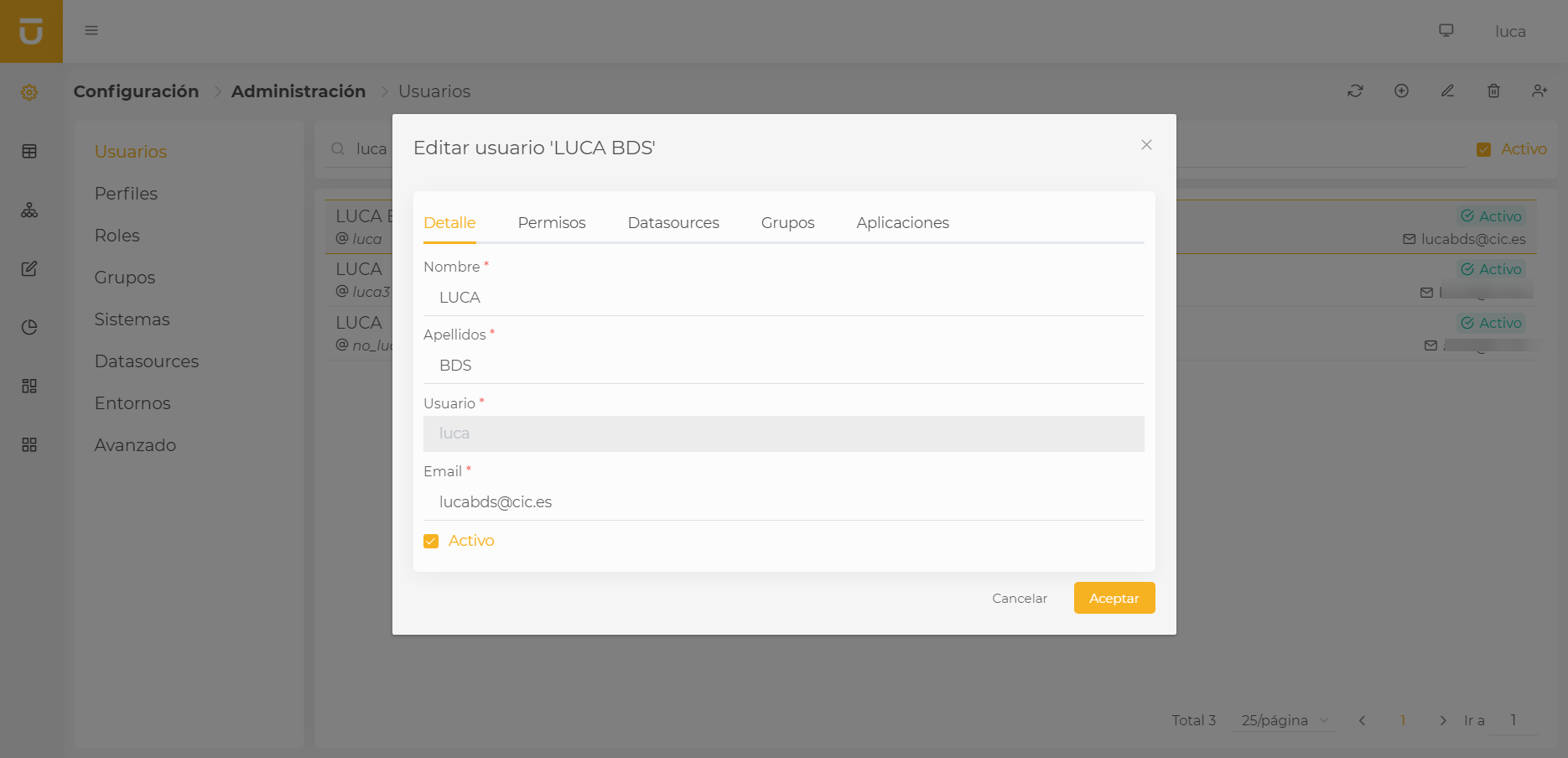
The editing window shows us informational tabs where we can view a summary of the permissions, datasources, groups, and applications to which the user belongs or has access.
Once we finish editing, we click accept, and the changes will be saved.
| It is not possible to edit the password of a user who is not our own from LUCA. To do this, it is necessary to go to the SSO and perform this action from there. |
2.1.4. Deactivating Users
Users in LUCA cannot be deleted; they can only be deactivated. To do this, we select the user and click the delete button. It will ask us if we are sure before proceeding with the operation. We can activate a user by filtering for deactivated users and marking the active checkbox during the edit of that user.
2.2. Profiles
Profiles are the quickest and most recommended way to manage the different permissions and access of users on the LUCA platform. They allow us to assign multiple users, access to datasources, groups, and applications, and grant the necessary roles to perform the actions we want.
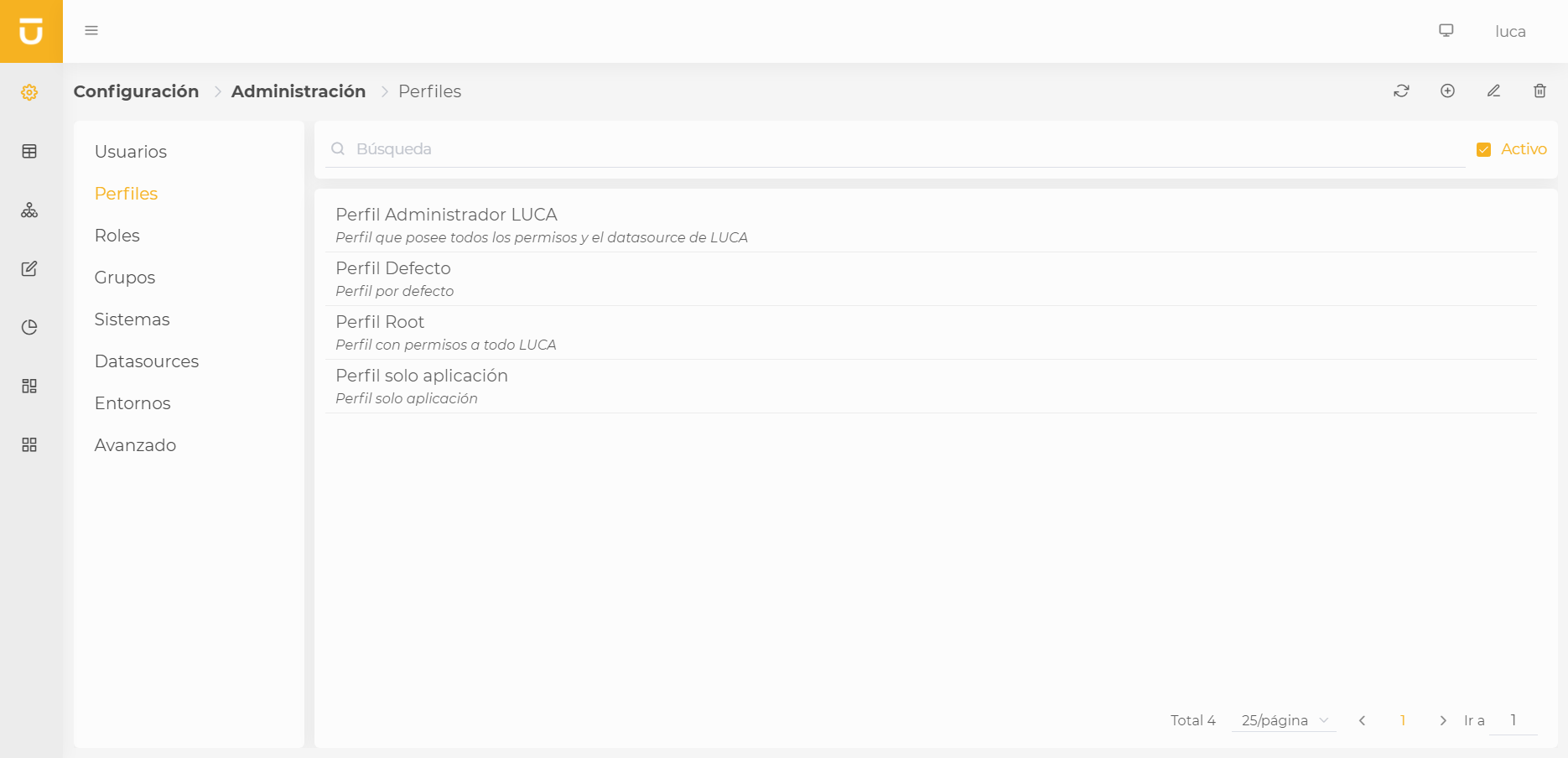
| It is good practice to create one profile per application where the used datasources and groups, and the necessary roles to run it are assigned. This way, every time we want to assign a user to an application, we only need to include them in the corresponding profile. |
Every profile requires a name and a detailed description to provide information about the permissions that profile is applying. A profile can be deactivated at any time, thereby nullifying the permissions it grants. Additionally, a profile can be marked as the default profile, meaning that all users inherit the permissions from this profile without needing to assign users specifically.
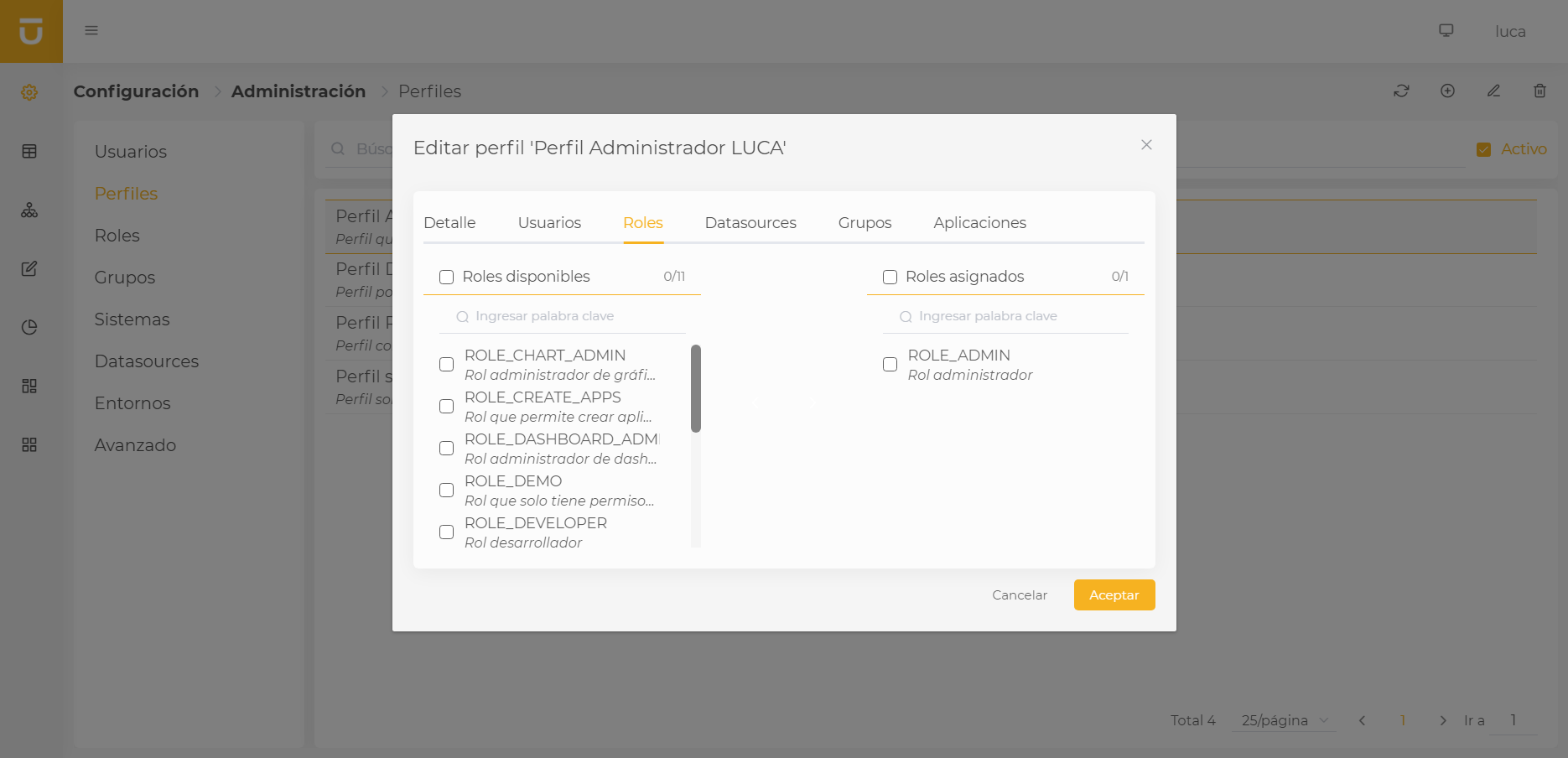
The window displays the different elements we can assign to a profile. All assignment tabs maintain the same structure. The left table lists the available elements, and the right table shows the assigned elements. We can assign or unassign elements using the central buttons.
| All changes made need to be saved, so it is necessary to click accept to confirm the changes. |
| In the assigned groups, we can mark whether we want the user to have editing permissions over that group or not. Having editing permissions means the user will be able to create and edit elements found in the group; otherwise, they will only be able to execute the elements of the indicated group. |
2.3. Roles
Roles are groupings of LUCA permissions. The permissions correspond to the various actions that can be performed, for example, creating and editing queries, charts, dashboards, etc.
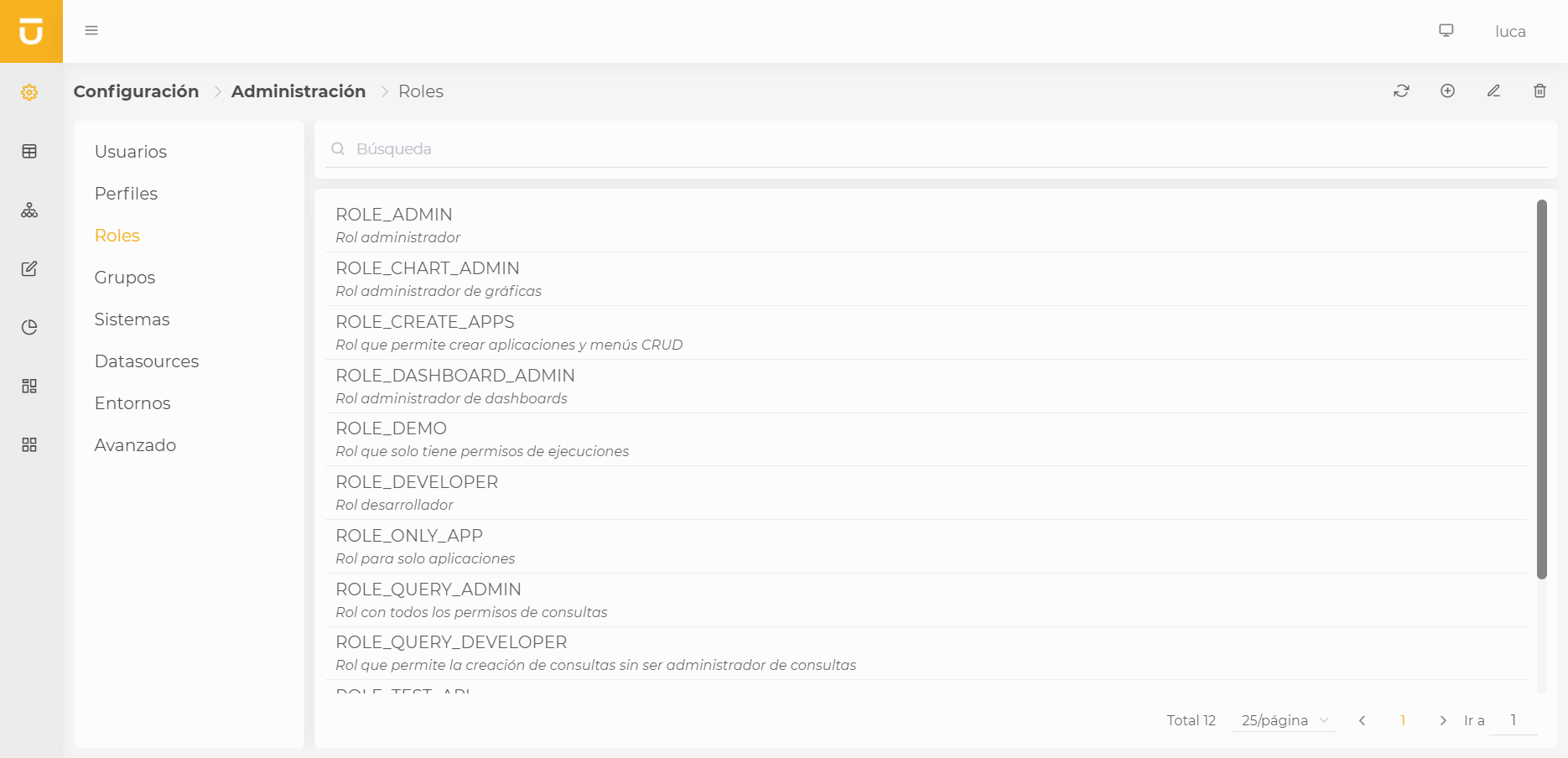
| Category | Permission |
|---|---|
Administration |
User Administration: Grants access to user administration |
Common |
Create public links: Allows the creation of public links |
Applications |
Access only to applications: Prevents the user from entering LUCA configuration and only allows access to the application desktop and its applications. |
Queries |
Query Administrator: Allows the user to edit any query being edited, even if it is not theirs, and view others' private queries. |
Trees |
Tree Administrator: Allows the user to edit any tree being edited, even if it is not theirs, and view others' private trees. |
Forms |
Form Administrator: Allows the user to edit any form being edited, even if it is not theirs, and view others' private forms. |
Charts |
Chart Administrator: Allows the user to edit any chart being edited, even if it is not theirs, and view others' private charts. |
Dashboards |
Dashboard Administrator: Allows the user to edit any dashboard being edited, even if it is not theirs, and view others' private dashboards. |
Mailings |
Mailing Administrator: Allows the user to edit any mailing being edited, even if it is not theirs, and view others' private mailings. |
To create a new role, you will need to assign it a name and a description. Additionally, you can choose the permissions you want it to possess, which are grouped by categories.
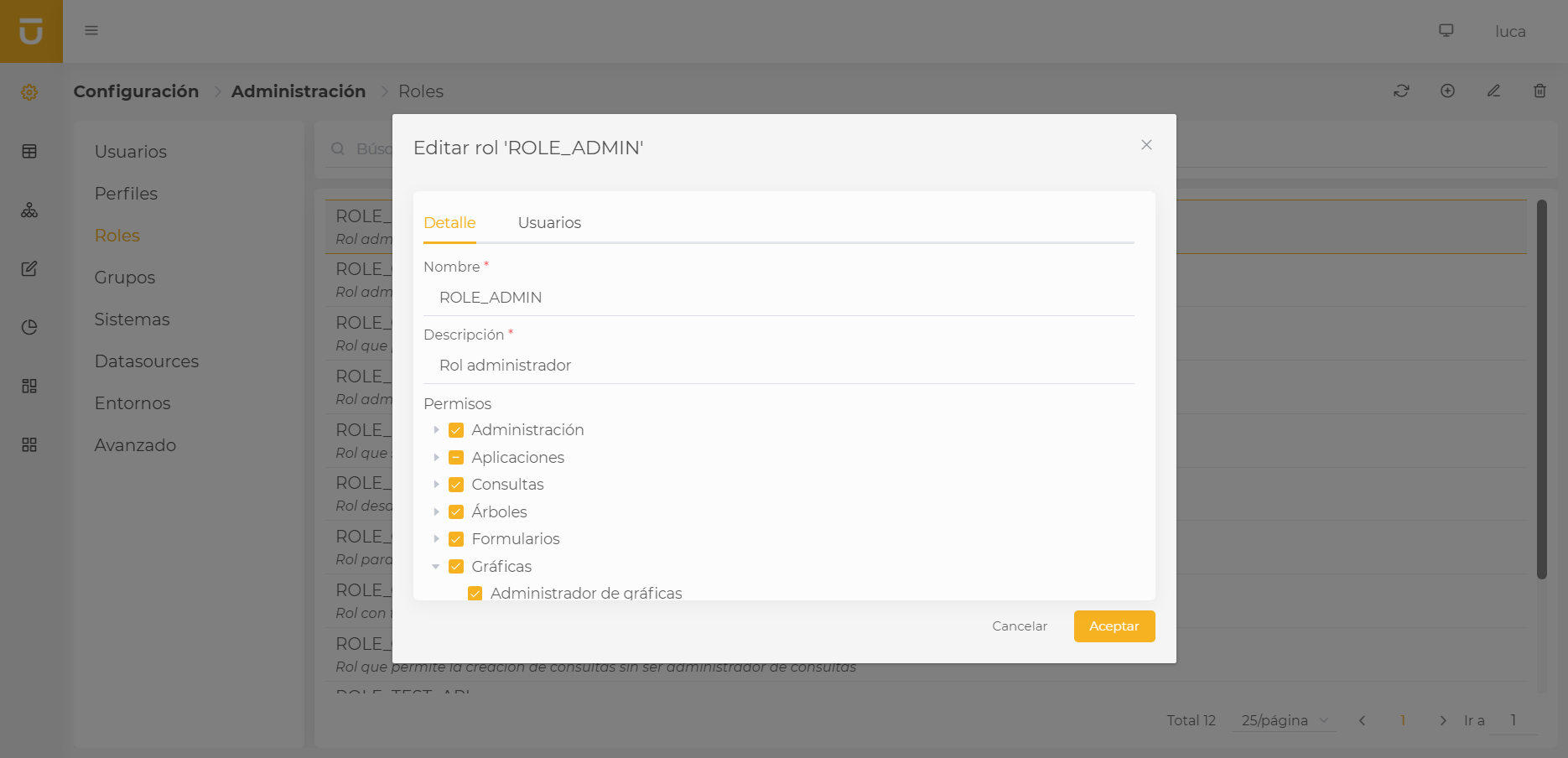
You can assign roles to users independently in the Users tab that appears when editing it.
| All changes made need to be saved, so it is necessary to click accept to confirm the changes. |
2.4. Groups
Groups will be the folders where we store our queries, trees, forms, charts, dashboards, and applications. They have a hierarchical structure that will allow us to adequately organize our items. For a user to execute or edit an element of a group, they need to have permissions over it.
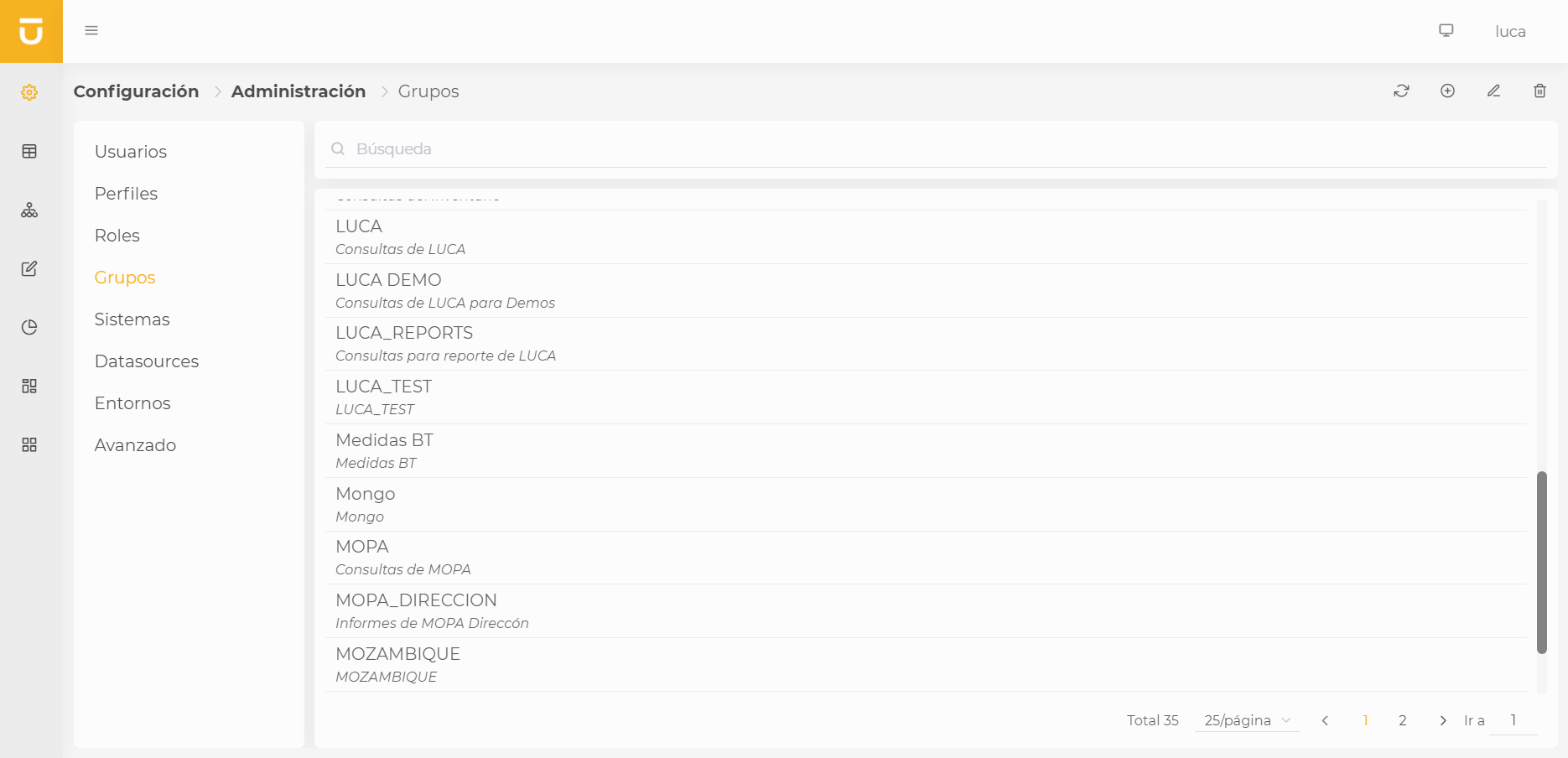
To create a group, it is necessary to assign it a name, a description, and the parent group to which it belongs. You can assign groups to users independently from the Users tab that appears when editing it.
| The assignment of users to groups has the option of editing permission over the group. This means that if we want the user to be able to edit elements associated with the group or just execute them. |
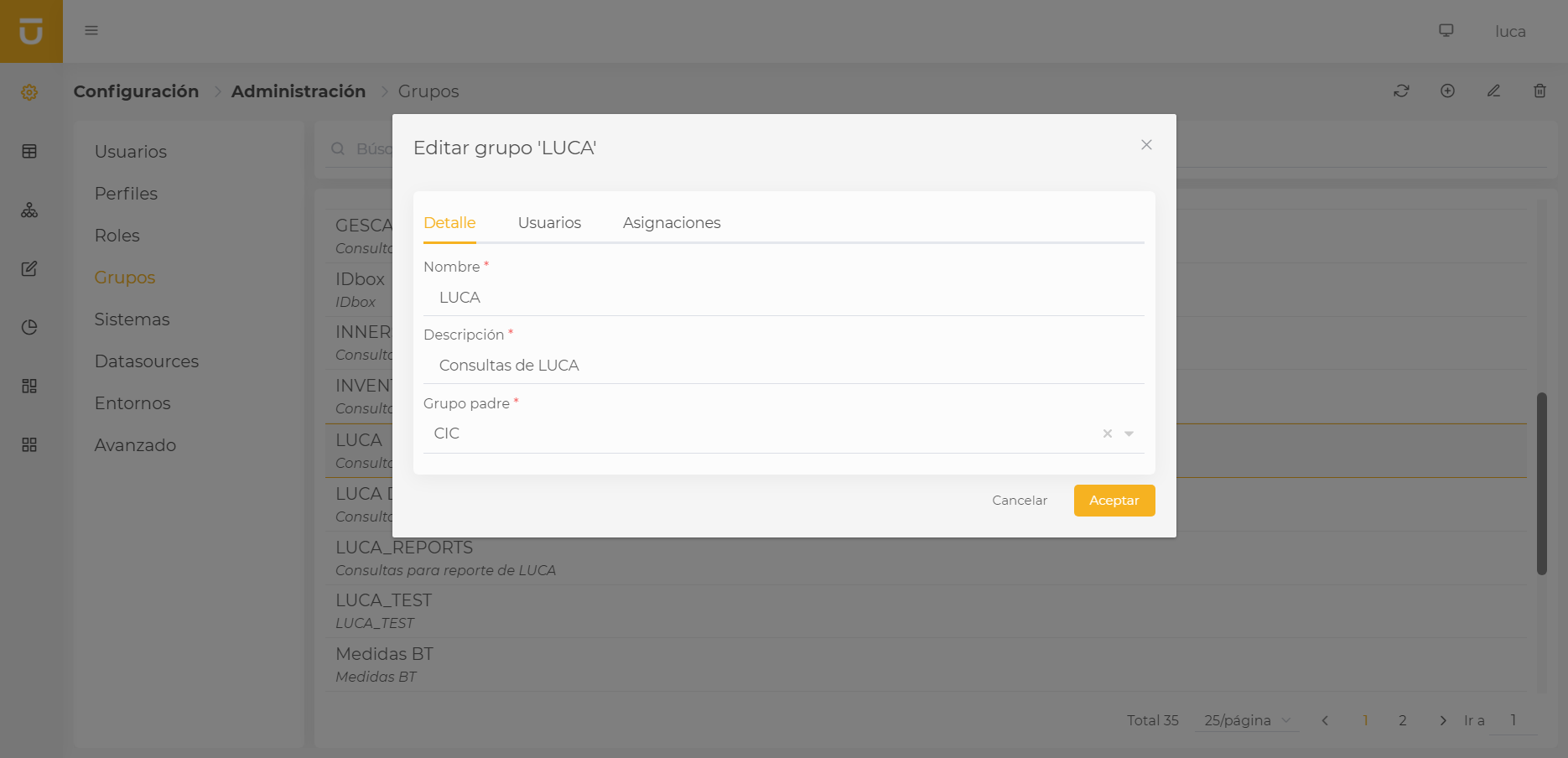
When we are editing a group, the Assignments tab will appear, where we can view a summary of which users have access to the group, either by direct assignment or by inheriting from a profile.
| All changes made need to be saved, so it is necessary to click accept to confirm the changes. |
2.5. Systems
A system can be defined as a source of information that groups one or more datasources. All queries must be associated with one of them, on which they will subsequently be executed. A system can admit several datasources to support multiple environments on which to execute the same query, for example, on a Production and Preproduction environment.
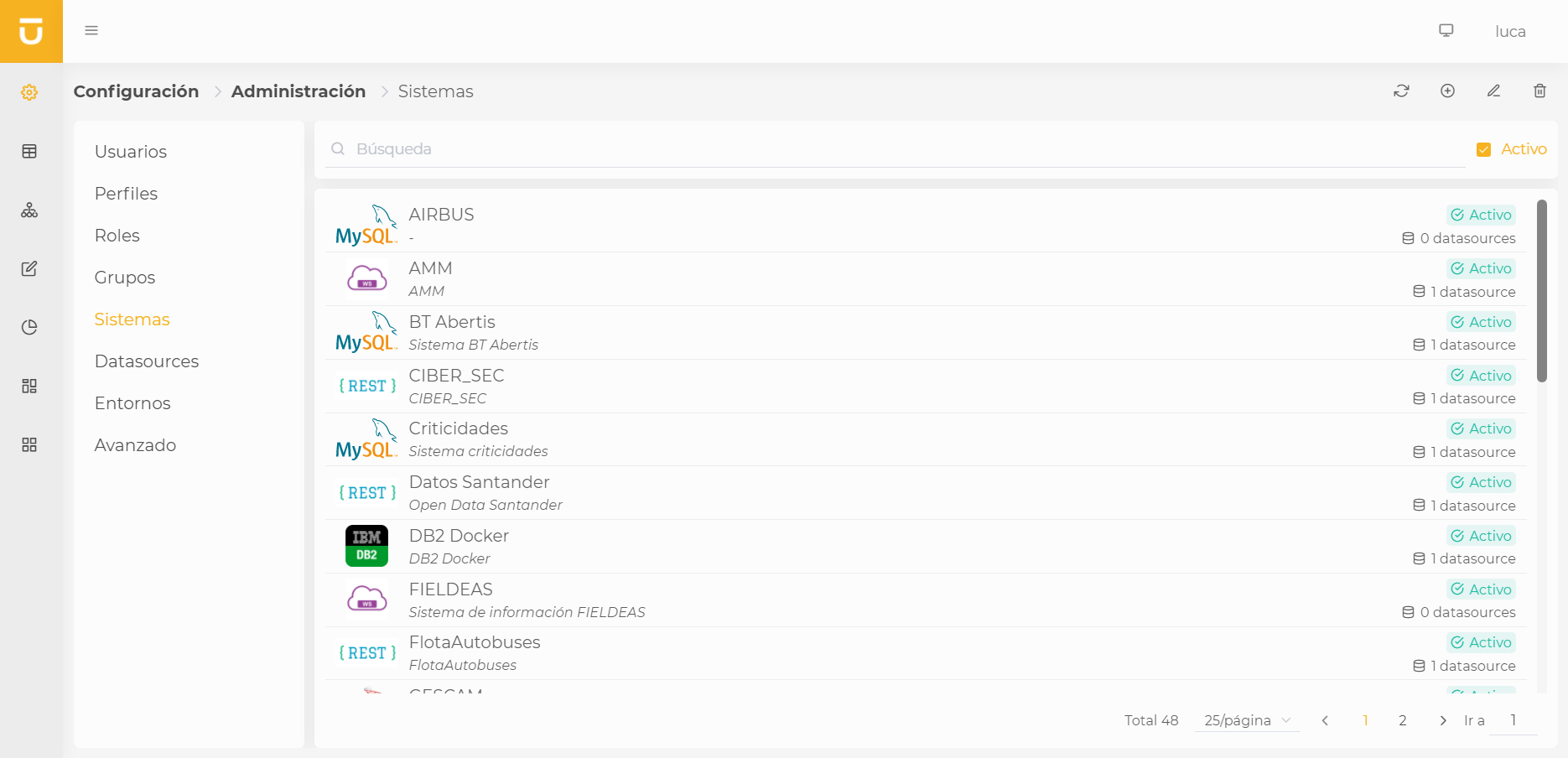
The most common systems are database types, as they provide the most options for executing queries. Below are the different types of systems supported:
| Category | Type |
|---|---|
Databases |
MySQL / MariaDb |
HTTP |
REST |
To register a new system, we need to indicate a name, description, and one of the types listed above. Once we save the system, we can assign the corresponding datasources. Only datasources of the same type as the system can be assigned, and two datasources with the same environment cannot be assigned at the same time.
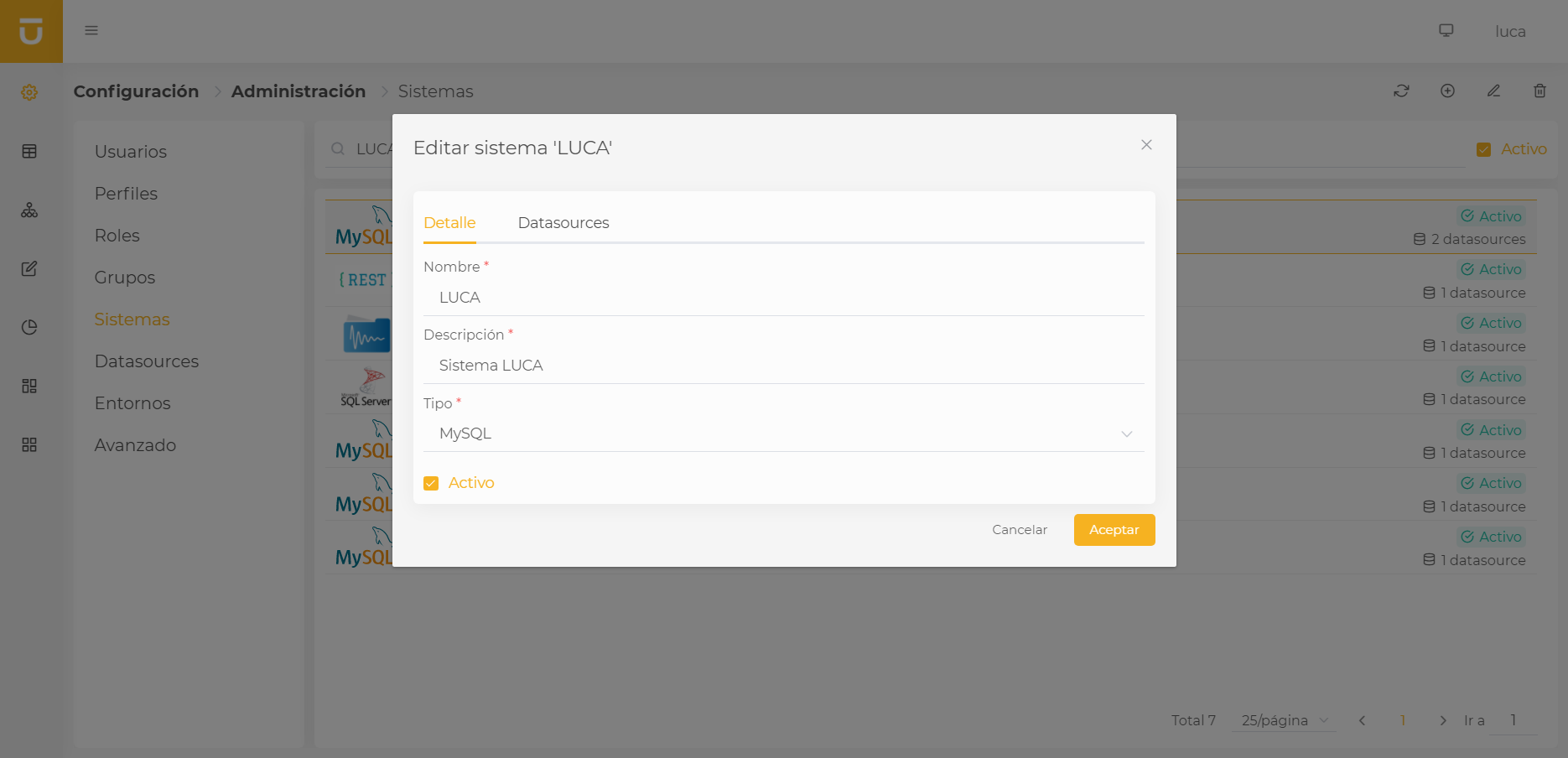
| Systems can be deactivated; this will cause all queries and elements related to the system to no longer be available for execution. |
| All changes made need to be saved, so it is necessary to click accept to confirm the changes. |
For a more agile exploration and querying of data, you will find an SQL console access button integrated into the tools in the upper right corner.
To use this function:
-
Select a system compatible with the editor.
-
Click the button, as shown in the following image:
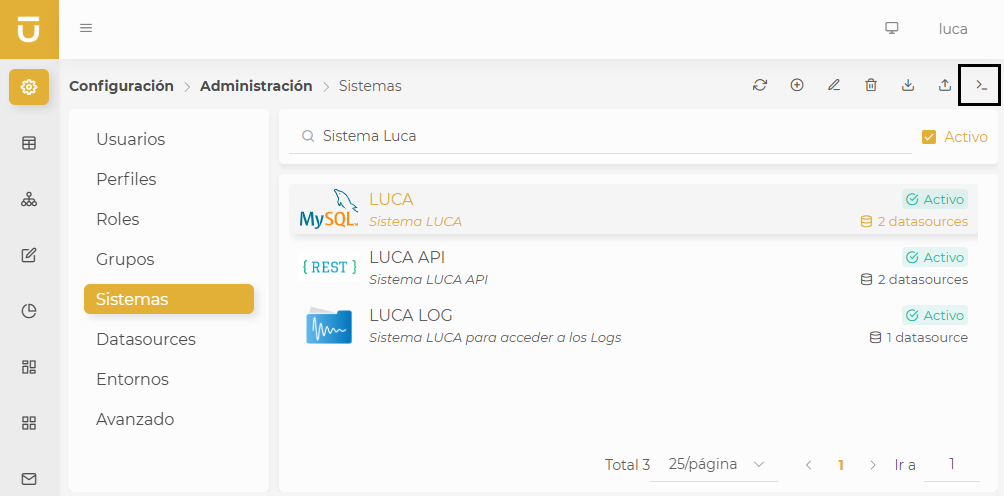 Figure 2.14: SQL Console
Once clicked, the SQL console screen corresponding to the selected system will open. This console can also be accessed from the queries menu, allowing you to execute SQL statements on the active datasource.
2.6. Environments
Environments simply serve to identify the connection string on which we want to execute the query. If a system has several datasources, when executing queries for that system, a combo will appear where we must select which environment we want to execute it on.
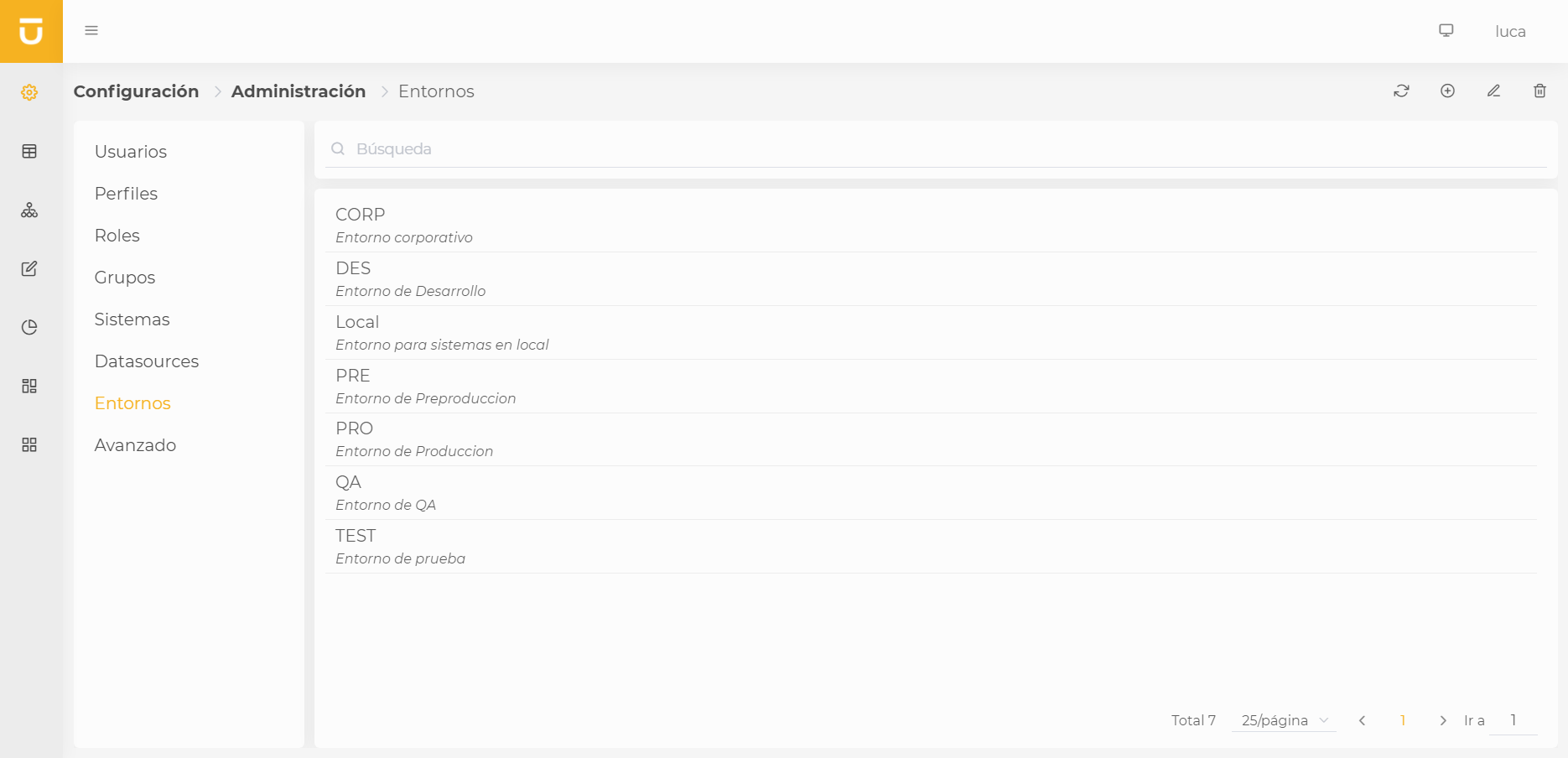
To create an environment, we simply need to provide a name and a description. The environment name will be the text that appears in the selection combo when executing queries.
| All changes made need to be saved, so it is necessary to click accept to confirm the changes. |
2.7. Datasources
Datasources or connection strings represent the way we will connect to the data to extract the necessary information for LUCA reports. Currently, there are two major groups of types of datasources: connection strings to relational databases or connections to services exposed over http/s.
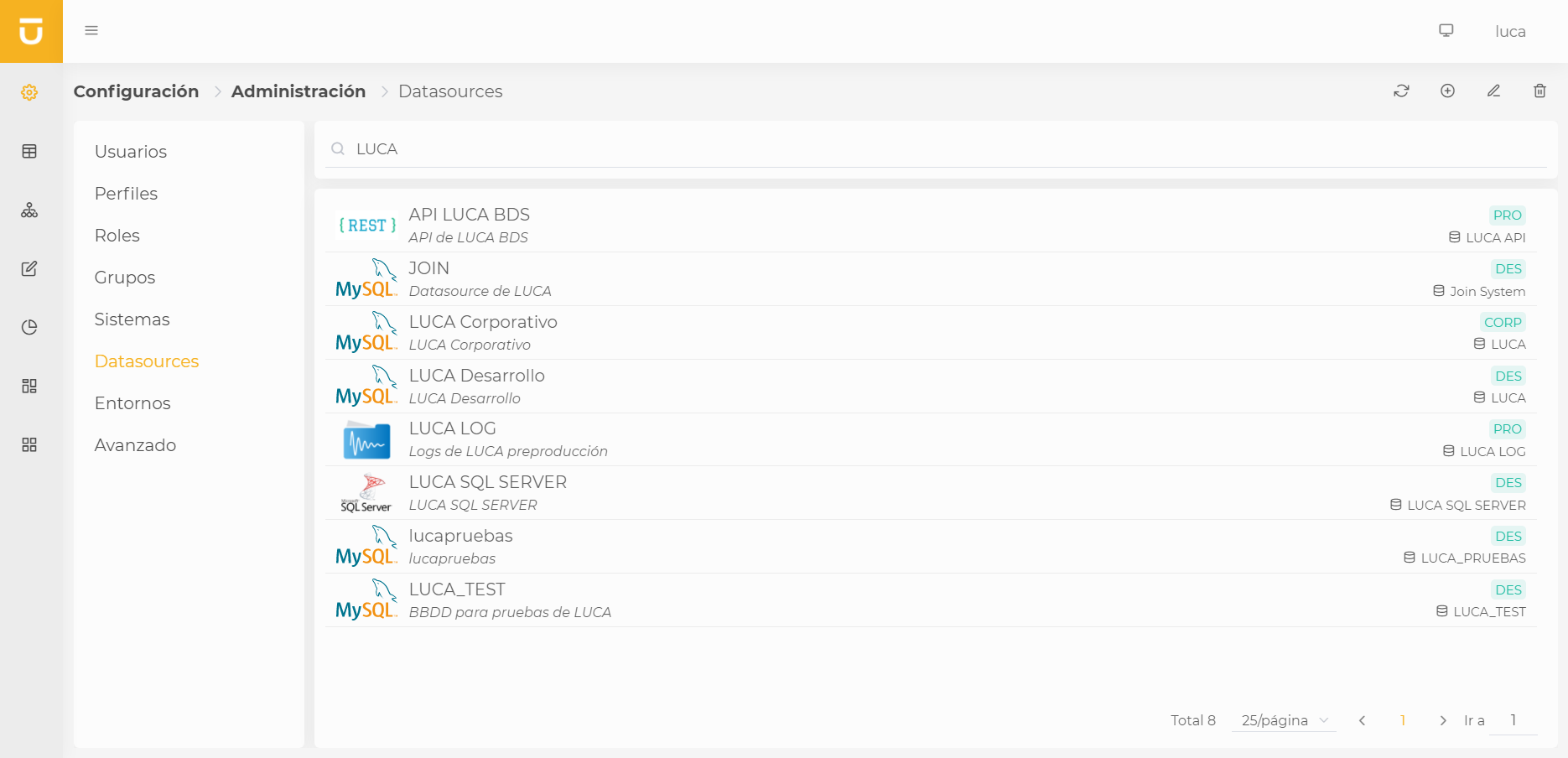
As with the other administrative elements, to create a new datasource, we need to provide a name and a description. In addition, we will need to indicate:
- Type
-
The type of datasource to create. The list of types is defined in the systems section in Table 2.2. System Types.
- Operation type
-
Indicates the actions that can be performed on the datasource. If the datasource is read-only, queries of type insert, update, or delete cannot be executed on it.
- Environment
-
Indicates the environment associated with the datasource.
Additionally, depending on the type of datasource chosen, we will need to fill out the required fields in the Configuration tab.
You can assign datasources to users independently from the Users tab that appears when editing it. In the Assignments tab, visible only when editing an existing datasource, you can see a summary of which users have permissions for the datasource, either by direct assignment or by inheriting it from a profile.
| All changes made need to be saved, so it is necessary to click accept to confirm the changes. |
2.7.1. Databases
- URL
-
Represents the JDBC type URL necessary to connect to the datasource.
- User
-
User with permissions over the DB indicated in the URL.
- Password
-
Password of the DB user.
- Validation query
-
Query that executes to test that a connection in the connection pool is valid. Simple queries like
SELECT 1SELECT 1 FROM DUAL - Remove Abandoned Timeout
-
Time in seconds before an active connection closes. If a query is heavy and takes a long time to execute, this time should be at least the maximum time of the heaviest query.
- Initial size
-
The initial size of the connection pool, i.e., the connections opened to the DB when the datasource is created, waiting to be used.
- Max active
-
Maximum number of active connections.
- Max idle
-
Maximum number of idle connections.
- Min idle
-
Minimum number of idle connections.
- Max wait
-
Maximum wait time in milliseconds to connect to the datasource.
2.7.2. HTTP
- Protocol
-
http or https.
- Domain
-
Domain where the http service is located.
- Port
-
The port through which it will connect to the service. By default, it will be 80 for http and 443 for https.
- Base URL
-
Common path that concatenates with the domain. By default, it will be /
- Security
-
Type of security required to connect to the service:
-
None: No security is required
-
Http Basic: HTTP basic authentication. The user and password are sent as
base64(user:password) -
NTLM: Microsoft NTLM authentication.
-
WS User Token: WS Security authentication with username and password.
-
WS X.509 Encryption Signing: WS Security authentication using an encrypted and signed X509 certificate.
-
OAuth 2.0 - Username Password: OAuth 2.0 authentication using the username and password flow.
-
OAuth 2.0 - Client Credentials: OAuth 2.0 authentication using the client credentials flow.
-
OAuth 2.0 - Password without client (Deprecated): OAuth 2.0 authentication using the user and password flow without having to include a client-id and client-secret.
-
- Max active
-
Maximum number of active connections.
- Max time idle
-
Maximum lifetime of the connection, in milliseconds.
2.8. Advanced
In the advanced administration, we will be able to configure certain parameters that will affect the operation of the entire instance of LUCA.
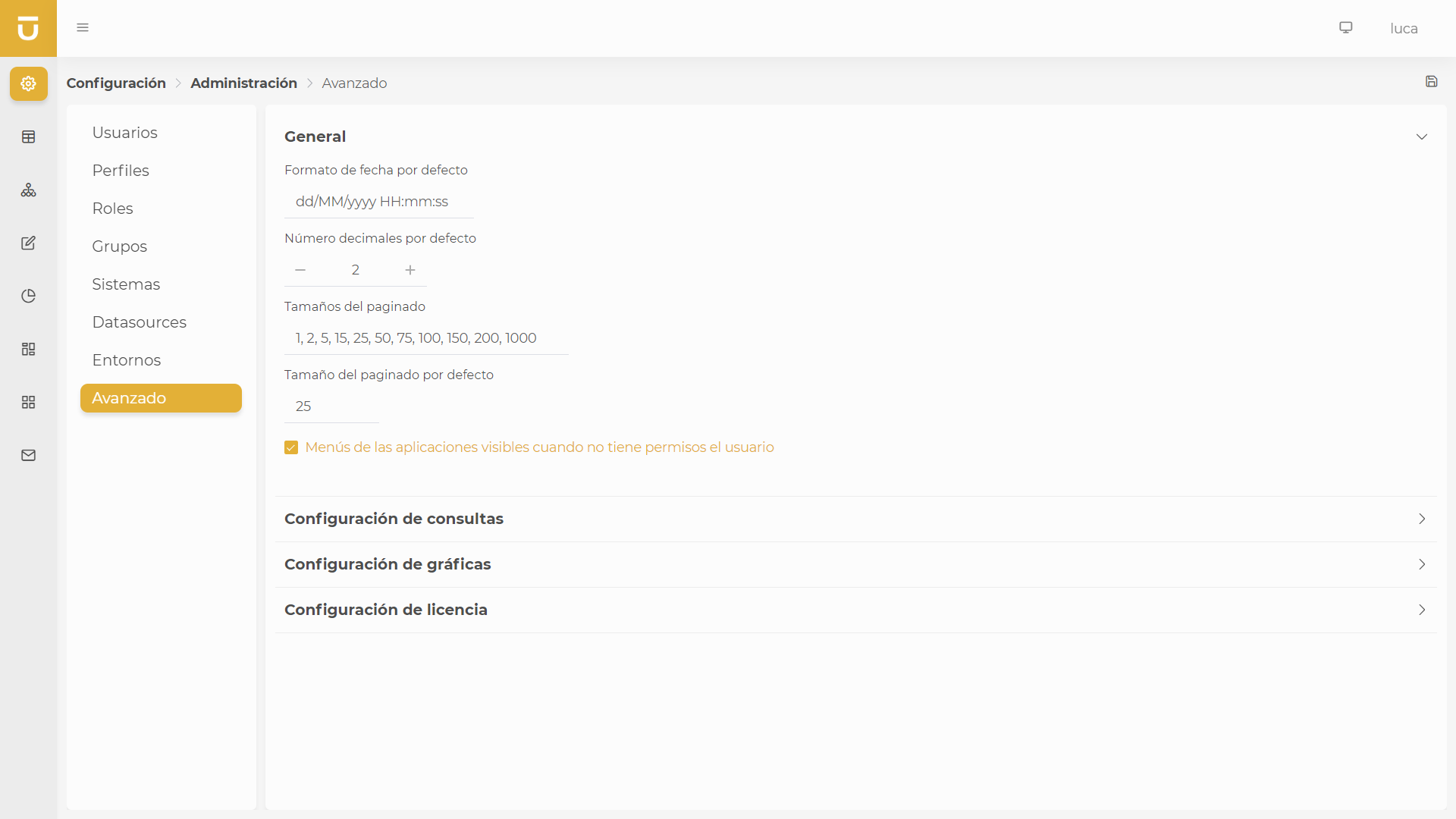
We will find that it is divided into the following three sections:
General
General settings for the application.
- Default date format
-
This will be the value that dates will take if no specific format is specified.
- Default decimal numbers
-
Maximum number of decimal places by default, unless stated otherwise in each output variable.
- Pagination sizes
-
Available pagination sizes for all LUCA paginators, among which the user can choose.
- Default pagination size
-
The default page size for all LUCA tables.
- Visible application menus
-
Finally, we can choose whether we want users without permissions in the menu options of an application to see them as disabled or not appear at all. If we check the option for them to see, they will be shown as disabled.
Query Configuration
Parameters related to the execution of queries.
- Maximum export size
-
Maximum allowed size of elements to export to CSV or Excel. If a query has a specified maximum export size, it will override the general configuration.
- CSV separator
-
This will be the separator used in generated CSV files.
- Maximum number of elements in combos
-
Input variables of type combo will not load more elements than indicated here.
- Visible environment combo
-
If when executing a query we only have one environment available, we can uncheck the box to prevent it from appearing. Even if this option is unchecked, the combo will show in cases where there are multiple environments available, as the user will need to choose one of them.
- Environment combo first
-
We will check this checkbox if we want the environment combo to appear at the beginning of the filter instead of at the end, as it appears by default.
Chart Configuration:
- Series colors
-
Colors in hexadecimal format indicating the colors of the chart series by default in case no specific one is specified. The order of the colors matters as they will be associated automatically.
| Any change made needs to be saved, so it is necessary to click the save icon in the upper right corner. |
License Configuration:
In this section, we can see the characteristics of our license, and if we are administrators, we will have a button with which we can update our license. The use of this button is straightforward; we just need to press the button, paste our license in the text field, and click update. This button is also available in the license error window in case the license expires to renew it.
3. Queries
Queries are the foundation of LUCA. They are responsible for extracting data from various information systems to provide it to the user. The other elements of LUCA, such as graphs or trees, are based on the queries. Because of this, it is the most complex part to configure in LUCA, as it has many customization options.
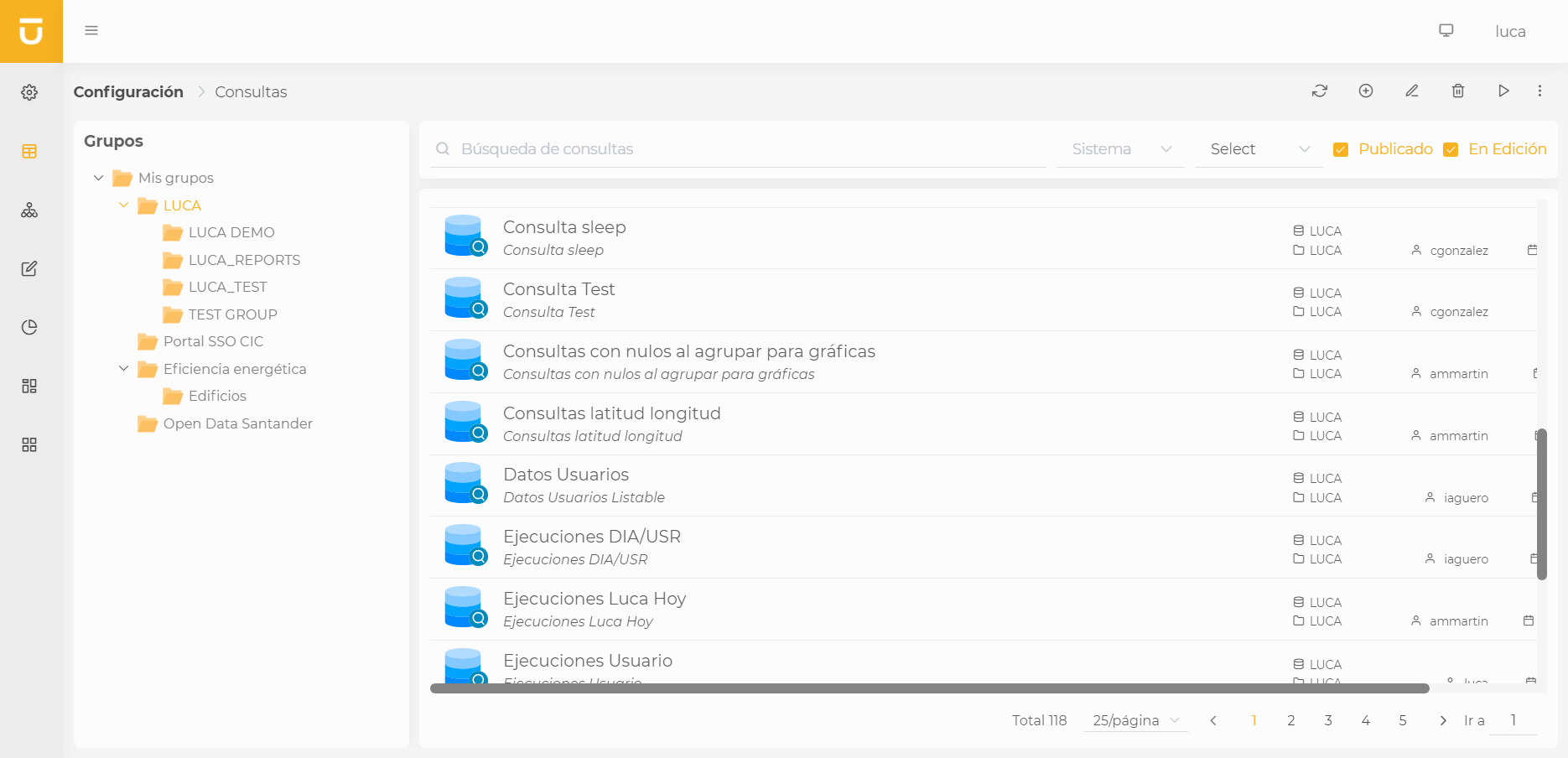
| For more information about the query administration screen see this section. |
3.1. Creation and editing of queries
In the query creation view, we encounter the following structure:
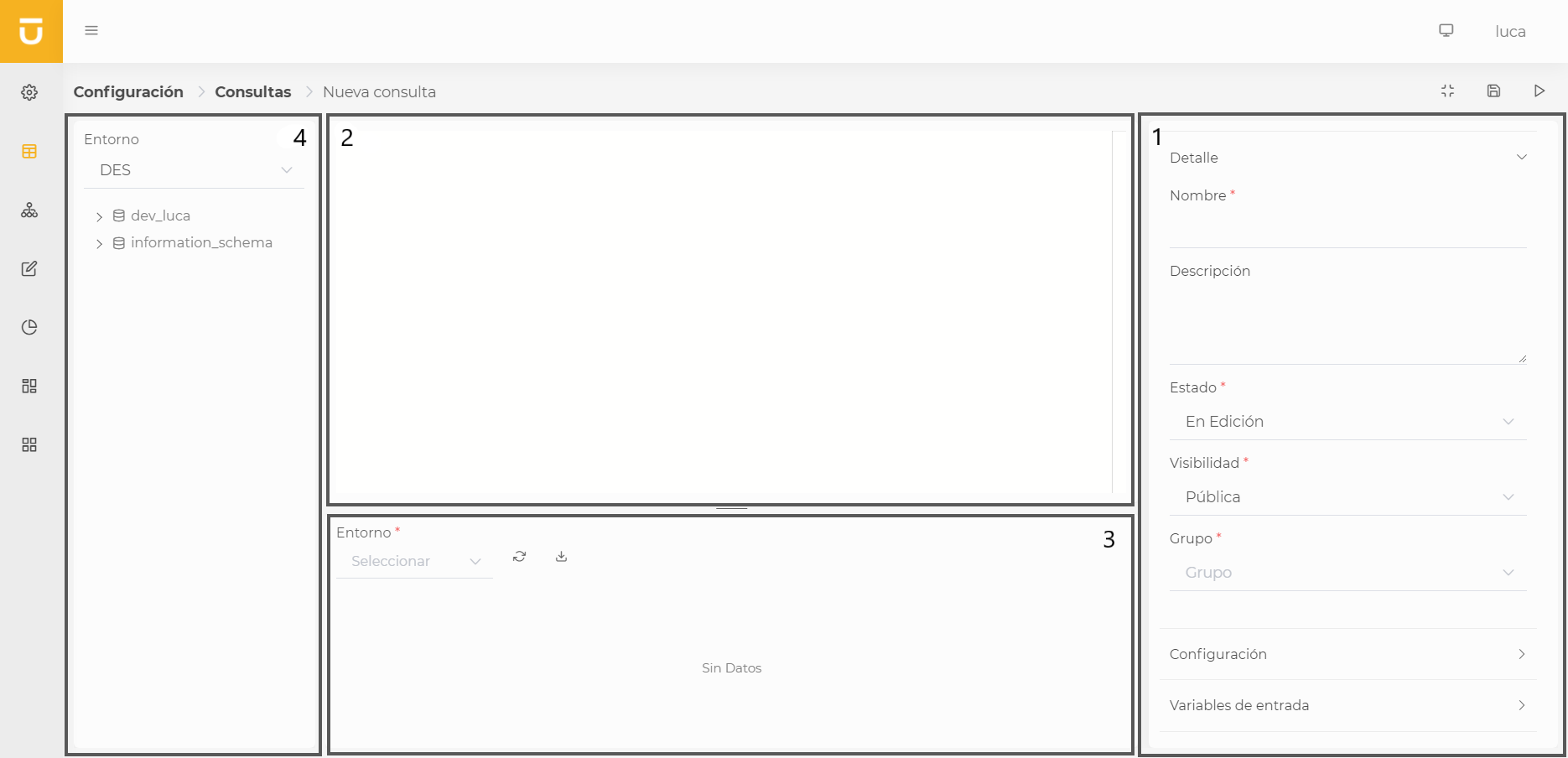
- Configuration (1)
-
The configuration part has four menus where we can configure all the information of the query.
- Editor (2)
-
Text editor where we can write the SQL query.
- Preview (3)
-
Preview of the query where we can test the queries before saving them.
- System information (4)
-
If the query system is of type Database, this section will be visible. We will be able to view the database schema with all its tables and columns.
Above the configuration section, we find the action buttons:
-
Collapse configuration: Button to hide or show the right menu that contains all the configuration.
-
Save: Saves the query information.
-
Execution: Saves and executes the query on a new screen.
3.1.1. Detail
The Detail form is shared between all LUCA elements.
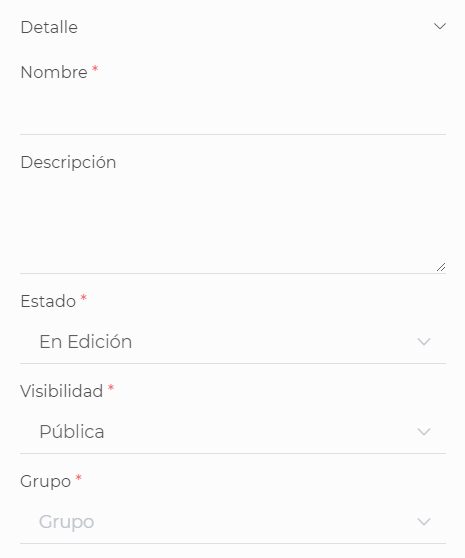
All LUCA elements will have a name and a description for identification and a group where they are stored. This way, we will control access to the elements.
It will also have a status:
-
Published: The element is published and can be executed, and any user with the necessary permissions can use it.
-
In editing: We can save the elements as in editing if we are still working on them. Only the editing user can edit it, and other users will not be able to execute it.
And a visibility to decide who can see the element:
-
Public: All users with access to the element’s group can perform actions based on their permissions.
-
Private: Only the creating user can see it, except for the element’s administrator who can also view it.
-
Restricted public: Only available in graphs. Users will be unable to use custom filters in the graphs and can only use previously defined filters.
3.1.2. Settings
Specific configuration of the query where we must indicate the following fields.
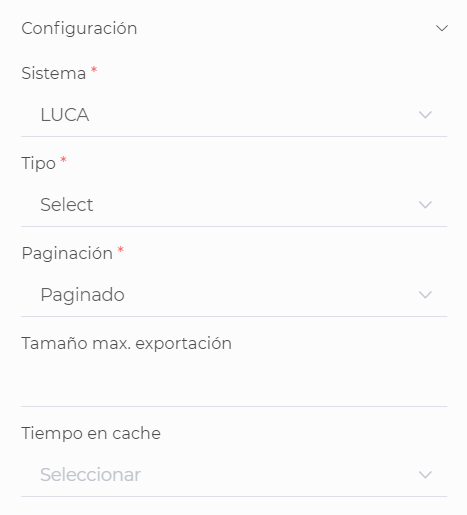
- System
-
Information system in which the query will be executed.
- Query type
-
-
Select: Query for extracting information.
-
Insert: Query to add one or more new records to a database table.
-
Delete: Query to delete one or more records from a database table.
-
Update: Query to update one or more records of a database table.
-
Combo: Combo-type queries that return a value and a detail for use in input variables.
-
Static combo: Static combo queries are a list of value and detail that will be used to load a combo in an input variable. This type of combo is useful for creating dropdowns like "Yes/No" or with a limited list of options.
-
Remote combo: Similar to combo-type queries, they provide a list of value and detail that will be used to load a combo in an input variable. Unlike normal combos, the combo loading query will not execute until the user starts filtering by text. This type of query is very useful for combos with many values, as the maximum size of combos is controlled by a parameter.
-
- Pagination
-
-
Paged: This is the default option. The query will extract results in pages instead of all the information at once. In cases where queries can return many records, this is the most recommended option.
-
Paged without count: Executes the query paged, but does not perform a second query to obtain the total number of records. It is advisable to choose this option if the execution of the query is very costly, and we want to paginate it.
-
Unpaged: All results are obtained at once. This option is not recommended when the query can return a lot of data.
-
- Maximum export size
-
Sets the maximum number of records that will be exported to CSV or Excel. This configuration prevails over the parameter for the maximum export size.
- Cache time
-
Query results can be cached in memory to avoid re-executing the query. When this time expires, and the query is executed again, the data is extracted anew from the information system and will be cached again.
- Execute on load
-
With this option selected, when loading a query it will be executed automatically, applying the filters from any predefined input variables. If any of the input variables is mandatory and does not have a default value, the query will not be executed and will not return any data.
| Update queries with preselect have been removed in version 3.0. Queries with existing preselects in previous versions will be migrated automatically to forms. |
3.1.3. Input variables
Input variables allow users to filter the obtained data. For example, we can input a date to return only data greater than this.
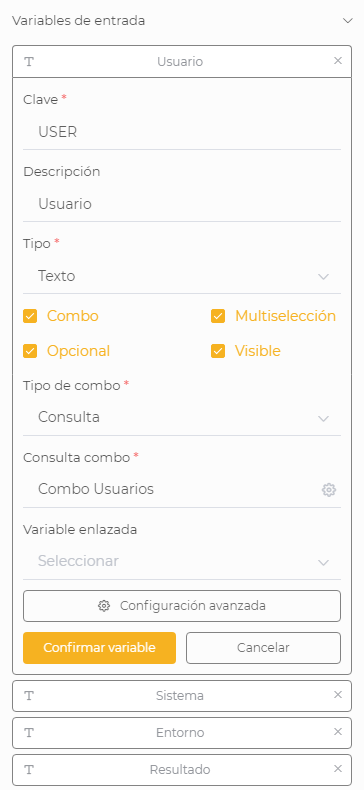
- Key
-
Internal name that will be used in SQL. Cannot contain spaces or special characters.
- Description
-
Name of the variable that will be visible to end users. If no description is provided, the Key will be displayed as the descriptor.
- Type
-
-
Integer: Numeric input type. Only accepts integers.
-
Decimal: Decimal numeric input type.
-
Text: Text input type.
-
Boolean: Boolean input type. Only accepts true value when checked and false when unchecked.
-
Date: Date input type. Additionally, this type allows setting a date format like dd/MM/yyyy, dd/MM/yyyy HH:mm, MM/yyyy…
-
Time range: Temporal range input type. This allows us to select an existing temporal range or create our own thanks to custom value.
-
- Format
-
If the input variable is numeric or of date type, we can define a format for it. For numeric variables, we can define whether we want the thousands separator to appear and if we want to shorten the value with abbreviations (K, M …), in addition, if the variable is decimal, we can set the maximum and minimum number of decimals. For date type variables, there are several options to choose from, though you can also define your own.
- Combo
-
Allows configuring the input variable as a dropdown with selectable values. This combo can retrieve data from a Combo type query or a list of fixed values defined in the variable.
- Multi-selection
-
If the Combo option was checked, we can select this option if we want to choose more than one value in the dropdown.
- Optional
-
Indicates whether we want the input variable to be optional or if we want the user to be required to input a value to execute the query.
- Visible
-
Whether the input variable will be visible to the user. For instance, we may be interested in not showing input variables of type Current user.
- Advanced configuration
-
We will be able to add more specific configurations for each variable, such as validation using regular expressions, minimums and maximums for numeric entries, default values, and the width in pixels we want the variable to have.
Finally, when we have everything configured, we must select the option to add variable or confirm variable to apply the changes.
| In the case of an Insert or Update type query, the input variables will be the form that the user must complete to create or edit the corresponding record. |
| All changes made to the input variables are not saved automatically. It is necessary to persist the query to confirm the changes. |
3.1.4. Output variables
Output variables need to be declared if we want to use them in a graph or other LUCA elements, or if we wish to change the column format. For example, if the query returns a date, we can set the date format we want to show or we can specify a different descriptor than the one declared in SQL.
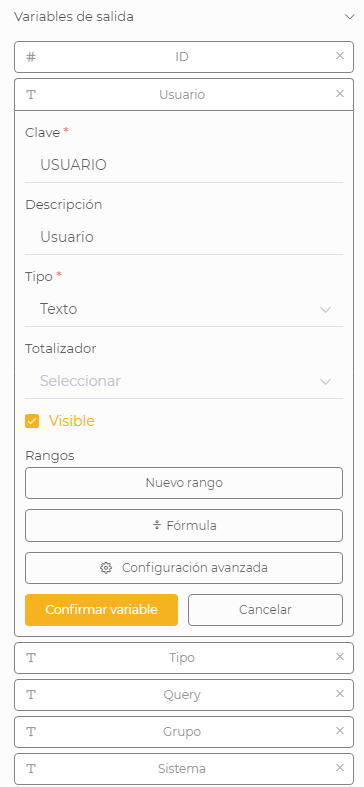
- Key
-
Name of the column in SQL.
- Description
-
Name of the variable that will be visible to end users. If no description is defined, the Key will be used as the description.
- Type
-
-
Integer: Numeric output type. Only accepts integers.
-
Decimal: Decimal numeric output type.
-
Text: Text output type.
-
Date: Date output type. Additionally, this type allows setting a date format like dd/MM/yyyy, dd/MM/yyyy HH:mm, MM/yyyy…
-
URL: Output type link or URL. We will later see how to configure a variable of this type.
-
Latitude-Longitude: Output type geographical point. The format must be LATITUDE,LONGITUDE, for example: 40.714123,-74.006231.
-
- Totalizer
-
Allows creating a totalizer at the end of the table for the column.
-
Count: Counts the number of results.
-
Distinct: Counts the number of distinct results.
-
Sum: Sums all elements.
-
Average: Calculates the average.
-
Minimum: Returns the minimum value.
-
Maximum: Returns the maximum value.
-
- Visible
-
Indicates whether the output variable will be visible to the user. This can be useful if we want to declare an output variable for use in a tree as a link but do not want it displayed in the table, for instance, the record identifier.
- Pin column
-
Pins the output variable to the selected side of the table; once the checkbox is checked, we can choose the desired side. This way, when we have many columns in a table and want to always see one, we can pin it.
- Ranges
-
We have the option to add ranges to highlight certain values with colors. We can configure as many ranges as we want for the same output variable. To do this, we click on the New range button to configure it and Add range once we have everything set up:
-
Color: Color we want to apply to the range.
-
Text color: Color for text if the type chosen is Background.
-
Type: We can choose Text, which will color the text, or Background, where the color will be applied to the cell’s background.
-
Mode: We can choose Cell if we want the color to only apply to the column cell, or Row, which will apply the color to all cells in the same row.
-
Conditions: This will allow us to set as many conditions as we want within our range. For example, if an output is OK, we can configure a condition where, if the text equals OK, we will set the color to green. If, for instance, we want to paint red for a value greater than 50 and less than 100, we will set two conditions within our range.
-
- Formula
-
Allows creating calculated variables based on other declared output variables. The variables to be used must be placed within brackets, and we can also use simple operations for data processing, for instance:
-
[NAME] + ' ' + [SURNAME] -
[TIME_SECONDS] / 60
-
- Advanced configuration
-
-
Prefix: Adds the text we input as a prefix for all values in the column.
-
Suffix: Adds the text we input as a suffix for all values in the column.
-
Width: Works the same way as input variables do, defining the width in pixels of the output column.
-
Finally, when we have everything configured, we must select the option to Add variable or Confirm variable to apply the changes.
| All changes made to the output variables are not saved automatically. It is necessary to persist the query to confirm the changes. |
| It is not necessary to declare all the columns that a query returns, only those that we want to use in other LUCA elements or that we want to apply a format to. |
3.1.5. Internal variables
On top of the configurable input variables, LUCA provides three internal variables that are always available:
-
:LUCA_CURRENT_USER -
:LUCA_CURRENT_DATE -
:LUCA_ENV
Reference them directly in SQL or Velocity code; they do not need to be declared nor assigned default values.
3.1.6. Query editor
At the top center, we find the query editor where we can write the SQL we want to execute.
Below the editor, we find the preview section where we can test its execution. Additionally, the configured input variables will appear so we can input values to test different behaviors of the query.
In addition to SQL, we can add Velocity code to the queries. The main use of Velocity in LUCA is to allow input variables to be optional, although it can also be used for other cases.
To use an input variable in SQL, we must add it as :KEY
select * from luca_execution_register
where username = :USERNAME
If we want the variable USERNAME to be optional, we need to use Velocity. To do this, we will use the directive #if($USERNAME) … #end#if … #end
select * from luca_execution_register
where 1=1
#if($USERNAME)
  and username = :USERNAME
#end
Variables in SQL must be used in the format |
If the input variable USERNAME has been marked as multi-selection, we will use in USERNAME= :USERNAME
select * from luca_execution_register
where 1=1
#if($USERNAME)
  and username in #USERNAME#
#end
The directive USERNAME(SELECT 'username1' USERNAME UNION ALL SELECT 'username2' UNION ALL …)
select *
from luca_execution_register ER
inner join #USERNAME# U ON ER.username = U.USERNAME
We have seen examples for using a single input variable, but we can include as much Velocity code as we want.
select * from luca_execution_register
where 1=1
#if($VARIABLE1)
  and columna1 = :VARIABLE1
#end

#if($VARIABLE2)
  and columna2 = :VARIABLE2
#end
We can also use the clause #if … #elseif … #end
select * from luca_execution_register
where 1=1
#if($VARIABLE1)
  and columna1 = :VARIABLE1
#elseif($VARIABLE2)
  and columna2 = :VARIABLE2
#end
In addition to all this, in the case that we have an input variable of type temporal range whose class is DATE_RANGE, we can use it with a $ symbol in front of the key followed by a dot and then the desired value. It can be the start date of the range, the end date of the range, the start date of the previous period, which would be the beginning of the previous period to the current one, and finally the end date of the previous period, following the same logic as before. Below is an example of usage:
select
  case
    when execution_date >= $DATE_RANGE.dateFrom then 'current'
    else 'previous'
  end period,
  *
from executions
where execution_date
between $DATE_RANGE.prevDateFrom and $DATE_RANGE.dateTo
In addition, it is important to know that the variable value comes in string format, and therefore it is necessary to use it in quotes and convert it to date, which is done differently depending on the type of database we are using. The date format is 'dd/MM/yyyy HH:mm:ss', let’s see some conversion examples in different databases:
| Database | Syntax |
|---|---|
MariaDB/MySQL |
STR_TO_DATE('$DATE_RANGE.dateFrom', '%d/%m/%Y %H:%i:%s') |
PostgreSQL |
TO_DATE('$DATE_RANGE.dateFrom', 'DD/MM/YYYY HH:MI:SS') |
SQLServer |
CONVERT(varchar,'$DATE_RANGE.dateFrom',131) |
Oracle |
TO_DATE('$DATE_RANGE.dateFrom', 'DD/MM/YYYY HH24:MI:SS') |
Neo4j |
datetime('$DATE_RANGE.dateFrom') |
|
The syntax in Trino will be very similar to that of the database you are using, although with slight variations. In case of doubt, consult the Trino manual available here. |
Using boolean type variables, which we can use like any other normal variable in Velocity, opens up a new possibility to filter a column that is not defined as boolean, in this case with a boolean variable with key IS_FINISHED, as follows:
select *
from tickets
where date_end #if($IS_FINISHED) is not null
               #else is null #end
3.2. Execution of queries
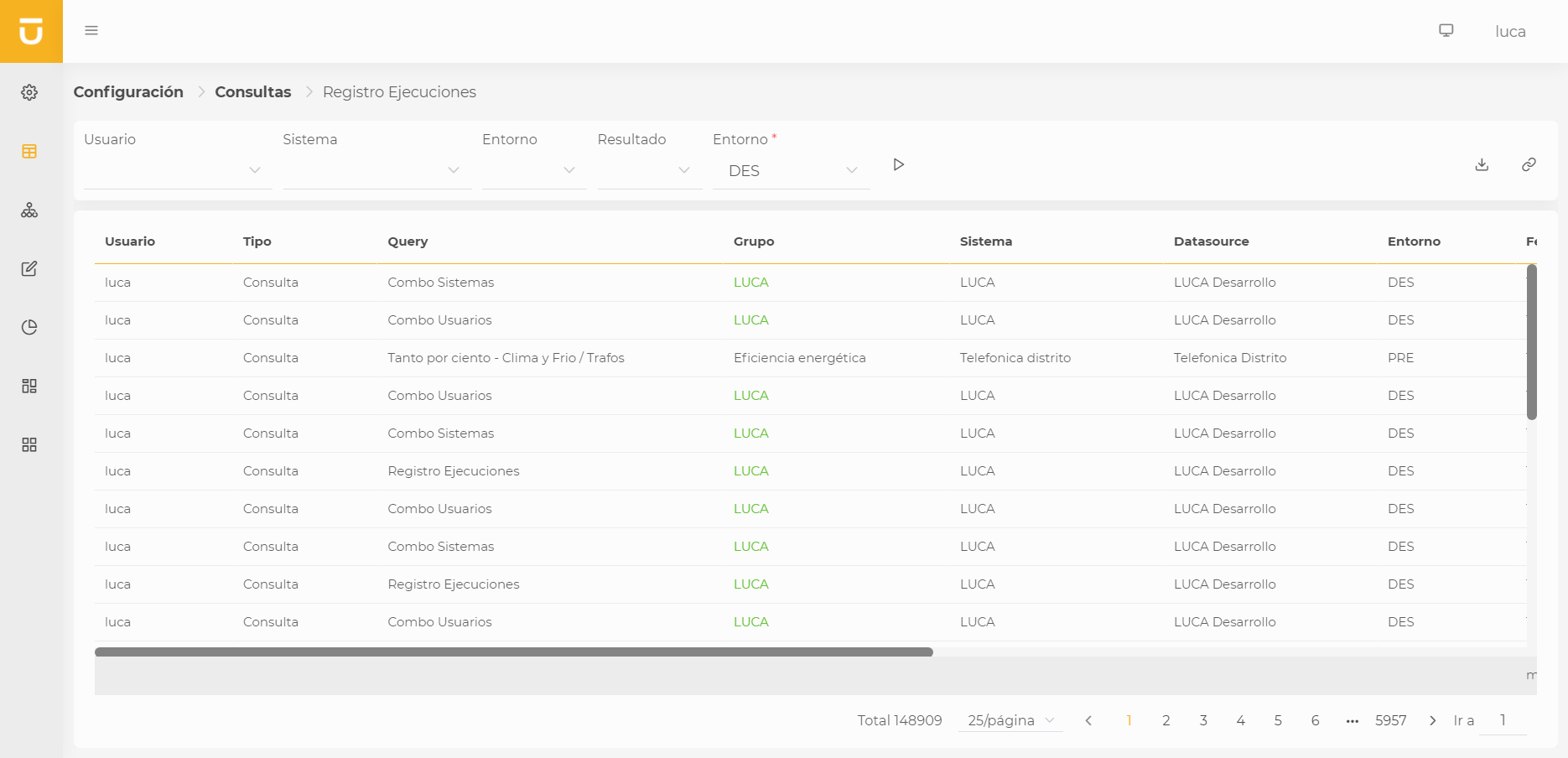
From the query execution, we can visualize the obtained results. At the top are the input variables, which we can use to filter the results of the execution, and the environment against which we want to execute the query. Finally, we click the Play button to execute the query.
To the right of the filters, we find the export button and the generate a direct link button to the query execution for sharing. For more information about links, consult the corresponding section links.
3.3. Combo Queries
Combo-type queries (Combo, Static combo, or Remote combo) are those queries that can only be used to load values into an input variable of type combo.
The only special aspect of these queries, which are created like any other normal SQL query, is that there must be two output variables called:
-
DETAIL: Output variable that will contain the text displayed to the user in the combo.
-
VALUE: Output variable that represents the internal value that will be used for filtering, and it can differ from the detail. For instance, in the case we have a types selector where the VALUE variable will be a numeric value, and DETAIL will be a descriptive text of the type representative for the user.
These variables will be created by default when selecting a combo-type query, and it will not be necessary to create them manually.
3.3.1. Combo
In addition to the mandatory output variables, it is possible to register a single input variable for combo-type queries. This input variable can have any key and will be used if we wish to link a combo variable with another one.
| If more than one input variable is declared, only the first will be used for linking, and the rest will be ignored. |
3.3.2. Remote Combo
For this type of queries, it is necessary to create an input variable whose key is SEARCH. This input variable will be used in SQL to filter results based on the text entered by the user in the combo search. For example:
SELECT USERNAME AS DETAIL, USERNAME AS VALUE
FROM USERS
WHERE 1=1
  #if($SEARCH)
    AND USERNAME LIKE '%:SEARCH%'
  #end
In addition to the SEARCH input variable, it will also be possible to register an additional input variable to create a linked remote combo, just like in 'Combo' type queries.
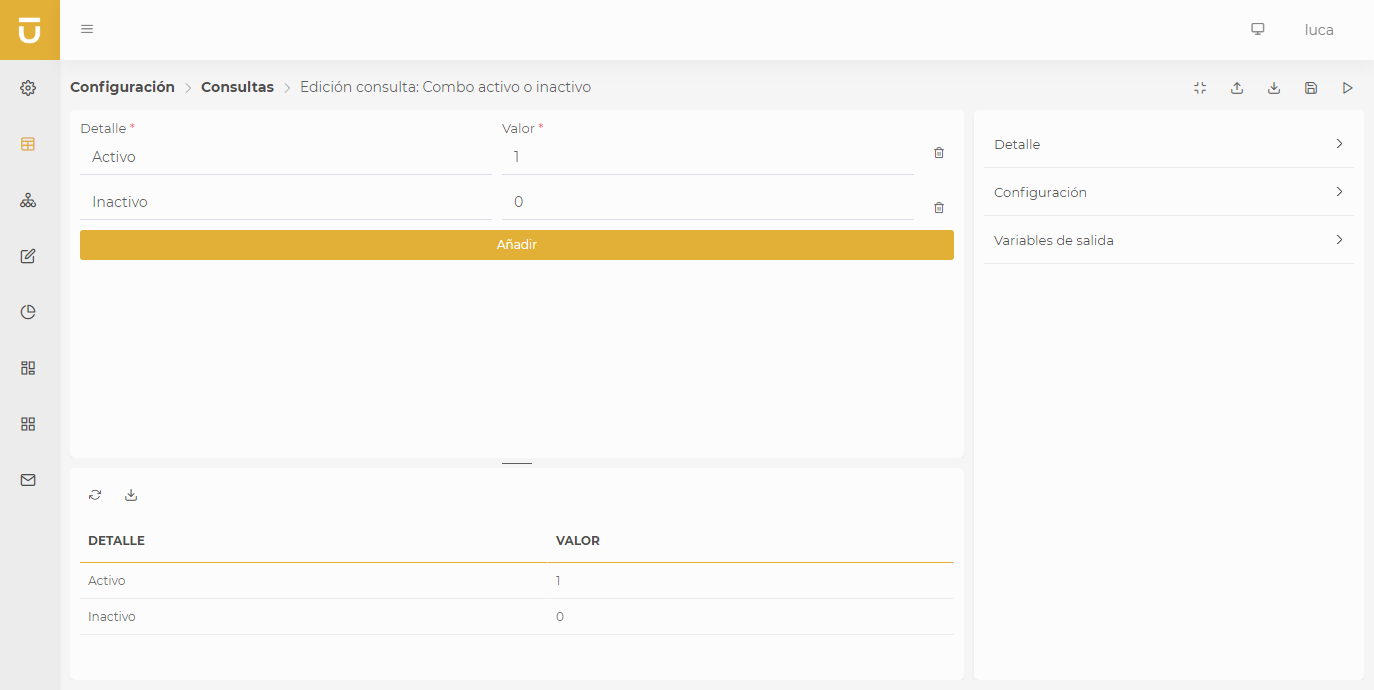
3.3.3. Static Combo
Unlike the two previous ones, static combos have fixed values and will not be obtained by executing a query against a system. This type of queries is useful when the options of a selector are small and we know they will not change over time.
3.4. HTTP Queries
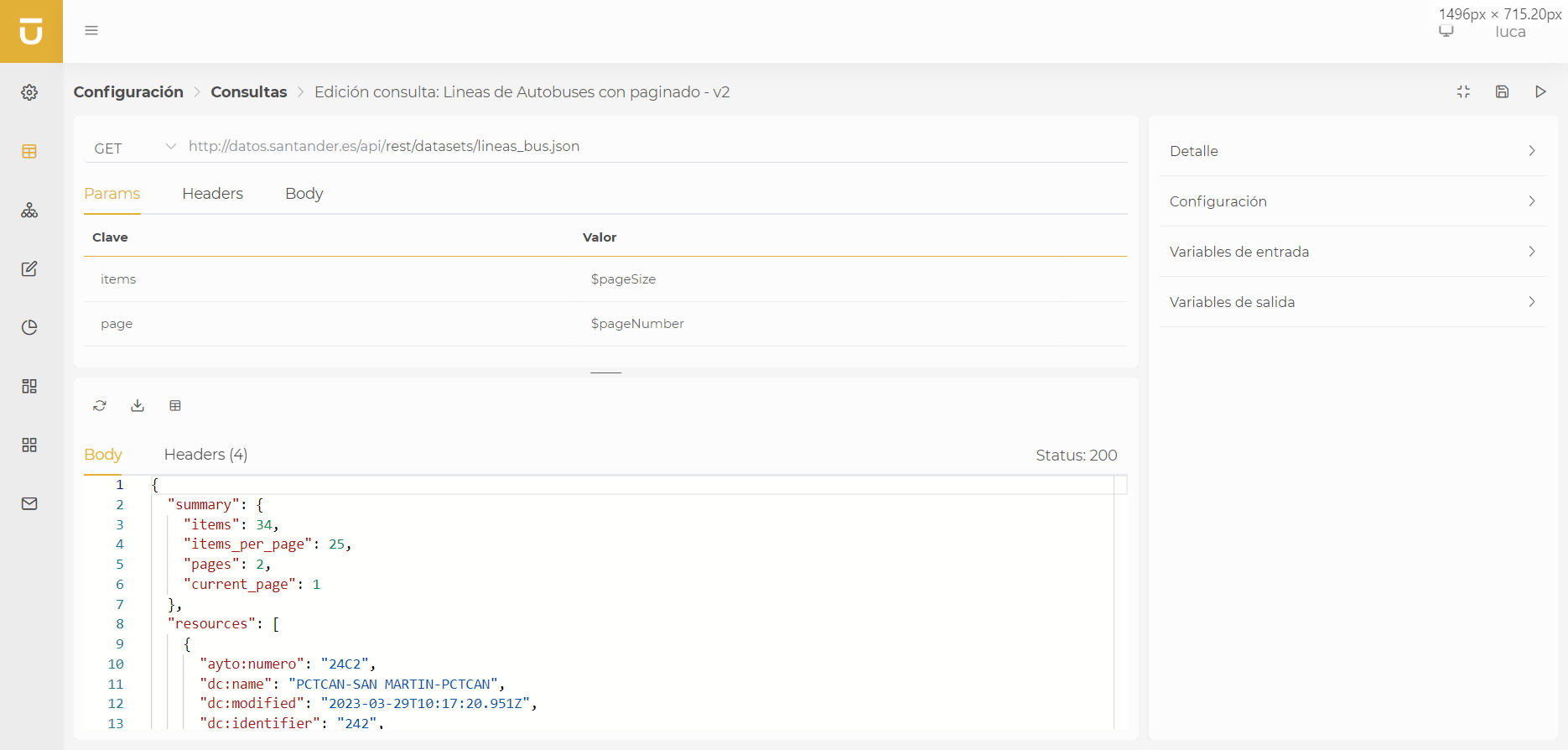
LUCA also allows performing queries to REST or SOAP web API services.
|
Starting from version 3.8.0 of LUCA, the creation of HTTP queries has been included through a graphical interface instead of the Velocity syntax. Queries previously created with Velocity syntax will continue to function normally and will be configured without a graphical interface as assistance. |
| It is recommended to migrate existing queries with Velocity syntax to the new JSON format so that the graphical interface can represent them correctly and visualize them more easily. For more information, go to: HTTP queries migration. |
3.4.1. Configuration
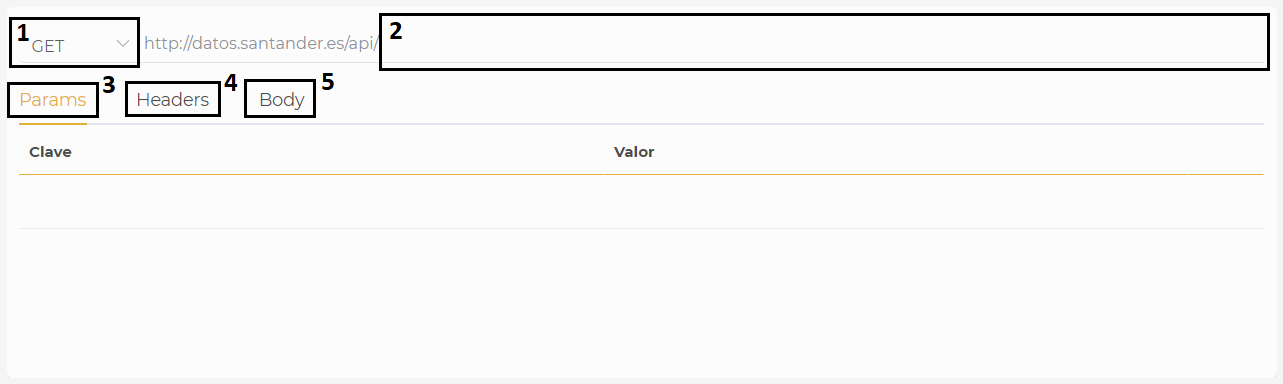
In queries to HTTP type datasources, you can configure the following fields:
-
Method: GET, POST, PUT, or DELETE.
-
Path to add to your request from the domain configured in the Datasource. In the path, Velocity variables can be used, for example, to use an input variable as:
https://www.example.com/users/$user
-
Parameters that will be concatenated to the URL as:
?param1=value1¶m2=value2
Parameter values are automatically escaped, so there is no need to enter the escaped value beforehand.
It is possible to use Velocity code in the values of the parameters to use previously created input variables. For long values or where it is necessary to use Velocity, there is an option to edit the value in a text editor for easier editing. In the upper part of this editor, the previously declared input variables appear. The upper buttons help to add the desired variable in the editor by clicking on it.
 Figure 3.11: Edit HTTP Parameter
We can also create an optional parameter using Velocity as follows:
Key Value sortBy
$if($sortBy)$sortBy#end
In the case that the input variable sortBy is not filled, the parameter value will be empty and will not be added to the URL.
-
Headers that may be needed for our request. They have the same configuration options as parameters.
-
Body. If the request needs a body, it can be configured as 'x-www-form-urlenconded' or 'application/json'.
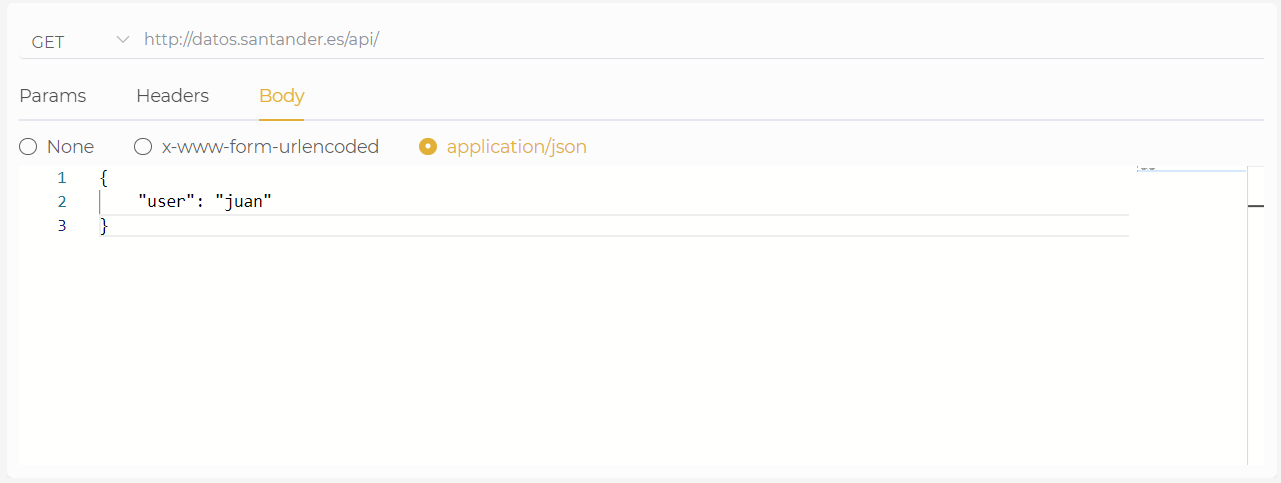 Figure 3.12: Edit HTTP Body
|
There are input variables $pageSize and $pageNumber that can be used in any configuration section of the query to perform pagination. These variables are declared by default and are filled with the values that the table paginator contains. To do this, it is necessary to mark the query as paginated. |
3.4.2. Migration Velocity → JSON
| It is advisable to migrate existing queries with Velocity formatting to the format described in this section. In future versions, HTTP queries in Velocity format will be deprecated and will not be usable. |
Before version 3.8.0 of LUCA, REST and SOAP type queries were configured by filling a Velocity template. From this version onward, there is a graphical interface to facilitate all this configuration.
This interface generates a JSON to then be stored in LUCA’s configuration database, which will contain the following structure:
{
  "method": "GET" | "POST" | "PUT" | "DELETE",
  "path": string,
  "body": string,
  "bodyType": "none" | "application/json" | "x-www-form-urlencoded",
  "parameters": Map<string, string>,
  "headers": Map<string, string>
}
If we have existing queries that were created with the Velocity template, we will need to convert them to the JSON format described earlier so that LUCA’s graphical interface can understand it and access this new configuration format.
Below are examples with the Velocity template previously used for REST and SOAP type queries.
- REST API
-
#set( $REST_TYPE = "GET" )
#set( $RESOURCE = "/users" )
#set( $HTTP_HEADERS = { "Content-Type": "application/json"} )
#set( $REST_TYPE = "POST" ) #set( $RESOURCE = "/users" ) #set( $HTTP_HEADERS = { "Content-Type": "application/json"} ) ----- { "name": "Juan", "age": "37" } - SOAP
-
#set( $SOAP_SERVICE = "Page/SetUserProject" )
#set( $SOAP_ACTION = "urn:microsoft-dynamics-schemas/page/setuserproject:ReadMultiple" )
<SOAP-ENV:Envelope
     xmlns:SOAP-ENV="http://schemas.xmlsoap.org/soap/envelope/" xmlns:set="urn:microsoft-dynamics-schemas/page/setuserproject">
     <SOAP-ENV:Header/>
     <SOAP-ENV:Body>
          <set:ReadMultiple>
                #if ($PROYECTO)
               <set:filter>
                    <set:Field>Job_No</set:Field>
                    <set:Criteria>$PROYECTO</set:Criteria>
               </set:filter>
               #end
               #if ($DATE_INI)
                <set:filter>
                    <set:Field>Starting_Date</set:Field>
                    <set:Criteria>$DATE_INI</set:Criteria>
               </set:filter>
               #end
          </set:ReadMultiple>
     </SOAP-ENV:Body>
</SOAP-ENV:Envelope>
3.5. LOG Queries
LUCA provides a connector to log files published over http/s. The connector allows searching by date or simply navigating through it in a paginated manner.
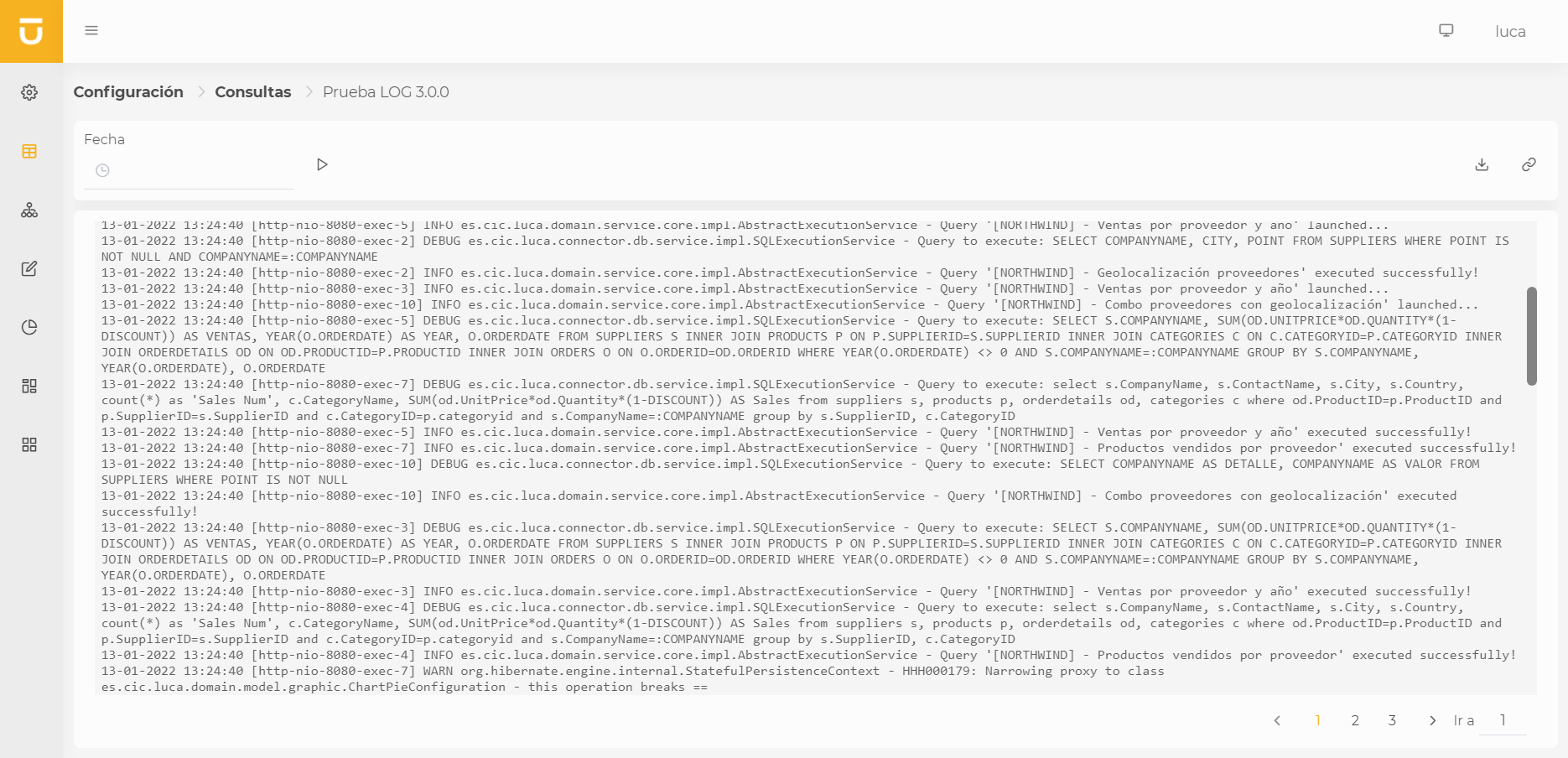
|
Starting from version 3.8.0 of LUCA, a new syntax in JSON format has been included to replace the existing one in Velocity. Queries previously created will continue to function normally. |
| It is recommended to migrate existing queries with Velocity syntax to the new JSON format. For more information, go to: LOG queries migration. |
3.5.1. Configuration
Unlike database queries where we write SQL code, for the LOG connector, we will need to define a JSON with a specific format for it to work correctly.
{
  "path": string,
  "headers": Map<string, string>,
  "date": string,
  "dateFormat": string,
  "dateRegex": string
}-
path to where the log file we want to access is located.
-
headers that we can add to the http request. Optional.
-
date that we want to search for in the log. This is an optional parameter in case we do not want to search by date.
-
dateFormat: Date format according to Java that meets the date we want to search. Optional in case we do not want to search by date.
-
dateRegex: Regular expression that meets the date we want to search for. Optional in case we do not want to search by date.
For the example, let us suppose we have a log published at www.example.com/logs/catalina.log and we have declared a Datasource of type LOG with the domain www.example.com.
{
  "path": "/logs/catalina.log",
  "date": "$DATE",
  "dateFormat": "dd-MM-yyyy HH:mm:ss",
  "dateRegex": "[0-9]{2}-[0-9]{2}-[0-9]{4} [0-9]{2}:[0-9]{2}:[0-9]{2}"
}
Within the JSON, we can still use Velocity code to utilize input variables or perform any calculations.
3.5.2. Migration Velocity → JSON
| It is advisable to migrate existing queries with Velocity formatting to the JSON format described in the previous section. In future versions, LOG queries in Velocity format will be deprecated and will not be usable. |
Before version 3.8.0 of LUCA, LOG type queries were configured by filling out Velocity variables in a template. From this version onward, a more standardized format using JSON has been chosen for query definition.
Below we include an example of the Velocity syntax previously used:
#set( $LOG_PATH = "logs/catalina.log" )
#set( $DATE = "$DATE" )
#set( $DATE_REGEX = "[0-9]{2}-[0-9]{2}-[0-9]{4} [0-9]{2}:[0-9]{2}:[0-9]{2}" )
#set( $DATE_FORMAT = "dd-MM-yyyy HH:mm:ss" )
The migration task will consist of transforming this Velocity code into the JSON described earlier.
3.6. SQL Console
The SQL console allows us to execute queries directly on the database, without the need to create and configure a query, although it won’t be saved. To access it, we must go to the queries tab and click on the SQL console icon.

On the following page shown, we can see that on the left side we must select the system on which we want to execute our query. Once the system is selected, we can also choose the environment to view our database tree just below. We can click on any of these elements to have it directly written in our query.
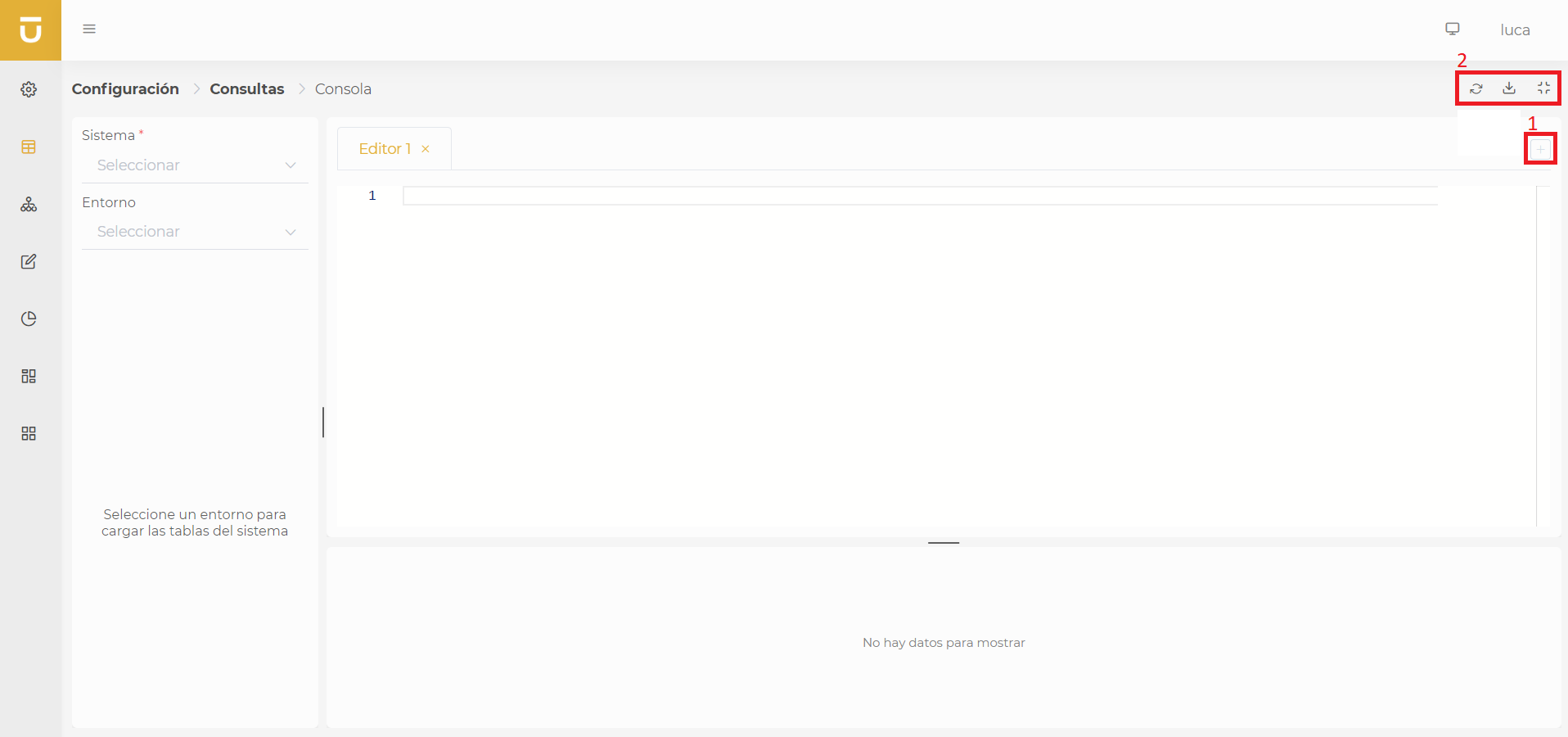
On the other hand, we have the editor in which we will write our query. We can create multiple editors to have different queries, thanks to the button (1) located at the top right. Below the editor, we find the preview of our query execution. In the button panel at the top (2), we have the refresh button, which executes the query in preview mode from the editor; we also have options to export the execution data both to CSV and Excel, and to collapse or expand the left-side menu containing the configuration.
|
Nothing entered in the editors will be saved upon closing or changing windows. This information will only be available while we remain in the SQL console. |
4. Trees
Trees will allow us to navigate through queries that can even come from different systems. They are very useful for navigating between information that resides in distinct sources.
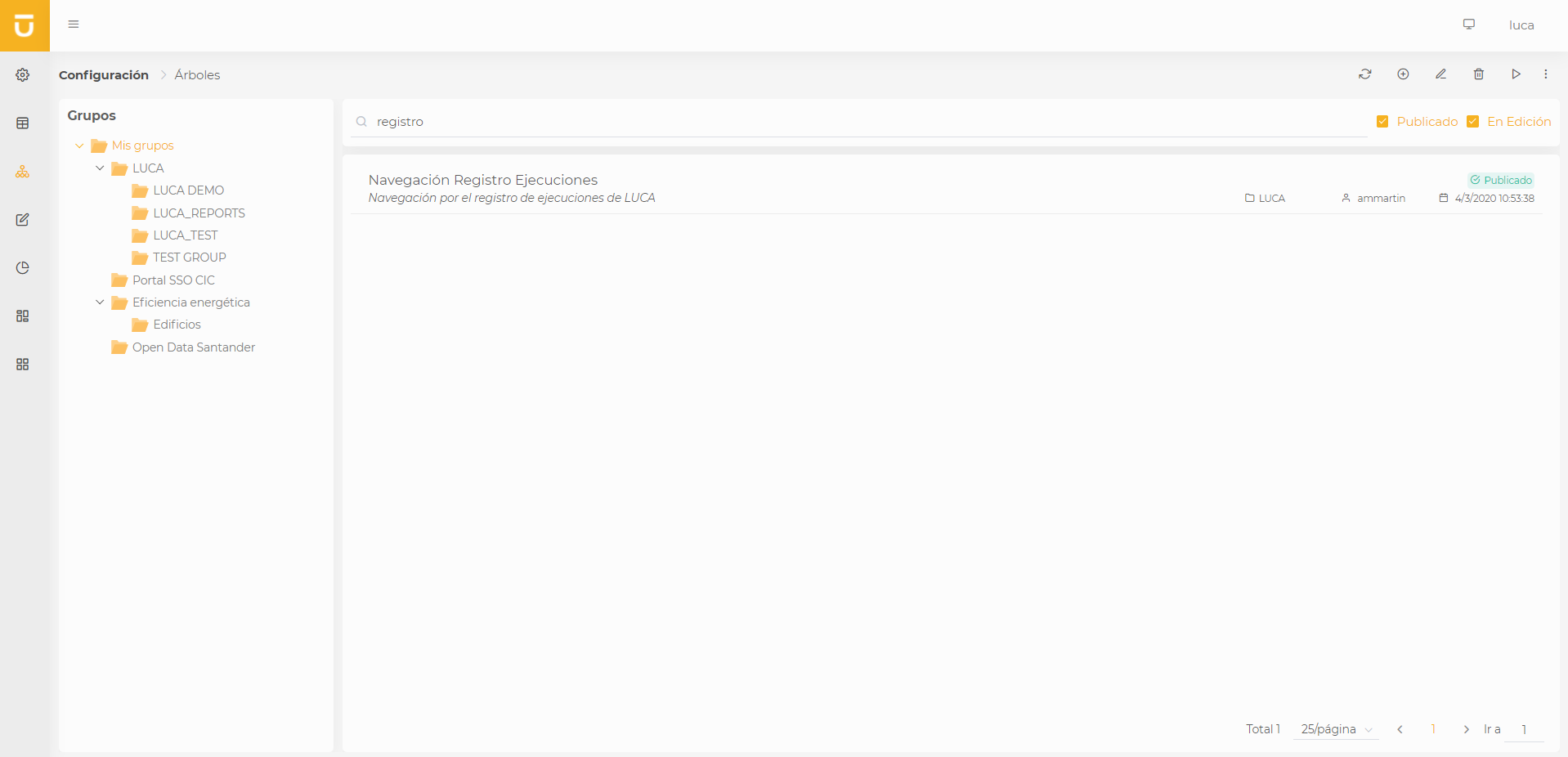
| For more information about the application management screen see this section. |
4.1. Creation and Editing of Trees
In the tree creation view, we find the following structure:
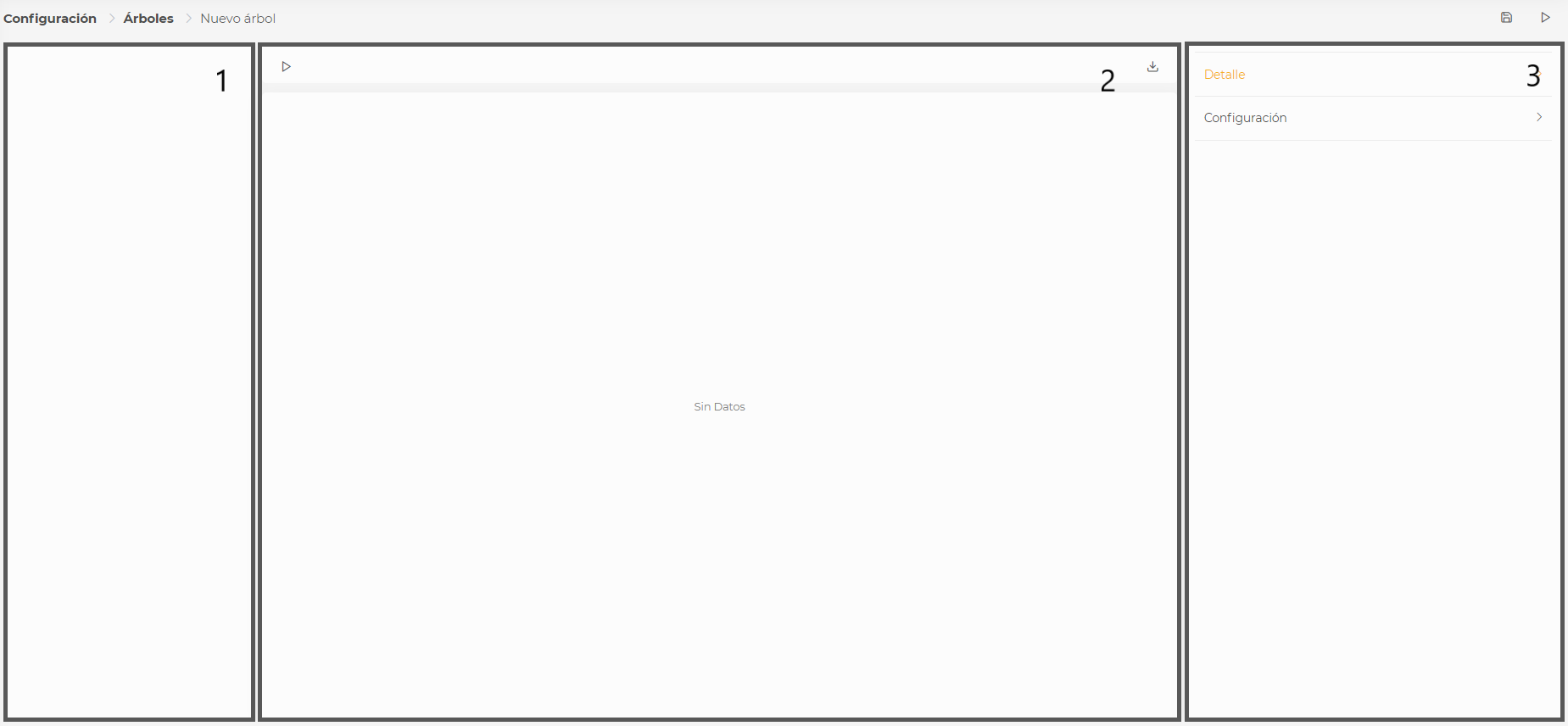
- Tree (queries and graphics) (1)
-
On the left side of the screen, we see the preview of our tree. If we are creating a new tree, it will be empty.
- Execution Results (2)
-
The central area of the screen is divided into two parts:
-
The upper section contains a button for execution and data export of the query or the graphic.
-
Just below the aforementioned section, we find the area where we can visualize the execution of the elements of our tree.
-
- Configuration (3)
-
On the right side of the screen, we find the tree configuration section, which is divided into two menus.
Above the configuration section, we find the action buttons:
-
Save: Saves the tree information.
-
Execute: Saves and executes the tree in a new screen.
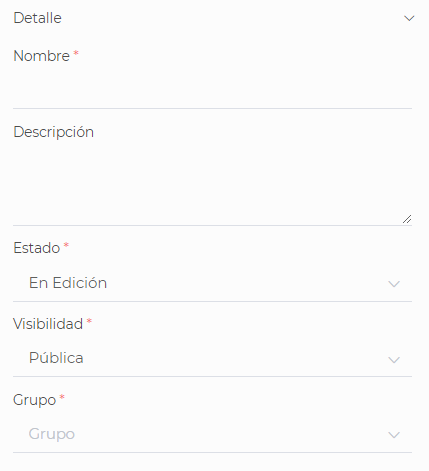
4.1.1. Detail
This configuration is shared among all elements of LUCA; for more information, go to general aspects.
4.1.2. Configuration
A tree consists of a main query and nested queries or graphics to the main query in the form of a tree. We can establish as many levels as we want by creating submenus. First, a main query will be selected, which will allow us to subsequently create one or more submenus. These submenus can be queries or graphics that will display data based on the links between the parent query and the child query and can also have new submenus.
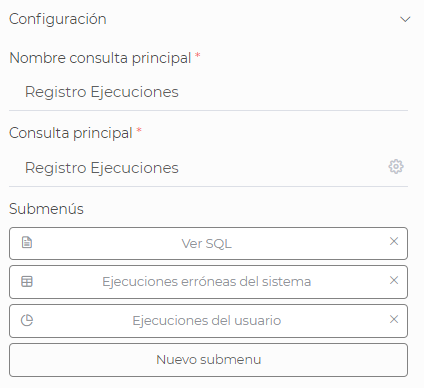
- Main Query
-
We select the first query of our tree, from which the following queries or graphics will be executed. We can define a main query name that we will later see on the left in the tree representation.
- Submenus
-
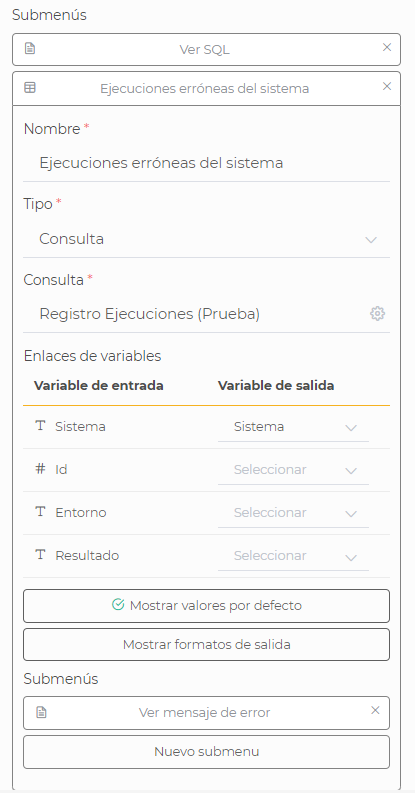
We can create as many as we want both at the same level and at lower levels. Submenus have the following characteristics:
-
Name of the submenu.
-
Type can be a query or graphic.
-
Query or graphic: We select the desired query or graphic.
-
Variable Links: We link the input variables of our query or graphic with the output variables of the parent query of the tree. It is important to note that only those output variables of the same type as the input variable will be shown.
-
Default Value: We can choose a default value for the input variables of our query or graphic.
-
Output Format: In queries of type, we can choose to display only one output variable by applying a format. The available formats are: Text, Xml, Html, Json, SQL, URL. To add the format, we just need to select the variable, the type of output format, and click on Add format. To remove an existing format, a button that says Remove format will appear in the same place. For instance, it may happen that an output variable returns text that contains Xml. Instead of displaying all the columns of the query, we can select the Xml output and apply formatting to make the value more readable, as LUCA will format the text and apply certain colors based on the chosen format.
-
4.2. Execution of a Tree
To start executing a tree, we must click on the 'play' button, which will execute the main query.
On the left side of the screen, we find the navigation menu. The rest of the screen is occupied by the query filter, with buttons for executing, exporting results, and generating the query link, and just below this, the execution of the corresponding element will be displayed.

5. Forms
Forms allow us to define a way to edit the data in our information systems, whether by creating, editing, or deleting records from a database.
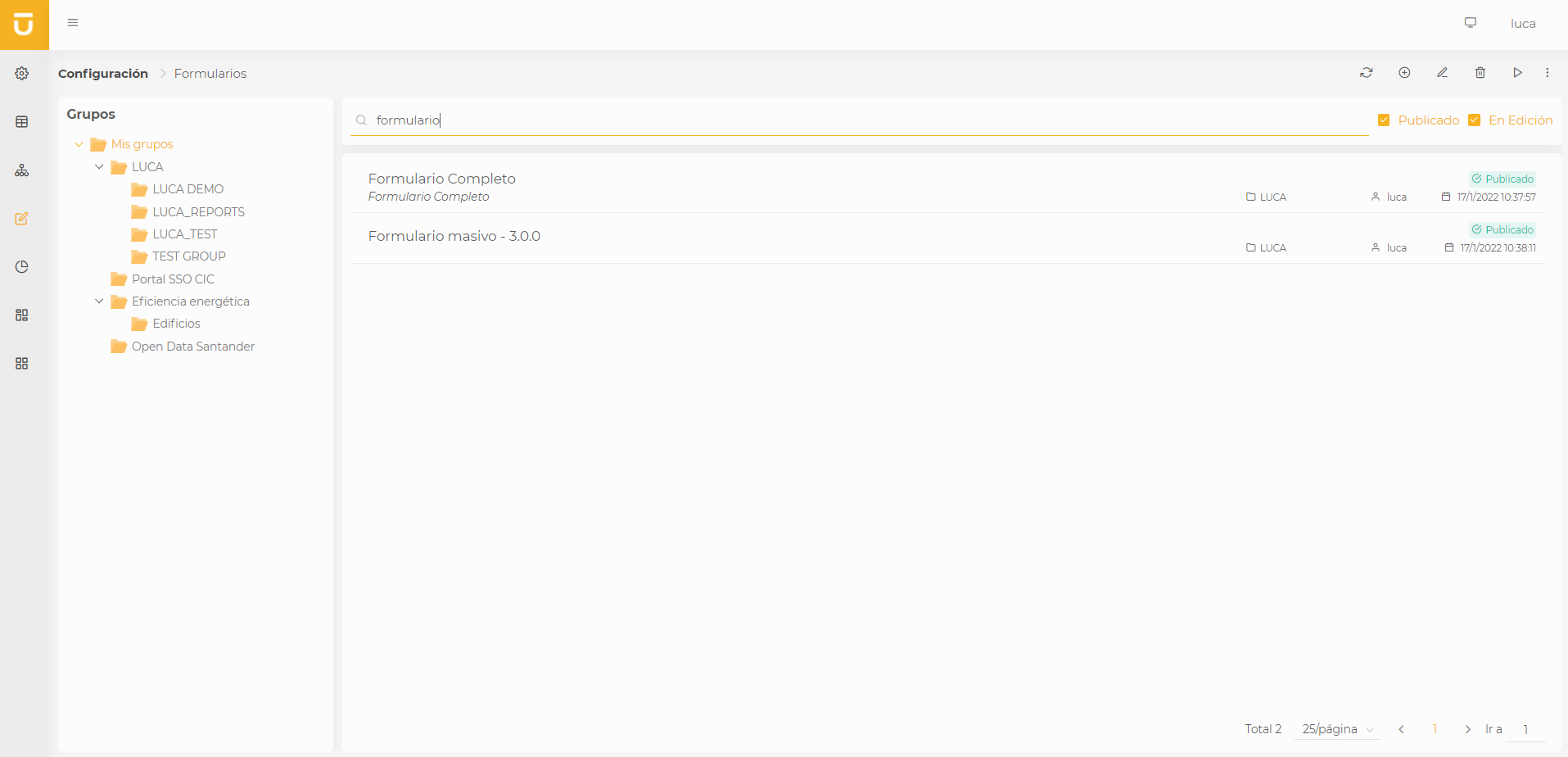
| For more information about the application administration screen see this section. |
5.1. Creation and Editing of Forms
In the forms creation view, we find the following structure:
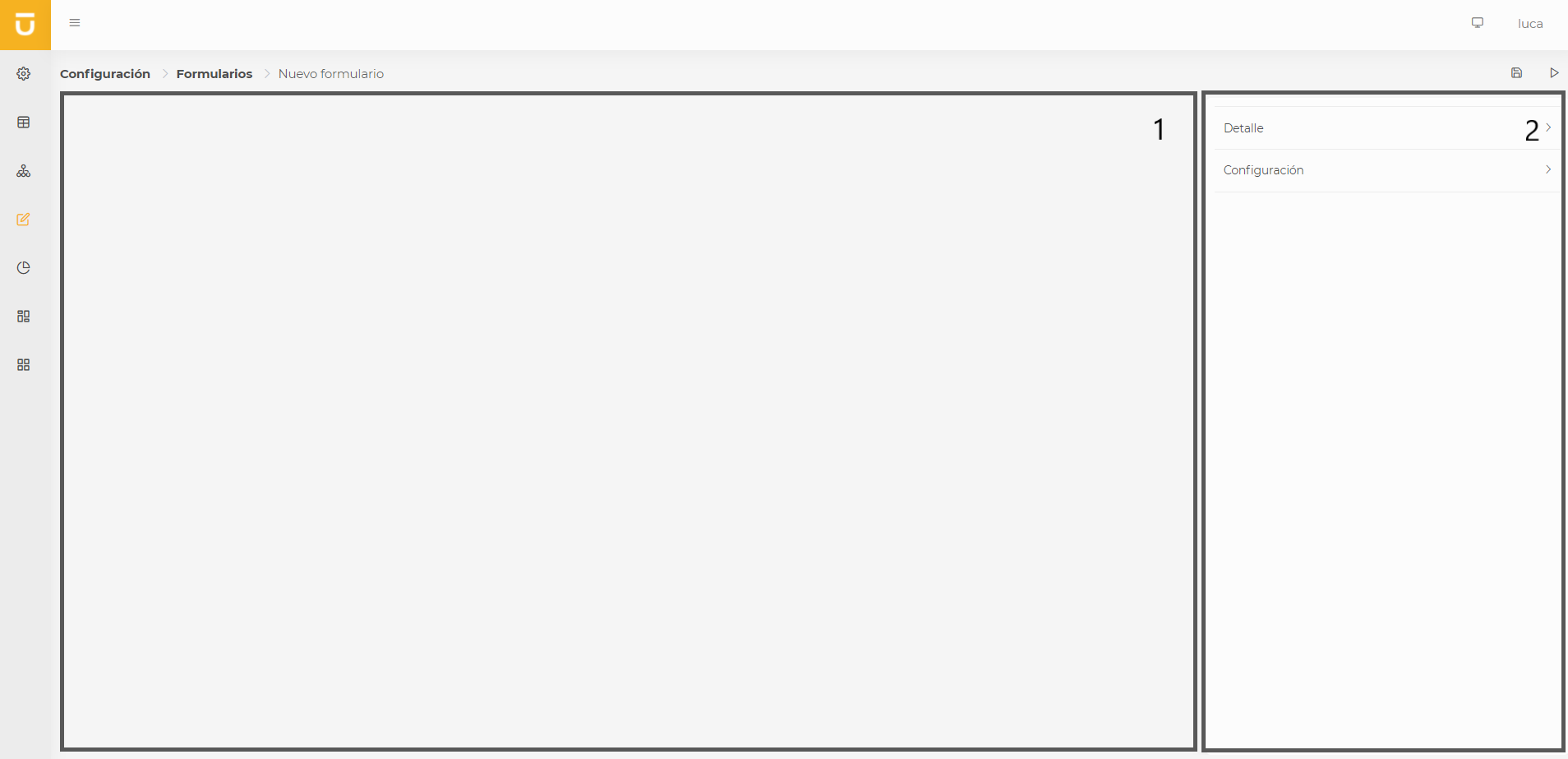
- Preview (1)
-
In the center of the screen, we will see the preview of the form we are configuring.
- Configuration (2)
-
On the right side of the screen, we have the form configuration section, which is divided into two menus.
Above the configuration section, we find the action buttons:
-
Save: Saves the information of the tree.
-
Execute: Saves and executes the tree in a new screen.
As we configure the form, the preview will refresh, allowing us to test the form without the need to save it.
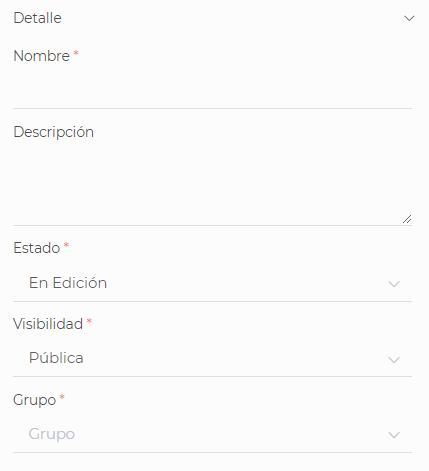
5.1.1. Detail
This configuration is shared among all LUCA elements; for more information, see general aspects.
5.1.2. Configuration
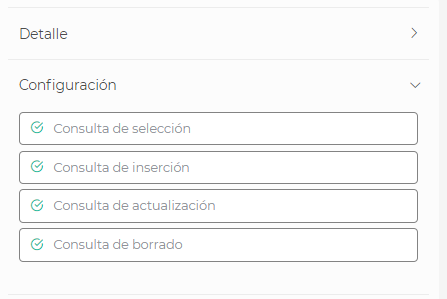
A form consists of up to four queries. For example, if we do not want a form to allow the deletion of records, it would be sufficient not to configure the delete query.
-
Select Query (mandatory). This query shows the records that we will be able to edit, delete, or insert.
-
Insert Query (optional). If we configure an insert query, a button with a '+' will appear in the filters of the query to create new records.
-
Update Query (optional). When configuring an update query, an edit icon will appear in the filters of the query. Selecting a record in the table and pressing the edit button will allow us to modify it.
-
Delete Query (optional). Once this query is configured, a delete icon will appear in the filters of the query. Selecting a record in the table and pressing the delete button will allow us to remove it.
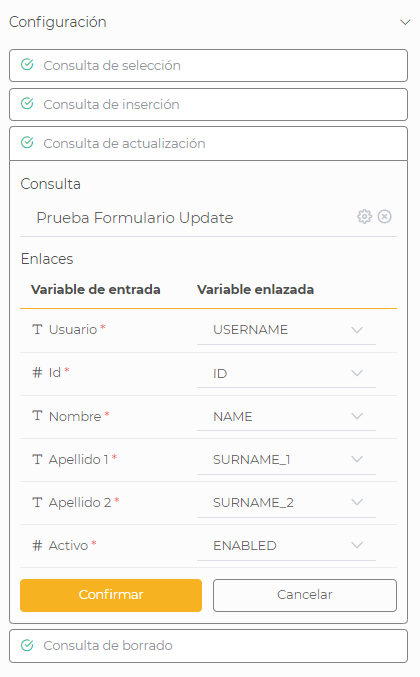
The update and delete queries also require variable link configurations:
-
Update Query: a small table will be presented for creating the links. On the left, in Input Variables, those created in the 'update' query will appear. On the right, in Linked Variable, a combo of the output variables created in the 'select' query will be displayed. We will select which output variable from the combo will be linked with which input variable so that the data from the select will be passed to the update.
-
Delete Query: similar to the above. The output variables from the 'select' must be linked with the input variables of the 'delete' query. It is recommended to use an input variable in the 'delete' that uniquely identifies the record.
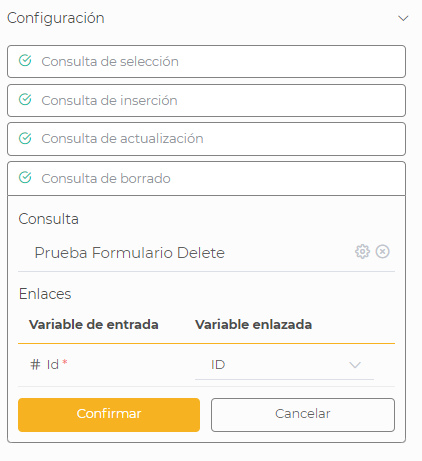
To configure each of the four possible queries, we click on each option and select the chosen query by clicking the gear button. A new screen will open where we can search and select the desired query. We click accept and finally confirm. For queries that are not mandatory, meaning all except the select query, we can find an icon with an 'x' once we have one selected to be able to delete it if we do not want that action to be performed on the form (add, update, or delete). Additionally, we can use the gear icon to change the query for another.
5.2. Execution of a Form
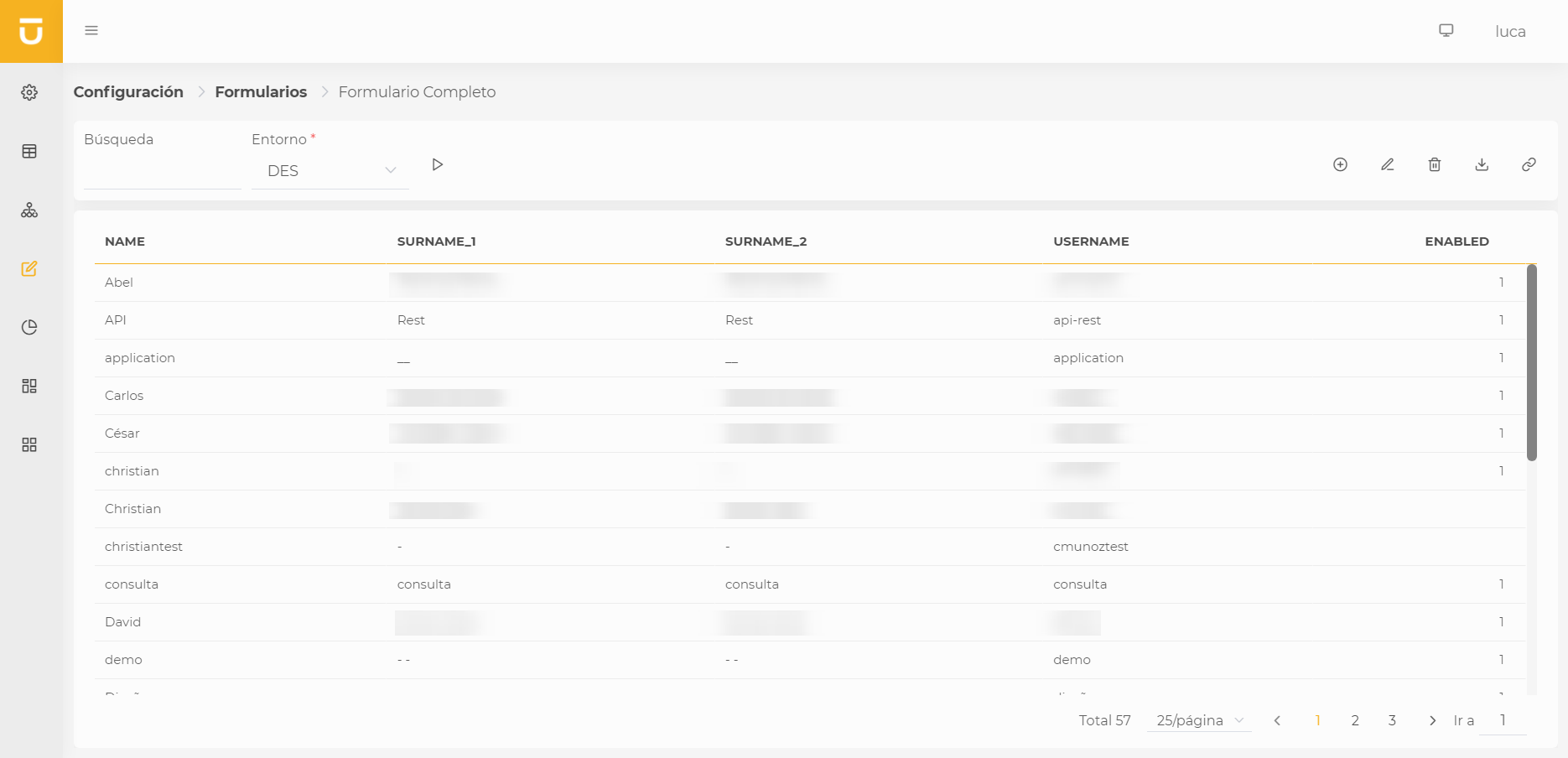
When executing a form, we encounter the execution of the configured select query. If the insert and update queries have been configured, we will see the corresponding options on the right side of the query filter.
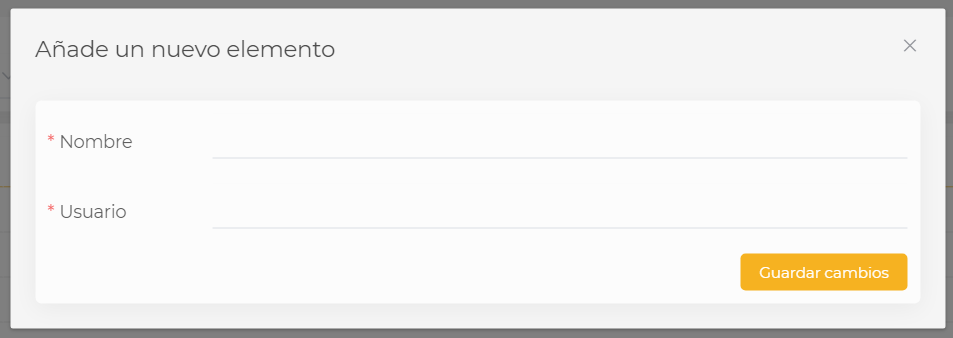
If we wish to add or modify a record, we just need to click the corresponding button, fill in the fields we want to modify, and click Save Changes.
If we want to delete a record, we will select the corresponding item in the table, press the delete button, and a confirmation message will appear for the deletion. Confirming that we want to proceed will remove the record, and the table will update to reflect the changes.
6. Charts
Charts will allow us to represent the data from queries in a visual way.
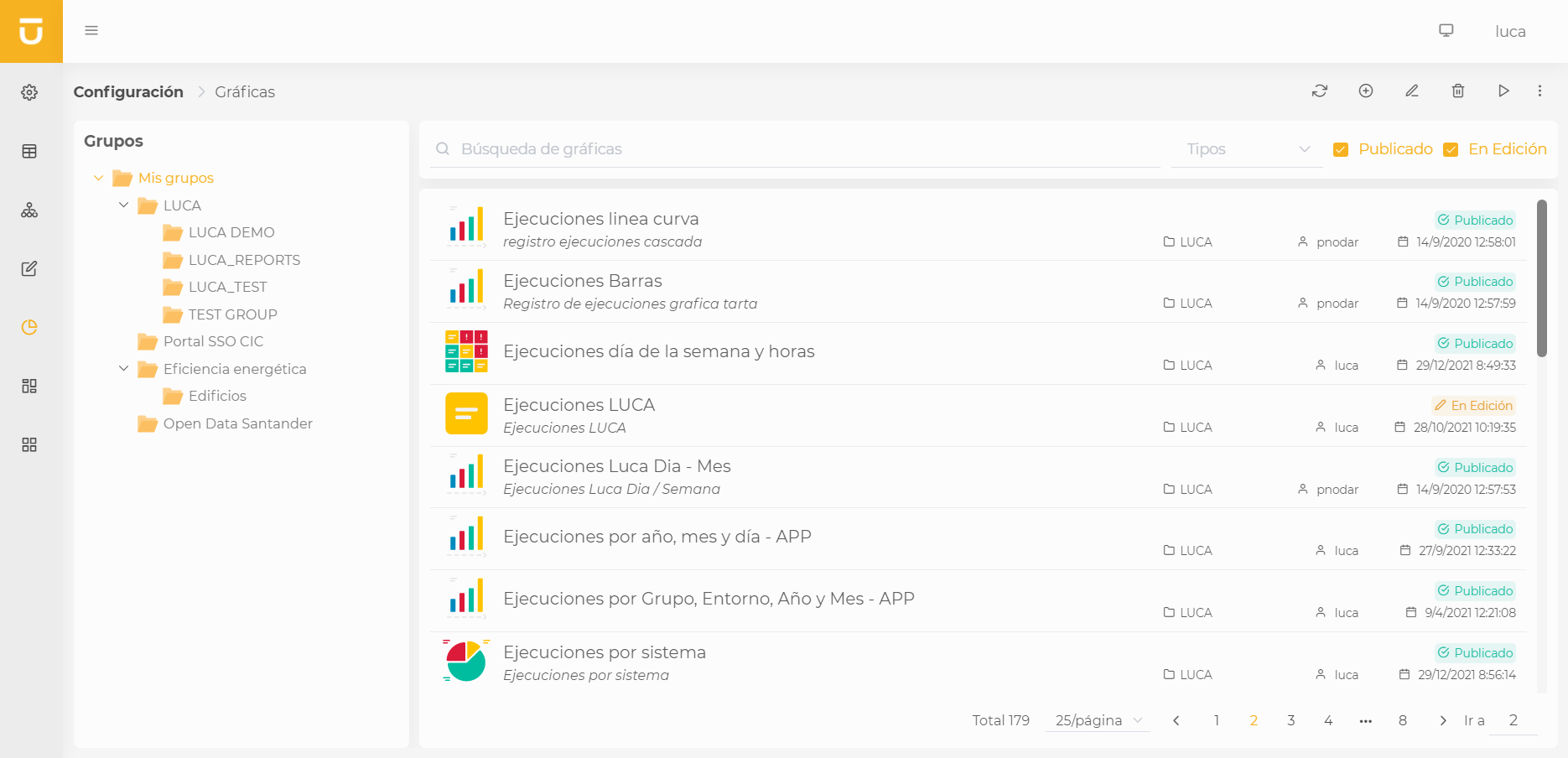
| For more information about the chart administration screen see this section. |
| If coming from a version prior to 3.0, you should be aware that some charts have been deprecated in this version; for more information, consult here. |
6.1. Creation and editing of charts
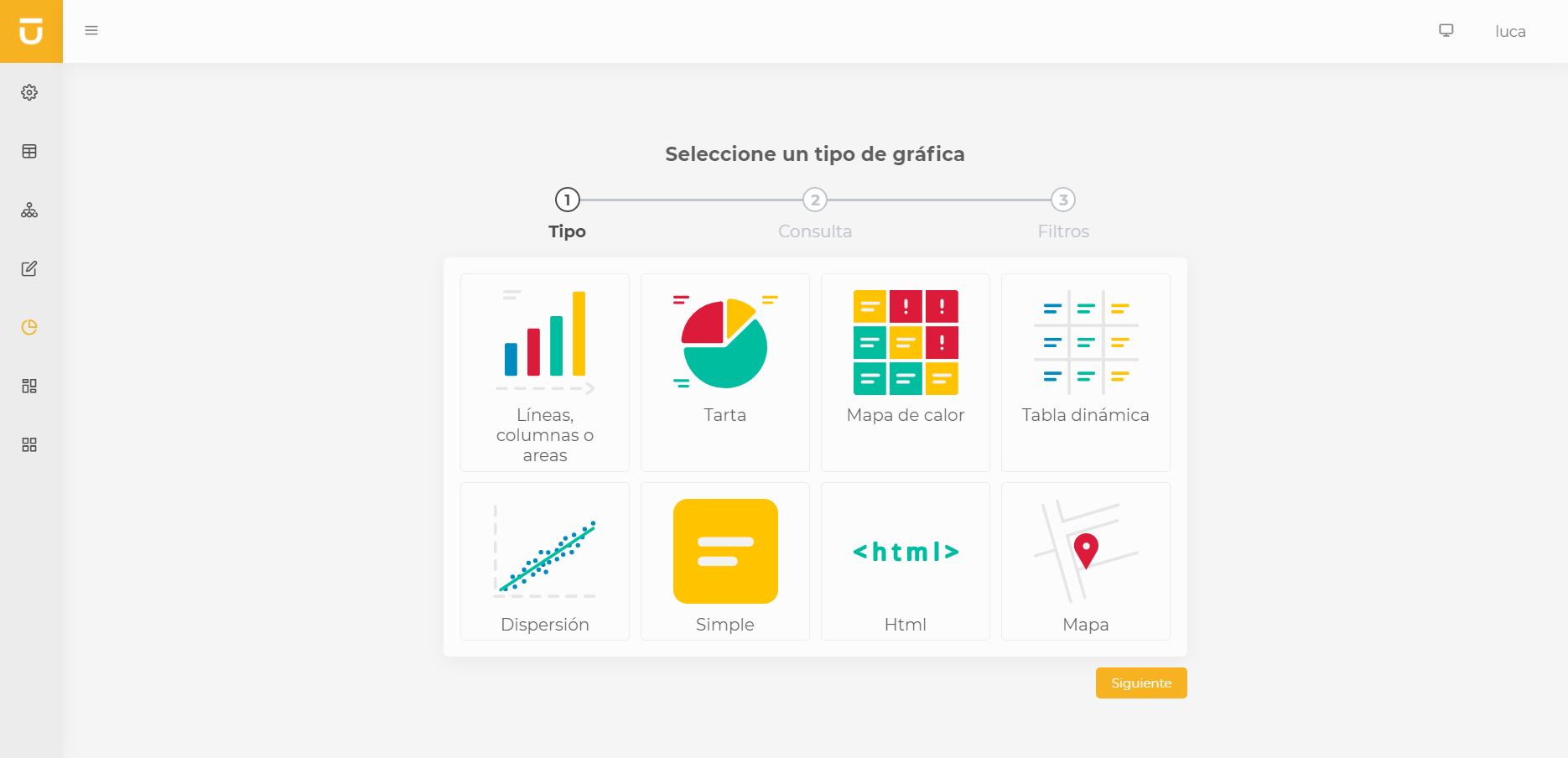
When selecting the option to create a new chart, you will encounter a guided process that will facilitate the initial adjustments of your chart.
The first step will be to choose the type of chart we are going to create:
-
Lines, columns, areas, or markers: Basic charts where series of lines, columns, areas, or markers can be mixed interchangeably.
-
Pie: Pie or donut type charts.
-
Heat map: Heat map type charts.
-
Gauge: Gauge type charts or indicators.
-
Pivot table: Collapsible and grouped table type charts.
-
Scatter: Scatter or bubble type charts.
-
Simple: Simple charts displaying a single value.
-
Html: Charts in which we can develop html code to represent the data in a customized way.
-
Map: Map type charts to represent coordinates.
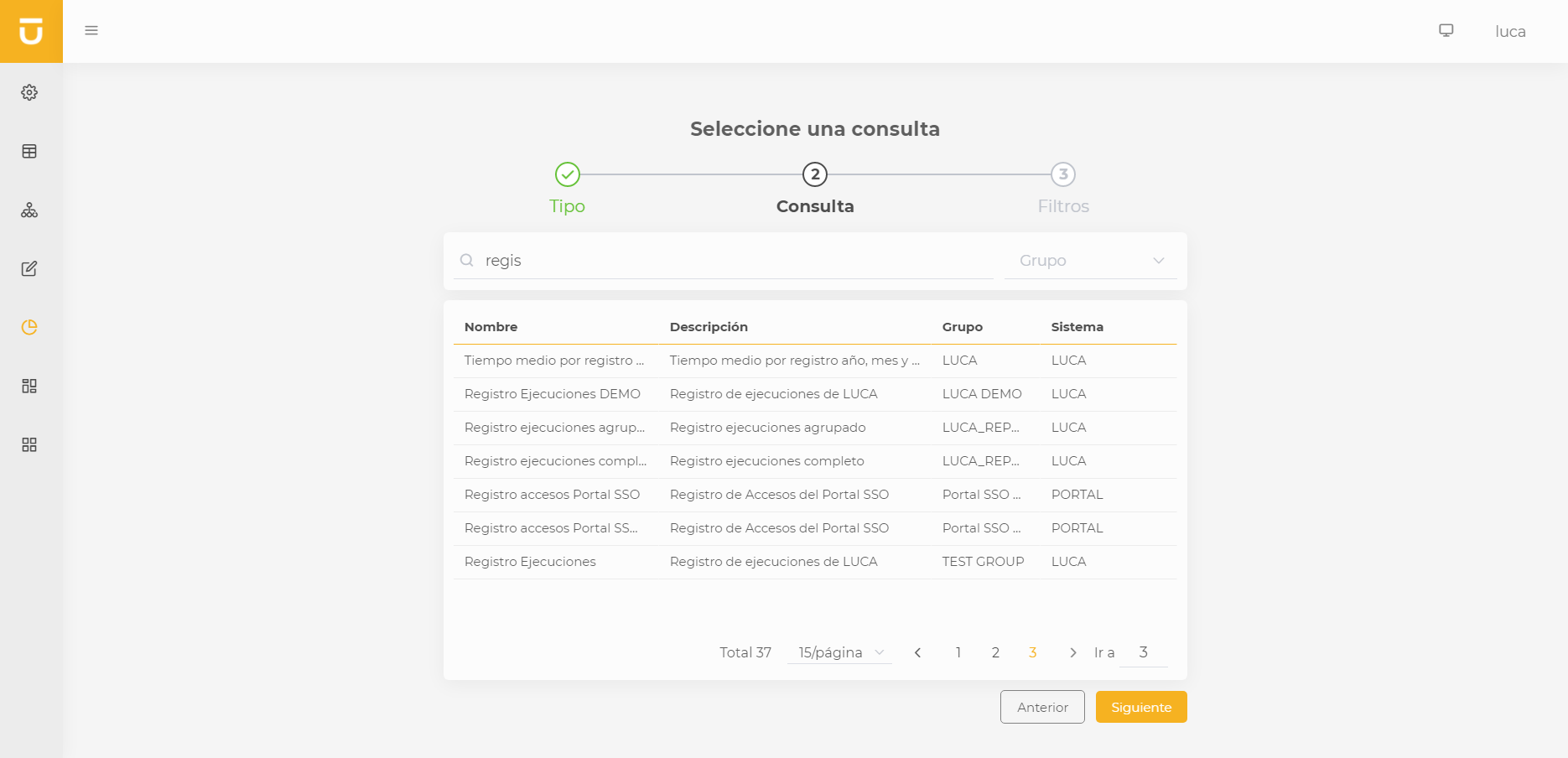
The next step will be to choose the query on which we will graph. We will be able to choose from all the queries we have permissions for that are in Published status.
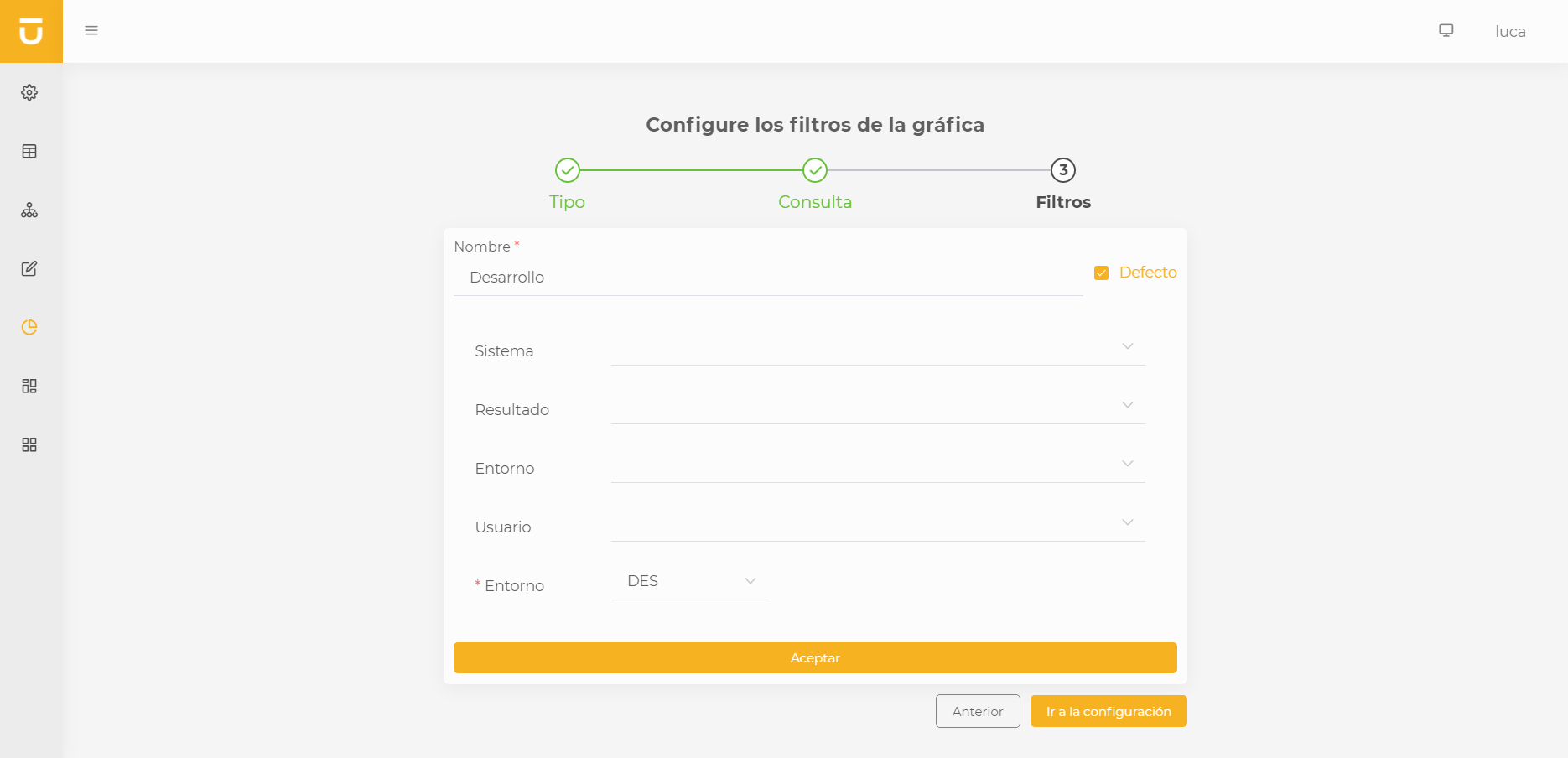
Finally, we must establish at least one default filter since every chart in LUCA must have at least one. We will assign a name, check the Default checkbox, fill in the input values we deem appropriate, and press accept. Once all filters are created, we can Go to configuration.
Once in the chart configuration, we will find the following structure:
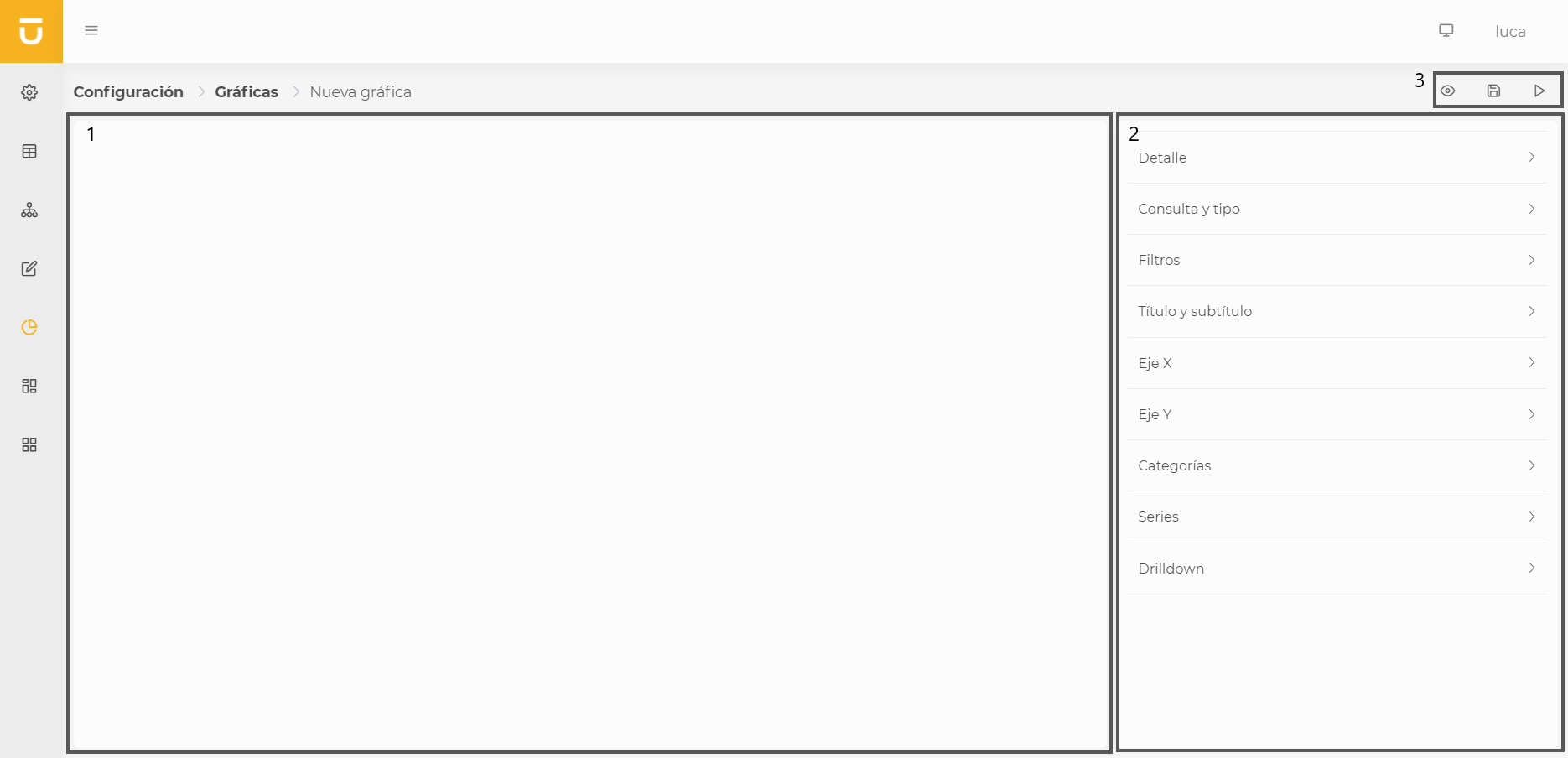
- Preview (1)
-
Preview of the chart.
- Configuration (2)
-
Configuration menus for chart options.
- Actions (3)
-
Available actions:
-
Run preview.
-
Save.
-
Save and go to execution screen.
-
6.1.1. Detail
This configuration is shared among all LUCA elements. For more information, go to general aspects.
6.1.2. Query and type
In this section, we can change the associated query, the chart type by clicking on the current type, and finally, we can define the time it will be cached.
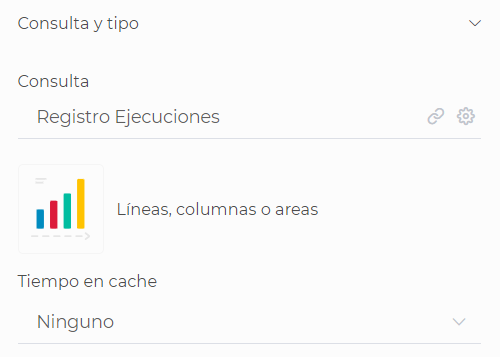
| Unlike the cache of queries, the chart cache only stores aggregated data, not the complete data set. |
| We can open the editing of the query associated with the chart by pressing the link button located next to the gear icon. |
6.1.3. Filters
We can observe all the filters of the chart, modify them, delete them, and even create new ones. To edit the existing ones, we only need to select the desired filter and change the appropriate fields.
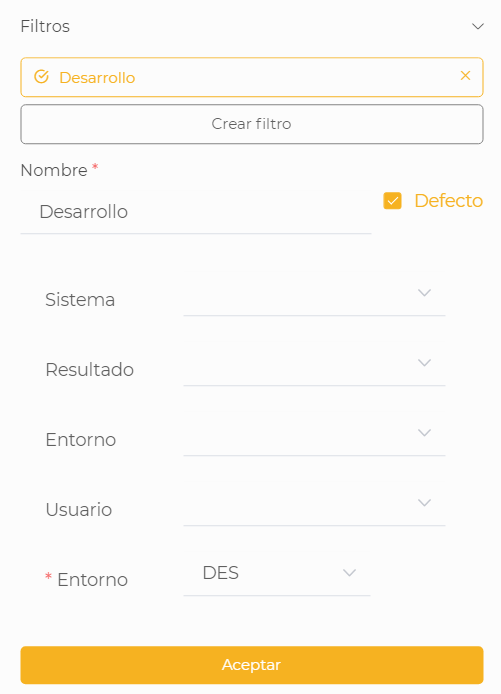
| It is necessary to press the Accept button to confirm the changes. |
6.1.4. Title and subtitle
In this section, we can define:
-
The title and subtitle of the chart.
-
The background color of our chart.
-
The margins of the chart.
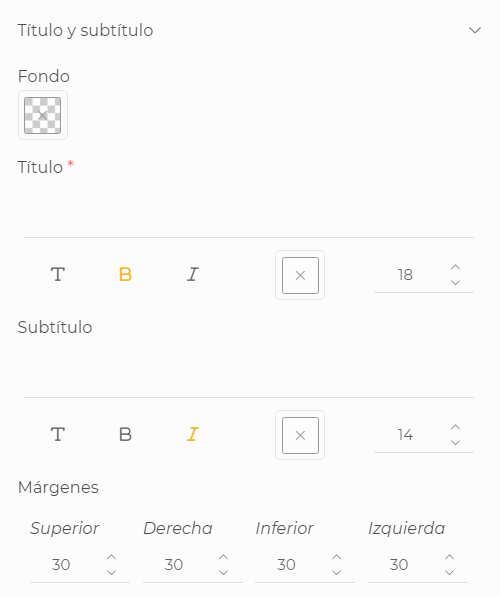
For the titles and subtitles, we can choose the font style, if we want it to be normal, in bold, or italic, as well as the text color and size.
LUCA by default applies automatic margins to the charts, but we can customize them as needed if something does not appear correctly.
6.1.5. Legend
The configuration of the legend will be available in basic, heat map, and scatter type charts.
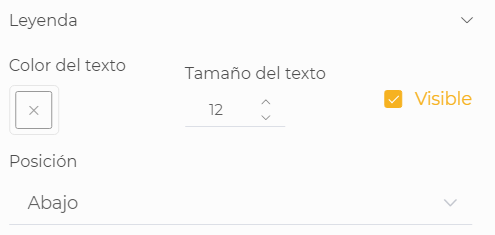
We will be able to define:
-
The color and size of the legend text.
-
Whether we want it to be visible or not.
-
The position it occupies, which can be right or bottom.
6.1.6. Lines, columns, areas, or markers
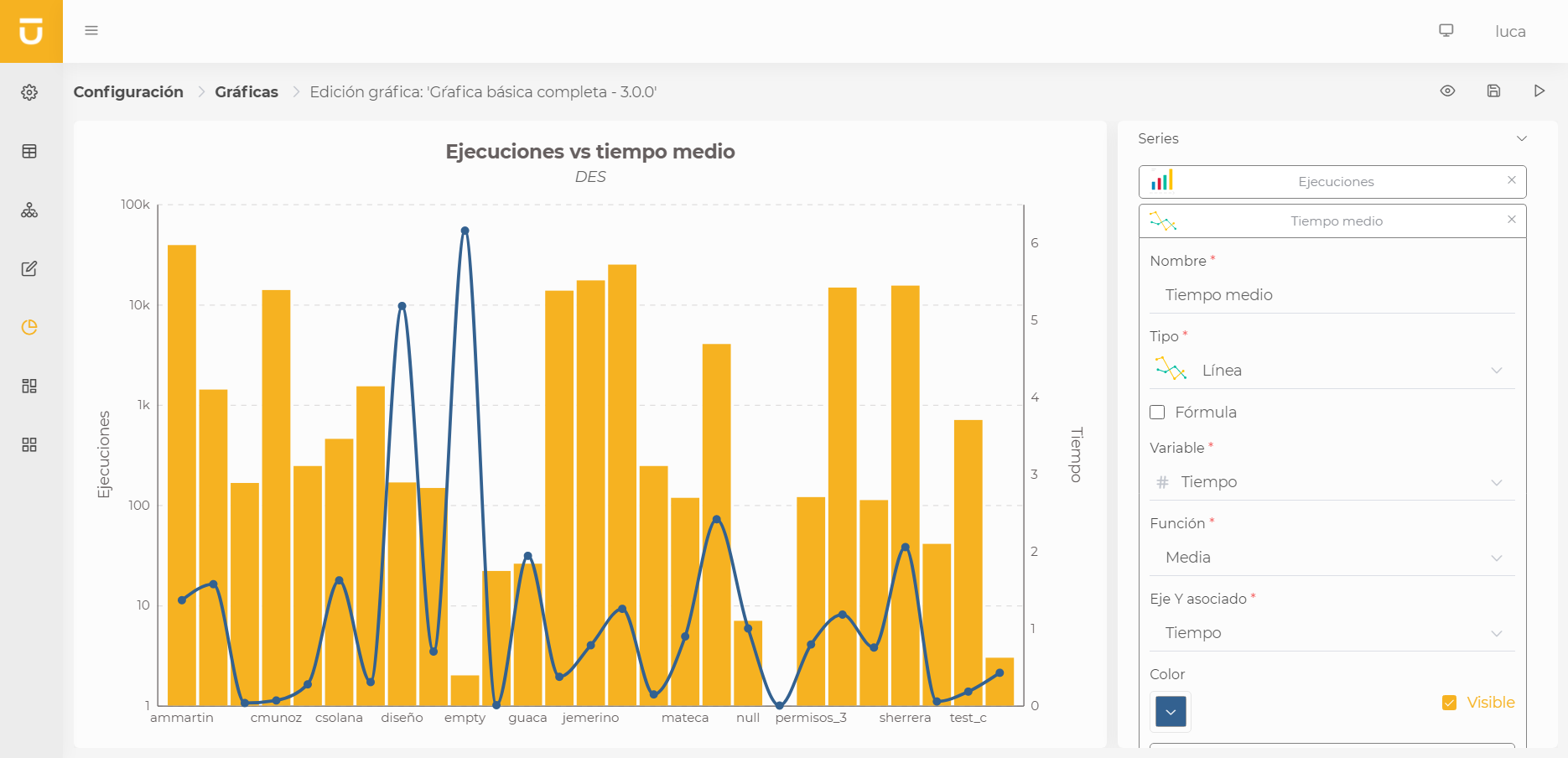
Basic charts, in addition to the menus described earlier, have the following configuration options.
X Axis
The configuration of the X axis is also available for any chart with axes.
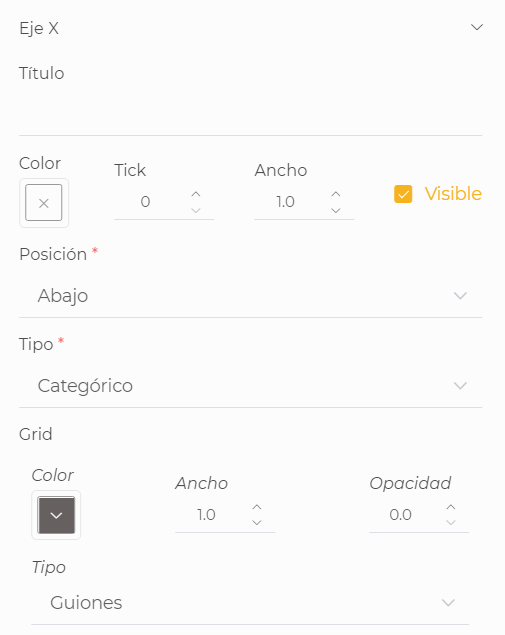
We can define the following properties:
-
The name of the axis.
-
The color.
-
The size of the ticks or lines that mark the different values on the scale.
-
The width of the axis.
-
Whether we want it to be visible or not.
-
The position, which can be top, bottom, left, or right.
-
The type of axis, which can be either: categorical, date (for temporal axes), linear, or logarithmic.
-
The grid, which is the background mesh that helps us read the values from the chart. We can choose the color, the width, the opacity, and the type of grid, which can be continuous, dashed, or dotted.
Chart sorting
For charts that do not use zoom, the chart sorting function is enabled.
In the axis configuration, aside from the properties described earlier, the new functionality properties will appear.
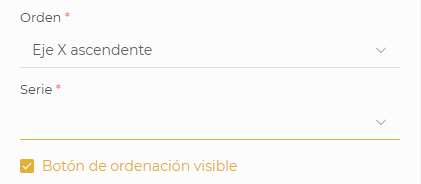
-
The order in which the chart will be displayed, allowing various configurations for both the X and Y axes.
-
The series that will be used in the sorting.
-
A checkbox to show or hide the sorting button on the chart (which will appear, as shown in the next image, in the upper left corner).
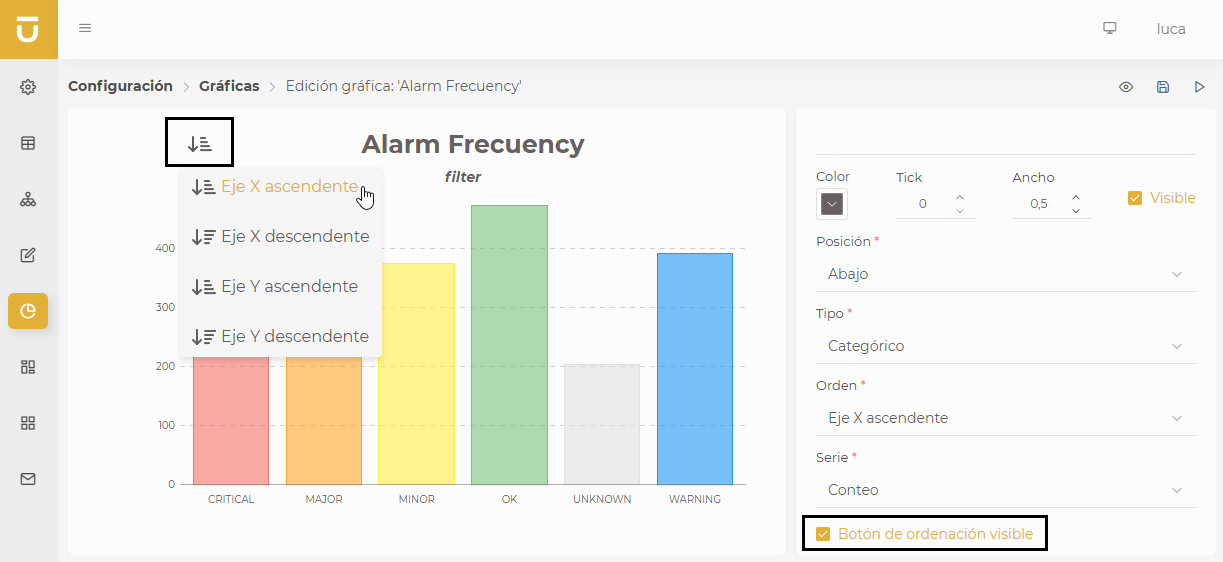
When the sorting button is expanded, the available options for that type of chart and its specific configuration will be displayed.
Y Axis
The basic configuration of the Y axis is the same as that of the X axes. The difference is that we can create multiple axes and also configure minimum, maximum, asymptotes, and ranges.
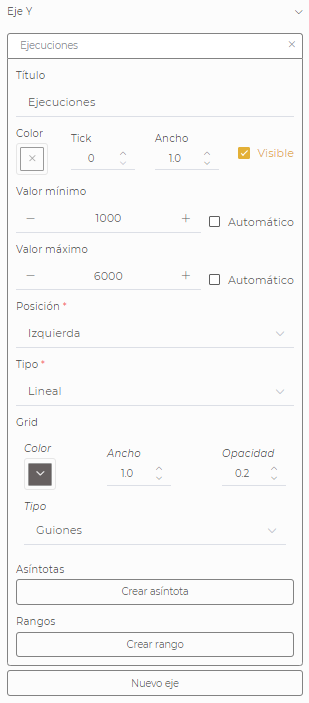
- Asymptotes
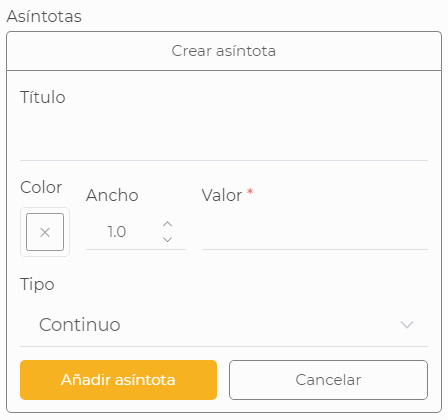
-
These are lines situated at a specific value on the axis where we can add a title, color, width, value at which it will be situated, and the type.
- Ranges
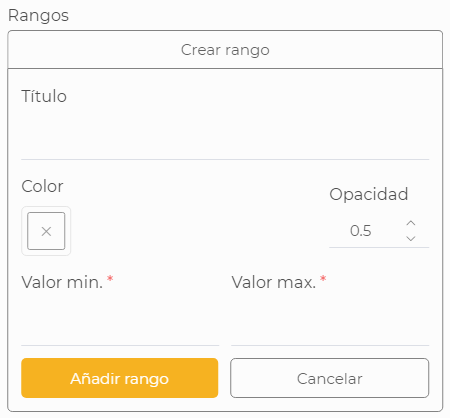
-
These are bands between two values marked by a filled rectangle with opacity to visually show if there is any value in between. In the ranges, we can define title, color, opacity, and the minimum and maximum values that define it.
Categories
Categories represent the elements that will be contained in the X axis. For this, we choose the variable we want to indicate these values.
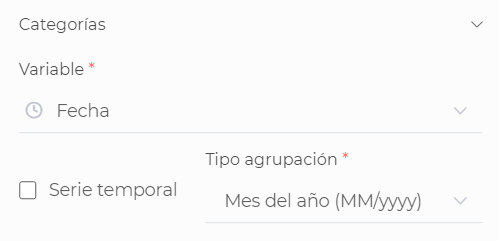
In the case that the variable is of type Date, we can choose the grouping type we want to apply to the date. For example, if we want to group the data monthly, we would choose the option Month of the year (MM/yyyy).
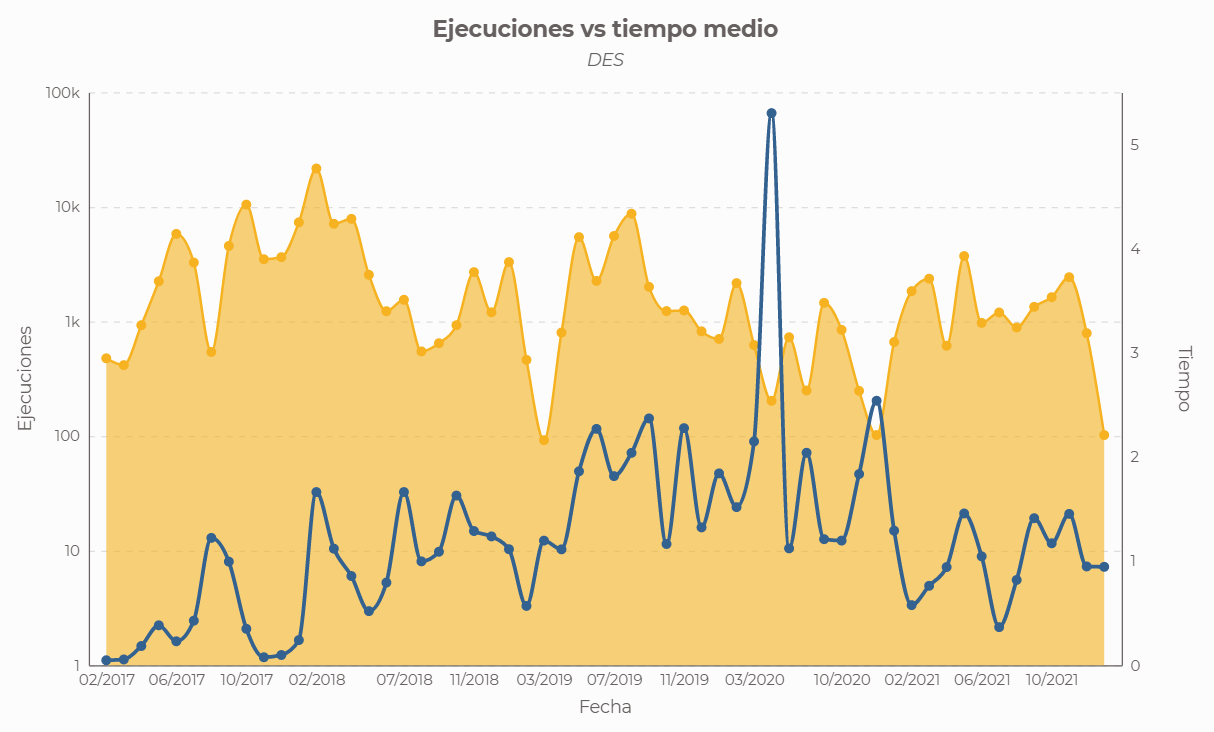
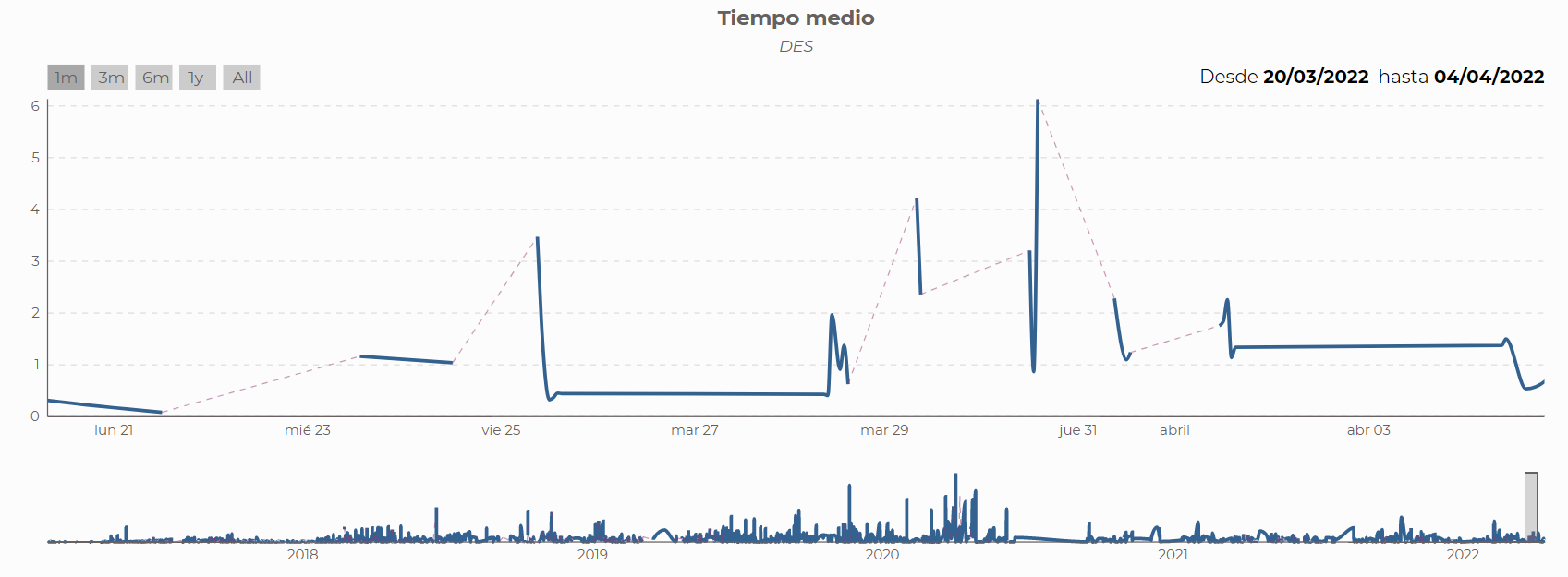
For date-type variables, we can also choose to apply zoom and navigate along the X axis.
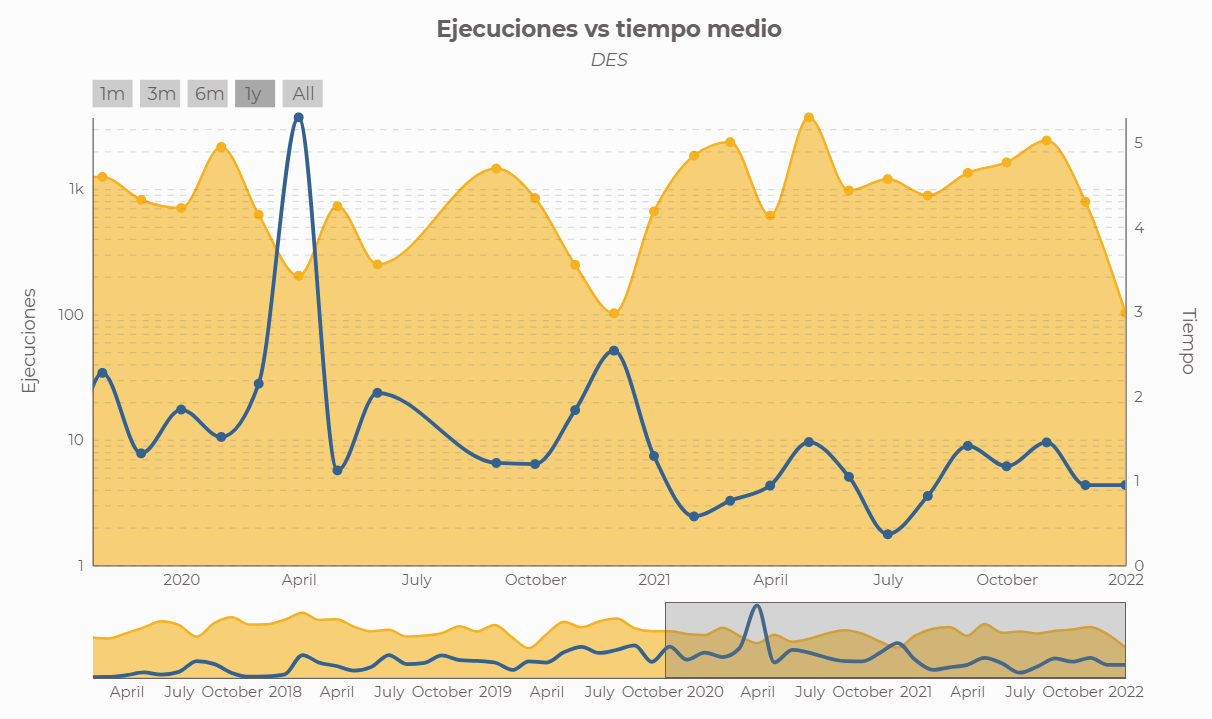
| When checking the Temporal series box when the category is of date type, it is necessary to change the type of the X axis to Date instead of Categorical. |
| Column-type series cannot be used when dealing with temporal series. |
| Marker-type series can only be used when dealing with temporal series. |
Series
Series represent the data we want to visualize and how we want to see it. We can have one or multiple series per chart.
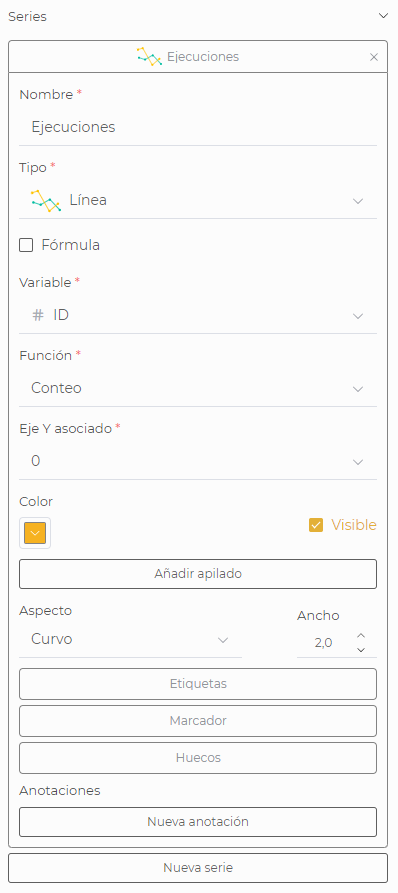
Each of the series has the following properties:
-
Name of the series, which will also be displayed in the tooltip of the series.
-
The type of the series, which can be line, column, area, or marker in the case of basic charts.
-
Formula. Instead of using a variable derived from the query, we can add a formula using the remaining variables to calculate the values of the chart.
-
Variable that contains the data to be painted. In the case that the series is of type formula, this field will not be visible.
-
Function applied to the data, for example, sum, maximum, average, etc.
-
Associated Y Axis Y Axis with which the series is related.
-
Color of the series.
-
Visible indicates whether the series is visible or not.
-
Stacked: We can add a variable by which to group the data of the series itself to add a stacked or a grouped.
-
Category color: We can add a custom color for each of the categories of a grouped or stacked series.
-
Appearance: Appearance of the line or area, which can be curved, straight, or step.
-
Width of the series line.
-
Border color for column-type charts.
-
Border width of the column’s border.
-
Opacity of the column or area fill.
-
Icon for the marker series, which can be circle, square, triangle, cross, star, or diamond.
-
Height at which the icon of the marker series will appear.
-
Size of the icon of the marker series.
-
Line width of the marker series.
-
Labels for each represented point. We can choose whether we want them to be visible, their size, color, and orientation.
-
Markers at each point. For line or area series, we can choose the size and color of the marker.
-
Gaps: In line and area series, we can configure whether we want the "gaps" that may exist, for example, on a temporal axis, to be shown with a line different from the original or if we want to see the "gap" in white.
-
Annotations: In line and area series, we can configure annotations, which serve to mark the maximum or minimum values of a series.
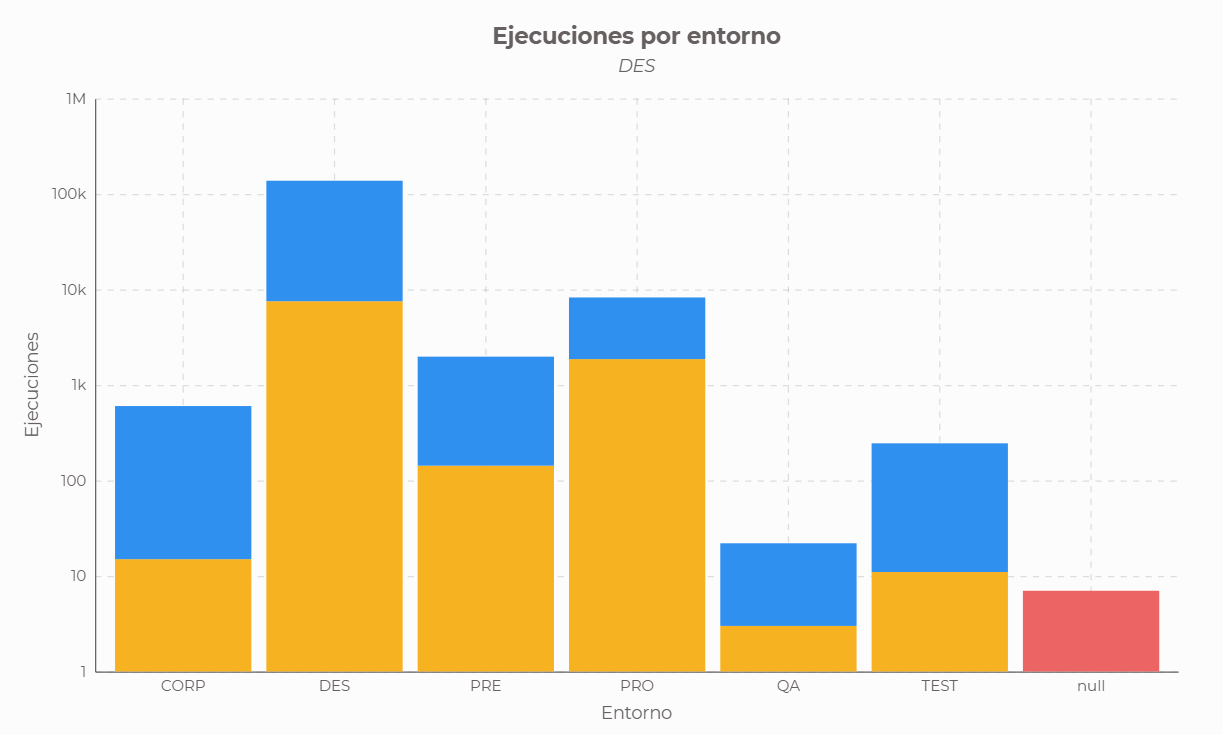
Drilldown
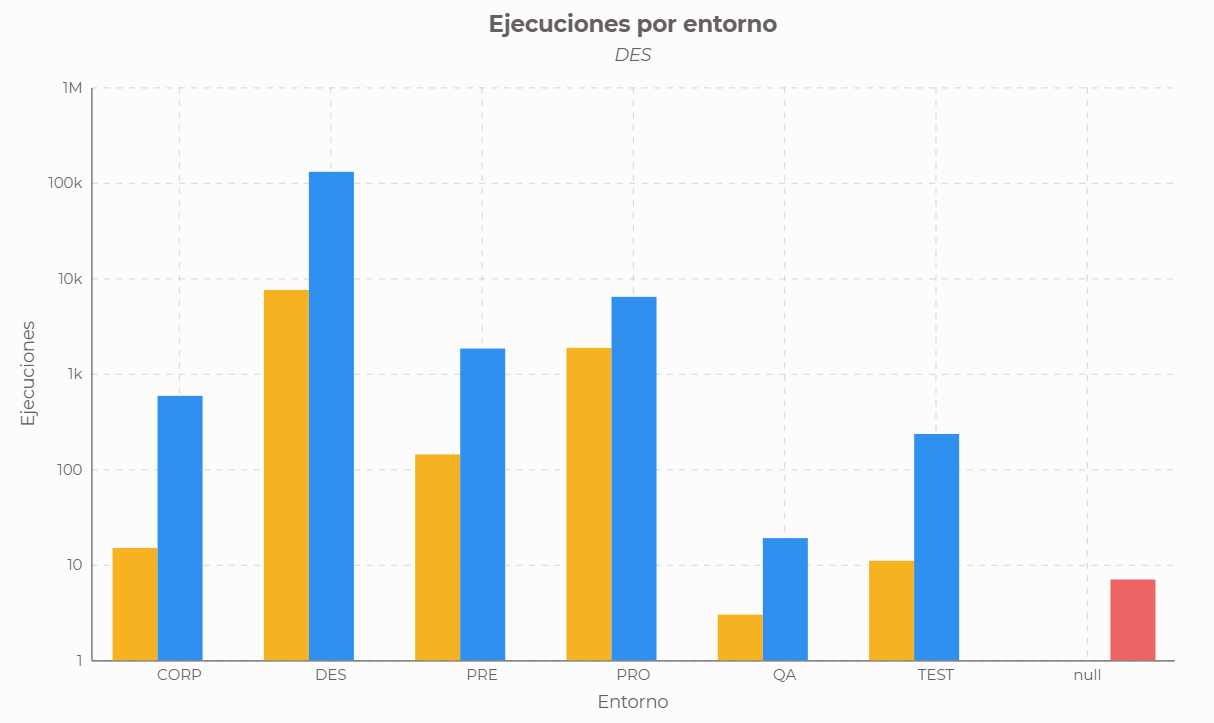
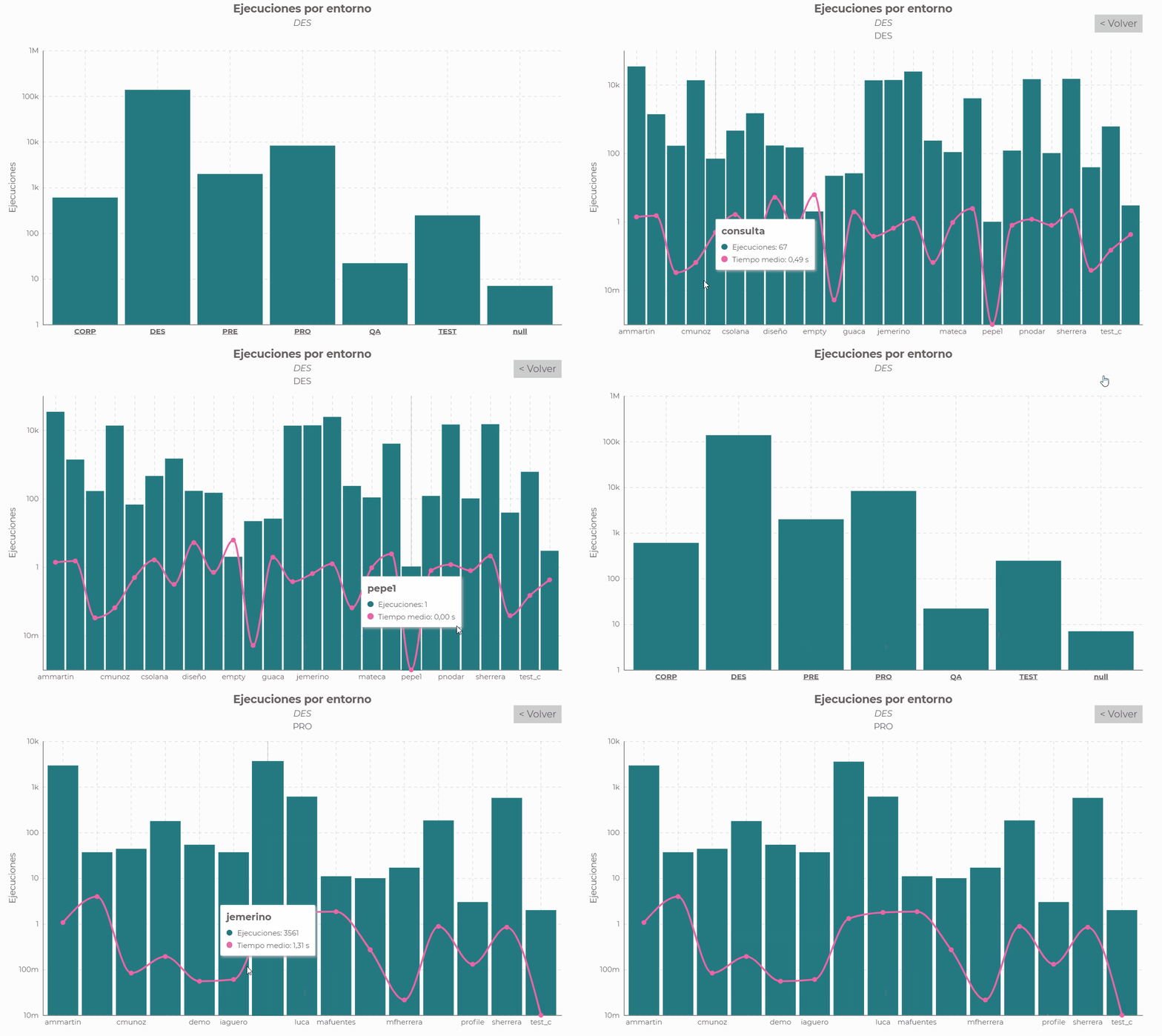
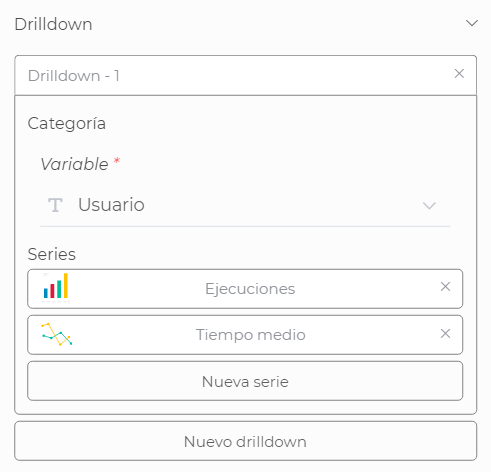
Drilldown will allow us to navigate in depth through the data. We can add one or more levels of drilldowns optionally, where we can declare the category for grouping and the series we want to visualize at each level.
6.1.7. Pie
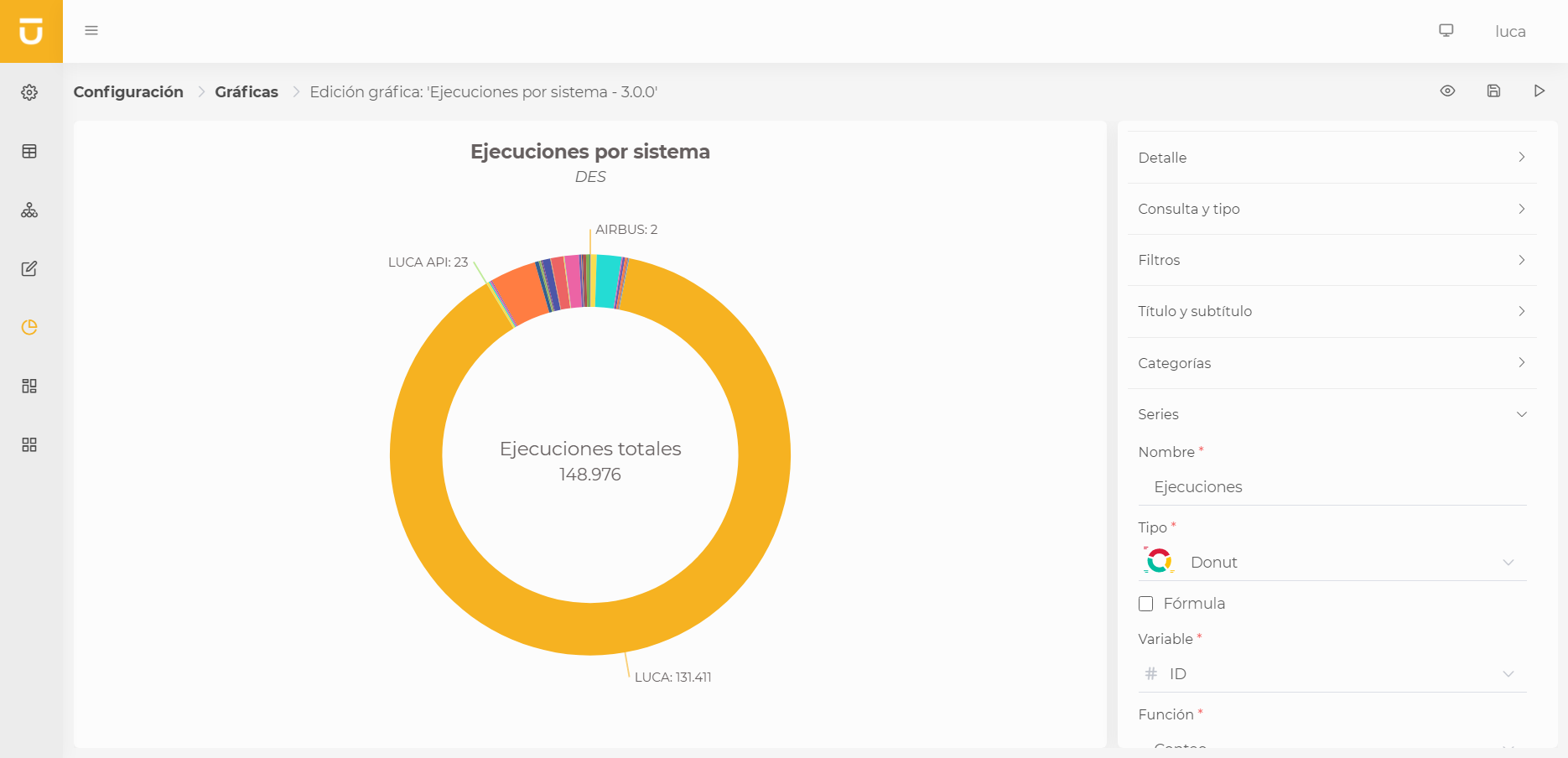
In pie charts, we can choose between pie or donut type series. Just like in basic charts, we must indicate a category and a series. Additionally, as many levels of drilldown can be configured as desired.
| Unlike basic charts, pie-type charts can only have a single series. |
Pie
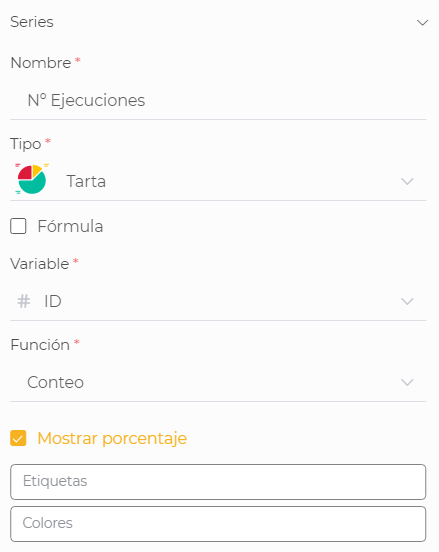
In pie-type series, apart from the basic configuration shared by all series, we can configure whether we want the labels to be visible or not, along with their size and color, and if we want the percentage occupied by each portion to be shown next to the label.
We can also indicate specific colors for the categories we deem appropriate. As shown in the example, the LUCA portion is painted with the official color of LUCA BDS.
Donut
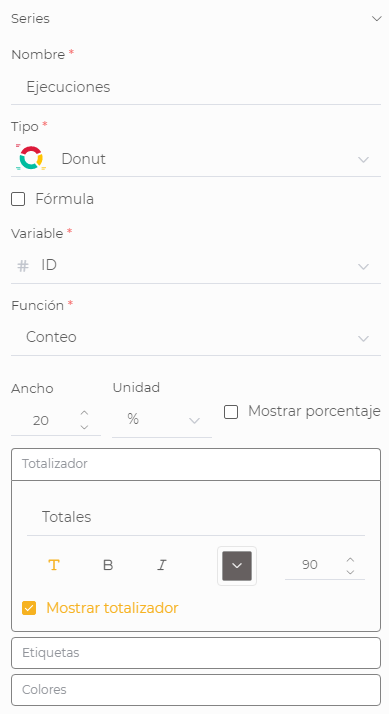
Donut-type series are similar to pies but with a hole in the center. In this type of series, in addition to what is common with Pie type series, we can configure:
-
The width of the donut, choosing whether we want it to be a fixed width in pixels or a percentage of its radius.
-
If we want to display a totalizer in the center instead of leaving it empty. The size of the totalizer text is a percentage value; if the size is 100, it will occupy 100% of the diameter of the donut.
This way, with the percentage width, we achieve that donut-type charts adapt to different sizes.
6.1.8. Heat Map
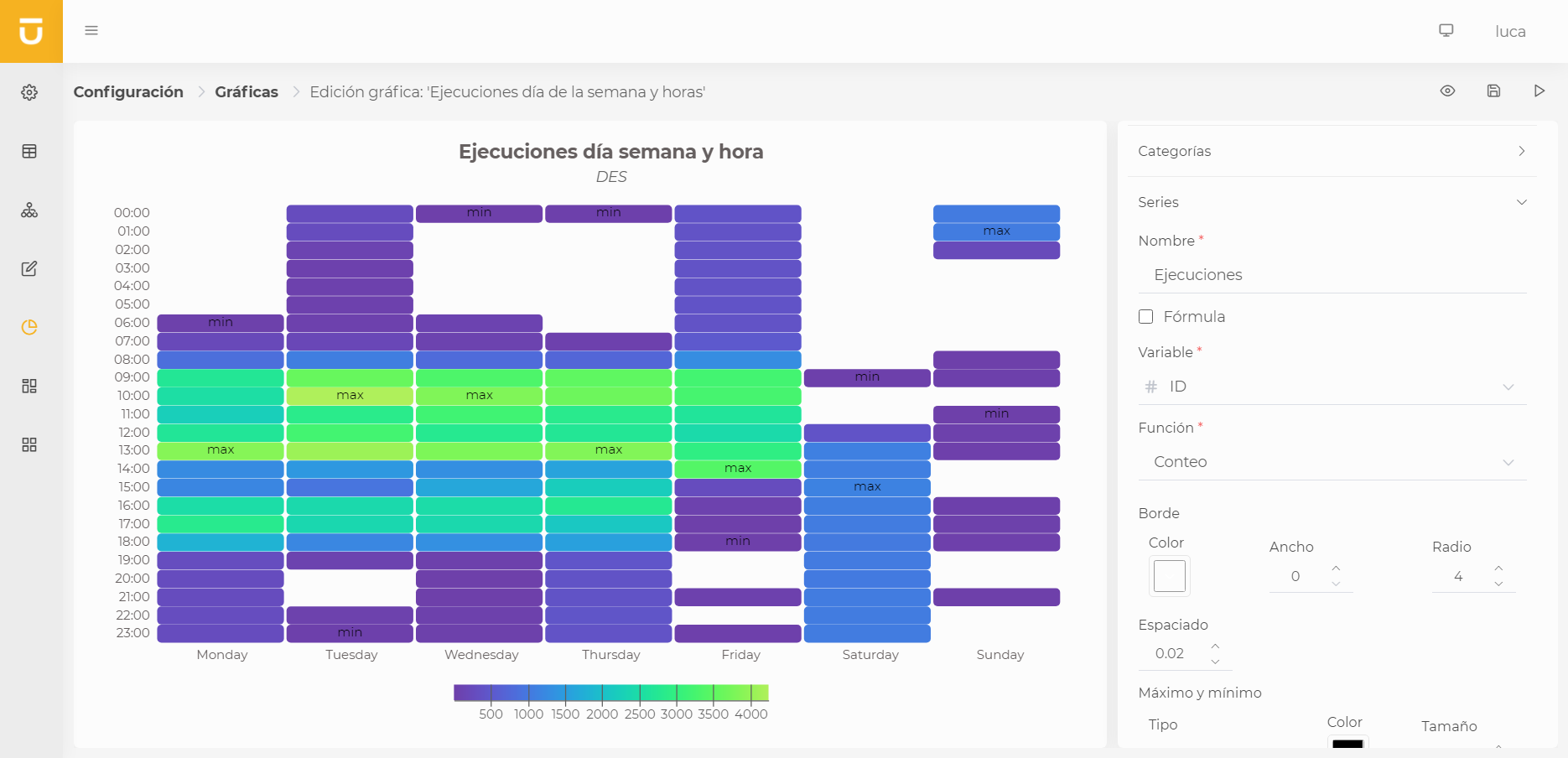
With heat maps, we can visualize data of a magnitude in colors for two dimensions. Therefore, we must configure two categories, one for the X axis and another for the Y axis.
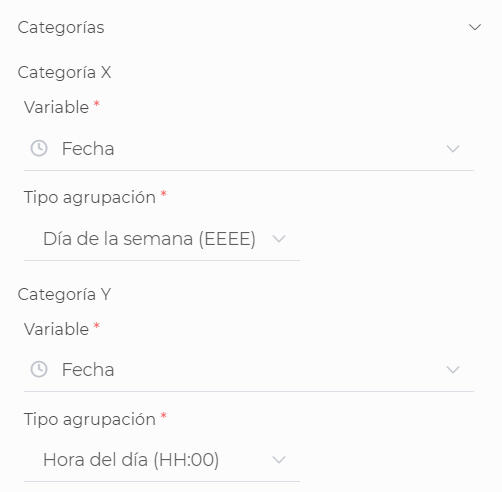
In heat map series, aside from the basic configuration shared by all series, we can configure the following:
- Border
-
Where we can configure the border of each box of the heat map, being able to assign a color, a width, and the corner radius.
- Spacing
-
Whether we want to add spacing between the boxes or want them to be together.
- Maximum and minimum
-
We can define whether we want to include a label indicating the maximum and minimum per row or column, indicating the color of the text and the size.
- Labels
-
We can configure whether to show a label with the values for each value or not, along with their size and color.
- Color scale
-
The most important aspect of heat maps is the color scale we want to represent it with. We have various options:
-
Linear: This allows us to define a start color and an end color for which a linear scale will be generated for each value.
-
Sequential: We will be able to select various predefined color schemes.
-
Threshold: We can define thresholds manually to apply specific colors or, as in the sequential, select from various color schemes.
-
Quantize: We can define the number of partitions into which the scale will be divided. The cutoff values of each partition will be calculated based on the minimum and maximum value of the magnitude to be represented. That is, if we choose 3 partitions, the minimum value of the magnitude is 0 and the maximum is 1000, the limits will be 333 and 666. We can apply predefined color schemes.
-
Quantile: We can define the number of partitions into which the scale will be divided. The cutoff values of each partition will be calculated so that each of them contains the same number of elements. That is, if we choose 3 partitions, the limits will be calculated so that in each one there is 33% of the samples. We can apply predefined color schemes.
-
6.1.9. Dynaminc Table
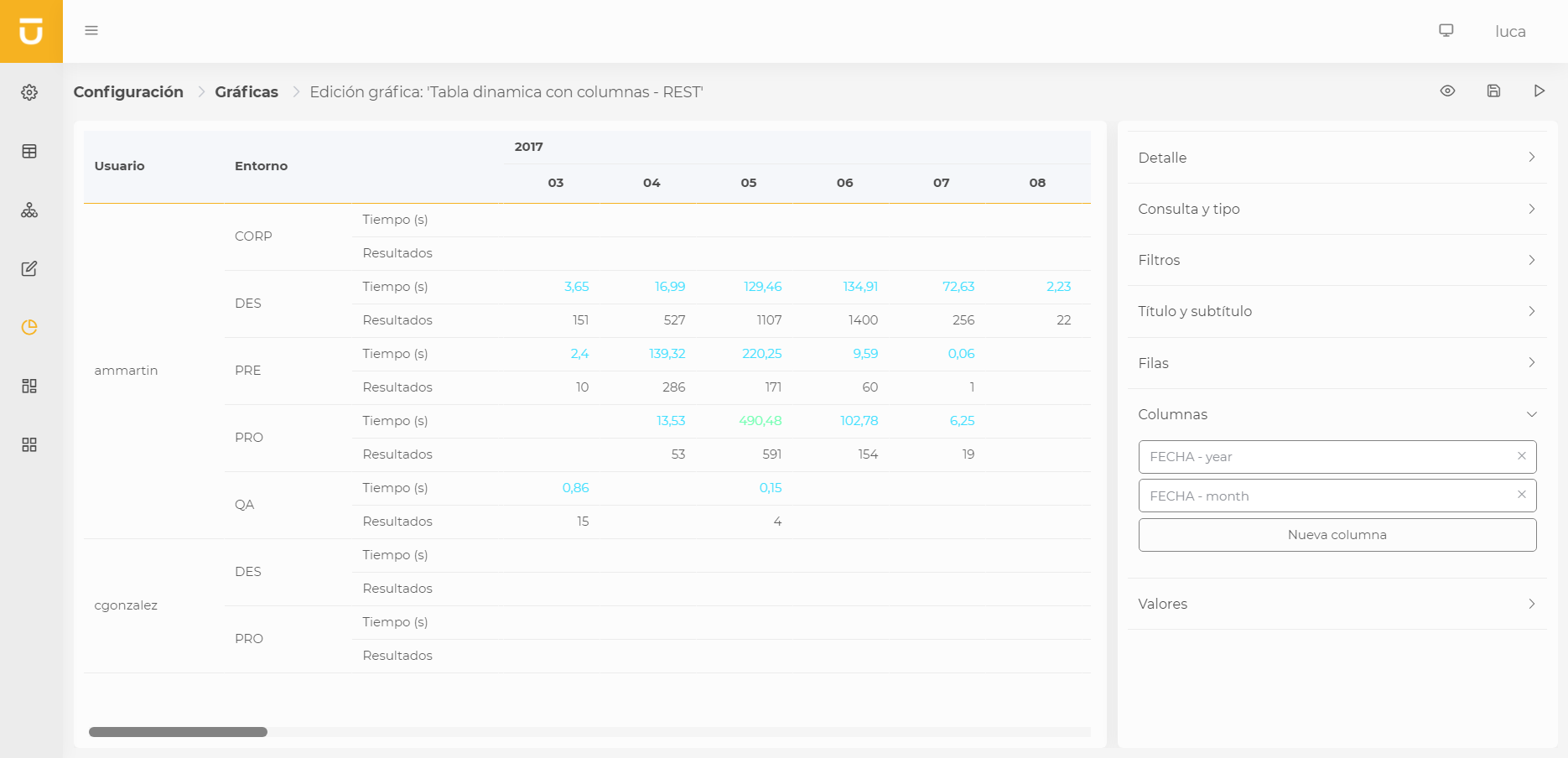
Dynamic tables will allow us to group data in table format, either by grouping by rows or columns as we will see next.
Rows
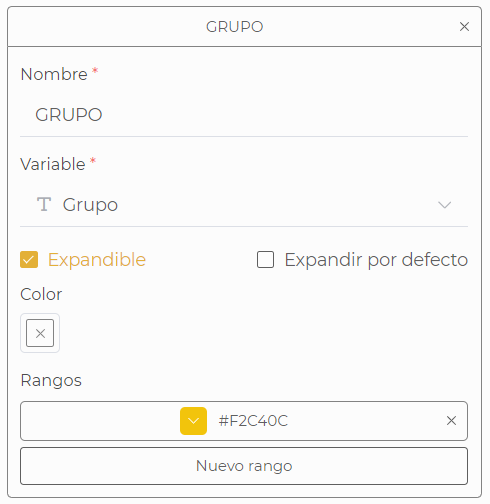
Indicate the groupings we want to perform at the row level. We can have as many as we want and define whether we want the groupings to be expandable or displayed directly by combining the cells. In addition, we can decide that if the row is expandable, it will be shown expanded by default and we can also define the background color.
Just like in queries, we can also define as many ranges as we want to color the outcome cells or rows of the grouping. If the used variable contains ranges, these will be inherited, and we can decide whether we want to keep, modify, or delete them.
| If there are also columns in the table, the rows cannot be expandable. |
Columns
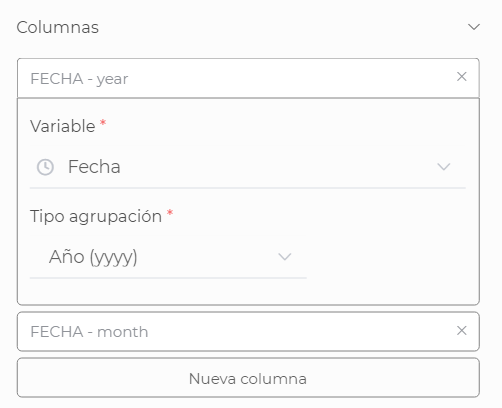
Columns define the groupings made in columns instead of in rows. We can also have as many as we want and just need to choose the corresponding variable.
Values
Values represent the magnitudes we want to display in each cell. We need to assign them a name, a variable, and a function.
Just like in rows, we can add color ranges. If the used variable contains ranges, these will be inherited, and we can decide whether we want to keep, modify, or delete them.
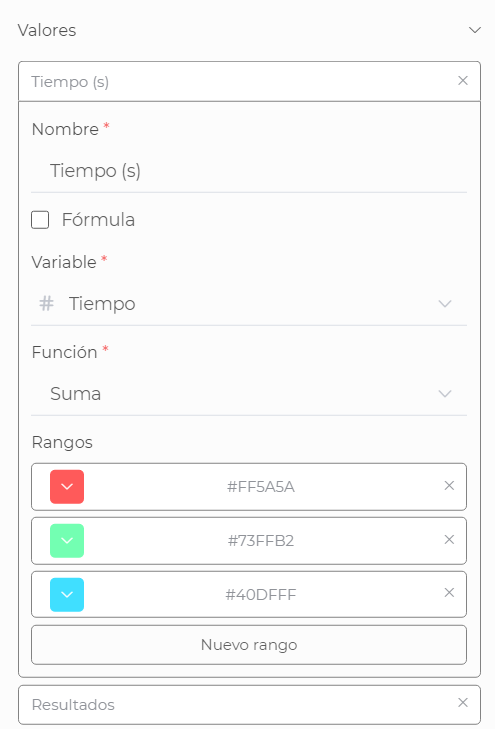
| If there are no configured columns, the values will be represented as columns. When there are defined columns, values will be shown as new rows for each record. |
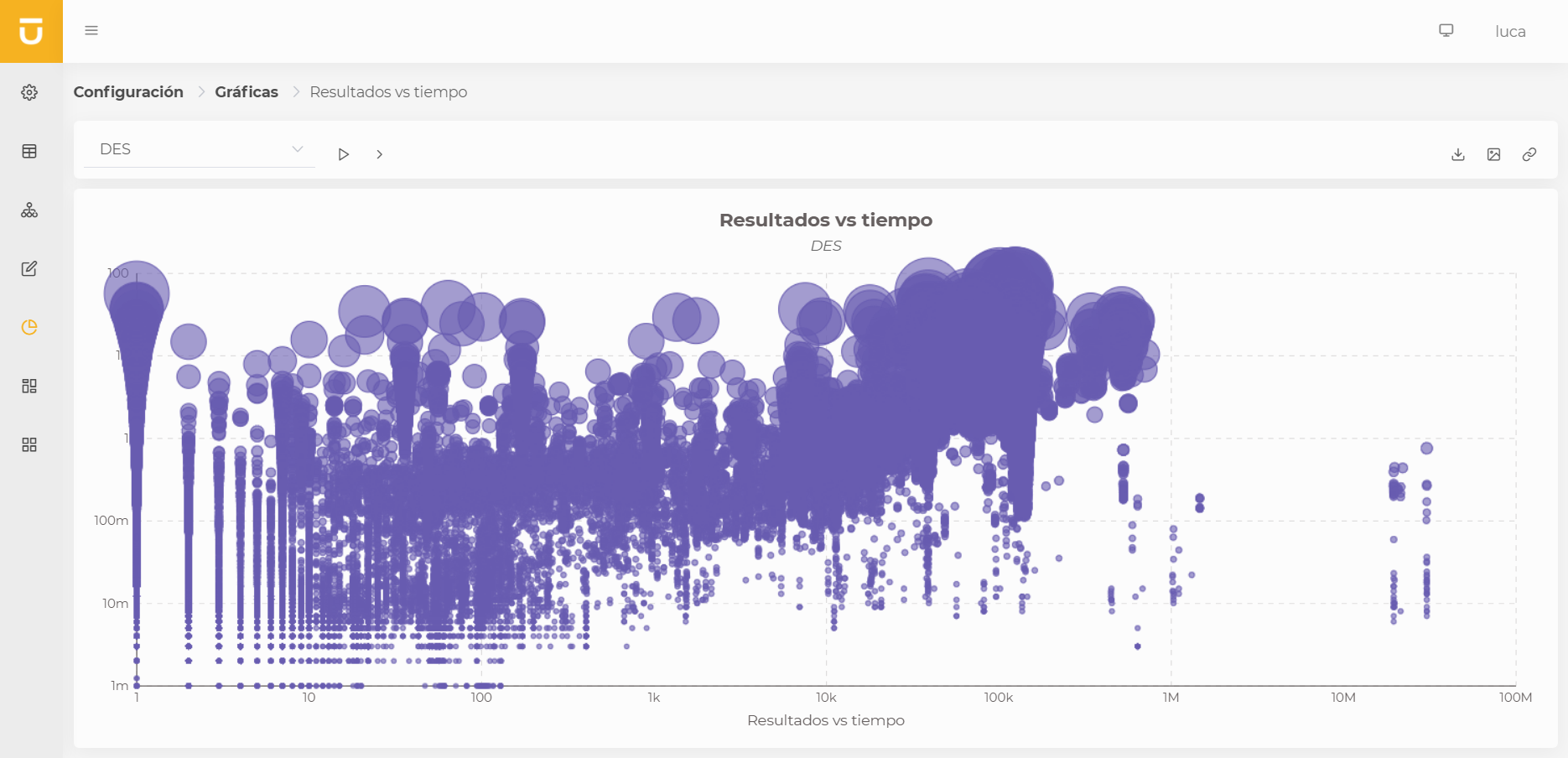
6.1.10. Scatter
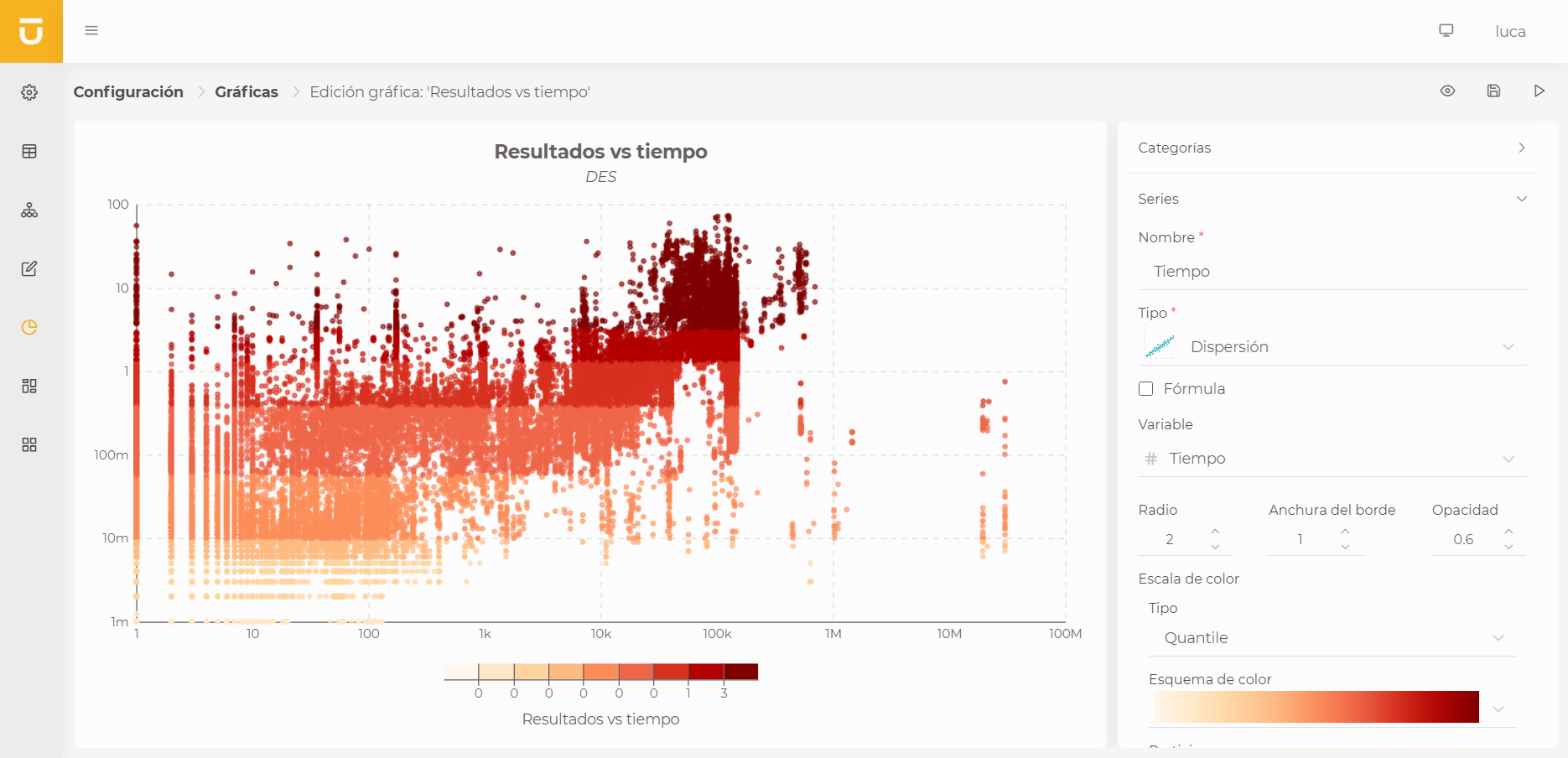
Scatter plots allow us to display the values of two variables in Cartesian coordinates for a data set. This way, we can see how these variables relate to one another.
Just like in heat map charts, we must configure two categories, one for the X axis and another for the Y axis, corresponding to the two variables to be represented. This kind of charts will allow us to create scatter or bubble series.
Scatter
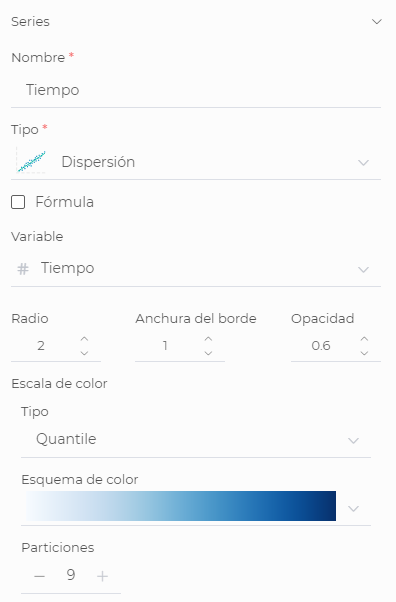
Scatter series are represented as a cloud of points. We can configure the radius, border width, and opacity of the points, in addition to the color and border color. Additionally, we can define a third variable in the series to assign a color scale to the points based on this new variable.
Bubbles
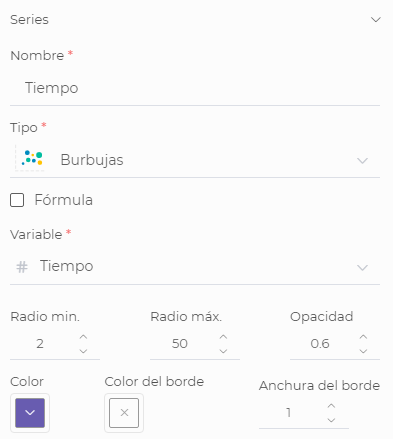
In bubble series, that third variable is necessary, which is optional in scatter series. This variable will define the size of the bubbles based on the data from the variable. We can choose the minimum and maximum radius and the opacity.
6.1.11. Simple
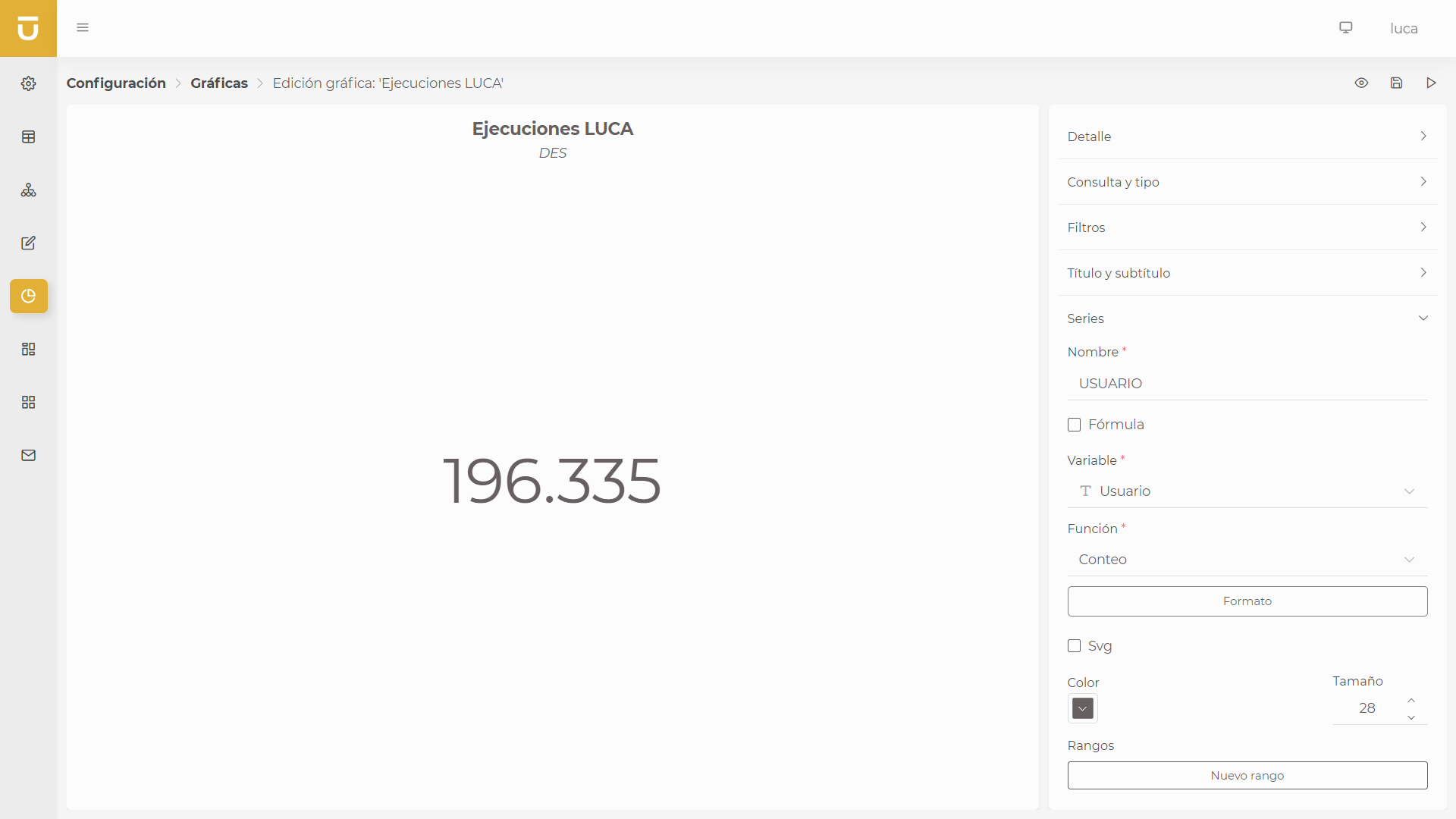
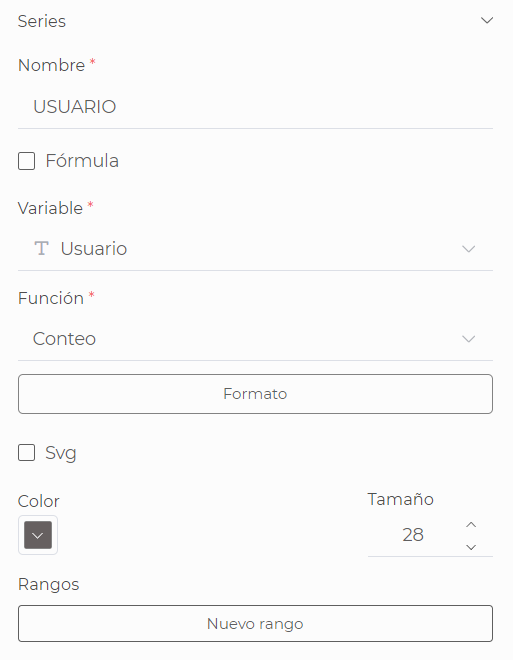
With simple charts, we can represent a single value in text format, where we can configure the color and size of the text and color ranges just like in the queries.
Additionally, if we check the "Svg" checkbox, we can write svg code, thus visualizing it. Upon selecting this option, we can choose between two views in the central part of the screen, on one side, the preview of the content, and on the other, the code that generates that chart. The button to switch between different views is located below the central part. This same functionality is also found in HTML charts.
6.1.12. Html
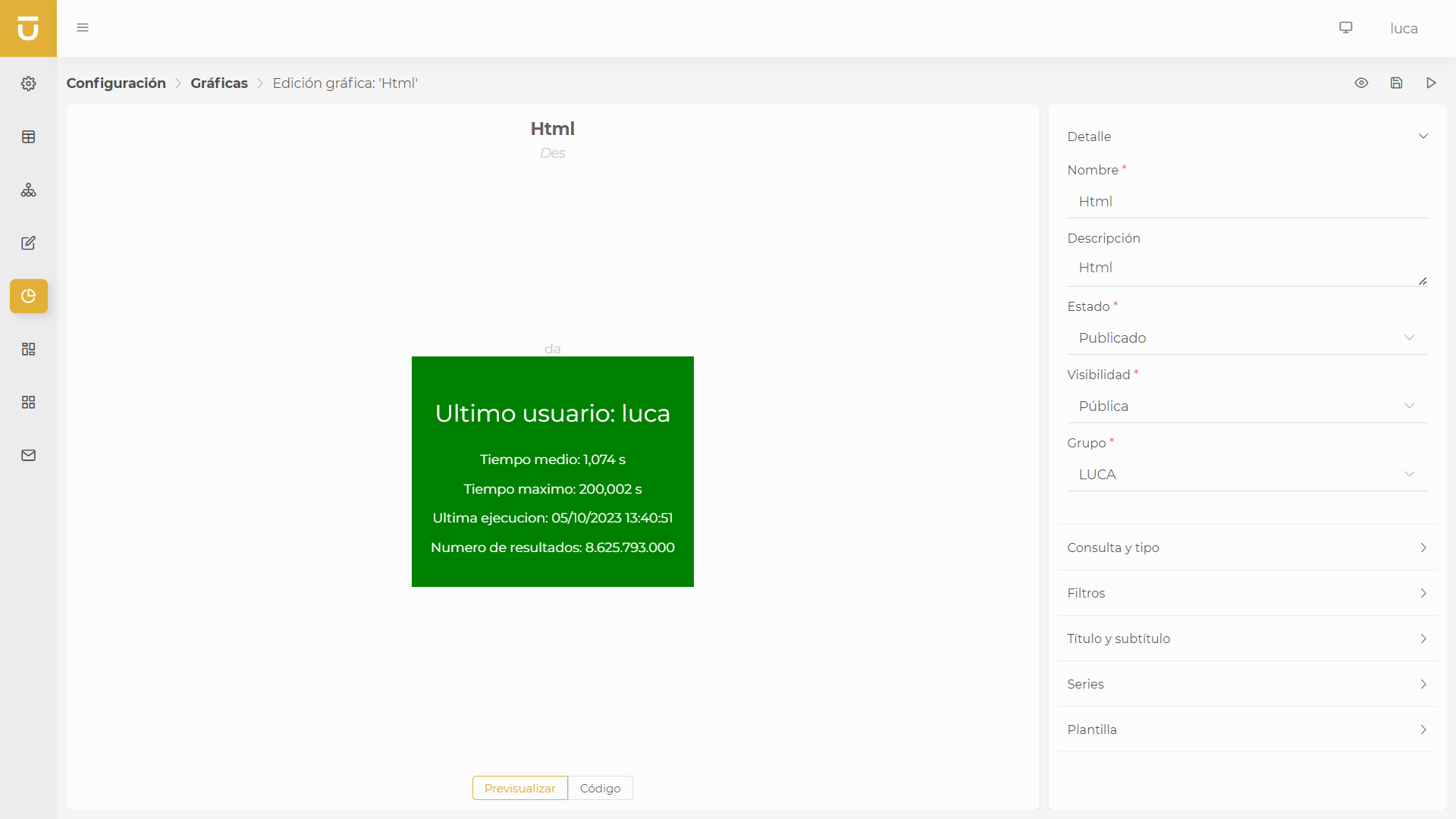
Html-type charts allow us to fully customize the format to represent the data.
We can define as many series as we want, which we will invoke in the HTML to display the information.
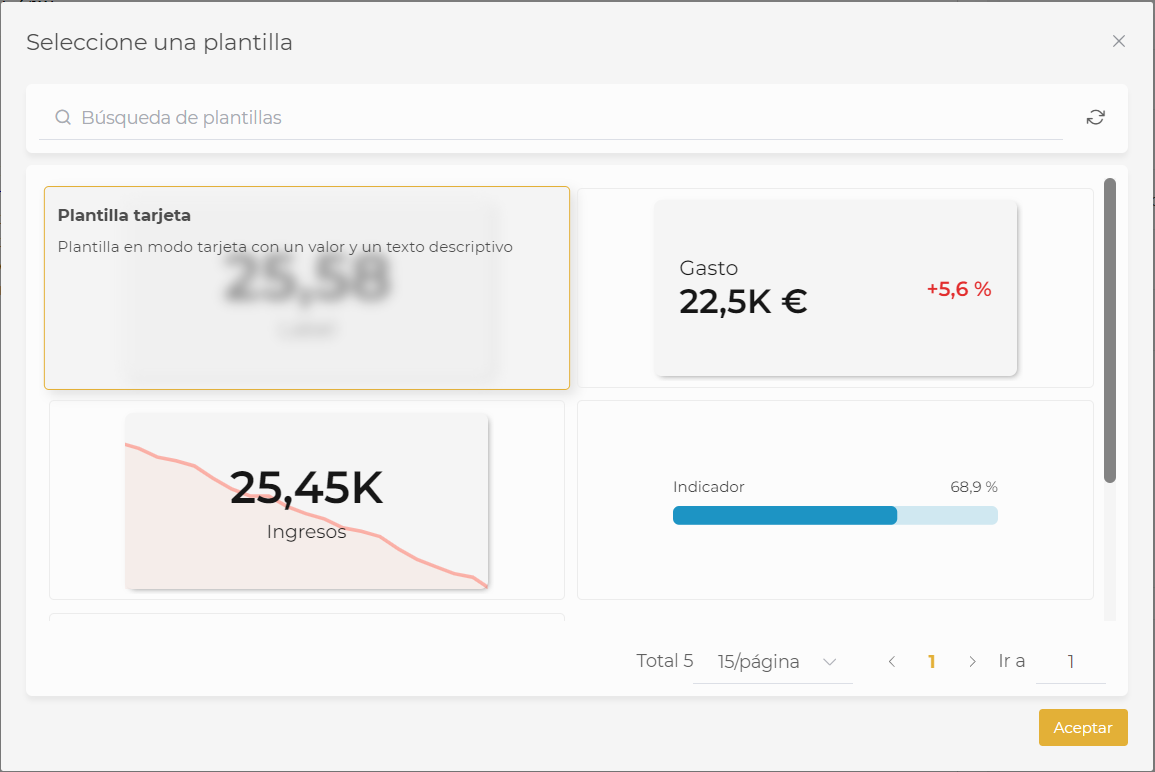
There are a series of default HTML templates that we can use; in the Template section, we can select the one we want.
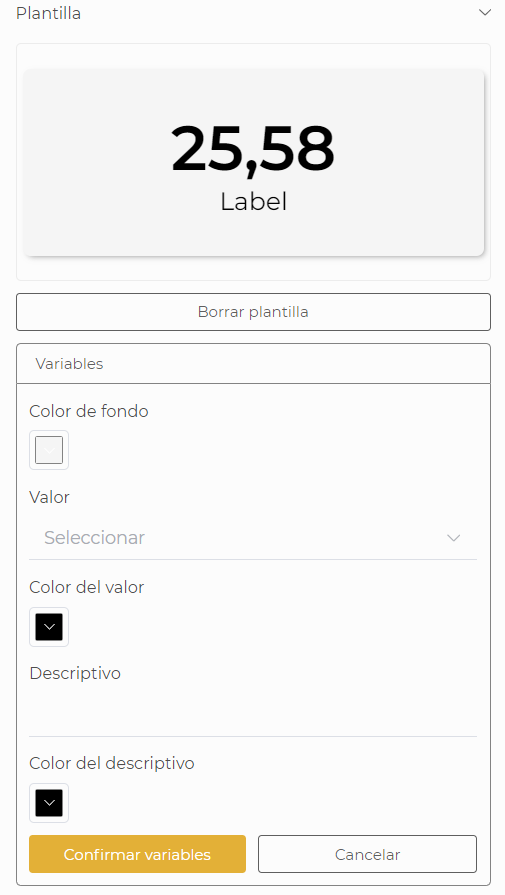
Once we select a template, we can set the value of the predefined variables in the variable section we can see in the next image. For this, we simply have to set the desired variable values and press 'Confirm variables' for the change to take effect. If we want to return to how it was and not apply the change, we press 'cancel'.
In the code section, we will define our code. It is important to note that if we want, we can edit the code of the predefined templates; even if we delete the template, the code will remain.
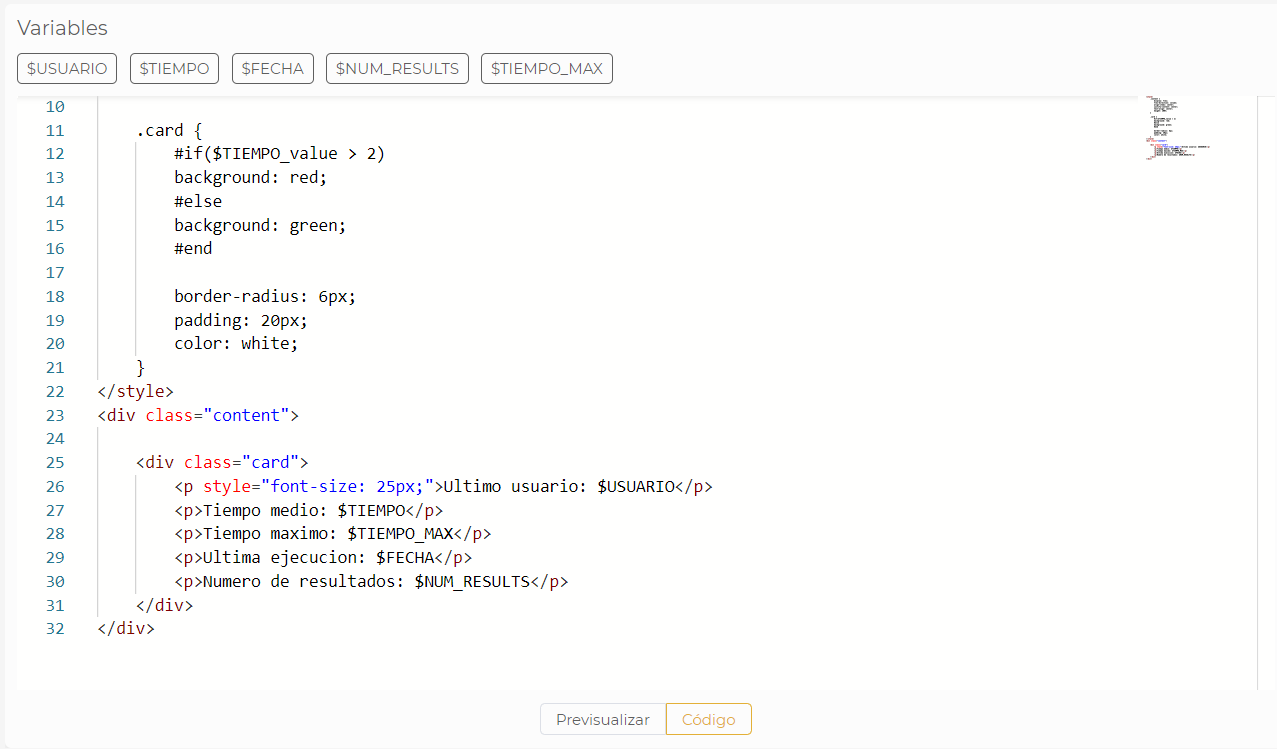
At the top, we see the previously declared series that we will use in the Html thanks to code Velocity. The top buttons help us add the desired variable into the editor by clicking on it.
|
All values used in Velocity with #if($TIEMPO_value > 10) color: red #else color: green #end |
6.1.13. Map
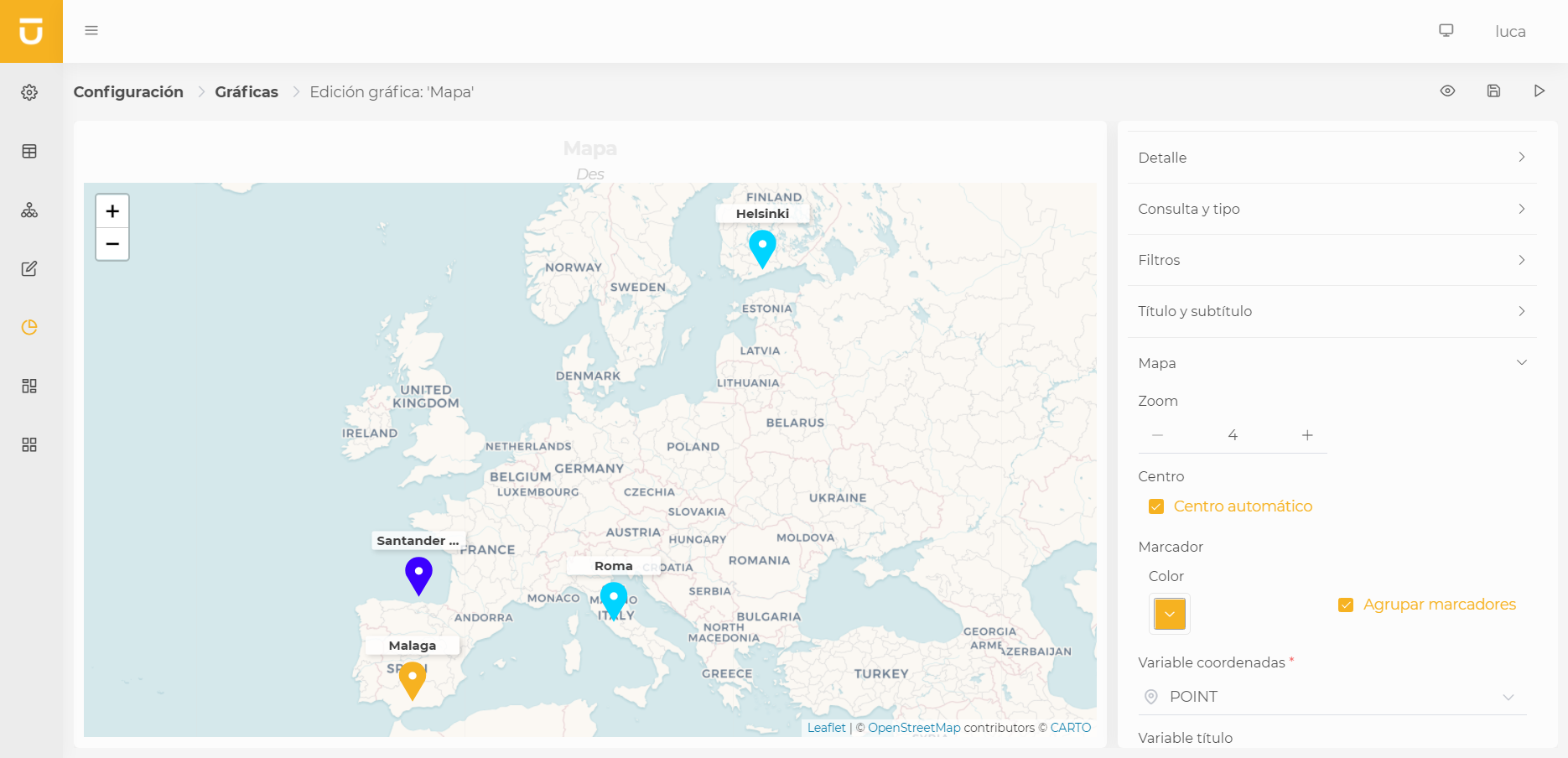
This type of chart allows us to place markers by coordinates on an interactive map.
To configure a map, we must define the variable of type Latitude - Longitude that contains the coordinates we want to show. Additionally, we can define the initial zoom, whether we want the center to be calculated automatically, or specify a center, the color of the markers, and if we want to use a variable to appear as a title.
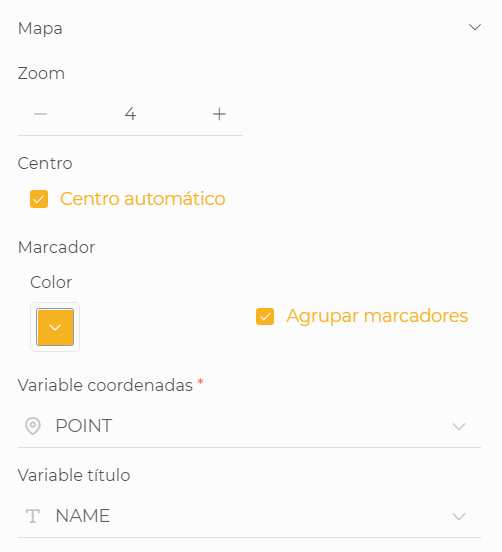
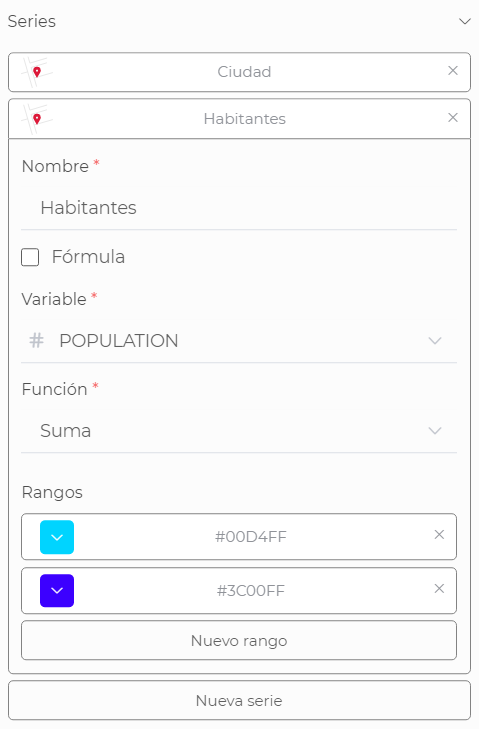
We can also add as many series as we wish. The information returned by the series will be displayed as a tooltip when hovering over the marker. Ranges can be established in the series to color the markers according to the value of a series.
6.1.14. Gauge
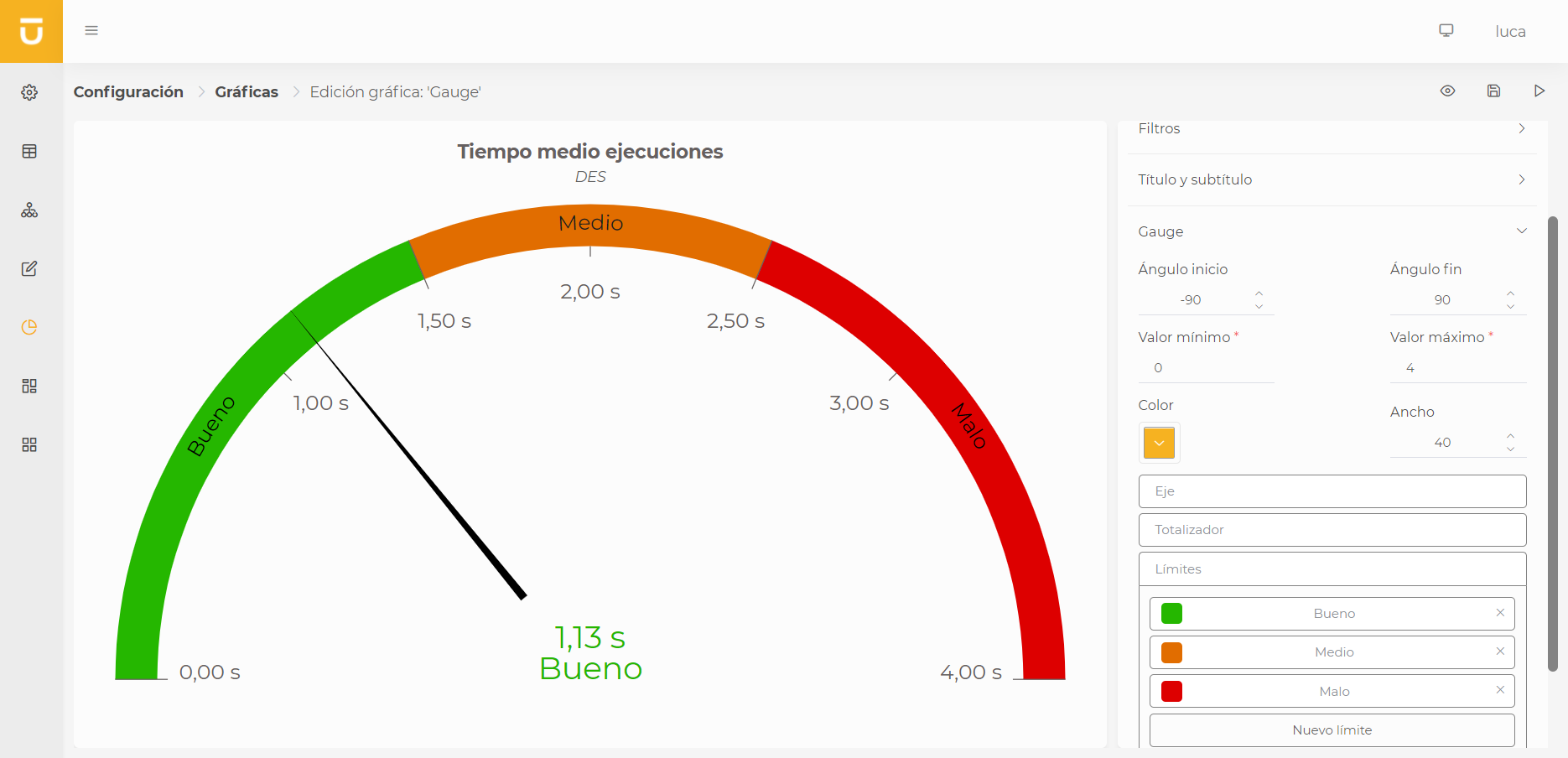
Gauge or radial meter charts stand out among other chart types because they help you measure current performance and display that value using a scale so you can determine your performance.
In this type of chart, we can configure the following options:
-
Start and end angles: Indicate where the semicircle representing the chart starts and ends.
-
Minimum and maximum value: Define the start and end of the scale to be represented.
-
Color of the gauge in case it has no limits.
-
Width of the gauge.
-
Axis: shows the scale values on the gauge; it can be visible or not.
-
Totalizer: represents the current value.
-
Limits: We can define as many limits as deemed necessary to show different scales on the gauge with different colors.
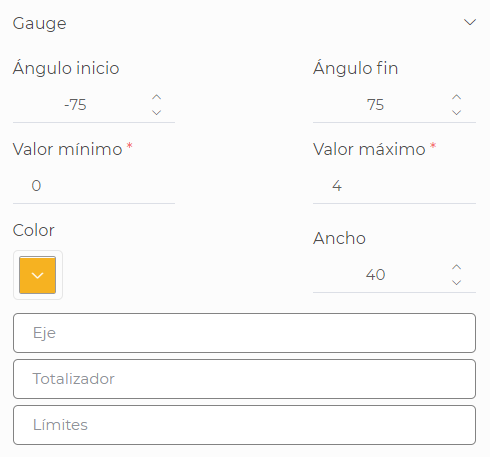
Only one series can be configured in gauges. Unlike other types of charts, the gauge series does not have additional configurations; it will be enough to define the variable and the function to use.
6.2. Execution of charts
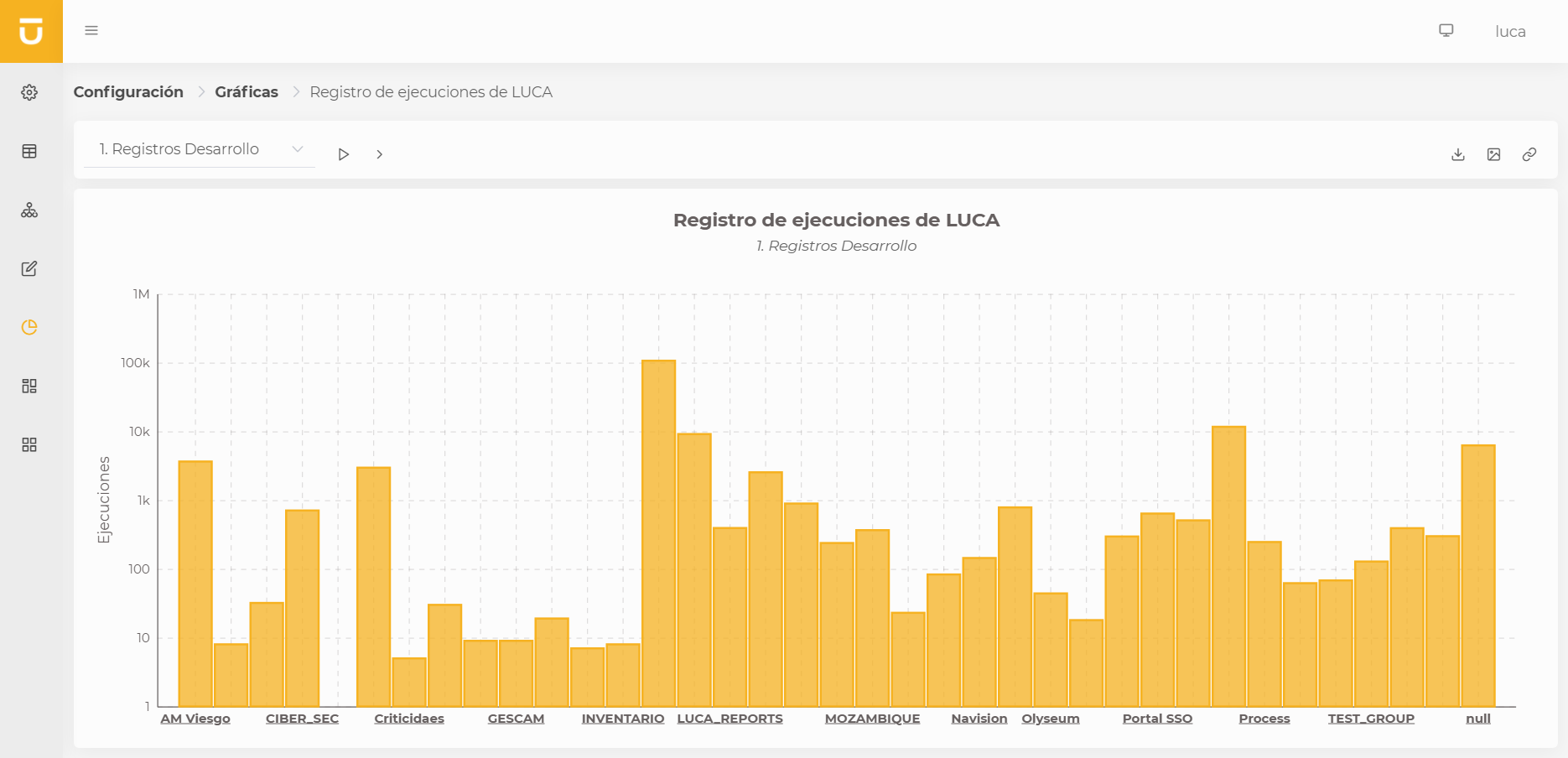
From the execution of charts, we will be able to visualize the obtained results. At the top is the filter selector next to the execution button. Next to the Play button is the expand filter button, with the symbol '>', to apply values to the input variables of the query.

| If the chart is restricted public, the expand filter button will not be visible and it can only be executed with the pre-defined filters. |
On the right side of the filters, we have the buttons for export to csv, export to png, and the link generator to create a link to share the chart.
7. Dashboards
Dashboards are the representation of graphs, queries, and filters to visualize certain information about our business collectively.
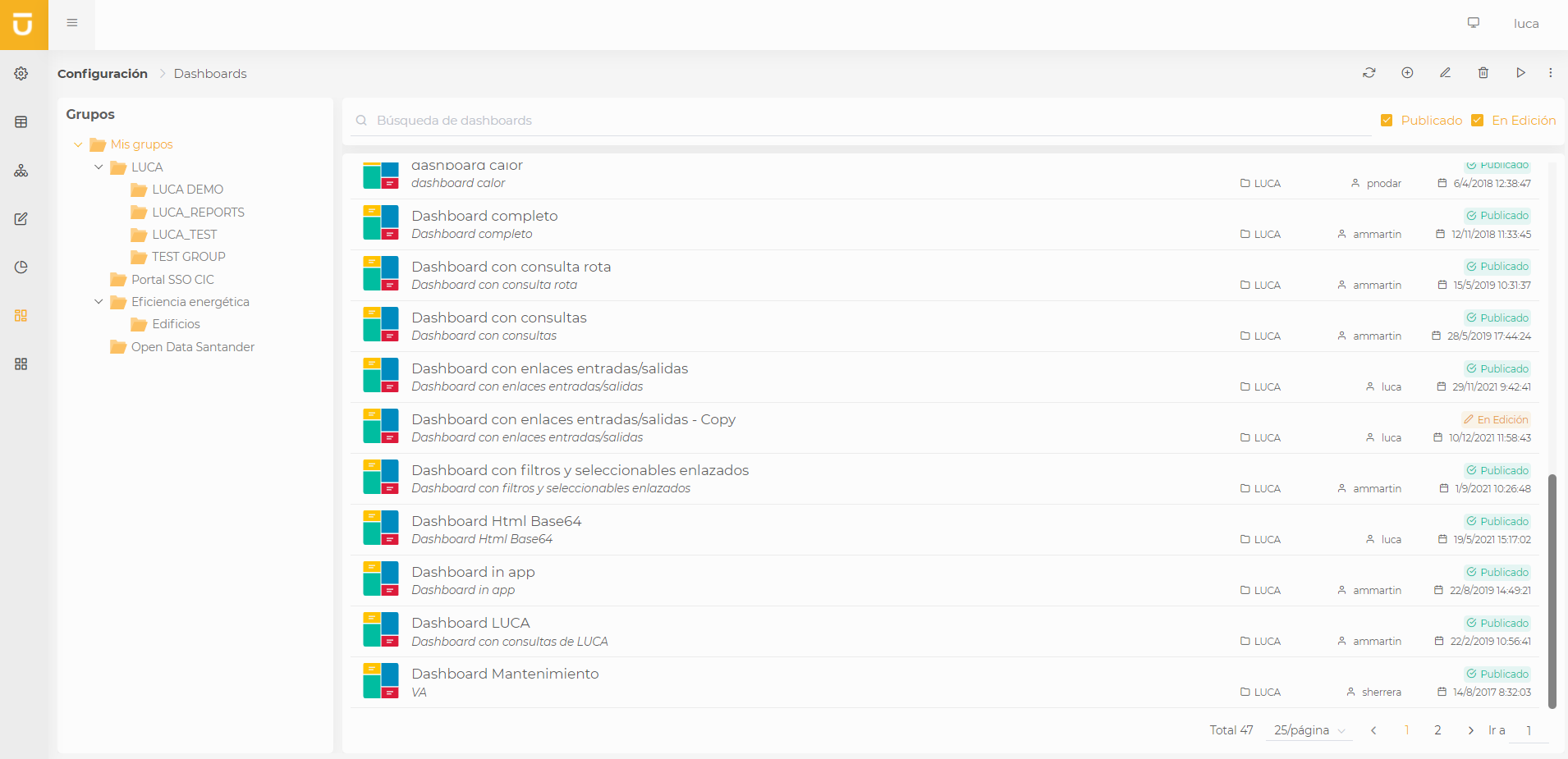
| For more information about the dashboard administration screen, see this section. |
7.1. Creation and Editing of Dashboards
In the dashboard creation view, we encounter the following structure:
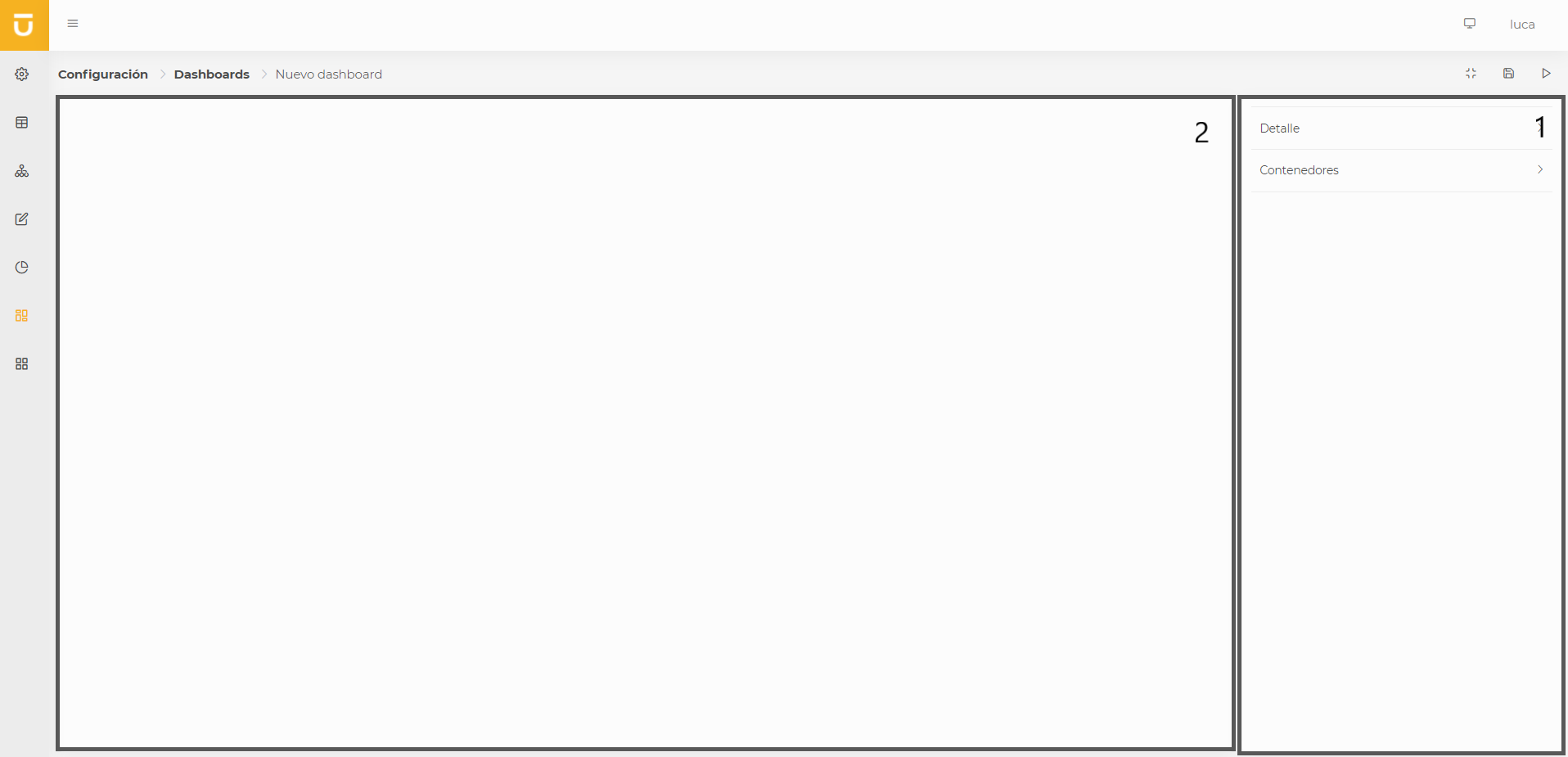
- Configuration (1)
-
The configuration section has two menus where we can set up all the content of the dashboard.
- Editor (2)
-
A blank canvas where the containers that will include filters, graphs, and table-format queries will be created.
7.1.1. Detail
This configuration is shared among all LUCA elements; for more information, go to general aspects.
In addition to the common properties, we can also configure the following characteristics:
- Type
-
-
Fit to screen, so that there is no scroll and all components are displayed adjusted to the size of the browser where the dashboard is shown.
-
Infinite scroll, so we can add as many elements as we want. This will create a scroll to view all the elements configured in the dashboard.
-
- Background type
-
-
Uniform: The background of the dashboard will be uniform, and there will be no distinction between different containers.
-
Containers: Each container included in the dashboard will have its own frame, and there will be separation between different containers.
-
- Refresh time
-
The time with which the dashboard data will be automatically updated. This functionality is useful if our dashboard is fixed on a screen or 'video wall'.
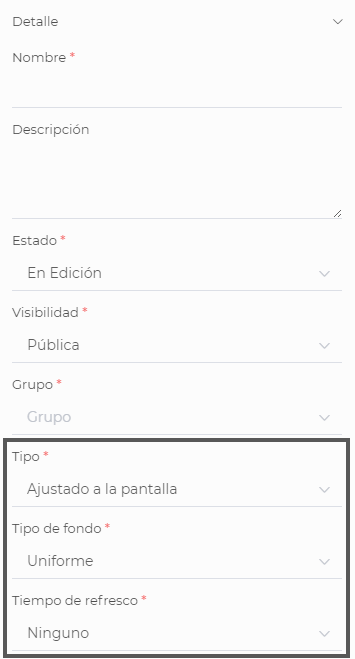
7.1.2. Containers
Containers are the elements that make up our dashboard. For each container, we can configure the title of the element, the subtitle, and the type, which can be any of the following three.
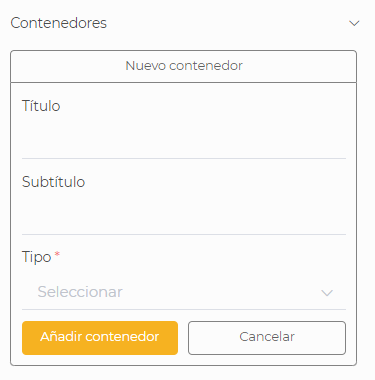
- Graph
-
Container that will include an already created graph. When creating a new container of type graph, we need to fill in the common options mentioned above and additionally select which of the existing graphs we want to add to our dashboard. The configured graph must carry one of the filters configured in it. Finally, we will click on Add container to add it to the editor and modify its position and size.
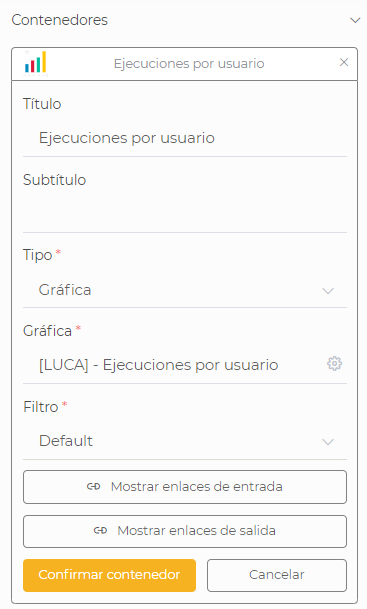
- Query
-
Container that will display an already created query. Once the query is selected, we need to set the page size and whether we want pagination to be displayed or not. Also, in case the query has input variables, we can assign a default value to those variables or link them with variables from a filter that we already have created in the dashboard. Once we have done all of this, we press Add container to add it to the editor.
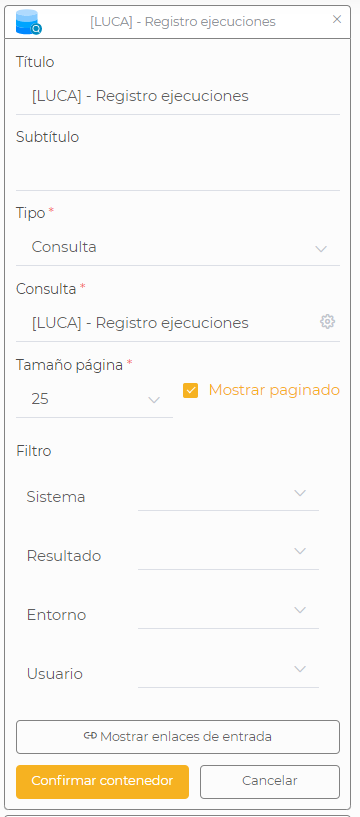
| To link input variables with a filter in the dashboard, it is important to save the dashboard after creating the filter and before making the link, as if we do not do this, it will not show the existing input variables. |
- Filter
-
Filters allow entering input values to filter one or multiple elements configured in the dashboard. We will configure as many variables as we wish, and for each of them, we must establish:
-
Description: This will be the name of the variable.
-
Type: Any of the different existing types.
-
Combo: If it’s a combo, we check this option, and just like in the queries, we must select the query from which we want the data to be loaded into the combo or specify a set of fixed values.
-
Visible: If we want it to be visible, we check this box.
-
Multi-selection: If we want to allow multiple values to be selected in the combo.
Once we have all of this configured, we press to add the variable.
Finally, we select the desired environment or environments that we want to show in the filter and press to add the container.
-
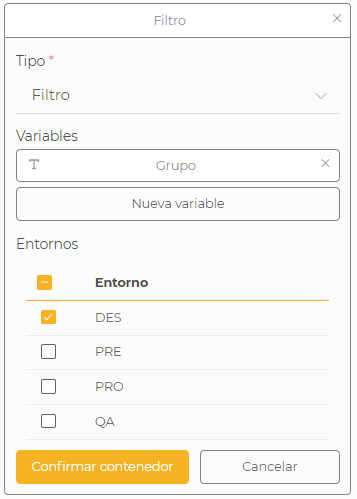
We can delete a container by pressing the 'x' located to the right of the name of that container.
7.2. Execution of a Dashboard
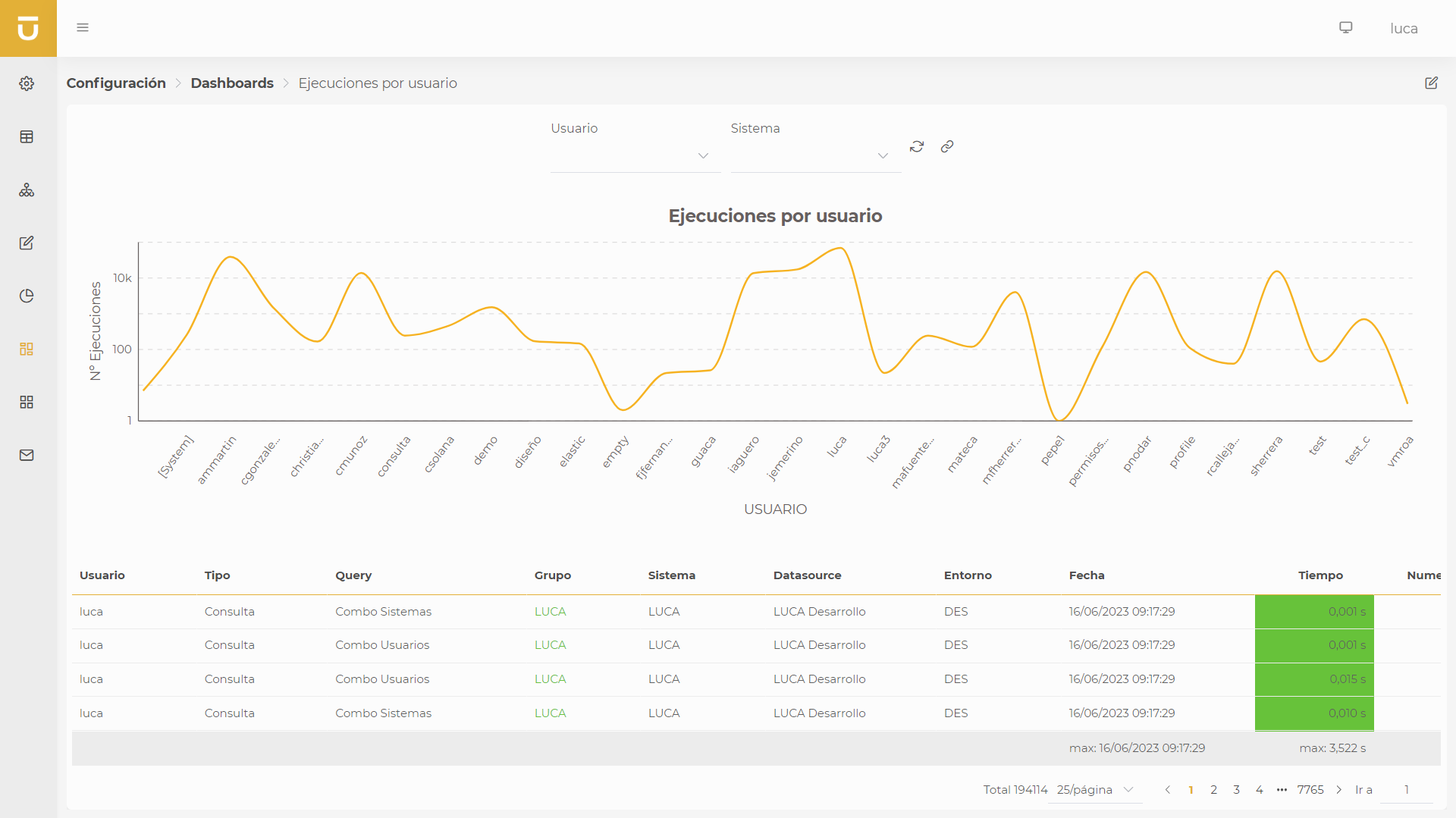
In the new execution screen, we can interact with the filters and visualize all the information in the different graphs and queries.
All configured queries and graphs have a button represented by three vertical dots in the upper right corner of each container, with which we can refresh the graph to update the data, export the data to csv or Excel, generate a png, generate a link to share the container, or open the edit window if we have permissions.
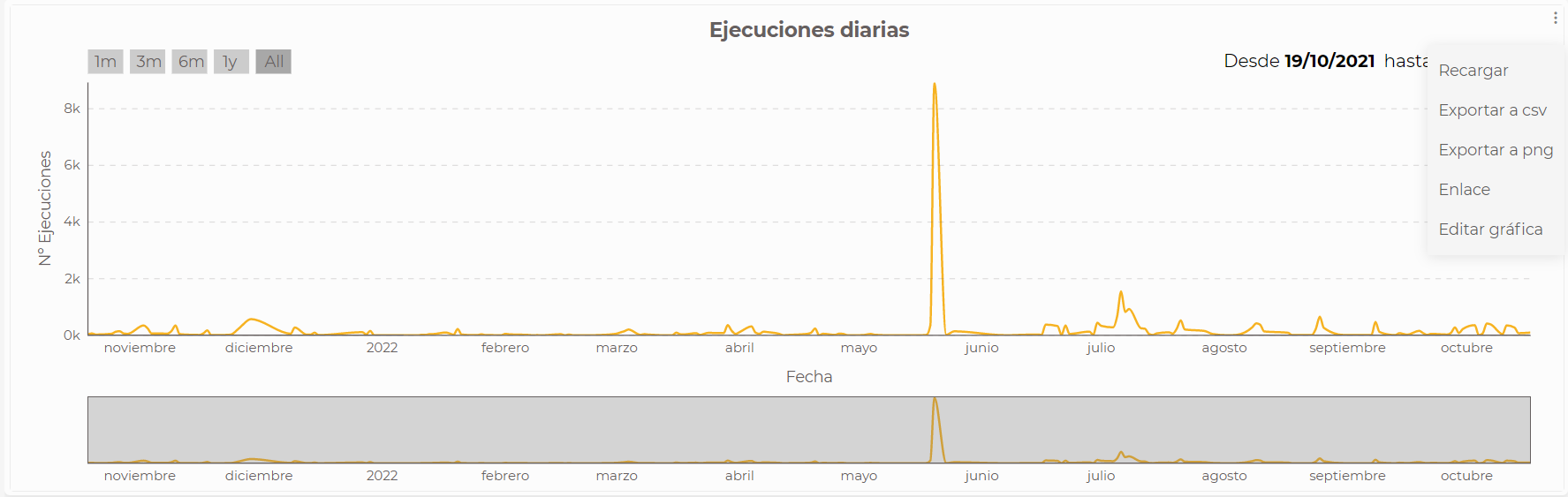
To the right of the filters, we find the run button and the generate direct link to the execution of the dashboard to share it.
8. Applications
An application will allow us to unify in a single location queries, trees, forms, graphs, and dashboards related to the same business or of common interest. The applications are intended to serve final reports to business, production, finance users…
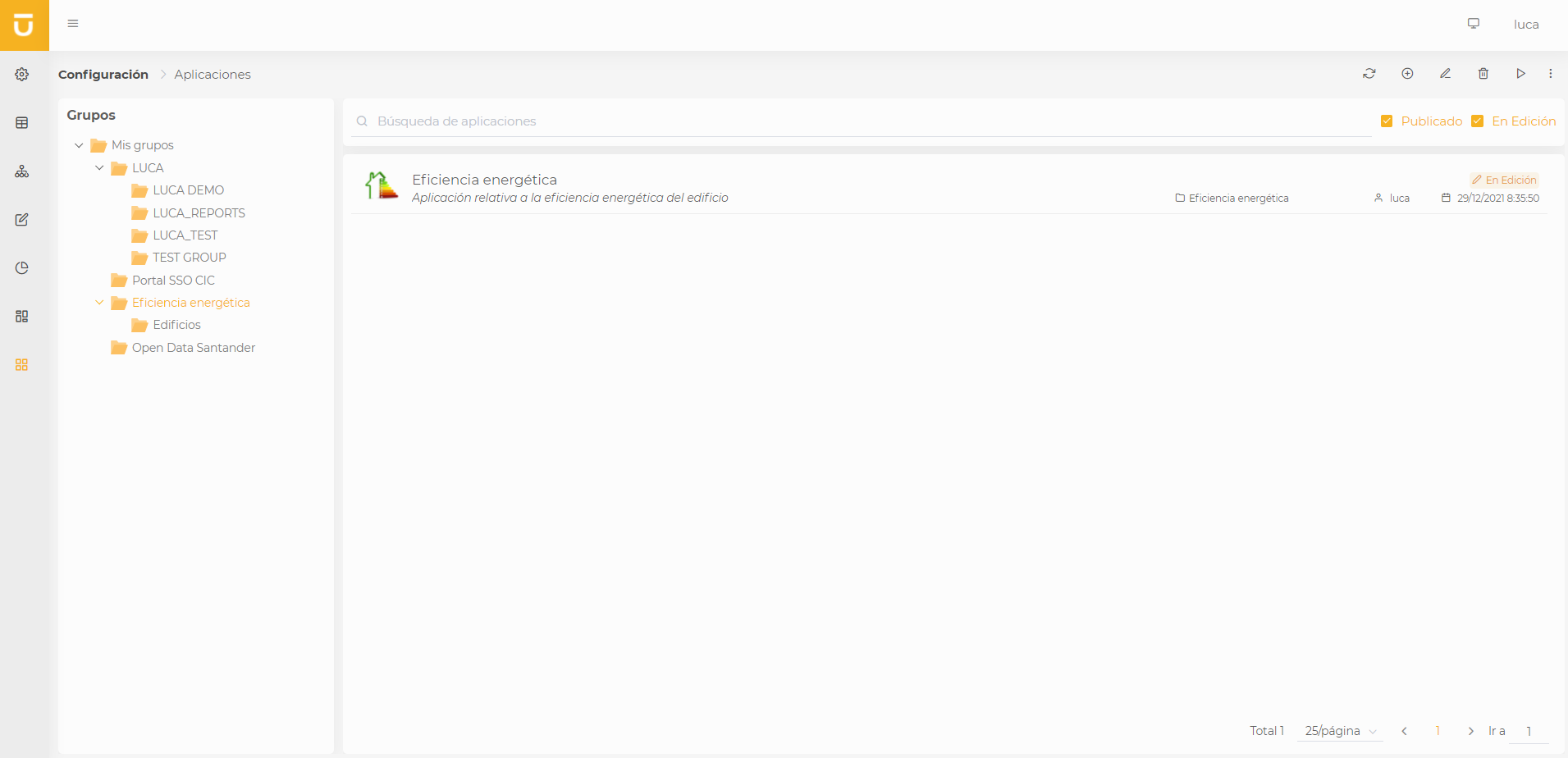
| For more information about the application administration screen see this section. |
8.1. Creation and Editing of Applications
In the form creation view, we encounter the following structure:
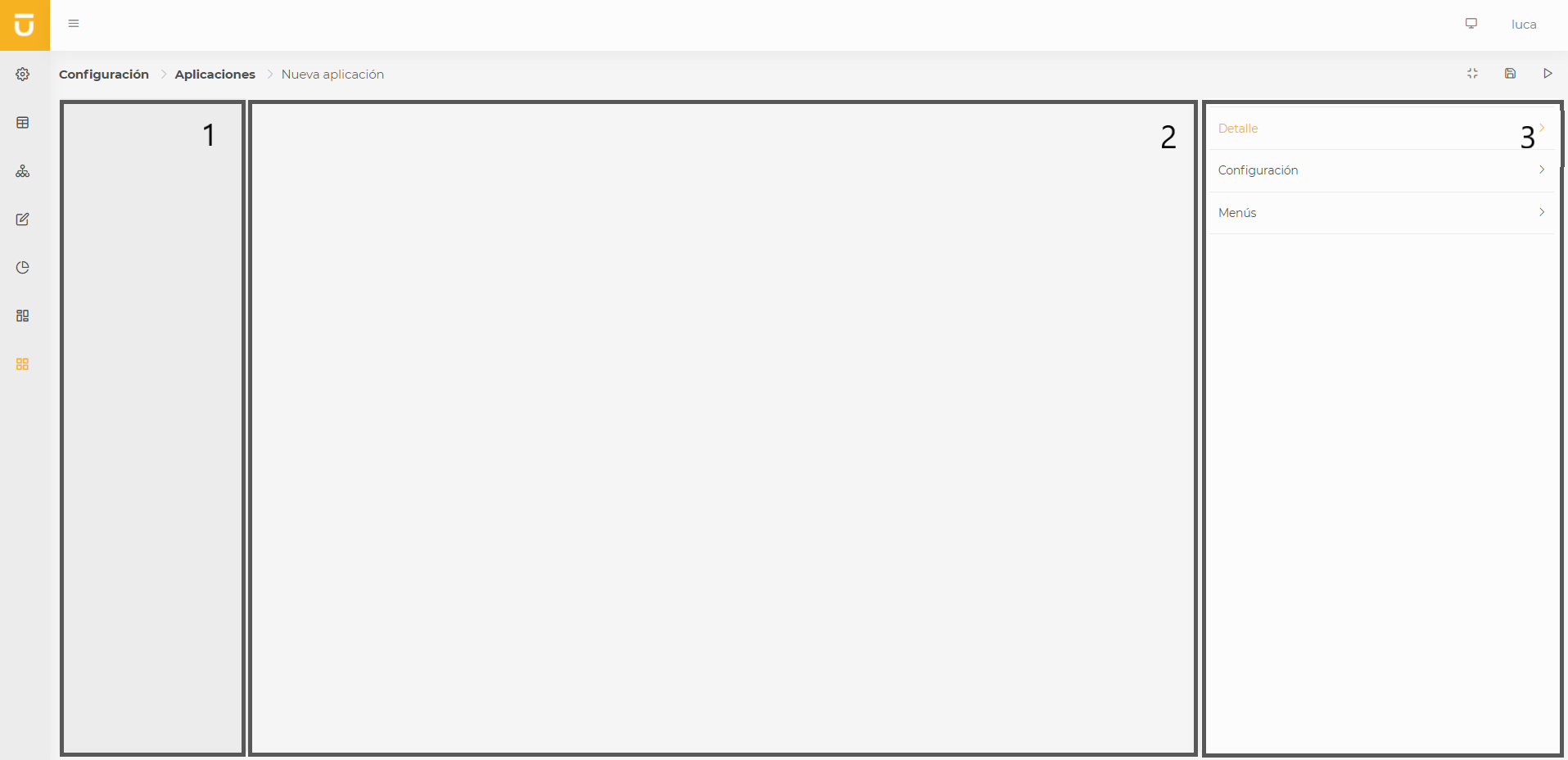
- Menu (1)
-
Preview of our application’s menu.
- Main dashboard (2)
-
Preview of the main dashboard or the contents of the menus.
- Configuration (3)
-
Configuration section like in the rest of the creation and editing menus. It contains the following options:
8.1.1. Detail
This configuration is shared among all LUCA elements; for more information, see general aspects.
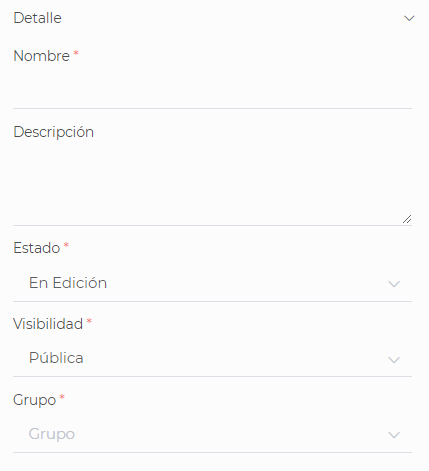
8.1.2. Configuration
In this menu, we can configure the following options:
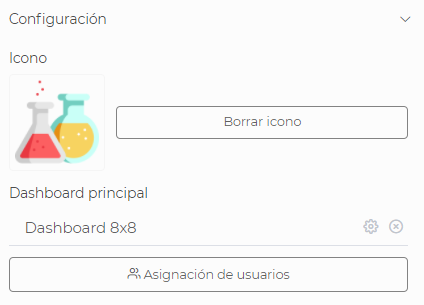
- Icon
-
Allows you to choose an icon for the application that will be visible on the application desktop. To select it, you just need to click the '+' button, and the file explorer of your computer will open, where you can select the desired icon. To delete it, once you have selected an icon, a button saying 'delete icon' will appear to the right of the icon; simply click it, and it will be removed, allowing you to select another icon. It is mandatory that the icon be in PNG format.
- Main dashboard
-
This will be the first dashboard that loads upon entering the application, and you can choose one of the dashboards that are already created. To do this, click on the gear icon and search for the desired dashboard. Once found, select it by clicking on it and press the accept button. If you want to remove the assigned dashboard, you only need to click on the 'x,' and the dashboard will be removed, allowing you to select another one if you wish.
- User assignment
-
Allows us to determine which users will be able to view the application we are creating. To do this, simply select the user or users to whom you want to assign this application and click the arrow pointing to the right to assign them. You can also use the search bar to find the user to whom you want to assign permissions more quickly. We have the option to assign permissions to all existing users by checking the box that says 'Available Users.' All these options are the same for removing user assignments, except that instead of clicking the button with the arrow pointing to the right, we would choose the one pointing to the left. Although the assignment of users who can view applications can be done from this menu, it is recommended to use profiles to determine the access and visibility of users.
8.1.3. Menus and Submenus
Here we will create the different menus for our application. To do this, we must click on new menu as many times as we want to create menus. A menu consists of a name and one or several submenus.
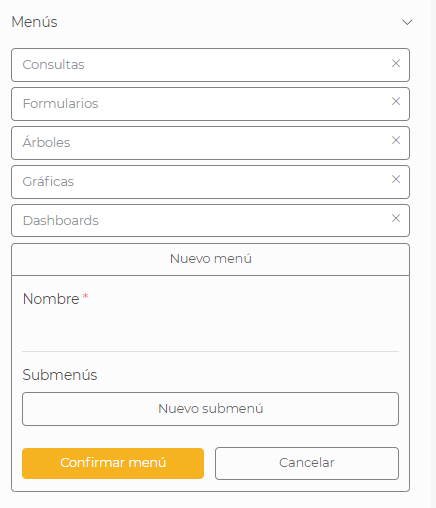
The submenus are composed of the following elements:
-
Name of the submenu.
-
Type of the element that the submenu will contain, and it can be any of the following:
-
Query.
-
Tree.
-
CRUD.
-
Graph.
-
Dashboard.
-
-
Element that will be displayed in the submenu.
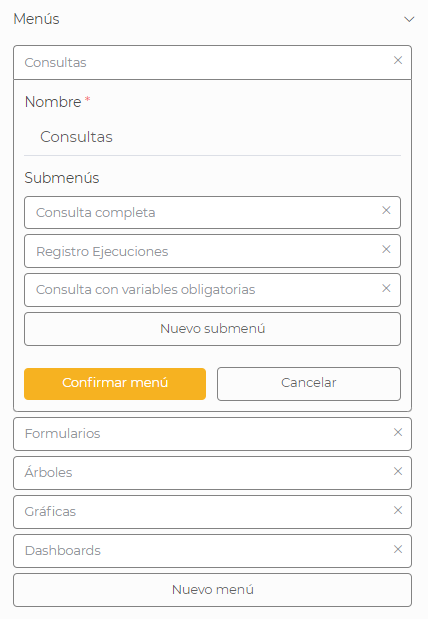
8.2. Execution of an Application
As with the other elements, the play button located in the top right will allow us to execute our application. This visualization will be an accurate representation of what the end user to whom access is granted will see. We can navigate through the menus viewing the elements configured previously.
9. Mailing
Mailings or email reports will allow us to plan email deliveries that include exports of Queries previously created. These emails can contain a customizable body to include context.
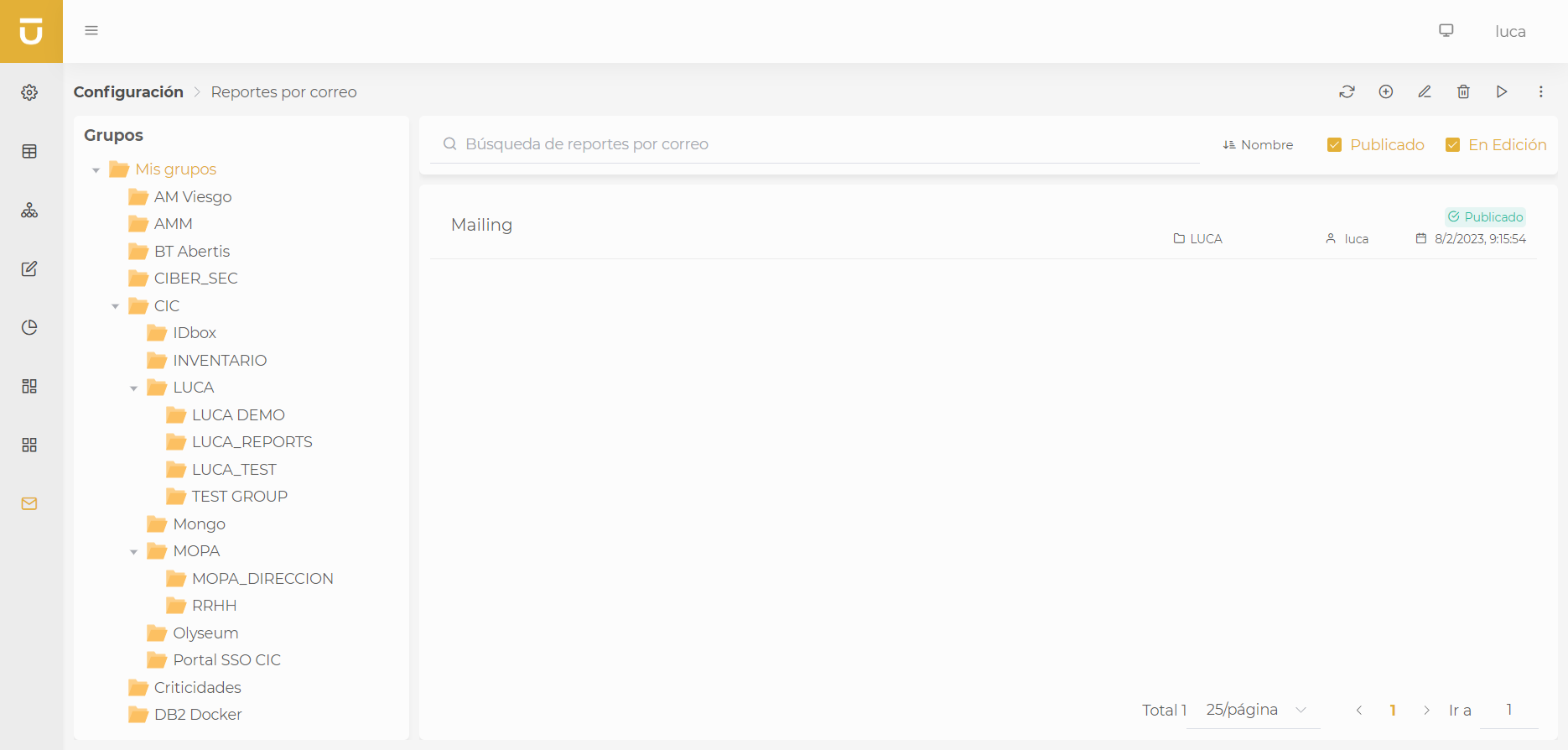
In addition to all the common options with other LUCA elements, mailings have the ability to view all the report executions. In these, we will be able to see if it has executed correctly or contains errors, and in case it has errors, we can view the error message.
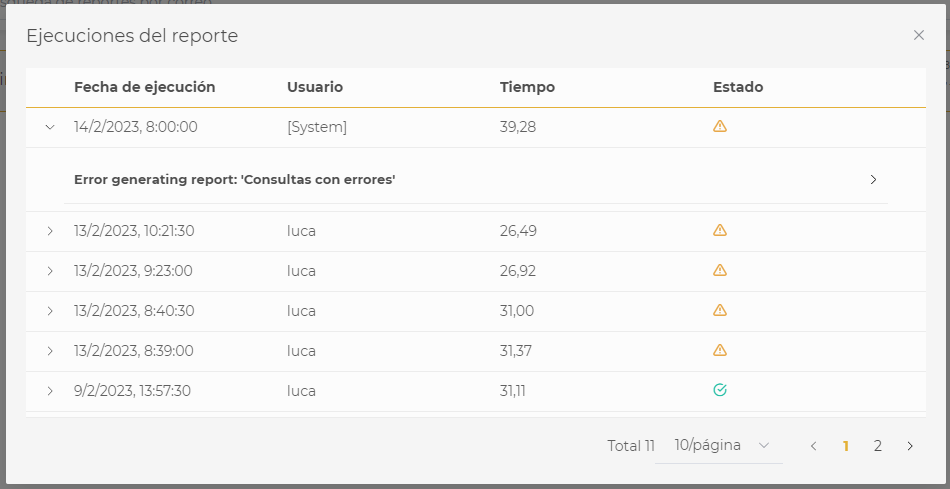
| For more information on the queries administration screen, see this section. |
9.1. Creation and editing of email reports
On the mailing creation screen, we find the following structure:
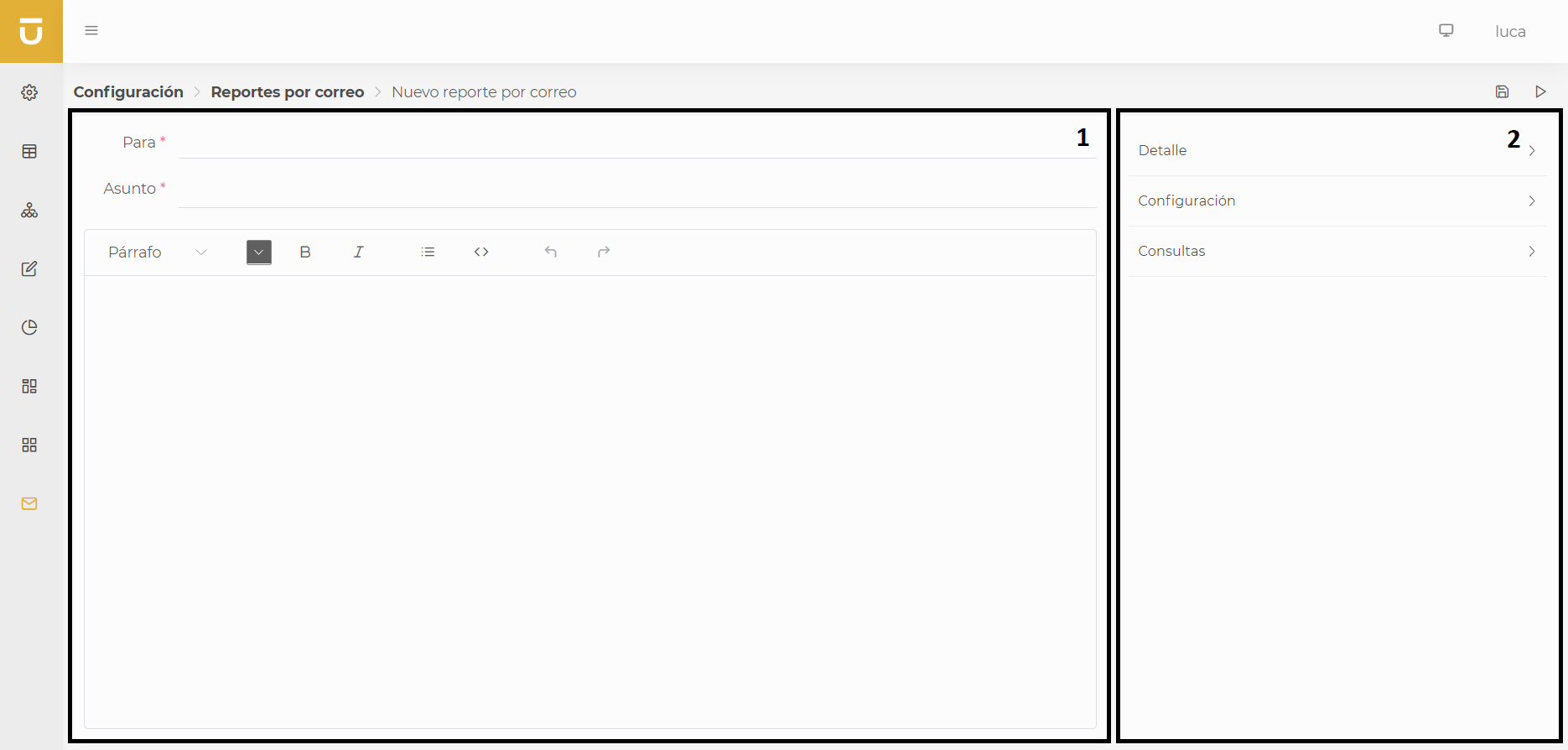
- Editor (1)
-
In the central part of the screen, we will see the email configuration.
- Configuration (2)
-
On the right side of the screen, we find the mailing configuration section, which is divided into three menus.
Above the configuration section, we find the action buttons:
-
Save: Saves the mailing.
-
Test: Saves and runs the mailing in test mode.
| The test execution button for the mailing will only send the resulting email to the current user instead of all the emails specified in the 'To' field. |
9.1.1. Detail
This configuration is shared among all LUCA elements. For more information, see general aspects.
9.1.2. Configuration
In the configuration section, we can define the desired schedule for sending the email. All emails are sent periodically and repeatedly over time.
To configure the schedule, we have a form where we can plan the sending weekly or monthly.
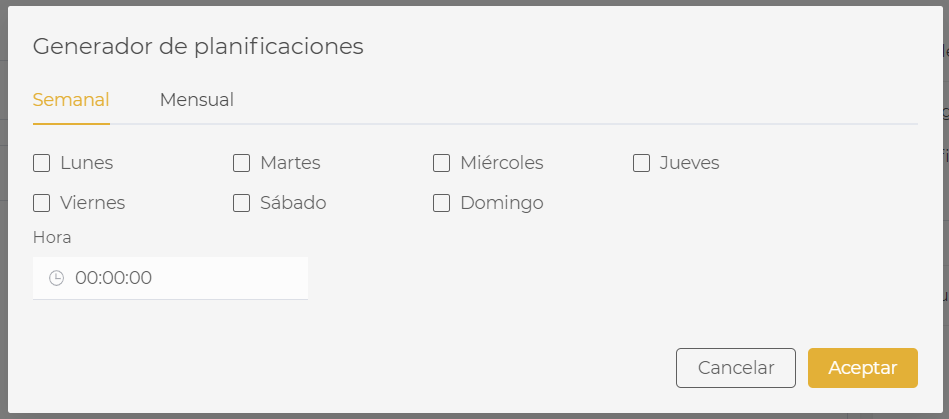
In the weekly section, we can choose the days of the week and the time we want the report to be sent.
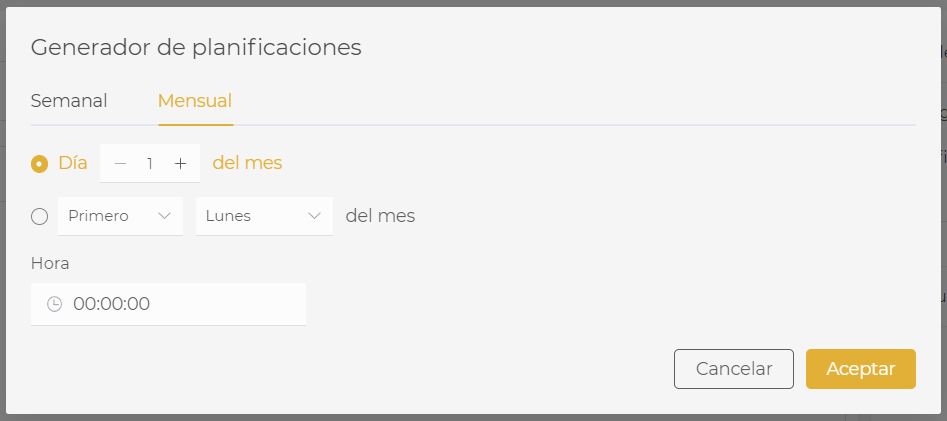
In the monthly section, we can choose between two options:
-
The specific day of the month that we want the report to be sent.
-
The first, second, third, or fourth day of the week that we want the report to be sent.
| It is important that it is saved in 'Published' status for the mailing to be sent periodically. |
9.1.3. Queries
In the Queries section, we can configure the queries we want to attach as Excel in the sent email.
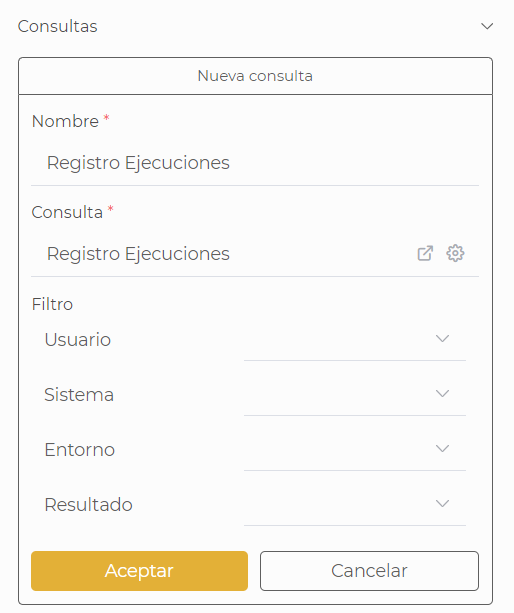
We can define as many queries as we want, and for each of them, configure the corresponding desired filter with which we want the query to be executed.
9.1.4. Email
For the email configuration, we will need to define the To, the Subject, and the body of the email.
In the To field, we can search for users that exist in LUCA or include emails of users that are not registered in LUCA. For users who are not registered in LUCA, we will need to write the complete email for it to appear as an option and then add it to the list.
For the body of the email, we will use the provided editor in which we can change text sizes, colors, formats, and add lists.
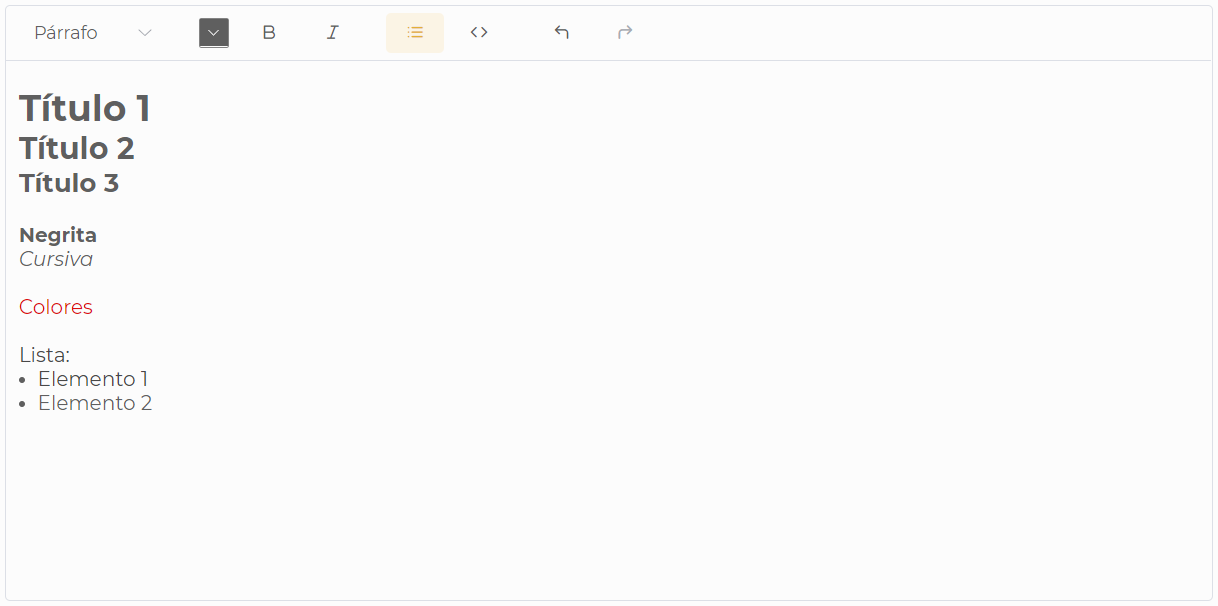
9.2. Execution of reports
Email reports will be executed automatically according to the schedule defined in their configuration. It is important that the mailing is saved in Published status for the reports to be sent automatically.
From the mailing management screen, we can force the execution of a report to run now and be sent to all users defined in its configuration.
10. Links
Links allow sharing LUCA elements with other people. There are two types:
-
Internal links: Allow sharing elements among LUCA users.
-
Public links: Allow sharing elements with people who do not have a LUCA account.
The link generation window has two clearly differentiated sections for each type of link. The visibility of the public links section requires the Generate public links permission. Similarly, the Permanent checkbox requires the Generate permanent links permission.
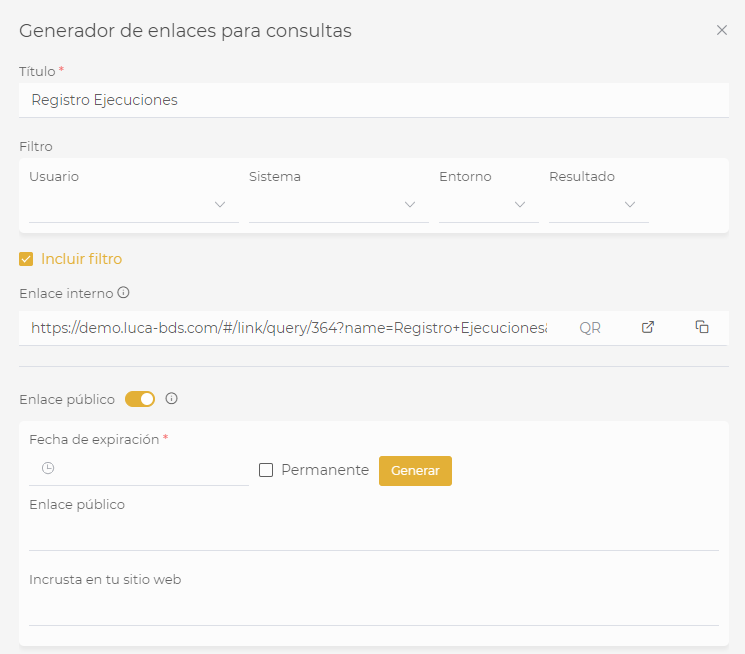
10.1. Internal link
- Title
-
The element title will be used as the tab name when accessing the link and as the file name in case of export.
- Filters
-
Displays current filter values for the element. The Include filters in link checkbox allows these to be modified once the link is accessed.
- Link options
-
The internal link provides three actions:
-
Generate QR code
-
Go to link
-
Copy link
-
10.2. Public link
To activate this section, the corresponding permission is required and the Public link switch must be enabled.
- Expiration date
-
Date until which the public link will be available. Can be omitted by checking the Permanent checkbox, if the corresponding permission is available.
- UUID/Base64 selector
-
Determines the type of public link to generate:
-
UUID: Generates a link with a unique identifier. Filters are set according to the initial configuration, but can be modified once the link is executed.
-
Base64: Encodes the configuration in the link itself. Allows modifying filters by directly editing the encoded URL.
-
- Generate
-
Once the properties are configured, the Generate button will create the public link with the following options:
-
Public link with the same actions as the internal link (QR, go to link, copy)
-
Code to embed the element in a website, with quick copy button
-
- Delete
-
Once the link is generated, the Delete button appears next to the Generate button. Allows deleting the created public link.
11. Import - Export
The import and export functionality allows you to save configurations and product elements to your device for reuse, as well as load previously exported resources.
To enable this functionality, you need to access the Settings panel > Administration > Roles and enable the Export and Import Items permission within the Administration tab, as shown in the image.
| Only an administrator user, with all permissions activated, can carry out import and export processes. |
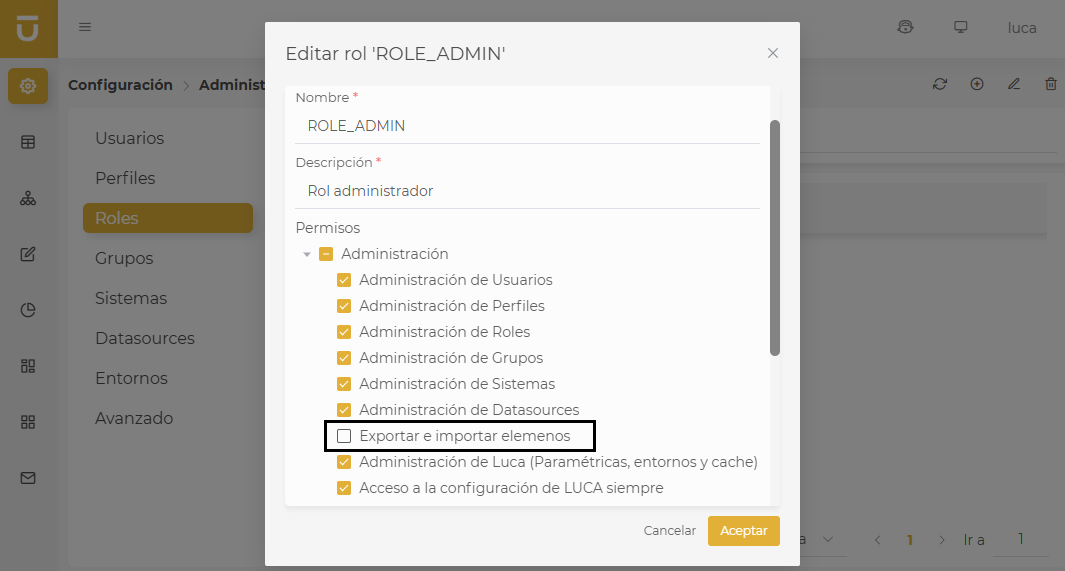
| For the import-export process to take place, the involved LUCA applications must belong to the same version (although it may work if elements that do not exist in both are not used) and be performed on the same element. |
The new functionality will be accessible from the side panel of the administrator view in the sections:
Administration
Within the Administration menu, the Systems, Datasources, and Environments tabs display the corresponding Import and Export icons in the top bar. By clicking on them, the user can select files from their device or save the desired elements in a compatible format for later use in LUCA.
In the following image, you can see the location of the import and export icons in the top bar of the configuration section:
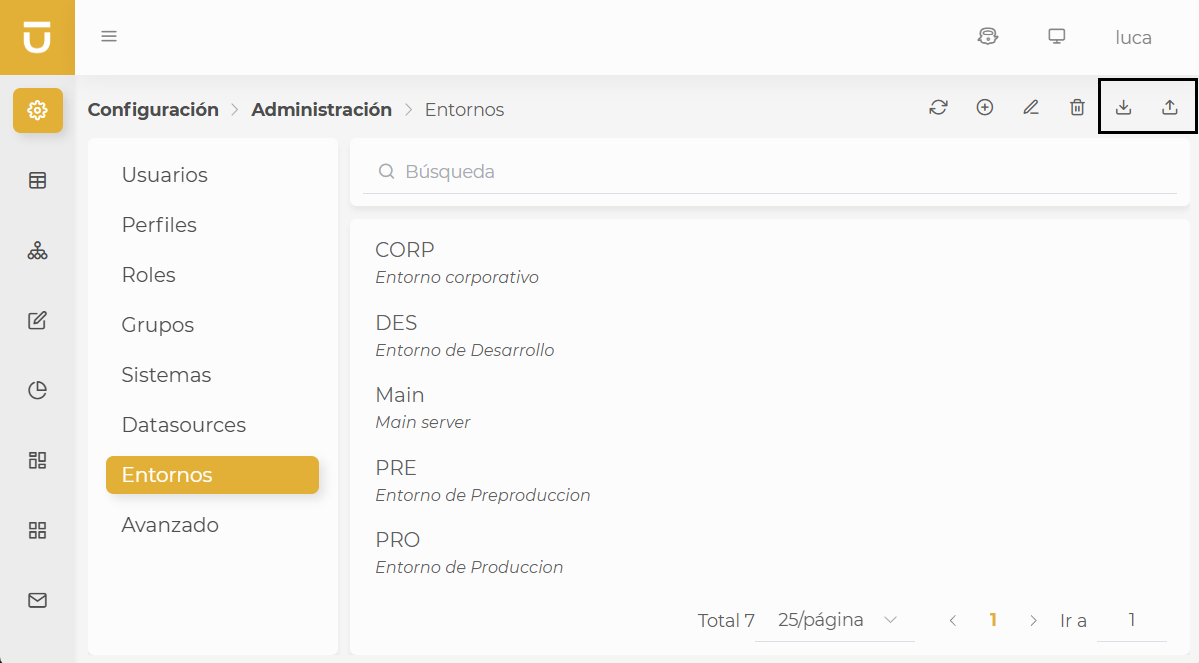
LUCA Items
The import-export functionality affects the following elements: Queries, Trees, Forms, Charts, Dashboards, Applications, and Mailing.
Each of these elements also offers the possibility to be imported or exported. To access this functionality, it is enough to open the context menu located in the top bar of each view (represented by the three vertical dots icon). When doing so, the Import and Export icons will be displayed, with the same functionality as in the Administration section.

11.1. Export
To export any previously created and configured elements, it is necessary to select it and click on the Export icon. The system will show an informational message indicating that the process may take several minutes to complete. From that moment, LUCA will begin the export of the element. Once completed, the browser will notify that the download has finished.
The exported file will be saved in the device’s downloads folder with the .luca extension, ready to be imported into another LUCA environment or instance.
11.2. Import
To start the import process, simply click the Import icon, which will open a window where you can select the previously exported file you want to incorporate into the system.
In this window, it is necessary to select a group (1) from the upper dropdown, which will show all the groups available at that moment.
The file to import can be selected in two ways: using the system’s file picker or dragging the file directly into the dotted area (2) designated for it. Once added, the file will appear next to the Import button (3), indicating that everything is ready to begin the process.
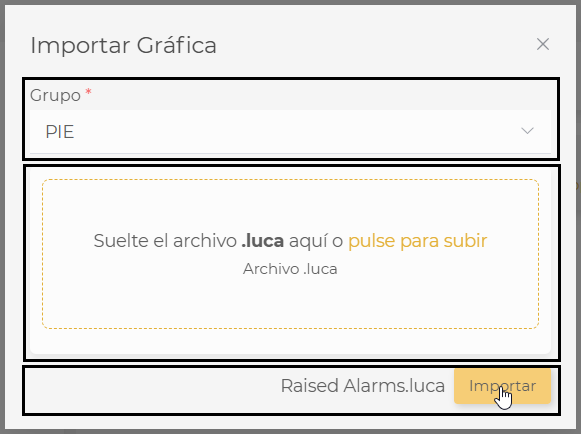
Once the Import button is clicked, the system will show another message informing that the process may take several minutes. Upon completion of the import, if the process is carried out successfully, a summary window will be displayed with the result of the operation, detailing all the new Created Items. Furthermore, the popup will offer the opportunity to access the imported items one by one, through a direct link in the summary. If any of the items require additional configuration, such as datasources, this requirement will be clearly indicated in the same popup window.
When importing an item into LUCA, all the components that are part of it are automatically incorporated.
During this process, the system checks for the prior existence of the elements included in the import file.
If any of them are already present in the environment, it will not be duplicated and this circumstance will be notified with an informational message.
If an element with a matching name but a different configuration is detected, LUCA will create a new version of it, automatically renaming it with the format: name(1).
|
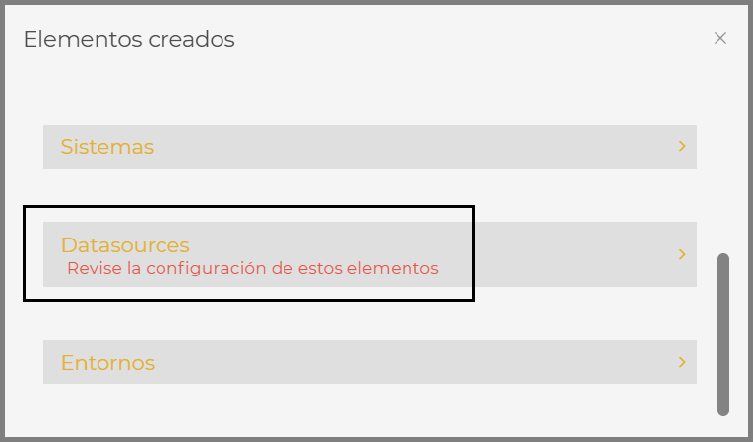
| Elements such as datasources, for logical reasons, or dashboards require subsequent configuration. It is necessary to access them individually from the panel shown in the popup window and complete the additional configuration. |
The datasources require configuration of all connection parameters, which vary from one database to another. In the case of dashboards, it is necessary to review each chart and manually configure the input links, as shown in the following image.
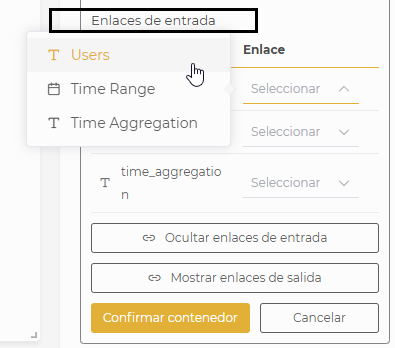
12. Single Sign On
A Single Sign On, also known as SSO for its English acronym, allows users to access multiple applications by logging in with a single account to different systems and resources. SSO is particularly useful when there are various systems that can be accessed with one password, helping to avoid the repetitive entry of these credentials each time the user logs out of the service. For users, it offers significant convenience as they only need to authenticate once, maintaining a valid session for all applications utilizing SSO.
LUCA 3.0 and its subsequent versions include an SSO based on the open-source tool Keycloak, which we internally refer to as LUCA Accounts. Keycloak is software that will handle authentication, authorization, and user management, as well as support for integrating LUCA with LDAP systems, Kerberos, Active Directory, or other logins like Google, Microsoft…
Keycloak is structured around realms where each realm will have its users, integrations with external systems, clients… LUCA Accounts will consist of two realms: the master realm and the luca-bds realm. The first will only have one user, which will be the administrator of LUCA Accounts. The second will contain all the rest (LUCA users, LDAP integrations, clients…)
12.1. Accessing LUCA Accounts
Access to the SSO administration is done via web by using the URL to LUCA and appending the path /auth/ to the end of the URL, such as https://luca.luca-bds.com/auth. Upon accessing, the administration console login where we will enter the username and password of the LUCA Accounts administrator will be displayed.

The Keycloak web interface has the following structure:
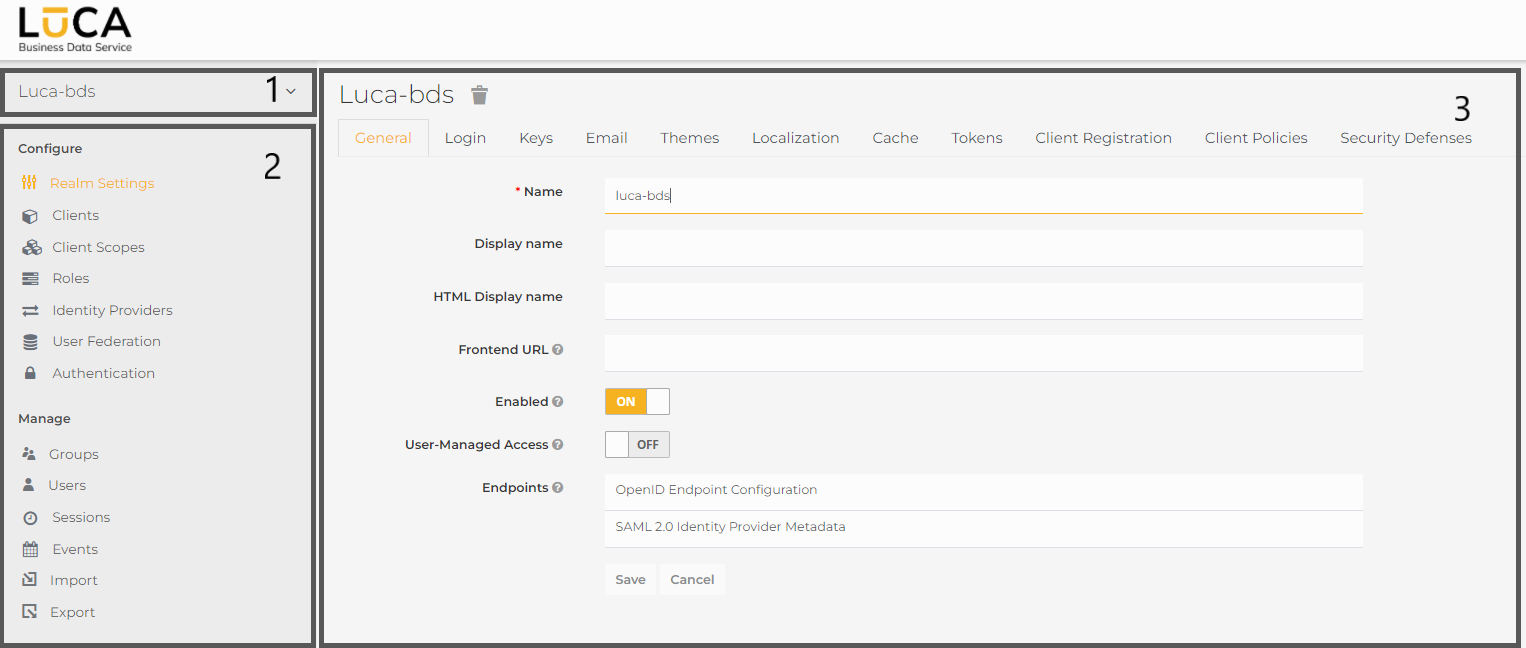
- Realm Selector (1)
-
Allows us to switch realms to access specific configurations.
- Side Menu (2)
-
The left section remains fixed during the entire navigation of the web. It contains all elements that are configurable in each Keycloak realm.
- Configuration (3)
-
In the central part of the screen, different tabs and forms will appear, allowing us to configure the various elements of Keycloak from the side menu. For example, in the image, we see the configuration of the realm.
| Any user who modifies Keycloak configuration that is not reflected in this manual does so at their own risk. |
12.2. Users
LUCA users are also users of Keycloak. If we create a user from LUCA, this will automatically be created in Keycloak without any further action required. If the user is created from Keycloak, it will automatically appear in the LUCA user administration area once they have completed their first login.
| Users in the master realm are independent of those in the luca-bds realm. |
To perform any actions on the users in the realm, we must click on Users in the left menu. Then we will need to click on one of the users of the list to access the configuration.
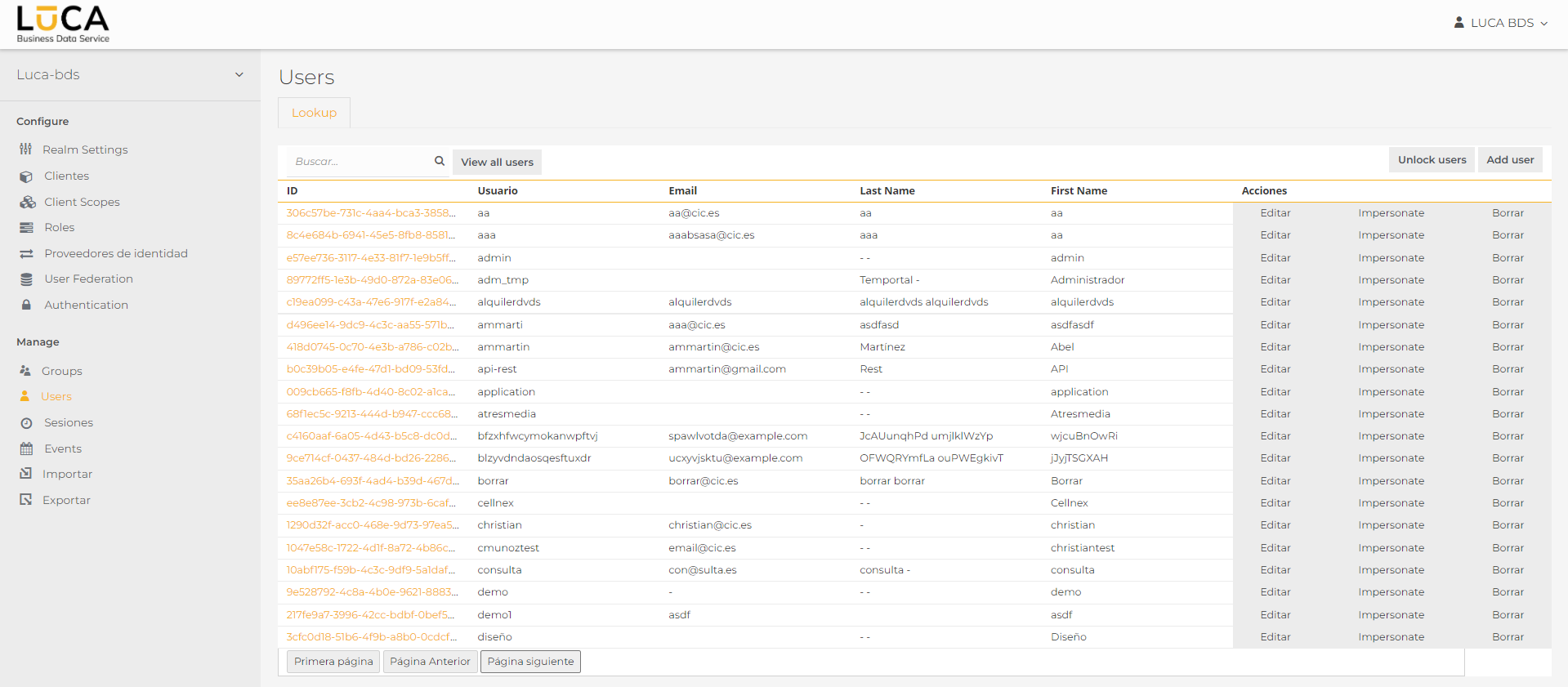
For each user, we have the following options:
- Edit
-
Allows us to perform multiple actions on the user such as changing their email, name, surname, password…
- Impersonate
-
The impersonate action allows us to be logged in as that user. This way, if we have granted certain permissions to a user from LUCA and want to check that we have done it correctly, we can impersonate the user to validate it.
- Delete
-
Deletes the user from Keycloak, not from LUCA.
12.3. Changing User Passwords
With the user edit option described in the previous section, we can change a user’s password. In the user edit window, go to the Credentials tab. To set a new password, click on the button Reset Password and then fill in the Password and Confirm Password fields. With the Temporary option, we can choose whether to force the user to set a new password on their first login or not. Finally, click on the Save button.
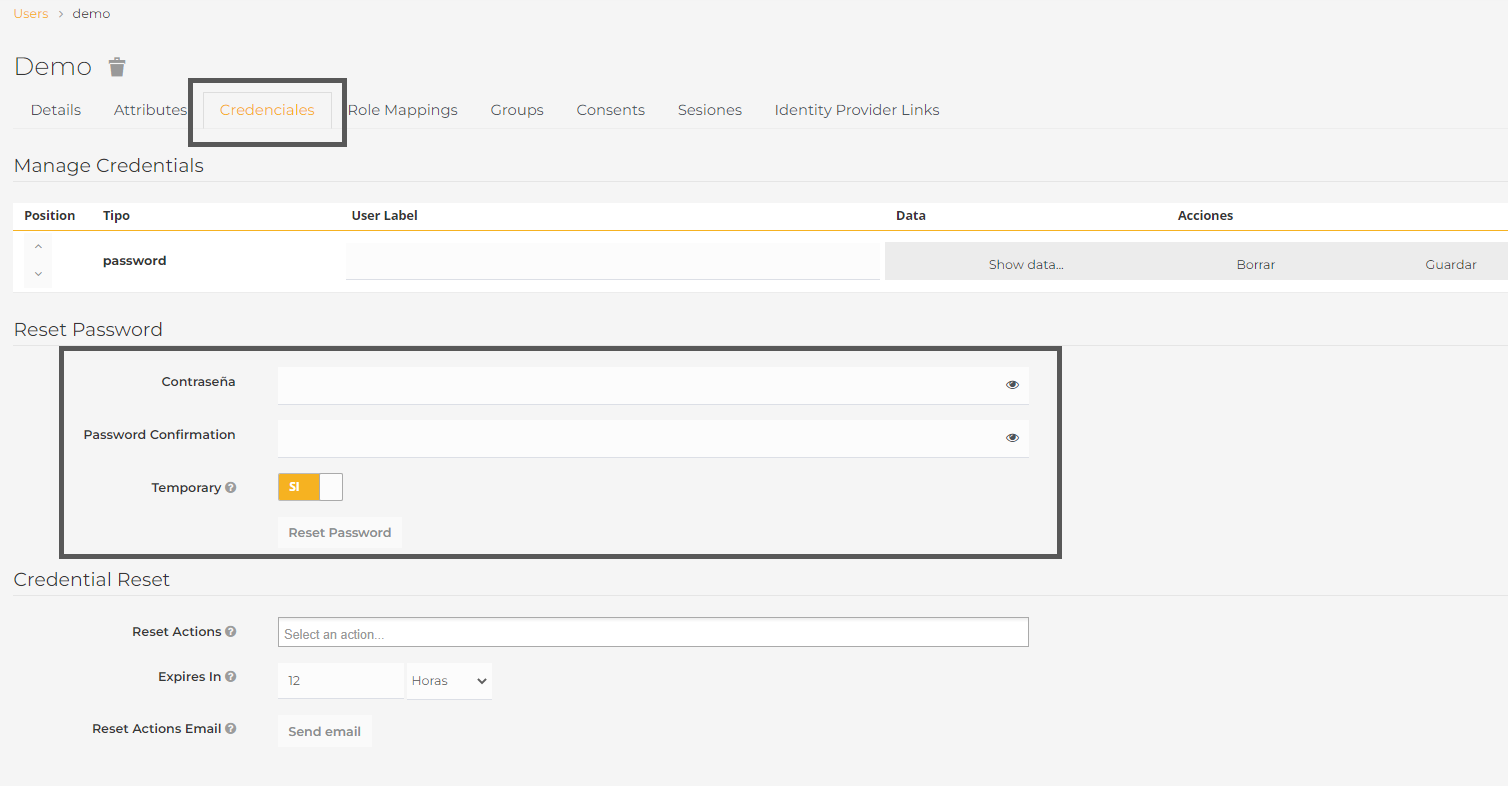
| We can only change user passwords from Keycloak. From LUCA, the only password we can change is our user password. |
12.4. Password Policy
Keycloak allows us to establish a password policy. For instance, we can set that all user passwords must have a minimum of 10 characters, including at least one uppercase and one lowercase letter. To configure this, in the side menu, we must click on Authentication and then on password policy.
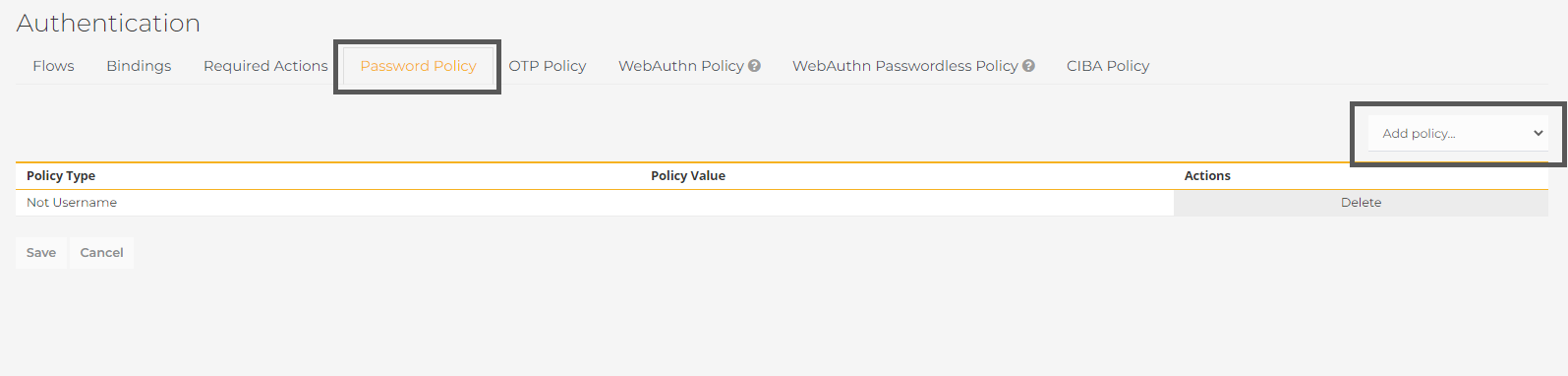
The dropdown on the right allows us to add different types of policies, such as the expiration time for passwords. All information on the types of policies is collected in the official Keycloak documentation.
In the following image, we can see some policies that have been added to Keycloak. Among them, it states that the password cannot contain the username, must include at least one uppercase and one lowercase letter, must have a minimum length of 10 characters, and finally that the password expires every 180 days.
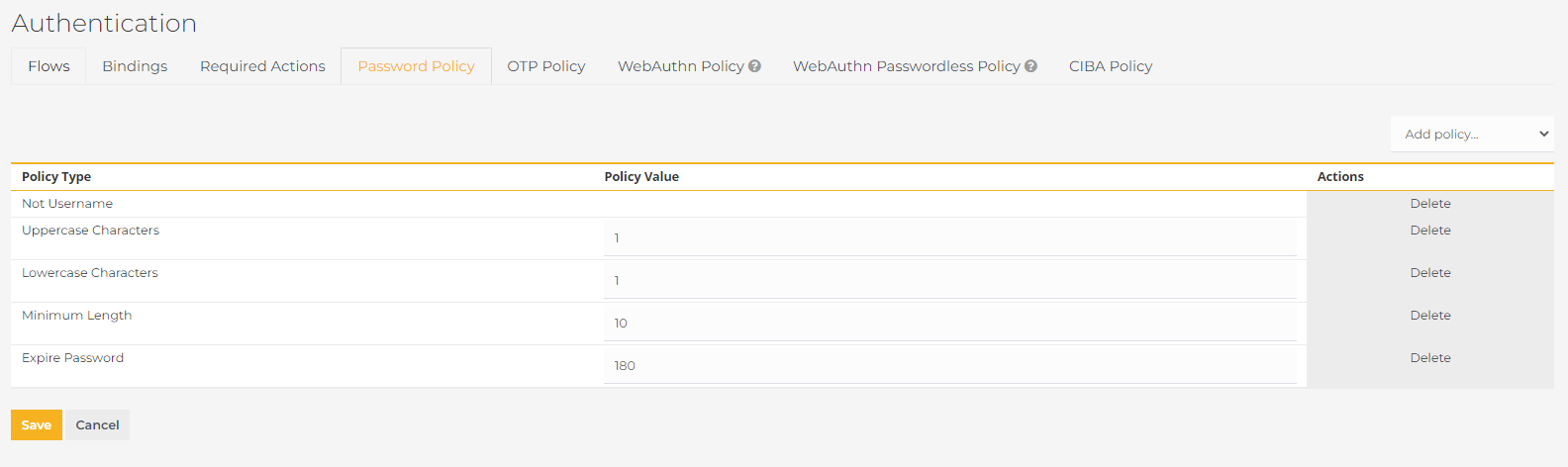
12.5. Integration with LDAP and Active Directory Services
Many organizations have authentication providers based on LDAP. Keycloak offers the option to configure an integration with the organization’s LDAP to use our corporate users.
To perform this integration, we must click on User Federation in the side menu and in the dropdown that appears in the central part, we need to select the ldap option.
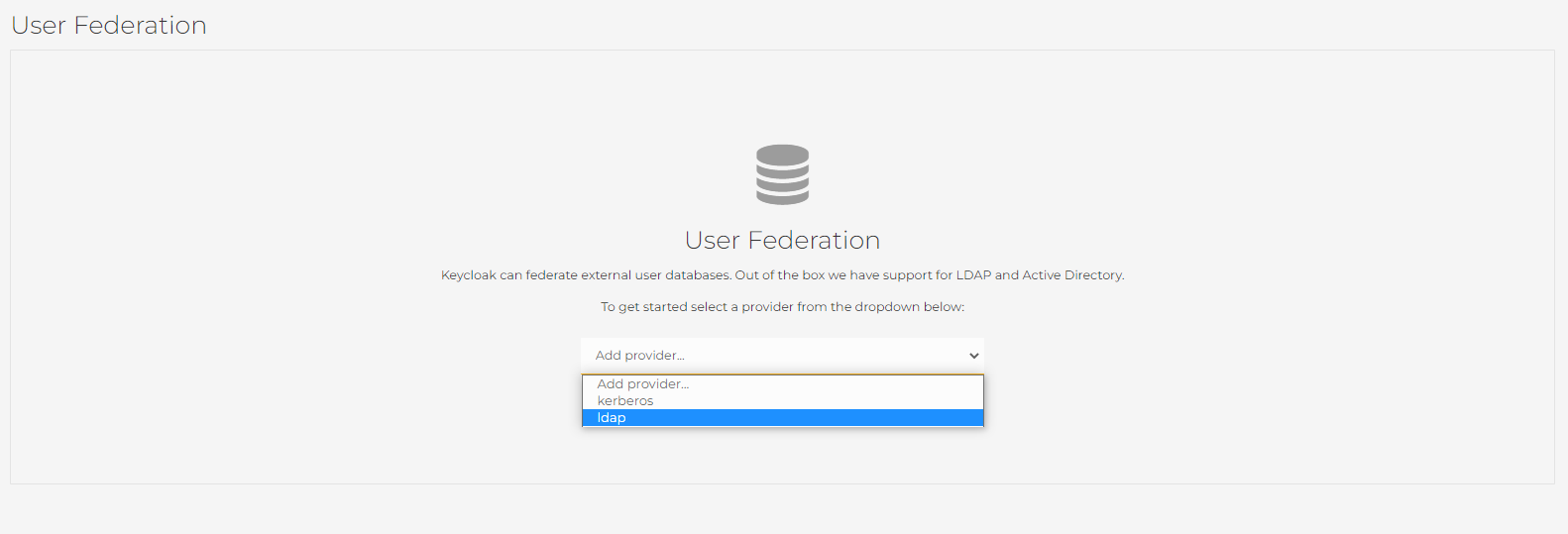
In the next step, we will need to fill out the form related to different LDAP parameters such as the connection string, the attribute to be used as the username, or the user and password for integrating with the LDAP. Each form entry has a small question mark icon next to it. If we hover over this icon, it will show a small help description of what each field is.
Once filled out, click on the save button located at the bottom of the page.
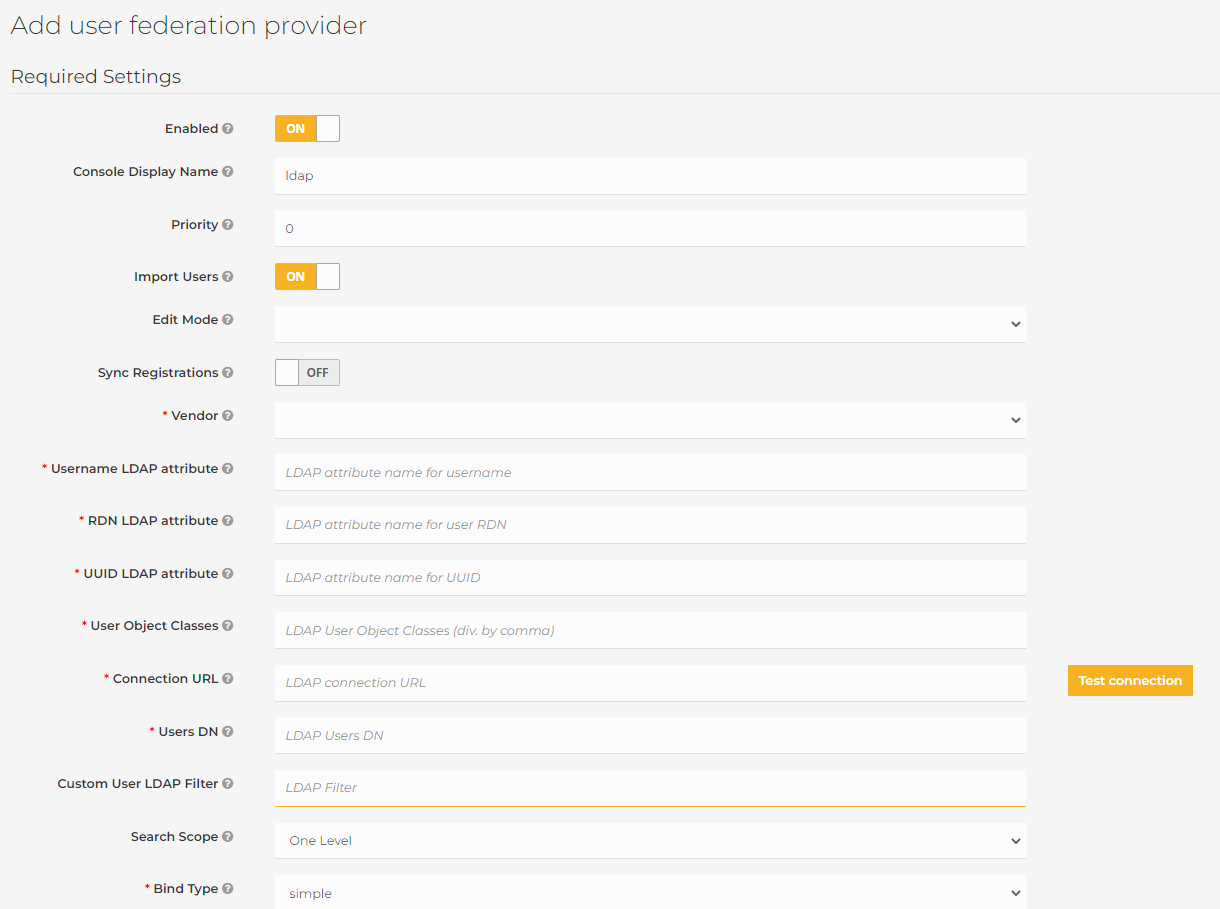
13. Changelog
This section details the corrections, changes, and new functionalities included in each version of LUCA.
13.1. API 3.16.4 - WEB 1.16.4 (15/12/2025)
- New features
-
-
LUCA-3531: Allow choosing whether to execute the query by default or not from the configuration menu
-
- Corrections
-
-
LUCA-3527: When executing a query, the configured filter is not taken into account
-
13.2. API 3.16.3 - WEB 1.16.3 (18/11/2025)
- Corrections
-
-
LUCA-3528: Environment ID is not sent correctly when creating public links
-
13.3. API 3.16.2 - WEB 1.16.2 (22/10/2025)
- Changes
-
-
LUCA-3529: Library updates
-
LUCA-3532: Internal variables now include current user, environment and current date
-
- New features
-
-
LUCA-3530: Base64 public link with modifiable filters
-
13.4. API 3.16.1 - WEB 1.16.1 (18/07/2025)
- New features
-
-
LUCA-3526: Allow adding filters when creating public links on dashboards
-
13.5. API 3.16.0 - WEB 1.16.0 (29/05/2025)
- New features
-
-
LUCA-3195: On-Premise Installer
-
LUCA-3220: Shortcut to the SQL console in system settings
-
LUCA-3245: Import and export LUCA elements
-
LUCA-3418: Python library
-
LUCA-3289: Allow changing the sorting of data in basic charts
-
LUCA-3326: Connector for Neo4j
-
LUCA-3258: Connector for Trino
-
- Corrections
-
-
LUCA-3433: Changing the title configuration causes the subtitle to disappear.
-
- Changes
-
-
LUCA-3434: When querying a user’s permissions, those assigned in the default profile are also listed.
-
13.6. API 3.15.0 - WEB 1.15.0 (16/07/2024)
- New features
-
-
LUCA-3135: Beautify and enrich the output text of trees
-
LUCA-3143: Add shortcut to edit the main dashboard from the application editing
-
LUCA-2860: Allow disabling parameters and headers in HTTP queries
-
LUCA-3147: New REST IDbox datasource
-
- Corrections
-
-
LUCA-3152: Deleting linked variables in forms results in a general error.
-
13.7. API 3.14.0 - WEB 1.14.1 (22/05/2024)
- Corrections
-
-
LUCA-3132: Corrected error when updating LUCA configuration parameters.
-
13.8. API 3.14.0 - WEB 1.14.0 (08/05/2024)
- New features
-
-
LUCA-2863: If an HTTP query results in an error, display that error in the query configuration window
-
LUCA-3078: Pagination does not appear in GET queries when the no pagination option is checked
-
LUCA-3084: Error returning the last day of March, displaying March 30, 2024 instead of March 31, 2024
-
LUCA-3094: Add tooltip to show when hovering over fields in the SELECT query of the form
-
LUCA-3095: Modify the Mail process so that when the dispatcher has CURRENT type variables, email sendings are individual using said variables
-
LUCA-3097: Set the totalizer values of queries in Spanish
-
LUCA-3111: Create query audit and save modifications
-
- Corrections
-
-
LUCA-3064: The element in the submenu of an application does not update
-
LUCA-3067: When adding two or more donut-type graphs with a totalizer, it appears offset
-
LUCA-3096: When creating a new system, if the type is changed, the datasources of the changed type do not appear
-
LUCA-3105: Gauge-type chart limits are not visible in the configuration section
-
LUCA-3106: Add tooltip values for series that are 0 when aggregated
-
LUCA-3109: The color picker in pie charts for series color does not work
-
LUCA-3110: Remove the text written when selecting an option in the mailing
-
LUCA-3118: Correct so that max and min work for String fields in HTTP queries.
-
13.9. API 3.13.0 - WEB 1.13.0 (08/04/2024)
- New features
-
-
LUCA-3074: Expand the usage screen to add the queries used in the Mail
-
- Corrections
-
-
LUCA-3086: Corrections when executing the Mailing process
-
LUCA-3072: Issue with Keycloak when deactivating and activating the user from LUCA
-
- Changes
-
-
LUCA-3079: Security and library update.
-
13.10. API 3.12.2 - WEB 1.12.3 (06/03/2024)
- New features
-
-
LUCA-3058: Allow adding additional authentication parameters to the REST type datasource
-
LUCA-3055: Add PATCH type requests
-
- Corrections
-
-
LUCA-3053: Corrected mail update.
-
13.11. API 3.12.1 - WEB 1.12.2 (31/01/2024)
- Corrections
-
-
LUCA-3022: Corrected PNG export of charts
-
LUCA-3037: Corrected styles in tree editing, pagination was not visible
-
LUCA-3044: Corrected saving of parameters from the Web
-
LUCA-3045: Corrected error opening public links of type query in Firefox
-
13.12. API 3.12.1 - WEB 1.12.1 (11/01/2024)
- Corrections
-
-
LUCA-3036: Temporal range type variables do not work in public links
-
LUCA-3037: API documentation is no longer available.
-
13.13. API 3.12.0 - WEB 1.12.0 (20/12/2023)
- Corrections
-
-
LUCA-3008: A query with formula-type variables cannot be executed from editing
-
LUCA-3015: The original date format does not update until the query is saved
-
LUCA-3026: Axis widths only allow storing integer values instead of decimals
-
LUCA-3031: The values of new output variables disappear when adding advanced configuration
-
- New features
-
-
LUCA-3001: Creation of public links for any LUCA element
-
LUCA-3020: New datasource 'Microsoft Dataverse'
-
- Changes
-
-
LUCA-2981: Required variables in dashboard filters
-
LUCA-3027: Return to page 1 in a query if it returns fewer pages than the page currently displayed
-
LUCA-2993: Improvements in pivot tables. More options for data expansion and color changes
-
LUCA-3029: In the query list, change the Import icon.
-
13.14. API 3.11.0 - WEB 1.11.0 (16/10/2023)
- Corrections
-
-
LUCA-2978: Error with stacked charts whose category is numeric
-
LUCA-2984: Long variable names in insert/update/delete queries are not aligned correctly
-
LUCA-2979: Show "no data" message when no data exists in charts
-
LUCA-2974: Do not allow editing/deleting elements if the user does not have permissions.
-
- New features
-
-
LUCA-874: Boolean type input variables
-
LUCA-2941: Cloning profiles
-
LUCA-2776: HTML chart templates
-
LUCA-2508: Configure numeric formats in chart series.
-
- Changes
-
-
LUCA-2910: In date groupings in graphs, add the month in the format January, February, March…
-
LUCA-2462: Show data type (int, varchar…) in the columns of the database viewer tables
-
LUCA-2969: Add reload button in the element search window
-
LUCA-2909: For combo type queries, modify the 'Usage' tab to see in which queries and dashboards it is being used
-
LUCA-2986: Allow importing queries to modify existing queries.
-
13.15. API 3.10.1 - WEB 1.10.1 (20/09/2023)
- Corrections
-
-
LUCA-2966: The update form for an entity does not refresh in the preview when a new row is selected.
-
LUCA-2971: Temporal range type variables appear smaller when executing queries, trees, charts, and dashboards.
-
LUCA-2970: Stacked or grouped charts with a categorical date X-axis are not sorted correctly.
-
LUCA-2972: Cannot drill down by clicking on a column when there are line type series.
-
13.16. API 3.10.0 - WEB 1.10.0 (04/09/2023)
- Corrections
-
-
LUCA-2908: Editing the first element of parameters and HTTP headers from the edit button does not work.
-
LUCA-2911: Categories of a chart do not delete when the chart is deleted.
-
LUCA-2928: Query execution does not work in the SQL console.
-
LUCA-2930: Cloning a dashboard with date type filters does not clone the format and default value correctly.
-
LUCA-2932: The totalizer text color does not update when changed in the color palette.
-
LUCA-2933: Cannot return to the main query in a tree if a unique output variable is empty.
-
LUCA-2934: Error navigating through trees with unique output; incorrect output is displayed.
-
LUCA-2936: Default schema field is missing in the configuration of Oracle type datasources.
-
LUCA-2938: Favorite queries cannot be deleted.
-
- New features
-
-
LUCA-2767: New input variable type 'range'.
-
LUCA-2824: Combos with remote search.
-
LUCA-2912: Update LUCA license from within the web.
-
LUCA-2902: Include import query button in the query list view.
-
LUCA-2781: When creating a drill down, inherit the series configured in the first level.
-
LUCA-2861: Include input variables declared in the HTTP query in modal edit windows for parameters and headers.
-
- Changes
-
-
LUCA-2859: Allow reordering parameters and headers in HTTP queries.
-
13.17. API 3.9.0 - WEB 1.9.0 (19/05/2023)
- Corrections
-
-
LUCA-2901: Selecting a REST system in a query and switching to another REST system causes an error.
-
LUCA-2903: Updating the query of a combo in an input variable does not update the combo values in the preview.
-
LUCA-2896: In forms, cannot save twice as version conflict warning appears.
-
LUCA-2753: Remove the 'Optional' option when selecting an input variable of type 'Current user'.
-
LUCA-2879: In pivot tables, date totalizers do not format the date.
-
LUCA-2883: Do not make the main JSON path mandatory when the returned object is not an array.
-
LUCA-2891: The schema of a database does not load in query editing or in the SQL console.
-
LUCA-2893: Show an error message when trying to save an input variable in a query with a static combo without values.
-
LUCA-2897: Variables in form queries are not sorted in the variable link.
-
LUCA-2885: Cannot clone graphs that have annotations in their series.
-
LUCA-2885: Cannot create a user from LUCA.
-
LUCA-2880: Cannot save colors for grouped categories.
-
LUCA-2867: Cannot access the mailing creation view without user admin permissions.
-
LUCA-2905: When creating an HTML chart, variables do not appear if not saved.
-
LUCA-2906: Saving an HTML chart clears the chart title.
-
LUCA-2907: Key-value table for x-www-form-urlencoded HTTP requests does not work properly.
-
- New features
-
-
LUCA-2445: Ability to import and export queries.
-
LUCA-2826: Capture HTTP 500 and 400 errors and show a modal with the error description.
-
LUCA-2838: Improve access denied errors.
-
LUCA-2875: Allow basic charts to have X axes that are linear or logarithmic.
-
LUCA-2786: Allow creating links in dashboards by filling out filters.
-
- Changes
-
-
LUCA-2900: Add shortcut button to access combo administration from the input variable combo configuration.
-
LUCA-2785: When it is a required linked combo and there is only one element, select it by default.
-
LUCA-2898: In HTML charts, allow opening links since the security policy of iframes blocked it.
-
LUCA-2892: Enable expanding the side menu in an application.
-
LUCA-2895: Enable gzip compression on API and web responses to speed up network traffic.
-
LUCA-2890: Add ;encrypt=false at the end of SQL Server datasource URLs by default.
-
LUCA-2887: Add to the HTTP query preview URL the port.
-
13.18. API 3.8.0 - WEB 1.8.0 (12/04/2023)
- Corrections
-
-
LUCA-2836: Cannot reorder rows, columns, and values in pivot tables.
-
LUCA-2848: Returning to the main dashboard of an application does not reload.
-
LUCA-2855: In forms, bulk upload buttons from CSV appear slightly misaligned.
-
LUCA-2849: A user with profile admin permissions cannot edit a profile if they do not have role, user, and datasource management.
-
LUCA-2851: CSV export does not correctly export special characters.
-
LUCA-2837: Date type output variables in pivot table values do not format the date correctly.
-
LUCA-2840: Unify the names 'Mailing' and 'Email Reports' in roles and side menu.
-
LUCA-2843: When executing queries with variables that have not had any values entered, set them as NULL.
-
LUCA-2846: When creating a new query with more than one input variable and testing it without saving, values are not sent correctly to the API.
-
- New features
-
-
LUCA-2825: Upgrade Keycloak to version 21.
-
LUCA-2857: Be able to use client_credentials type clients in LUCA.
-
LUCA-2790: Improvements in the HTTP connector.
-
- Changes
-
-
LUCA-2831: Modify styles and templates for Keycloak 21.
-
LUCA-2840: Unify the names 'Mailing' and 'Email Reports' in roles and side menu.
-
LUCA-1906: Enable configuring Redis as a cache for queries and charts.
-
LUCA-2807: Change the ID generation strategy for the luca_execution_register table to not use the Hibernate sequence.
-
LUCA-2832: Use layers in Docker to generate smaller images for the API and the Dispatcher.
-
LUCA-2568: Validate default values in numeric input variables.
-
| Connections to SQL Server databases are now encrypted by default due to the SQL Server driver update. To disable the default encryption, add: ;encrypt=false at the end of the connection string URL. |
13.19. API 3.7.1 - WEB 1.7.3 (23/03/2023)
- Corrections
-
-
LUCA-2841: Input and output variable names are not visible in dark mode.
-
LUCA-2842: Cannot filter in the environments combo.
-
LUCA-2844: In the assignment panels for groups, datasources, and users, checks are not well aligned with data.
-
LUCA-2845: Assigning a width to a combo expands the width of the combo but not the dropdown.
-
LUCA-2852: Input multiselect variables in queries do not use the selected value to filter.
-
13.20. API 3.7.1 - WEB 1.7.2 (08/03/2023)
- Corrections
-
-
LUCA-2819: Corrected font size in execution tables of trees.
-
LUCA-2827: Corrected style issues in the navigation tree of tree execution.
-
LUCA-2833: Corrected HTML and SVG chart encoding.
-
LUCA-2835: Corrected input sizes in query filters.
-
13.21. API 3.7.1 - WEB 1.7.1 (06/03/2023)
- Corrections
-
-
LUCA-2795: The luca_rownumber column is returned for DB2 type datasources.
-
LUCA-2817: Style corrections for dark mode.
-
LUCA-2818: Added compatibility with Keycloak versions 20 and 21.
-
LUCA-2822: An inactive user in LUCA cannot perform any action.
-
LUCA-2823: Cannot create or edit mailing reports if the group is not directly assigned to the user.
-
LUCA-2828: Corrected error of changes in the DB for Oracle.
-
LUCA-2815: Style corrections for multiselect type combos.
-
13.22. API 3.7.0 - WEB 1.7.0 (14/02/2023)
- Corrections
-
-
LUCA-2758: Chart labels overflow the top margin if columns are very high.
-
LUCA-2764: In a line chart, if 'Temporal Series' is selected in categories and then aggregated by date, the X-axis does not change to Date type.
-
LUCA-2778: Very long usernames are cut off in the lists of different LUCA elements.
-
LUCA-2793: In timeline type graphs with negative values, the x-axis does not repaint when zooming.
-
LUCA-2754: When clearing a marked input variable that is linked to another one also with a chosen option, the second does not clear its value in the combo.
-
LUCA-2704: Link generator fails with names that contain white spaces.
-
LUCA-2734: Default values in input variables of a dashboard do not apply on the first execution.
-
LUCA-2750: Control in SQL console that all editor tabs cannot be deleted.
-
LUCA-2733: Texts of x-axis categories are cut off when height is small, and texts are not rotated.
-
- New features
-
-
LUCA-2770: Scheduled report sending via email in Excel format.
-
LUCA-2775: Configure text color in ranges when the background color mode is selected.
-
LUCA-2744: Enable adding ranges in the rows of pivot tables.
-
LUCA-2766: Configure default date type values for input variables.
-
LUCA-2743: Fix output variables to be fixed columns in the tables of query results.
-
LUCA-2440: Color categories for grouped or stacked basic charts.
-
LUCA-2735: Search bar in the application desktop.
-
LUCA-2736: Configure annotations to indicate maximum and minimum values in area and line series.
-
LUCA-2740: Configure colors for categories of basic series that are stacked or grouped.
-
- Changes
-
-
LUCA-2747: Change combos with virtual scrolling. Now 10,000 elements will be visible in combos without mandatory searching.
-
LUCA-2783: Do not allow saving a LUCA element if someone else has saved it before, causing a conflict.
-
LUCA-2739: Names of Excel and CSV downloaded from an application that have the same name as the menu.
-
LUCA-2550: Show warning message when trying to add a drill down without adding at least one series.
-
13.23. API 3.6.1 - WEB 1.6.2 (10/01/2023)
- Corrections
-
-
LUCA-2779: No locale fallback in charts when the browser has an unsupported locale.
-
13.24. API 3.6.1 - WEB 1.6.1 (28/12/2022)
- Corrections
-
-
LUCA-2755: Numeric output variables with abbreviations (1K, 1M…) in HTML charts do not format correctly.
-
LUCA-2759: Tree creation does not work because the tree group is not being sent.
-
LUCA-2760: A simple SVG and HTML chart can be saved without filling the corresponding SVG/HTML. Now filling is mandatory.
-
LUCA-2761: Map charts with series and text type variables and 'No operation' function do not apply the function correctly.
-
LUCA-2763: Cannot save a map chart when LUCA’s configuration database is PostgreSQL.
-
13.25. API 3.6.0 - WEB 1.6.0 (20/10/2022)
- Corrections
-
-
LUCA-2705: Filters with saved values in linked combos and with many elements do not show the saved value as the combo does not load.
-
LUCA-2710: Show a message that no available environment exists when the environment combo is not visible, and the user has no permissions over any environment.
-
LUCA-2729: Memory allocation to LUCA API via environment variables does not work.
-
LUCA-2567: Minimum and maximum values of a decimal input variable do not work with decimal values.
-
LUCA-2621: The links of elements do not work if the title contains the '%' character.
-
LUCA-2682: Charts with drilldown and vertical categories do not recalculate column margins when navigating to a drilldown.
-
LUCA-2691: In the main administration menu, the link to applications takes you to charts.
-
LUCA-2694: When searching in large combos, it should not differentiate between upper and lower case entered by the user.
-
LUCA-2695: Creation of groups is not allowed if only the main group is created.
-
LUCA-2706: CSV export of charts does not export with the appropriate locale.
-
LUCA-2707: When changing an application to private visibility, it stops appearing in the applications list.
-
- New features
-
-
LUCA-2535: Marker type series for basic charts.
-
LUCA-2557: SQL console.
-
LUCA-2436: Ability to edit elements from their execution with a quick shortcut.
-
LUCA-2728: Links to manage configured queries in a tree, form, and dashboard from their respective edit screens.
-
LUCA-2547: Upgrade LUCA ACCOUNTS to version 19.0.3.
-
- Changes
-
-
LUCA-2719: Stream mode Excel export.
-
LUCA-2701: Add English language to LUCA’s web.
-
LUCA-2696: In static combos, remove the ability to add output variables.
-
13.26. API 3.5.0 - WEB 1.5.0 (14/07/2022)
- Corrections
-
-
LUCA-2504: Very large combos slow down the web.
-
LUCA-2589: Combos with very long descriptions are not displayed correctly.
-
LUCA-2612: When the LUCA web is published with a path different from /, links do not open correctly.
-
LUCA-2638: Outputs whose description contains a period do not paint the data in the tables.
-
LUCA-2643: Clicking on a date type column to sort results sorts them alphabetically instead of by date.
-
LUCA-2646: Very long categories cause the chart to be cut off and not display correctly.
-
LUCA-2649: In 'Usage' of a chart, add in which dashboards it is being used.
-
LUCA-2651: A user with no assigned permissions sees the 'LUCA Configuration' button.
-
LUCA-2652: Very large filters in the query editing window do not show a scroll bar.
-
LUCA-2654: Timeline charts with legend, upon zooming and unchecking a series in the legend reset the zoom.
-
LUCA-2657: When updating a record in a form after mass upload, the selected CSV still appears and does not allow updating.
-
- New features
-
-
LUCA-2497: Configure fixed maximum and minimum values for the Y-axis of charts.
-
- Changes
-
-
LUCA-2655: Make filters of a chart the same size at the moment of execution when expanded and not expanded.
-
LUCA-2611: Increase the size of the USERNAME column in the SECURITY_USERS table.
-
13.27. API 3.4.0 - WEB 1.4.0 (26/04/2022)
- Corrections
-
-
LUCA-2582: Adding a new submenu to an existing tree returns a 404 in the method to update the tree.
-
LUCA-2573: Deleting a series from a basic chart deletes the relationship in LUCA_CHART_BASIC_SERIES_REL but does not delete the series.
-
LUCA-2566: The same variable cannot be used in a category and in a series.
-
LUCA-2565: Problem with very long menu names in applications.
-
LUCA-2564: Problem creating elements from scratch; everything gets misconfigured once the detail form is filled out.
-
LUCA-2563: Several grouped column series by the same categories overlap.
-
LUCA-2549: Remove the 'New variable' button and lock the 'Key' field for outputs of combo type queries and static combo.
-
LUCA-2543: Grouped column series overlap other series.
-
LUCA-2588: Date type categories with null values throw an error.
-
LUCA-2592: Timeline chart with multiple grouped series duplicates the series.
-
LUCA-2598: When there are multiple gauges in a dashboard, the titles of the limits are not well aligned.
-
LUCA-2594: Grouped series and temporal series cannot be updated.
-
LUCA-2605: Error that prevents the charts from executing when LUCA starts.
-
LUCA-2606: Error in editing map type graphs.
-
LUCA-2607: Simple charts do not accept non-numeric data.
-
- New features
-
-
LUCA-2426: Possibility to fill gaps with another type of line for line/area type series.
-
- Changes
-
-
LUCA-2427: Automatically rotate the X-axis categories to avoid overlap.
-
LUCA-2558: Inclusion of locale es_ES.UTF-8 in LUCA API.
-
LUCA-2485: Automatically change the X-axis to date type when 'Temporal Series' is checked in the category.
-
LUCA-2417: When adding a chart to a dashboard that has only one filter, set it automatically in the Filter combo.
-
LUCA-2577: Security - Run luca-web and luca-api services with a user different from root in Docker.
-
LUCA-2486: Disable the option to configure drill-down when the 'Temporal Series' checkbox is checked.
-
13.28. API 3.3.0 - WEB 1.3.0 (01/04/2022)
- Corrections
-
-
LUCA-2512: Charts with one stacked series and another grouped use the same variable to group and stack.
-
LUCA-2496: In dashboards, it is not possible to resize a container that contains a map.
-
LUCA-2509: Charts with grouped series do not recalculate maximums and minimums of the axis when hiding a series with the legend.
-
LUCA-2510: Do not show nulls in the tooltip in grouped or stacked series.
-
LUCA-2531: The application desktop only shows 25 applications by default.
-
LUCA-2532: In Excel export, null fields are displayed as "null".
-
LUCA-2541: Problem with number formatting in certain languages of the browser.
-
- New features
-
-
LUCA-2522: Gauge type chart.
-
LUCA-2511: Ability to sort by creation or edit date the configuration tables of elements.
-
- Changes
-
-
LUCA-2463: The reordering of input variables is done by their title.
-
LUCA-2461: Create links (Ctrl +click) in application desktop buttons and 'LUCA Configuration'.
-
LUCA-2465: Remove the options 'Combo' and 'Multiselect' if a date type input variable, current date, or current user is selected.
-
LUCA-2417: When adding a chart to a dashboard that has only one filter, set it automatically in the Filter combo.
-
LUCA-2482: Allow reordering rows, columns, and values in pivot tables.
-
LUCA-2498: Set the opacity of the X-axis grid to 0 by default.
-
LUCA-2500: Allow reordering menus and submenus of trees.
-
LUCA-2441: If you are editing an element and change something before exiting, show a message that you have not saved.
-
13.29. API 3.2.0 - WEB 1.2.0 (10/03/2022)
- Corrections
-
-
LUCA-2516: Dashboard filters adjusted to the view do not take a fixed height in Firefox.
-
LUCA-2507: Do not show application menus if the user has no permissions and the parameter is activated.
-
LUCA-2494: Problem with default variables in chart filters.
-
LUCA-2484: Columns of pivot tables do not correctly inherit the range configuration established in an output variable.
-
LUCA-2476: When unchecking the invisible marker checkbox in a series and saving, it reverts back to marked as visible.
-
LUCA-2466: Review numeric formatting when a thousands separator has been declared.
-
LUCA-2453: Issue with legends in stacked and grouped charts.
-
LUCA-2454: Problem with tables in dashboards in Firefox.
-
LUCA-2515: SQL Server queries are not exported to CSV.
-
LUCA-2514: Check output variable names without considering uppercase or lowercase.
-
LUCA-2475: When cloning a query with linked variables, the link stops working in the new query.
-
LUCA-2480: Cannot create a stacked chart and with drilldown.
-
- New features
-
-
LUCA-2486: Be able to open the editing of a query from the chart editing.
-
LUCA-2437: Define a numeric format such that for a very large number it becomes, for example, 15.6K or 2.2M.
-
LUCA-2425: Add button to view usage of an element.
-
- Changes
-
-
LUCA-2518: Redesign of desktop applications.
-
LUCA-2451: Unify texts 'No data' and their source in charts and queries.
-
LUCA-2434: When adding a chart to a dashboard, autocomplete the title with the title of the chart.
-
LUCA-2417: When adding a chart to a dashboard, if it has only one filter, set it automatically in the Filter combo.
-
13.30. API 3.1.0 - WEB 1.1.0 (14/02/2022)
- Corrections
-
-
LUCA-2470: Input variable validation does not include the indicated minimum value.
-
LUCA-2469: Menus with very long names in application configuration get cut off.
-
LUCA-2468: Date pickers start on Sunday instead of Monday.
-
LUCA-2457: Error getting tables of a schema in SQL Server.
-
LUCA-2456: Refresh time does not work correctly in dashboards due to time units.
-
LUCA-2455: Cannot save an HTML chart created from scratch.
-
LUCA-2453: Issue with legends in stacked and grouped charts.
-
LUCA-2452: Error when saving when removing a linked variable from an input in dashboard filters and query inputs.
-
LUCA-2450: Input variables of a dashboard filter are not sorted by position.
-
LUCA-2449: The combo search box is not visible in dark mode.
-
LUCA-2420: Error painting a column drilldown coming from a line series as the base series.
-
LUCA-2402: In time series tooltips, display the time.
-
LUCA-2401: Review very large legends that do not fit.
-
LUCA-2400: When searching for a query on a page that is not the first, results do not show because the URL does not update to page 1.
-
LUCA-2398: In dashboards, query containers allow selecting queries that are not selects.
-
- New features
-
-
LUCA-2424: Be able to configure the unit of the width of the donuts.
-
LUCA-2422: Be able to choose the width of the donuts between fixed or percentage width.
-
LUCA-2421: Navigate in the drilldown from the title of the x-axis.
-
LUCA-2418: Include dates being used in the zoom chart of time series.
-
LUCA-2414: Configuration of labels in series.
-
LUCA-2413: Configuration of markers in series.
-
LUCA-2412: Configuration of legends in charts.
-
LUCA-2409: Create uniform dashboards or display boxes.
-
- Changes
-
-
LUCA-2423: Size of the totalizer text of the donut should be responsive.
-
LUCA-2419: When creating series, autocomplete the Name field with the variable name.
-
LUCA-2415: Scroll up when changing the menu option in an application.
-
13.31. API 3.0.0 - WEB 1.0.0 (10/01/2022)
-
Complete redesign of the LUCA web.
-
Use of Keycloak for user management in LUCA.
-
Support installation of LUCA in Docker.
14. Annexes
This section presents additional functionalities that the LUCA BDS application provides to the user.
14.1. Installation
This section details the installation of the LUCA BDS product (hereinafter LUCA) on Docker containers.
14.1.1. Components
The new version of LUCA includes the following components:
- LUCA PROXY
-
Software that acts as a proxy to redirect traffic to all LUCA services. Software based on Traefik
- LUCA ACCOUNTS
-
Access and identity management software to enhance the security of LUCA services. Open source software based on Keycloak.
- LUCA WEB
-
LUCA web application where users will collaboratively create the different reports aligned with their business.
- LUCA API REST
-
LUCA REST API services that provide all the product functionality required.
- LUCA DISPATCHER
-
LUCA module for executing asynchronous jobs.
14.1.2. Requirements: Domain and SSL Certificate
LUCA 3 requires the configuration of a DNS name and an SSL certificate, which must be available before starting the installation. This DNS can be either a domain or a subdomain. Both options are supported.
This guide uses the URL https://luca.luca-bds.com/ as an example and it must be replaced in all configurations where that URL appears with the one chosen for the installation.
14.1.3. Migration to LUCA 3.0 from version 2.7.X
Installing LUCA 3 from versions 2.7.X requires a database migration process that is automatically performed when deploying the containers that will be detailed in the following sections.
Perform step-by-step the actions detailed below:
-
Create two database schemas, one for LUCA 3 (e.g., ‘luca3’) and another for the LUCA ACCOUNTS user manager (e.g., ‘luca_accounts). Also create two database users, one for LUCA 3 and another for LUCA ACCOUNTS, each with read and write permissions on their respective schemas. The tables and data for the LUCA_ACCOUNTS database will be created automatically when its container starts.
-
Execute the provided script DLL 3.0.0 Incremental.sql on the new schema created for LUCA 3.
-
Export exclusively the data and the value of the sequence ‘hibernate_sequence’ (without tables, indexes, etc.) from the current LUCA 2.7.X database.
-
Import this data into the new LUCA 3 schema.
During the above steps, LUCA 2.7 must be stopped. If you want to test the migration without stopping LUCA 2.7, you must clone the 2.7 version schema. Once cloned, follow the steps in this section.
14.1.4. Docker Installation
Before installing Docker Engine for the first time on a new server, you must configure the Docker repository. Then proceed with installing Docker from the repository.
sudo yum install -y yum-utils
sudo yum-config-manager --add-repo https://download.docker.com/linux/centos/docker-ce.repo
sudo yum install docker-ce docker-ce-cli containerd.io
Once Docker is installed, start the service and configure it to start automatically with the server.
sudo systemctl enable docker
sudo systemctl start docker
Then initialize the Swarm orchestrator.
docker swarm initThe next step is to create the networks for the different LUCA services.
docker network create -d overlay lucaFinally, create the volumes to persist the application logs.
docker volume create volume-log-api
docker volume create volume-log-dispatcher
14.1.5. Docker Compose Installation
Using Docker Compose will facilitate LUCA installation and subsequent maintenance. Run the following commands to install the utility.
sudo curl -L "https://github.com/docker/compose/releases/download/1.29.2/docker-compose-$(uname -s)-$(uname -m)" -o /usr/local/bin/docker-compose
sudo chmod +x /usr/local/bin/docker-compose
Run docker-compose -v to verify that the installation has been successful. If you get an error when running it, create the following symbolic link.
sudo ln -s /usr/local/bin/docker-compose /usr/bin/docker-compose14.1.6. LUCA Resource Configuration
LUCA requires creating certain directories and files on the server, which are detailed below. Run the following commands to create the directories where the configuration files will reside.
mkdir -p /etc/luca/sslPlace the SSL certificate and the private key in the /etc/luca/ssl directory.
14.1.7. Container Configuration
LUCA consists of a set of images that together form the product.
Each section describes the properties that must be modified for each container. These properties are:
- Image
-
Docker image from which the corresponding container will be created
- Environment variables
-
Container properties containing values such as IPs, users, URLs…
LUCA PROXY Container
Image: boo3vgog.gra7.container-registry.ovh.net/luca/luca-proxy:latest
Volumes:
-
/etc/luca/ssl/certificate.key:/etc/ssl/private/certificate.key
-
/etc/luca/ssl/certificate.crt:/etc/ssl/certs/certificate.crt
| Replace certificate.key and certificate.crt with the real certificate and private key filenames (only those on the left side of the colon ‘:’) |
LUCA ACCOUNTS Container
Image: boo3vgog.gra7.container-registry.ovh.net/luca/luca-accounts:latest
Environment variables:
- KEYCLOAK_ADMIN
-
Administrator username for LUCA ACCOUNTS that will be automatically created when the container starts
- KEYCLOAK_ADMIN_PASSWORD
-
Administrator user password for LUCA ACCOUNTS
- KC_DB
-
Database engine that will host the LUCA ACCOUNTS database. Possible values are:
-
mysql
-
mariadb
-
oracle
-
mssql
-
postgres
-
- KC_DB_URL
-
JDBC connection to the LUCA ACCOUNTS database. Possible values are:
-
MySQL: jdbc:mysql://IP:PUERTO/ESQUEMA
-
MariaDB: jdbc:mariadb://IP:PUERTO/ESQUEMA
-
Oracle: jdbc:oracle:thin:@IP:PUERTO:SID
-
SQL Server: jdbc:sqlserver://IP:PUERTO;DatabaseName=ESQUEMA
-
PostgreSQL: jdbc:postgresql://IP:PUERTO/ESQUEMA
-
- KC_DB_USERNAME
-
Database user with read and write permissions on the schema
- KC_DB_PASSWORD
-
Database user password
- KC_HOSTNAME
-
URL where the LUCA ACCOUNTS web interface will be exposed. This URL must not include http:// or https://
If the LUCA ACCOUNTS database will reside on Oracle you must map the Oracle driver ‘ojdbc.jar’ via a volume. Below is an example that must be added to the ‘accounts’ service in docker-compose
volumes:
  -/path/to/ojdbc.jar:/opt/keycloak/providers/ojdbc.jar
LUCA API Container
Image: boo3vgog.gra7.container-registry.ovh.net/luca/luca-api:latest
Environment variables:
- DATASOURCE_URL
-
JDBC connection to the LUCA 3 database. Possible values are:
-
MySQL/MariaDB: jdbc:mysql://IP:PUERTO/ESQUEMA
-
Oracle: jdbc:oracle:thin:@IP:PUERTO:SID
-
SQL Server: jdbc:sqlserver://IP:PUERTO;DatabaseName=ESQUEMA
-
PostgreSQL: jdbc:postgresql://IP:PUERTO/ESQUEMA
-
- DATASOURCE_SCHEMA
-
LUCA 3 database schema name. Set this variable only for Oracle databases.
- DATASOURCE_USERNAME
-
Database user with read and write permissions on the schema
- DATASOURCE_PASSWORD
-
Database user password.
- DATASOURCE_VALIDATIONQUERY
-
Database validation query to control the connection pool. Possible values are:
-
MySQL/MariaDB/SQLServer/PostgreSQL: SELECT 1
-
Oracle: SELECT 1 FROM DUAL
-
- DATASOURCE_DRIVERCLASSNAME
-
JDBC connector driver for the LUCA 3 database. Possible values are:
-
MySQL/MariaDB: org.mariadb.jdbc.Driver
-
Oracle: oracle.jdbc.driver.OracleDriver
-
SQL Server: com.microsoft.sqlserver.jdbc.SQLServerDriver
-
PostgreSQL: org.postgresql.Driver
-
- ENTITYMANAGER_HIBERNATE_DIALECT
-
Hibernate dialect. Possible values are
-
MySQL/MariaDB: org.hibernate.dialect.MySQL5Dialect
-
Oracle: org.hibernate.dialect.Oracle10gDialect
-
SQL Server: org.hibernate.dialect.SQLServer2012Dialect
-
PostgreSQL: org.hibernate.dialect.PostgreSQLDialect
-
- DATASOURCE_OLD_URL
-
JDBC connection to the LUCA 2.7.X database. Possible values are:
-
MySQL/MariaDB: jdbc:mysql://IP:PUERTO/ESQUEMA
-
Oracle: jdbc:oracle:thin:@IP:PUERTO:SID
-
SQL Server: jdbc:sqlserver://IP:PUERTO;DatabaseName=ESQUEMA
-
PostgreSQL: jdbc:postgresql://IP:PUERTO/ESQUEMA
-
- DATASOURCE_OLD_SCHEMA
-
LUCA 2.7.X database schema name. Include this variable only for Oracle databases.
- DATASOURCE_OLD_USERNAME
-
Database user with read and write permissions on the schema
- DATASOURCE_OLD_PASSWORD
-
Database user password
- DATASOURCE_OLD_DRIVERCLASSNAME
-
JDBC connector driver for the LUCA 2.7.X database. Possible values are:
-
MySQL: com.mysql.jdbc.Driver
-
MariaDB: org.mariadb.jdbc.Driver
-
Oracle: oracle.jdbc.driver.OracleDriver
-
SQL Server: com.microsoft.sqlserver.jdbc.SQLServerDriver
-
PostgreSQL: org.postgresql.Driver
-
- ACCOUNTS_URL
-
Base URL of LUCA ACCOUNTS. Replace the domain name with the one corresponding to LUCA. Example: https://luca.luca-bds.com/auth
- ACCOUNTS_JWKSURI
-
URL of LUCA ACCOUNTS public keys for OpenID. Replace the domain name with the one corresponding to LUCA. Example: https://luca.luca-bds.com/auth/realms/luca-bds/protocol/openid-connect/certs
- ACCOUNTS_WELLKNOWN
-
URL containing LUCA ACCOUNTS information. Example: https://luca.luca-bds.com/auth/realms/luca-bds/.well-known/openid-configuration.
- ACCOUNTS_ADMIN_CLIENTID
-
Client ID for LUCA API authentication with LUCA ACCOUNTS
- ACCOUNTS_ADMIN_CLIENTSECRET
-
Client Secret for LUCA API authentication with LUCA ACCOUNTS
- LUCA_MIGRATION_27_ENABLED
-
Possible values are ‘true’ or ‘false’. If migrating from version 2.7.X, it must be set to ‘true’. For a new installation, it must be set to ‘false’. If it is a new installation, the environment variables ‘DATASOURCE_OLD_*’ must not be included in docker-compose.
- LUCA_APIDOC_SERVERURL
-
LUCA API URL required to display the API documentation. Example: https://luca.luca-bds.com/luca-api.
- LUCA_CORS_ALLOWEDORIGINS
-
Origin URL from which CORS will be allowed. Example: https://luca.luca-bds.com. If more than one URL must be allowed, separate them with commas (,)
- LUCA_MAX_MEMORY
-
Maximum RAM that LUCA API can use. Examples: 512m, 2g, 4g…
- LUCA_MIN_MEMORY
-
Maximum RAM that LUCA API can use. For production environments it is recommended that the minimum and maximum values be the same. Examples: 512m, 2g, 4g…
The following environment variables are used for sending reports by email. You do not need to include these variables if email sending will not be used.
- SPRING_MAIL_HOST
-
IP or name of the SMTP mail server.
- SPRING_MAIL_PORT
-
Mail server port (25, 465, 587…)
- SPRING_MAIL_USERNAME
-
User to authenticate against the mail server
- SPRING_MAIL_PASSWORD
-
User password.
- SPRING_MAIL_FROM
-
Email address that will appear in the 'From' field in the inbox of users receiving the email (luca@lucabds.com, Reports <luca@lucabds.com> …)
- SPRING_MAIL_PROPERTIES_MAIL_SMTP_AUTH
-
Indicates whether authentication must be used on the mail server. Possible values 'true' or 'false'
- SPRING_MAIL_PROPERTIES_MAIL_SMTP_STARTTLS_ENABLE
-
Indicates whether TLS must be enabled. Possible values are 'true' or 'false'
- SPRING_MAIL_PROPERTIES_MAIL_SMTP_STARTTLS_REQUIRED
-
Indicates whether TLS is required. Possible values are 'true' or 'false'
LUCA DISPATCHER Container
Installing this service is optional and only required if you need to execute asynchronous tasks such as scheduled email report delivery.
Image: boo3vgog.gra7.container-registry.ovh.net/luca/luca-dispatcher:latest
Environment variables:
Below are the environment variables required to configure this service. Their values must be the same as for LUCA API:
-
DATASOURCE_URL
-
DATASOURCE_SCHEMA
-
DATASOURCE_USERNAME
-
DATASOURCE_PASSWORD
-
DATASOURCE_VALIDATIONQUERY
-
DATASOURCE_DRIVERCLASSNAME
-
ENTITYMANAGER_HIBERNATE_DIALECT
-
ACCOUNTS_URL
-
ACCOUNTS_JWKSURI
-
ACCOUNTS_WELLKNOWN
-
ACCOUNTS_ADMIN_CLIENTID
-
ACCOUNTS_ADMIN_CLIENTSECRET
-
SPRING_MAIL_HOST
-
SPRING_MAIL_PORT
-
SPRING_MAIL_USERNAME
-
SPRING_MAIL_PASSWORD
-
SPRING_MAIL_FROM
-
SPRING_MAIL_PROPERTIES_MAIL_SMTP_AUTH
-
SPRING_MAIL_PROPERTIES_MAIL_SMTP_STARTTLS_ENABLE
-
SPRING_MAIL_PROPERTIES_MAIL_SMTP_STARTTLS_REQUIRED
LUCA WEB Container
Image: boo3vgog.gra7.container-registry.ovh.net/luca/luca-web:latest
Environment variables:
- LUCA_ACCOUNTS_BASE_URL
-
Base URL of LUCA ACCOUNTS. Replace the domain name with the one corresponding to LUCA. Example: https://luca.luca-bds.com/auth
- LUCA_ACCOUNTS_TOKEN_URL
-
URL to obtain the LUCA ACCOUNTS token. Replace the domain name with the one corresponding to LUCA. Example: https://luca.luca-bds.com/auth/realms/luca-bds/protocol/openid-connect/token
- LUCA_API_BASE_URL
-
Base URL of the LUCA API. Replace the domain name with the one corresponding to LUCA. Example: https://luca.luca-bds.com/luca-api/
14.1.8. Viewing Container Logs
To view container logs in real time, run the following command.
docker logs -f ID_CONTENEDORTo obtain ID_CONTENEDOR run docker ps. The first column of the output contains the IDs of the different containers.
14.1.9. Initial LUCA Startup. LUCA PROXY and LUCA ACCOUNTS
You must configure LUCA PROXY and LUCA ACCOUNTS before starting the rest of the LUCA containers in order to generate a Client Secret that will later be set in the LUCA API environment variable ‘accounts.admin.client-secret’. To do so, run the following command using the username and password provided to download LUCA images.
docker login boo3vgog.gra7.container-registry.ovh.netCreate the file /etc/luca/docker-compose.yml with the content of Appendix I, which includes the LUCA PROXY and LUCA ACCOUNTS services. Modify the properties as described in the previous sections to match the environment where LUCA will run. Run the following command to start the stack.
docker stack deploy --with-registry-auth -c /etc/luca/docker-compose.yml lucaOnce this step is completed, access the URL https://luca.luca-bds.com/auth which will display a page like the one shown in the screenshot.
| If LUCA is integrated with an LDAP, you must perform the integration with LDAP before starting the migration from LUCA 2.7.X |

Click on Administration Console and enter the username and password configured in KEYCLOAK_USER and KEYCLOAK_PASSWORD
Verify that the realm luca-bds is selected in the left menu and click on Clients
Access the client luca-bds-web by clicking on it.
Fill in the Valid Redirect URIs field with the URL of the domain chosen for LUCA. Click the ‘Save’ button at the end of the form to save the change.
Go back to Clients to access the client luca-bds-api by clicking on it. Go to the Credentials tab and click on Regenerate Secret.
Instead of the asterisks, an alphanumeric code will appear which must be used in the LUCA API environment variable ACCOUNTS_ADMIN_CLIENTSECRET. Save this value in a text document because the next step will be to stop the stack in order to include LUCA API and LUCA WEB.
You must stop LUCA ACCOUNTS before proceeding to the next point with the following command
docker stack rm luca14.1.10. Full LUCA Configuration. LUCA API, LUCA DISPATCHER and LUCA WEB
Appendix II contains the content of the LUCA API, LUCA DISPATCHER and LUCA WEB services. Modify the properties as described in the previous sections to match the environment where LUCA will run and add them to the docker-compose.yml file created for LUCA PROXY and LUCA ACCOUNTS. Once done, run the command that starts the stack.
docker stack deploy --with-registry-auth -c /etc/luca/docker-compose.yml lucaLUCA API will execute all the required database changes. Once this process is finished, you will be able to access https://luca.luca-bds.com/ and log in. If this is a new LUCA instance, the first time you access the web it will ask you to enter a license, which will have been previously provided.
14.1.11. Appendix I
File /etc/luca/docker-compose.yml with LUCA PROXY and LUCA ACCOUNTS services.
| Modify the domain name in the traefik.http.routers.accounts.rule label |
version: "3.3"

networks:
    luca:
        external: true

volumes:
    volume-log-api:
        external: true
    volume-log-dispatcher:
        external: true

services:
    proxy:
        image: boo3vgog.gra7.container-registry.ovh.net/luca/luca-proxy:latest
        ports:
          - 80:80
          - 443:443
        deploy:
          mode: global
        volumes:
          - "/var/run/docker.sock:/var/run/docker.sock:ro"
          - "/etc/luca/ssl/certificate.key:/etc/ssl/private/certificate.key"
          - "/etc/luca/ssl/certificate.crt:/etc/ssl/certs/certificate.crt"
        networks:
          - luca

    accounts:
        image: "boo3vgog.gra7.container-registry.ovh.net/luca/luca-accounts:latest"
        command: start --auto-build --import-realm --spi-theme-welcome-theme=luca --spi-theme-default=luca
        environment:
            KEYCLOAK_ADMIN: XXXX
            KEYCLOAK_ADMIN_PASSWORD: XXXX
            KC_DB: XXXX
            KC_DB_URL: XXXX
            KC_DB_USERNAME: XXXX
            KC_DB_PASSWORD: XXXX
            KC_HOSTNAME: luca.luca-bds.com
        deploy:
            labels:
                - "traefik.enable=true"
                - "traefik.http.routers.accounts.rule=Host(`luca.luca-bds.com`) && PathPrefix(`/auth`)"
                - "traefik.http.routers.accounts.entrypoints=websecure"
                - "traefik.http.routers.accounts.tls=true"
                - "traefik.http.services.accounts.loadbalancer.server.port=8080"
                - "traefik.docker.network=luca"
        depends_on:
            - traefik
        networks:
            - luca
14.1.12. Appendix II
Continuation of /etc/luca/docker-compose.yml with LUCA API and LUCA WEB services.
| Modify the domain name in the traefik.http.routers.api.rule and traefik.http.routers.web.rule labels |
    api:
        image: "boo3vgog.gra7.container-registry.ovh.net/luca/luca-api:latest"
        deploy:
            labels:
                - "traefik.enable=true"
                - "traefik.http.routers.api.rule=Host(`luca.luca-bds.com`) && PathPrefix(`/luca-api`)"
                - "traefik.http.routers.api.entrypoints=websecure"
                - "traefik.http.routers.api.tls=true"
                - "traefik.http.services.api.loadbalancer.server.port=8080"
                - "traefik.docker.network=luca"
        volumes:
            - volume-log-api:/data/luca/logs
        environment:
            - "DATASOURCE_URL=XXXX"
            - "DATASOURCE_SECHEMA="
            - "DATASOURCE_USERNAME=XXXX"
            - "DATASOURCE_PASSWORD=XXXX"
            - "DATASOURCE_DRIVERCLASSNAME=XXXX"
            - "ENTITYMANAGER_HIBERNATE_DIALECT=XXXX"
            - "DATASOURCE_VALIDATIONQUERY=SELECT 1"
            - "DATASOURCE_OLD_URL=XXXX”
            - "DATASOURCE_OLD_USERNAME=XXXX"
            - "DATASOURCE_OLD_PASSWORD=XXXX"
            - "DATASOURCE_OLD_DRIVERCLASSNAME=XXXX"
            - "ACCOUNTS_URL=https://luca.luca-bds.com/auth"
            - "ACCOUNTS_JWKSURI=https://luca.luca-bds.com/auth/realms/luca-bds/protocol/openid-connect/certs"
            - "ACCOUNTS_WELLKNOWN=https://luca.luca-bds.com/auth/realms/luca-bds/.well-known/openid-configuration"
            - "ACCOUNTS_ADMIN_CLIENTID=luca-bds-api"
            - "ACCOUNTS_ADMIN_CLIENTSECRET=XXXX"
            - "LUCA_MIGRATION_27_ENABLED=XXXX"
            - "LUCA_APIDOC_SERVERURL=https://luca.luca-bds.com/luca-api"
            - "LUCA_CORS_ALLOWEDORIGINS=https://luca.luca-bds.com"
        depends_on:
            - accounts
        networks:
            - luca

    dispatcher:
        image: "boo3vgog.gra7.container-registry.ovh.net/luca/luca-dispatcher:latest"
        environment:
            - "DATASOURCE_URL=XXXX"
            - "DATASOURCE_SECHEMA="
            - "DATASOURCE_USERNAME=XXXX"
            - "DATASOURCE_PASSWORD=XXXX"
            - "DATASOURCE_DRIVERCLASSNAME=XXXX"
            - "ENTITYMANAGER_HIBERNATE_DIALECT=XXXX"
            - "DATASOURCE_VALIDATIONQUERY=SELECT 1"
            - "ACCOUNTS_URL=https://luca.luca-bds.com/auth"
            - "ACCOUNTS_ISSUERURI=https://luca.luca-bds.com/auth/realms/luca-bds"
            - "ACCOUNTS_WELLKNOWN=https://luca.luca-bds.com/auth/realms/luca-bds/.well-known/openid-configuration"
            - "ACCOUNTS_ADMIN_CLIENTID=luca-bds-api"
            - "ACCOUNTS_ADMIN_CLIENTSECRET=XXXX"
            - "SPRING_MAIL_HOST=XXXX"
            - "SPRING_MAIL_PORT=XXXX"
            - "SPRING_MAIL_USERNAME=XXXX"
            - "SPRING_MAIL_PASSWORD=XXXX"
            - "SPRING_MAIL_FROM=XXXX"
            - "SPRING_MAIL_PROPERTIES_MAIL_SMTP_AUTH=XXXX"
            - "SPRING_MAIL_PROPERTIES_MAIL_SMTP_STARTTLS_ENABLE=XXXX"
            - "SPRING_MAIL_PROPERTIES_MAIL_SMTP_STARTTLS_REQUIRED=XXXX"
            - "TZ=Europe/Madrid"
        networks:
            - luca

    web:
        image: "boo3vgog.gra7.container-registry.ovh.net/luca/luca-web:latest"
        deploy:
            labels:
                - "traefik.enable=true"
                - "traefik.http.routers.web.rule=Host(`luca.luca-bds.com`) && PathPrefix(`/`)"
                - "traefik.http.routers.web.entrypoints=websecure"
                - "traefik.http.routers.web.tls=true"
                - "traefik.http.services.web.loadbalancer.server.port=80"
                - "traefik.docker.network=luca"
        environment:
            - TZ:Europe/Madrid
            - "LUCA_ACCOUNTS_BASE_URL=https://luca.luca-bds.com/auth"
            - "LUCA_ACCOUNTS_TOKEN_URL=https://luca.luca-bds.com/auth/realms/luca-bds/protocol/openid-connect/token"
            - "LUCA_API_BASE_URL=https://luca.luca-bds.com/luca-api/"
        volumes:
            - volume-log-web:/var/log/nginx
        depends_on:
            - api
        networks:
            - luca
14.2. Python Library
The LUCA BDS Python library offers an interface for interacting with the platform’s API.
| Documentation and library download: PyPI. |
14.2.1. Installation
To install the library, ensure you have Python installed and run:
pip install python-luca-bds14.2.2. Documentation
Class: LucaConnector
Class that defines the connection model with a LUCA BDS installation.
- Structure:
conn = LucaConnector(server_url, username, password, keycloak_connection=None)- Input Variables:
-
-
server_url(str): Base URL of the LUCA server. -
username(str): Username. -
password(str): Password. -
keycloak_connection(KeycloakConnection): Existing Keycloak connection. IfNone, the constructor creates a new connection to the/authendpoint of the domain provided inserver_url.
-
- Methods:
-
-
info(return_pd=True): Returns license information inpd.Seriesordict.
-
- Example:
luca_conn = LucaConnector(
    server_url='https://luca-bds-domain/luca-api',
    username='user',
    password='pass',
    keycloak_connection=None
)
Class: KeycloakConnector
Class for authentication using Keycloak.
- Structure:
KeycloakConnector(server_url, realm_name='luca-bds', client_id='luca-bds-web', client_secret_key='', verify_ssl=True)- Input Variables:
-
-
server_url(str): Base URL of the Keycloak server. -
realm_name(str, optional): Name of the realm in Keycloak. Defaults toluca-bds. -
client_id(str, optional): Client ID in Keycloak. Defaults toluca-bds-web. -
client_secret_key(str, optional): Client secret key. Defaults to an empty string. -
verify_ssl(bool, optional): Verifies SSL certificates. Defaults toTrue.
-
- Methods:
-
-
create_token(username, password): Creates a new Keycloak token. -
refresh_token(): Refreshes the current token. -
get_token(username, password): Obtains a valid access token, creating or refreshing it if necessary.
-
- Example:
keycloak_conn = KeycloakConnector(
    server_url='https://keycloak-domain/auth',
    realm_name='realm-name',
    client_id='client-id',
    client_secret_key='client-secret'
)
Function: get_queries
Obtains a list of queries from the LUCA system.
- Structure:
get_queries(conn, name=None, description=None, user=None, page=1, size=25, return_pd=True)- Input Variables:
-
-
conn(object): Connection object, with server URL and headers. -
name(str, optional): Filters by query name. -
description(str, optional): Filters by query description. -
user(int, optional): Filters by user ID. -
page(int, optional): Page number for pagination. -
size(int, optional): Page size for pagination. -
return_pd(bool, optional): Returns data as a pandas structure ifTrue.
-
- Returns:
-
-
list | DataFrame | Series: Query information, including IDs and metadata.
-
- Example:
queries = get_queries(
    conn=luca_conn,
    name='my_query',
    description='my_query description',
    user=123
)
Function: get_query
Executes a query by name or ID in a specific environment.
- Structure:
get_query(conn, id, return_pd=True)- Input Variables:
-
-
conn(object): Connection object, with server URL and headers. -
id(int): Unique ID of the query. -
return_pd(bool, optional): Returns data as a pandas structure ifTrue.
-
- Returns:
-
-
dict | Series: Details of the query, such as name or description.
-
- Example:
query_details = get_query(
    conn=luca_conn,
    id=123
)
Function: execute_query
Executes a query in a specified environment with optional input variables.
- Structure:
execute_query(conn, id, environment_id, input_variables=[], page=1, size=25, commit=True, return_pd=True)- Input Variables:
-
-
conn(object): Connection object, with server URL and headers. -
id(int): Unique identifier of the query. -
environment_id(str): Environment in which the query will be executed. -
input_variables(list, optional): Variables to be passed as input. -
page(int, optional): Page number for pagination. -
size(int, optional): Page size for pagination. -
commit(bool, optional): Indicates whether to confirm the query transaction. -
return_pd(bool, optional): Returns data as a pandas structure ifTrue.
-
- Returns:
-
-
list | dict | DataFrame | Series: The result of the query (DataFrame or Series), pagination information, and query status.
-
- Example:
data, pagination, state = execute_query(
    conn=luca_conn,
    id=123,
    environment_id='env',
    input_variables=[{'key': 'var1', 'value': 'value1'}]
)
Function: query
Executes a query by name or ID in a specific environment, using optional input variables.
- Structure:
query(conn, environment, name=None, id=None, input_variables={}, page=1, size=25, commit=True, return_pd=True)- Input Variables:
-
-
conn(object): Connection object, with server URL and headers. -
environment(str): Name of the environment where the query will be executed. -
name(str, optional): Name of the query to search. -
id(int, optional): ID of the query to search. -
input_variables(dict, optional): Key-value pairs for the input query variables. -
page(int, optional): Page number for pagination. -
size(int, optional): Page size for pagination. -
commit(bool, optional): Indicates whether to confirm the query transaction. -
return_pd(bool, optional): Returns data as a pandas structure ifTrue.
-
- Returns:
-
-
tuple (list | dict | DataFrame | Series): The result of the query (DataFrame or Series), pagination information, and query status.
-
- Example:
result, pagination, state = query(
    conn=luca_conn,
    environment='env',
    name='my_query',
    input_variables={'var1': 'value1', 'var2': ['value1', 'value2']}
)
Function: get_charts
Obtains charts from the server based on filtering parameters.
- Structure:
get_charts(conn, name=None, description=None, user=None, query=None, page=1, size=25, return_pd=True)- Input Variables:
-
-
conn(object): Connection object, with server URL and headers. -
name(str, optional): Filters by chart name. -
description(str, optional): Filters by chart description. -
user(str, optional): Filters by user. -
query(int, optional): Filters by query ID. -
page(int, optional): Page number for pagination. -
size(int, optional): Page size for pagination. -
return_pd(bool, optional): Returns data as a pandas structure ifTrue.
-
- Returns:
-
-
list | DataFrame | Series: Chart information, including IDs and metadata.
-
- Example:
charts = get_charts(
    conn=luca_conn,
    name='chart_name',
    description='description'
)
Function: get_chart
Obtains a specific chart by its ID and returns its detailed data.
- Structure:
get_chart(conn, id, return_pd=True)- Input Variables:
-
-
conn(object): Connection object, with server URL and headers. -
id(str): Unique identifier of the chart. -
return_pd(bool, optional): Returns data as a pandas structure ifTrue.
-
- Returns:
-
-
dict | Series: Details of the chart, such as name or description.
-
- Example:
chart_details = get_chart(
    conn=luca_conn,
    id=123
)
Function: get_datasources
Obtains data sources from the server based on filtering parameters.
- Structure:
get_datasources(conn, type=None, system=None, page=1, size=25, return_pd=True)- Input Variables:
-
-
conn(object): Connection object, with server URL and headers. -
type(str, optional): Filters by data source type. -
system(int, optional): Filters by system ID. -
page(int, optional): Page number for pagination. -
size(int, optional): Page size for pagination. -
return_pd(bool, optional): Returns data as a pandas structure ifTrue.
-
- Returns:
-
-
list | DataFrame | Series: Information about data sources, including IDs and metadata.
-
- Example:
datasources = get_datasources(
    conn=luca_conn,
    type='rest',
    system=123
)
Function: get_datasource
Obtains a specific data source by its ID and returns its detailed data.
- Structure:
get_datasource(conn, id, return_pd=True)- Input Variables:
-
-
conn(object): Connection object, with server URL and headers. -
id(int): Unique identifier of the data source. -
return_pd(bool, optional): Returns data as a pandas structure ifTrue.
-
- Returns:
-
-
dict | Series: Details of the data source, such as name or description.
-
- Example:
datasource_details = get_datasource(
    conn=luca_conn,
    id=123
)
Function: get_systems
Obtains systems from the server based on filtering parameters.
- Structure:
get_systems(conn, type=None, datasourceType=None, user=None, enabled=True, page=1, size=25, return_pd=True)- Input Variables:
-
-
conn(object): Connection object, with server URL and headers. -
type(str, optional): Filters by system type. -
datasourceType(str, optional): Filters by data source type of the system (e.g., bd, soap, rest, log). -
user(int, optional): Filters by user ID. -
enabled(bool, optional): Filters by enabled status. -
page(int, optional): Page number for pagination. -
size(int, optional): Page size for pagination. -
return_pd(bool, optional): Returns data as a pandas structure ifTrue.
-
- Returns:
-
-
list | DataFrame | Series: Information about systems, including IDs and metadata.
-
- Example:
systems = get_systems(
    conn=luca_conn,
    type='mysql',
    datasourceType='bd',
    enabled=True
)
Function: get_system
Obtains a specific system by its ID and returns its detailed data.
- Structure:
get_system(conn, id, return_pd=True)- Input Variables:
-
-
conn(object): Connection object, with server URL and headers. -
id(int): Unique identifier of the system. -
return_pd(bool, optional): Returns data as a pandas structure ifTrue.
-
- Returns:
-
-
dict | Series: Details of the system, including name, type, and associated data sources.
-
- Example:
system_details = get_system(
    conn=luca_conn,
    id=123
)
Function: get_users
Obtains users from the server based on filtering parameters.
- Structure:
get_users(conn, username=None, email=None, enabled=True, page=1, size=25, return_pd=True)- Input Variables:
-
-
conn(object): Connection object, with server URL and headers. -
username(str, optional): Filters by username. -
email(str, optional): Filters by email. -
enabled(bool, optional): Filters by enabled status. -
page(int, optional): Page number for pagination. -
size(int, optional): Page size for pagination. -
return_pd(bool, optional): Returns data as a pandas structure ifTrue.
-
- Returns:
-
-
list | DataFrame | Series: Information about users, including IDs and metadata.
-
- Example:
users = get_users(
    conn=luca_conn,
    username='user_name',
    email='email@email.com',
    enabled=True
)
Function: get_user
Obtains a specific user by its ID and returns its detailed data.
- Structure:
get_user(conn, id, return_pd=True)- Input Variables:
-
-
conn(object): Connection object, with server URL and headers. -
id(int): Unique identifier of the user. -
return_pd(bool, optional): Returns data as a pandas structure ifTrue.
-
- Returns:
-
-
dict | Series: Details of the user, including name, email, and permissions.
-
- Example:
user_details = get_user(
    conn=luca_conn,
    id=123
)
14.2.3. Usage Example
Below is an example of how to use the LUCA BDS client to connect to the server and test some functionality:
from luca.connectors import LucaConnector
from luca.querys import query

# LUCA connection configuration
luca_conn = LucaConnector(
    server_url='https://luca-bds-domain/luca-api',
    username='user',
    password='pass'
)

# Retrieve connection information
info = luca_conn.info()
print(info)

# Execute a query by name
result, pag, state = query(
    conn=luca_conn,
    name='name',
    environment='env'
)
print(result)

# Execute a query by ID
result, pag, state = query(
    conn=luca_conn,
    id=123,
    environment='env',
    input_variables=[{'User': 'user', 'System': 'sys'}]
)
print(result)
print(pag)
print(state)
14.3. Changelog
This section details the corrections, changes, and new functionalities included in each version of LUCA.
14.3.1. API 3.16.4 - WEB 1.16.4 (15/12/2025)
- New features
-
-
LUCA-3531: Allow choosing whether to execute the query by default or not from the configuration menu
-
- Corrections
-
-
LUCA-3527: When executing a query, the configured filter is not taken into account
-
14.3.2. API 3.16.3 - WEB 1.16.3 (18/11/2025)
- Corrections
-
-
LUCA-3528: Environment ID is not sent correctly when creating public links
-
14.3.3. API 3.16.2 - WEB 1.16.2 (22/10/2025)
- Changes
-
-
LUCA-3529: Library updates
-
LUCA-3532: Internal variables now include current user, environment and current date
-
- New features
-
-
LUCA-3530: Base64 public link with modifiable filters
-
14.3.4. API 3.16.1 - WEB 1.16.1 (18/07/2025)
- New features
-
-
LUCA-3526: Allow adding filters when creating public links on dashboards
-
14.3.5. API 3.16.0 - WEB 1.16.0 (29/05/2025)
- New features
-
-
LUCA-3195: On-Premise Installer
-
LUCA-3220: Shortcut to the SQL console in system settings
-
LUCA-3245: Import and export LUCA elements
-
LUCA-3418: Python library
-
LUCA-3289: Allow changing the sorting of data in basic charts
-
LUCA-3326: Connector for Neo4j
-
LUCA-3258: Connector for Trino
-
- Corrections
-
-
LUCA-3433: Changing the title configuration causes the subtitle to disappear.
-
- Changes
-
-
LUCA-3434: When querying a user’s permissions, those assigned in the default profile are also listed.
-
14.3.6. API 3.15.0 - WEB 1.15.0 (16/07/2024)
- New features
-
-
LUCA-3135: Beautify and enrich the output text of trees
-
LUCA-3143: Add shortcut to edit the main dashboard from the application editing
-
LUCA-2860: Allow disabling parameters and headers in HTTP queries
-
LUCA-3147: New REST IDbox datasource
-
- Corrections
-
-
LUCA-3152: Deleting linked variables in forms results in a general error.
-
14.3.7. API 3.14.0 - WEB 1.14.1 (22/05/2024)
- Corrections
-
-
LUCA-3132: Corrected error when updating LUCA configuration parameters.
-
14.3.8. API 3.14.0 - WEB 1.14.0 (08/05/2024)
- New features
-
-
LUCA-2863: If an HTTP query results in an error, display that error in the query configuration window
-
LUCA-3078: Pagination does not appear in GET queries when the no pagination option is checked
-
LUCA-3084: Error returning the last day of March, displaying March 30, 2024 instead of March 31, 2024
-
LUCA-3094: Add tooltip to show when hovering over fields in the SELECT query of the form
-
LUCA-3095: Modify the Mail process so that when the dispatcher has CURRENT type variables, email sendings are individual using said variables
-
LUCA-3097: Set the totalizer values of queries in Spanish
-
LUCA-3111: Create query audit and save modifications
-
- Corrections
-
-
LUCA-3064: The element in the submenu of an application does not update
-
LUCA-3067: When adding two or more donut-type graphs with a totalizer, it appears offset
-
LUCA-3096: When creating a new system, if the type is changed, the datasources of the changed type do not appear
-
LUCA-3105: Gauge-type chart limits are not visible in the configuration section
-
LUCA-3106: Add tooltip values for series that are 0 when aggregated
-
LUCA-3109: The color picker in pie charts for series color does not work
-
LUCA-3110: Remove the text written when selecting an option in the mailing
-
LUCA-3118: Correct so that max and min work for String fields in HTTP queries.
-
14.3.9. API 3.13.0 - WEB 1.13.0 (08/04/2024)
- New features
-
-
LUCA-3074: Expand the usage screen to add the queries used in the Mail
-
- Corrections
-
-
LUCA-3086: Corrections when executing the Mailing process
-
LUCA-3072: Issue with Keycloak when deactivating and activating the user from LUCA
-
- Changes
-
-
LUCA-3079: Security and library update.
-
14.3.10. API 3.12.2 - WEB 1.12.3 (06/03/2024)
- New features
-
-
LUCA-3058: Allow adding additional authentication parameters to the REST type datasource
-
LUCA-3055: Add PATCH type requests
-
- Corrections
-
-
LUCA-3053: Corrected mail update.
-
14.3.11. API 3.12.1 - WEB 1.12.2 (31/01/2024)
- Corrections
-
-
LUCA-3022: Corrected PNG export of charts
-
LUCA-3037: Corrected styles in tree editing, pagination was not visible
-
LUCA-3044: Corrected saving of parameters from the Web
-
LUCA-3045: Corrected error opening public links of type query in Firefox
-
14.3.12. API 3.12.1 - WEB 1.12.1 (11/01/2024)
- Corrections
-
-
LUCA-3036: Temporal range type variables do not work in public links
-
LUCA-3037: API documentation is no longer available.
-
14.3.13. API 3.12.0 - WEB 1.12.0 (20/12/2023)
- Corrections
-
-
LUCA-3008: A query with formula-type variables cannot be executed from editing
-
LUCA-3015: The original date format does not update until the query is saved
-
LUCA-3026: Axis widths only allow storing integer values instead of decimals
-
LUCA-3031: The values of new output variables disappear when adding advanced configuration
-
- New features
-
-
LUCA-3001: Creation of public links for any LUCA element
-
LUCA-3020: New datasource 'Microsoft Dataverse'
-
- Changes
-
-
LUCA-2981: Required variables in dashboard filters
-
LUCA-3027: Return to page 1 in a query if it returns fewer pages than the page currently displayed
-
LUCA-2993: Improvements in pivot tables. More options for data expansion and color changes
-
LUCA-3029: In the query list, change the Import icon.
-
14.3.14. API 3.11.0 - WEB 1.11.0 (16/10/2023)
- Corrections
-
-
LUCA-2978: Error with stacked charts whose category is numeric
-
LUCA-2984: Long variable names in insert/update/delete queries are not aligned correctly
-
LUCA-2979: Show "no data" message when no data exists in charts
-
LUCA-2974: Do not allow editing/deleting elements if the user does not have permissions.
-
- New features
-
-
LUCA-874: Boolean type input variables
-
LUCA-2941: Cloning profiles
-
LUCA-2776: HTML chart templates
-
LUCA-2508: Configure numeric formats in chart series.
-
- Changes
-
-
LUCA-2910: In date groupings in graphs, add the month in the format January, February, March…
-
LUCA-2462: Show data type (int, varchar…) in the columns of the database viewer tables
-
LUCA-2969: Add reload button in the element search window
-
LUCA-2909: For combo type queries, modify the 'Usage' tab to see in which queries and dashboards it is being used
-
LUCA-2986: Allow importing queries to modify existing queries.
-
14.3.15. API 3.10.1 - WEB 1.10.1 (20/09/2023)
- Corrections
-
-
LUCA-2966: The update form for an entity does not refresh in the preview when a new row is selected.
-
LUCA-2971: Temporal range type variables appear smaller when executing queries, trees, charts, and dashboards.
-
LUCA-2970: Stacked or grouped charts with a categorical date X-axis are not sorted correctly.
-
LUCA-2972: Cannot drill down by clicking on a column when there are line type series.
-
14.3.16. API 3.10.0 - WEB 1.10.0 (04/09/2023)
- Corrections
-
-
LUCA-2908: Editing the first element of parameters and HTTP headers from the edit button does not work.
-
LUCA-2911: Categories of a chart do not delete when the chart is deleted.
-
LUCA-2928: Query execution does not work in the SQL console.
-
LUCA-2930: Cloning a dashboard with date type filters does not clone the format and default value correctly.
-
LUCA-2932: The totalizer text color does not update when changed in the color palette.
-
LUCA-2933: Cannot return to the main query in a tree if a unique output variable is empty.
-
LUCA-2934: Error navigating through trees with unique output; incorrect output is displayed.
-
LUCA-2936: Default schema field is missing in the configuration of Oracle type datasources.
-
LUCA-2938: Favorite queries cannot be deleted.
-
- New features
-
-
LUCA-2767: New input variable type 'range'.
-
LUCA-2824: Combos with remote search.
-
LUCA-2912: Update LUCA license from within the web.
-
LUCA-2902: Include import query button in the query list view.
-
LUCA-2781: When creating a drill down, inherit the series configured in the first level.
-
LUCA-2861: Include input variables declared in the HTTP query in modal edit windows for parameters and headers.
-
- Changes
-
-
LUCA-2859: Allow reordering parameters and headers in HTTP queries.
-
14.3.17. API 3.9.0 - WEB 1.9.0 (19/05/2023)
- Corrections
-
-
LUCA-2901: Selecting a REST system in a query and switching to another REST system causes an error.
-
LUCA-2903: Updating the query of a combo in an input variable does not update the combo values in the preview.
-
LUCA-2896: In forms, cannot save twice as version conflict warning appears.
-
LUCA-2753: Remove the 'Optional' option when selecting an input variable of type 'Current user'.
-
LUCA-2879: In pivot tables, date totalizers do not format the date.
-
LUCA-2883: Do not make the main JSON path mandatory when the returned object is not an array.
-
LUCA-2891: The schema of a database does not load in query editing or in the SQL console.
-
LUCA-2893: Show an error message when trying to save an input variable in a query with a static combo without values.
-
LUCA-2897: Variables in form queries are not sorted in the variable link.
-
LUCA-2885: Cannot clone graphs that have annotations in their series.
-
LUCA-2885: Cannot create a user from LUCA.
-
LUCA-2880: Cannot save colors for grouped categories.
-
LUCA-2867: Cannot access the mailing creation view without user admin permissions.
-
LUCA-2905: When creating an HTML chart, variables do not appear if not saved.
-
LUCA-2906: Saving an HTML chart clears the chart title.
-
LUCA-2907: Key-value table for x-www-form-urlencoded HTTP requests does not work properly.
-
- New features
-
-
LUCA-2445: Ability to import and export queries.
-
LUCA-2826: Capture HTTP 500 and 400 errors and show a modal with the error description.
-
LUCA-2838: Improve access denied errors.
-
LUCA-2875: Allow basic charts to have X axes that are linear or logarithmic.
-
LUCA-2786: Allow creating links in dashboards by filling out filters.
-
- Changes
-
-
LUCA-2900: Add shortcut button to access combo administration from the input variable combo configuration.
-
LUCA-2785: When it is a required linked combo and there is only one element, select it by default.
-
LUCA-2898: In HTML charts, allow opening links since the security policy of iframes blocked it.
-
LUCA-2892: Enable expanding the side menu in an application.
-
LUCA-2895: Enable gzip compression on API and web responses to speed up network traffic.
-
LUCA-2890: Add ;encrypt=false at the end of SQL Server datasource URLs by default.
-
LUCA-2887: Add to the HTTP query preview URL the port.
-
14.3.18. API 3.8.0 - WEB 1.8.0 (12/04/2023)
- Corrections
-
-
LUCA-2836: Cannot reorder rows, columns, and values in pivot tables.
-
LUCA-2848: Returning to the main dashboard of an application does not reload.
-
LUCA-2855: In forms, bulk upload buttons from CSV appear slightly misaligned.
-
LUCA-2849: A user with profile admin permissions cannot edit a profile if they do not have role, user, and datasource management.
-
LUCA-2851: CSV export does not correctly export special characters.
-
LUCA-2837: Date type output variables in pivot table values do not format the date correctly.
-
LUCA-2840: Unify the names 'Mailing' and 'Email Reports' in roles and side menu.
-
LUCA-2843: When executing queries with variables that have not had any values entered, set them as NULL.
-
LUCA-2846: When creating a new query with more than one input variable and testing it without saving, values are not sent correctly to the API.
-
- New features
-
-
LUCA-2825: Upgrade Keycloak to version 21.
-
LUCA-2857: Be able to use client_credentials type clients in LUCA.
-
LUCA-2790: Improvements in the HTTP connector.
-
- Changes
-
-
LUCA-2831: Modify styles and templates for Keycloak 21.
-
LUCA-2840: Unify the names 'Mailing' and 'Email Reports' in roles and side menu.
-
LUCA-1906: Enable configuring Redis as a cache for queries and charts.
-
LUCA-2807: Change the ID generation strategy for the luca_execution_register table to not use the Hibernate sequence.
-
LUCA-2832: Use layers in Docker to generate smaller images for the API and the Dispatcher.
-
LUCA-2568: Validate default values in numeric input variables.
-
| Connections to SQL Server databases are now encrypted by default due to the SQL Server driver update. To disable the default encryption, add: ;encrypt=false at the end of the connection string URL. |
14.3.19. API 3.7.1 - WEB 1.7.3 (23/03/2023)
- Corrections
-
-
LUCA-2841: Input and output variable names are not visible in dark mode.
-
LUCA-2842: Cannot filter in the environments combo.
-
LUCA-2844: In the assignment panels for groups, datasources, and users, checks are not well aligned with data.
-
LUCA-2845: Assigning a width to a combo expands the width of the combo but not the dropdown.
-
LUCA-2852: Input multiselect variables in queries do not use the selected value to filter.
-
14.3.20. API 3.7.1 - WEB 1.7.2 (08/03/2023)
- Corrections
-
-
LUCA-2819: Corrected font size in execution tables of trees.
-
LUCA-2827: Corrected style issues in the navigation tree of tree execution.
-
LUCA-2833: Corrected HTML and SVG chart encoding.
-
LUCA-2835: Corrected input sizes in query filters.
-
14.3.21. API 3.7.1 - WEB 1.7.1 (06/03/2023)
- Corrections
-
-
LUCA-2795: The luca_rownumber column is returned for DB2 type datasources.
-
LUCA-2817: Style corrections for dark mode.
-
LUCA-2818: Added compatibility with Keycloak versions 20 and 21.
-
LUCA-2822: An inactive user in LUCA cannot perform any action.
-
LUCA-2823: Cannot create or edit mailing reports if the group is not directly assigned to the user.
-
LUCA-2828: Corrected error of changes in the DB for Oracle.
-
LUCA-2815: Style corrections for multiselect type combos.
-
14.3.22. API 3.7.0 - WEB 1.7.0 (14/02/2023)
- Corrections
-
-
LUCA-2758: Chart labels overflow the top margin if columns are very high.
-
LUCA-2764: In a line chart, if 'Temporal Series' is selected in categories and then aggregated by date, the X-axis does not change to Date type.
-
LUCA-2778: Very long usernames are cut off in the lists of different LUCA elements.
-
LUCA-2793: In timeline type graphs with negative values, the x-axis does not repaint when zooming.
-
LUCA-2754: When clearing a marked input variable that is linked to another one also with a chosen option, the second does not clear its value in the combo.
-
LUCA-2704: Link generator fails with names that contain white spaces.
-
LUCA-2734: Default values in input variables of a dashboard do not apply on the first execution.
-
LUCA-2750: Control in SQL console that all editor tabs cannot be deleted.
-
LUCA-2733: Texts of x-axis categories are cut off when height is small, and texts are not rotated.
-
- New features
-
-
LUCA-2770: Scheduled report sending via email in Excel format.
-
LUCA-2775: Configure text color in ranges when the background color mode is selected.
-
LUCA-2744: Enable adding ranges in the rows of pivot tables.
-
LUCA-2766: Configure default date type values for input variables.
-
LUCA-2743: Fix output variables to be fixed columns in the tables of query results.
-
LUCA-2440: Color categories for grouped or stacked basic charts.
-
LUCA-2735: Search bar in the application desktop.
-
LUCA-2736: Configure annotations to indicate maximum and minimum values in area and line series.
-
LUCA-2740: Configure colors for categories of basic series that are stacked or grouped.
-
- Changes
-
-
LUCA-2747: Change combos with virtual scrolling. Now 10,000 elements will be visible in combos without mandatory searching.
-
LUCA-2783: Do not allow saving a LUCA element if someone else has saved it before, causing a conflict.
-
LUCA-2739: Names of Excel and CSV downloaded from an application that have the same name as the menu.
-
LUCA-2550: Show warning message when trying to add a drill down without adding at least one series.
-
14.3.23. API 3.6.1 - WEB 1.6.2 (10/01/2023)
- Corrections
-
-
LUCA-2779: No locale fallback in charts when the browser has an unsupported locale.
-
14.3.24. API 3.6.1 - WEB 1.6.1 (28/12/2022)
- Corrections
-
-
LUCA-2755: Numeric output variables with abbreviations (1K, 1M…) in HTML charts do not format correctly.
-
LUCA-2759: Tree creation does not work because the tree group is not being sent.
-
LUCA-2760: A simple SVG and HTML chart can be saved without filling the corresponding SVG/HTML. Now filling is mandatory.
-
LUCA-2761: Map charts with series and text type variables and 'No operation' function do not apply the function correctly.
-
LUCA-2763: Cannot save a map chart when LUCA’s configuration database is PostgreSQL.
-
14.3.25. API 3.6.0 - WEB 1.6.0 (20/10/2022)
- Corrections
-
-
LUCA-2705: Filters with saved values in linked combos and with many elements do not show the saved value as the combo does not load.
-
LUCA-2710: Show a message that no available environment exists when the environment combo is not visible, and the user has no permissions over any environment.
-
LUCA-2729: Memory allocation to LUCA API via environment variables does not work.
-
LUCA-2567: Minimum and maximum values of a decimal input variable do not work with decimal values.
-
LUCA-2621: The links of elements do not work if the title contains the '%' character.
-
LUCA-2682: Charts with drilldown and vertical categories do not recalculate column margins when navigating to a drilldown.
-
LUCA-2691: In the main administration menu, the link to applications takes you to charts.
-
LUCA-2694: When searching in large combos, it should not differentiate between upper and lower case entered by the user.
-
LUCA-2695: Creation of groups is not allowed if only the main group is created.
-
LUCA-2706: CSV export of charts does not export with the appropriate locale.
-
LUCA-2707: When changing an application to private visibility, it stops appearing in the applications list.
-
- New features
-
-
LUCA-2535: Marker type series for basic charts.
-
LUCA-2557: SQL console.
-
LUCA-2436: Ability to edit elements from their execution with a quick shortcut.
-
LUCA-2728: Links to manage configured queries in a tree, form, and dashboard from their respective edit screens.
-
LUCA-2547: Upgrade LUCA ACCOUNTS to version 19.0.3.
-
- Changes
-
-
LUCA-2719: Stream mode Excel export.
-
LUCA-2701: Add English language to LUCA’s web.
-
LUCA-2696: In static combos, remove the ability to add output variables.
-
14.3.26. API 3.5.0 - WEB 1.5.0 (14/07/2022)
- Corrections
-
-
LUCA-2504: Very large combos slow down the web.
-
LUCA-2589: Combos with very long descriptions are not displayed correctly.
-
LUCA-2612: When the LUCA web is published with a path different from /, links do not open correctly.
-
LUCA-2638: Outputs whose description contains a period do not paint the data in the tables.
-
LUCA-2643: Clicking on a date type column to sort results sorts them alphabetically instead of by date.
-
LUCA-2646: Very long categories cause the chart to be cut off and not display correctly.
-
LUCA-2649: In 'Usage' of a chart, add in which dashboards it is being used.
-
LUCA-2651: A user with no assigned permissions sees the 'LUCA Configuration' button.
-
LUCA-2652: Very large filters in the query editing window do not show a scroll bar.
-
LUCA-2654: Timeline charts with legend, upon zooming and unchecking a series in the legend reset the zoom.
-
LUCA-2657: When updating a record in a form after mass upload, the selected CSV still appears and does not allow updating.
-
- New features
-
-
LUCA-2497: Configure fixed maximum and minimum values for the Y-axis of charts.
-
- Changes
-
-
LUCA-2655: Make filters of a chart the same size at the moment of execution when expanded and not expanded.
-
LUCA-2611: Increase the size of the USERNAME column in the SECURITY_USERS table.
-
14.3.27. API 3.4.0 - WEB 1.4.0 (26/04/2022)
- Corrections
-
-
LUCA-2582: Adding a new submenu to an existing tree returns a 404 in the method to update the tree.
-
LUCA-2573: Deleting a series from a basic chart deletes the relationship in LUCA_CHART_BASIC_SERIES_REL but does not delete the series.
-
LUCA-2566: The same variable cannot be used in a category and in a series.
-
LUCA-2565: Problem with very long menu names in applications.
-
LUCA-2564: Problem creating elements from scratch; everything gets misconfigured once the detail form is filled out.
-
LUCA-2563: Several grouped column series by the same categories overlap.
-
LUCA-2549: Remove the 'New variable' button and lock the 'Key' field for outputs of combo type queries and static combo.
-
LUCA-2543: Grouped column series overlap other series.
-
LUCA-2588: Date type categories with null values throw an error.
-
LUCA-2592: Timeline chart with multiple grouped series duplicates the series.
-
LUCA-2598: When there are multiple gauges in a dashboard, the titles of the limits are not well aligned.
-
LUCA-2594: Grouped series and temporal series cannot be updated.
-
LUCA-2605: Error that prevents the charts from executing when LUCA starts.
-
LUCA-2606: Error in editing map type graphs.
-
LUCA-2607: Simple charts do not accept non-numeric data.
-
- New features
-
-
LUCA-2426: Possibility to fill gaps with another type of line for line/area type series.
-
- Changes
-
-
LUCA-2427: Automatically rotate the X-axis categories to avoid overlap.
-
LUCA-2558: Inclusion of locale es_ES.UTF-8 in LUCA API.
-
LUCA-2485: Automatically change the X-axis to date type when 'Temporal Series' is checked in the category.
-
LUCA-2417: When adding a chart to a dashboard that has only one filter, set it automatically in the Filter combo.
-
LUCA-2577: Security - Run luca-web and luca-api services with a user different from root in Docker.
-
LUCA-2486: Disable the option to configure drill-down when the 'Temporal Series' checkbox is checked.
-
14.3.28. API 3.3.0 - WEB 1.3.0 (01/04/2022)
- Corrections
-
-
LUCA-2512: Charts with one stacked series and another grouped use the same variable to group and stack.
-
LUCA-2496: In dashboards, it is not possible to resize a container that contains a map.
-
LUCA-2509: Charts with grouped series do not recalculate maximums and minimums of the axis when hiding a series with the legend.
-
LUCA-2510: Do not show nulls in the tooltip in grouped or stacked series.
-
LUCA-2531: The application desktop only shows 25 applications by default.
-
LUCA-2532: In Excel export, null fields are displayed as "null".
-
LUCA-2541: Problem with number formatting in certain languages of the browser.
-
- New features
-
-
LUCA-2522: Gauge type chart.
-
LUCA-2511: Ability to sort by creation or edit date the configuration tables of elements.
-
- Changes
-
-
LUCA-2463: The reordering of input variables is done by their title.
-
LUCA-2461: Create links (Ctrl +click) in application desktop buttons and 'LUCA Configuration'.
-
LUCA-2465: Remove the options 'Combo' and 'Multiselect' if a date type input variable, current date, or current user is selected.
-
LUCA-2417: When adding a chart to a dashboard that has only one filter, set it automatically in the Filter combo.
-
LUCA-2482: Allow reordering rows, columns, and values in pivot tables.
-
LUCA-2498: Set the opacity of the X-axis grid to 0 by default.
-
LUCA-2500: Allow reordering menus and submenus of trees.
-
LUCA-2441: If you are editing an element and change something before exiting, show a message that you have not saved.
-
14.3.29. API 3.2.0 - WEB 1.2.0 (10/03/2022)
- Corrections
-
-
LUCA-2516: Dashboard filters adjusted to the view do not take a fixed height in Firefox.
-
LUCA-2507: Do not show application menus if the user has no permissions and the parameter is activated.
-
LUCA-2494: Problem with default variables in chart filters.
-
LUCA-2484: Columns of pivot tables do not correctly inherit the range configuration established in an output variable.
-
LUCA-2476: When unchecking the invisible marker checkbox in a series and saving, it reverts back to marked as visible.
-
LUCA-2466: Review numeric formatting when a thousands separator has been declared.
-
LUCA-2453: Issue with legends in stacked and grouped charts.
-
LUCA-2454: Problem with tables in dashboards in Firefox.
-
LUCA-2515: SQL Server queries are not exported to CSV.
-
LUCA-2514: Check output variable names without considering uppercase or lowercase.
-
LUCA-2475: When cloning a query with linked variables, the link stops working in the new query.
-
LUCA-2480: Cannot create a stacked chart and with drilldown.
-
- New features
-
-
LUCA-2486: Be able to open the editing of a query from the chart editing.
-
LUCA-2437: Define a numeric format such that for a very large number it becomes, for example, 15.6K or 2.2M.
-
LUCA-2425: Add button to view usage of an element.
-
- Changes
-
-
LUCA-2518: Redesign of desktop applications.
-
LUCA-2451: Unify texts 'No data' and their source in charts and queries.
-
LUCA-2434: When adding a chart to a dashboard, autocomplete the title with the title of the chart.
-
LUCA-2417: When adding a chart to a dashboard, if it has only one filter, set it automatically in the Filter combo.
-
14.3.30. API 3.1.0 - WEB 1.1.0 (14/02/2022)
- Corrections
-
-
LUCA-2470: Input variable validation does not include the indicated minimum value.
-
LUCA-2469: Menus with very long names in application configuration get cut off.
-
LUCA-2468: Date pickers start on Sunday instead of Monday.
-
LUCA-2457: Error getting tables of a schema in SQL Server.
-
LUCA-2456: Refresh time does not work correctly in dashboards due to time units.
-
LUCA-2455: Cannot save an HTML chart created from scratch.
-
LUCA-2453: Issue with legends in stacked and grouped charts.
-
LUCA-2452: Error when saving when removing a linked variable from an input in dashboard filters and query inputs.
-
LUCA-2450: Input variables of a dashboard filter are not sorted by position.
-
LUCA-2449: The combo search box is not visible in dark mode.
-
LUCA-2420: Error painting a column drilldown coming from a line series as the base series.
-
LUCA-2402: In time series tooltips, display the time.
-
LUCA-2401: Review very large legends that do not fit.
-
LUCA-2400: When searching for a query on a page that is not the first, results do not show because the URL does not update to page 1.
-
LUCA-2398: In dashboards, query containers allow selecting queries that are not selects.
-
- New features
-
-
LUCA-2424: Be able to configure the unit of the width of the donuts.
-
LUCA-2422: Be able to choose the width of the donuts between fixed or percentage width.
-
LUCA-2421: Navigate in the drilldown from the title of the x-axis.
-
LUCA-2418: Include dates being used in the zoom chart of time series.
-
LUCA-2414: Configuration of labels in series.
-
LUCA-2413: Configuration of markers in series.
-
LUCA-2412: Configuration of legends in charts.
-
LUCA-2409: Create uniform dashboards or display boxes.
-
- Changes
-
-
LUCA-2423: Size of the totalizer text of the donut should be responsive.
-
LUCA-2419: When creating series, autocomplete the Name field with the variable name.
-
LUCA-2415: Scroll up when changing the menu option in an application.
-
14.3.31. API 3.0.0 - WEB 1.0.0 (10/01/2022)
-
Complete redesign of the LUCA web.
-
Use of Keycloak for user management in LUCA.
-
Support installation of LUCA in Docker.