9. Automations
Automations allow scheduling actions —sending an email or executing a query— that are triggered by a periodic schedule (cron) or by a condition being met on a query or a chart. Emails can include a customizable body and attachments (queries, charts, or dashboards).
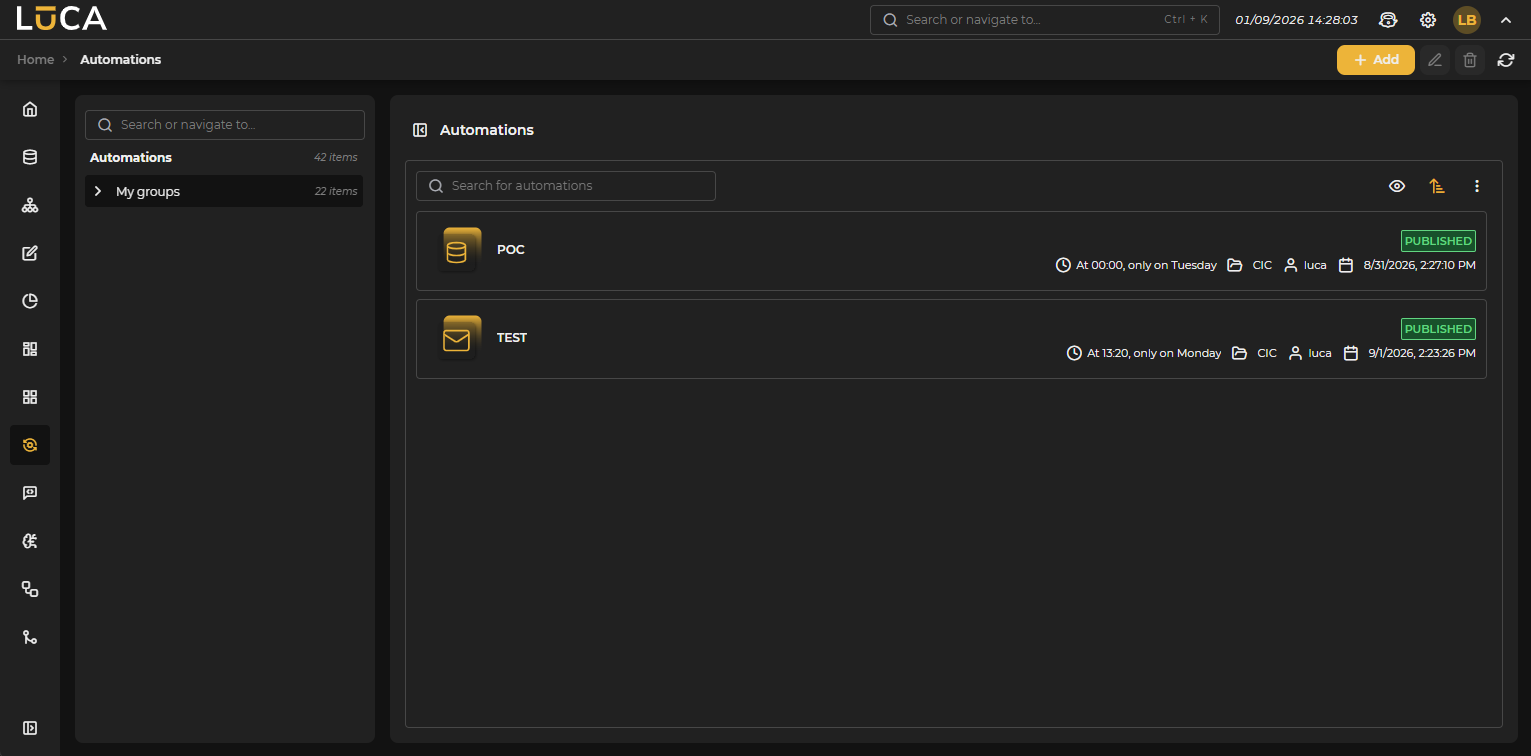 Figure 9.1: Automations Management
For more information on the general administration screen, see this section.
Besides all the options common to other LUCA elements, automations offer the ability to view all their executions. There, you can check whether an execution finished successfully or contains errors and, if so, view the corresponding error message. To open the executions screen, access the three-dot context menu and select the Executions option.
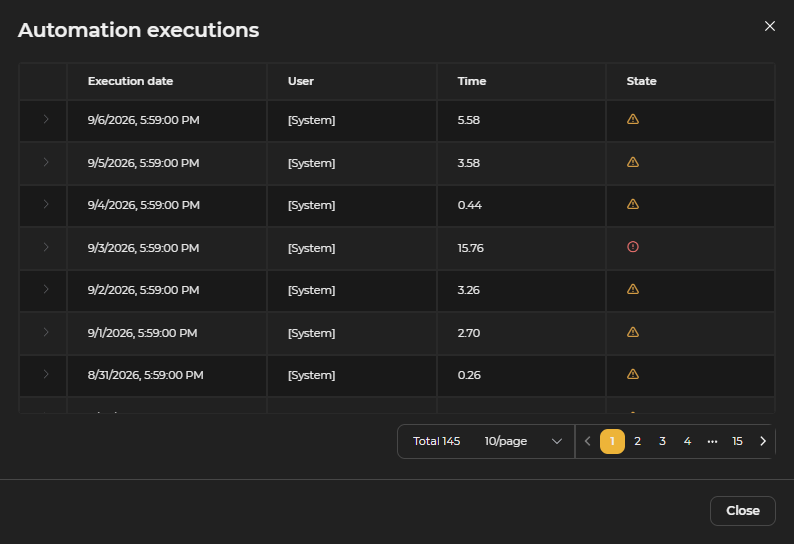 Figure 9.2: Automation Executions
Creating and Editing Automations
The automation creation screen has the following structure:
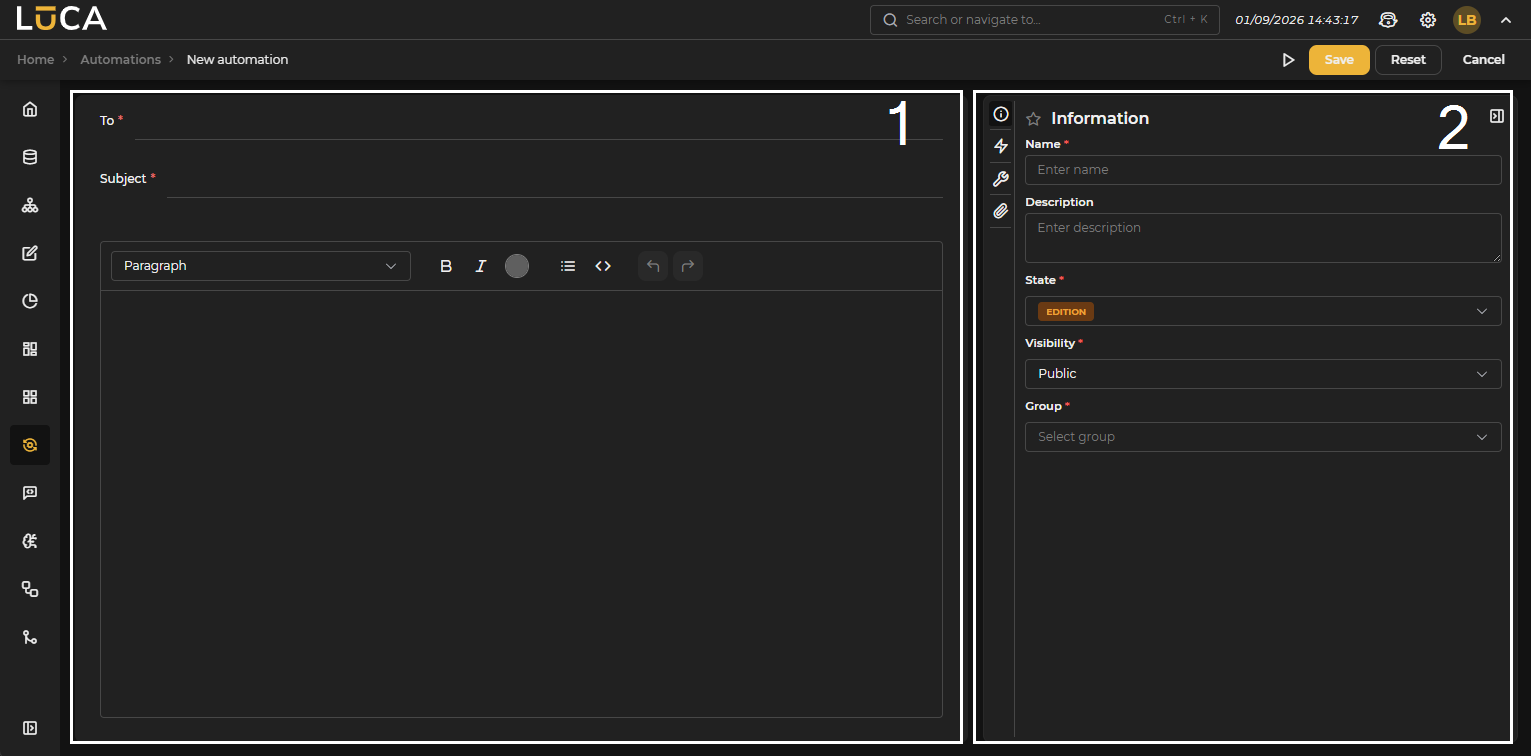 Figure 9.3: Automation Creation
Editor (1): The central part of the screen shows the email configuration —To, Subject, attachments, and message body—, visible only when the configured Action is Send an email (see Configuration).
Configuration (2): The right side of the screen contains the configuration section, divided into the Information, Trigger, and Configuration tabs, plus a fourth Attachments tab that only appears when the Action is Send an email.
The following buttons appear above the configuration section:
- Execution: Saves and executes the query.
- Save: Saves the query information.
- Reset: Clears the data entered in the form.
- Cancel: Closes the editor and returns to the query administration screen.
The execution button tests the automation immediately. If the Action is Send an email, the test email is sent only to the current user instead of to all recipients defined in To. With Action Execute a query, the execution button disappears: the automation cannot be tested from this screen.
Information
This configuration is shared across all LUCA elements; for more information go to the Information tab.
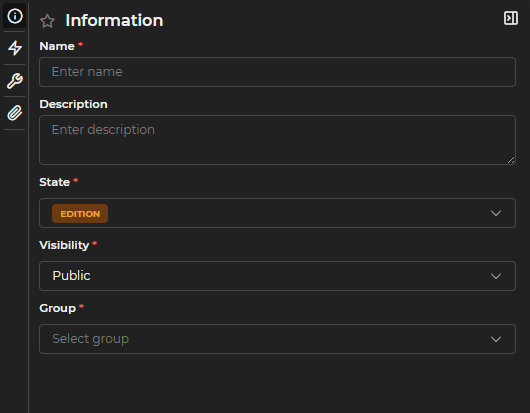
Figure 9.4: Information Form
Trigger

Figure 9.5: Trigger Type Selector
The Type field defines what triggers the automation:
- Cron: the automation runs periodically according to a time schedule.
- Query: the automation fires when a column in a query's result meets a condition.
- Chart: the automation fires when a chart series meets a condition.
Cron
The Schedule field lets you choose between Weekly, Monthly, and Custom.
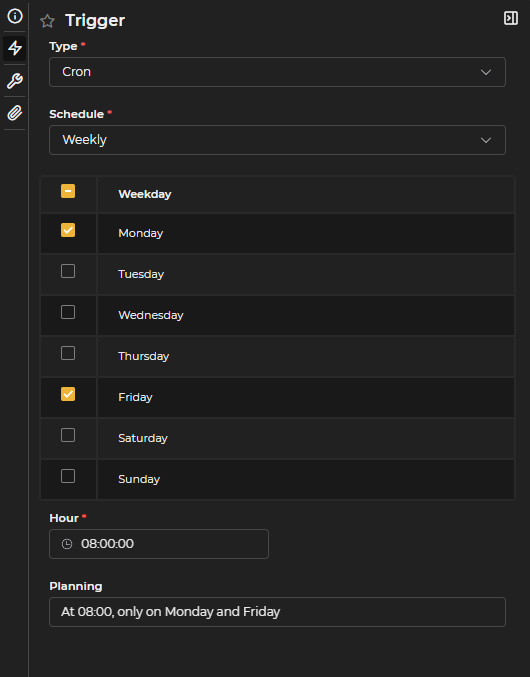
Figure 9.6: Weekly Configuration
In the weekly section, you choose the days of the week and the time at which the automation runs.
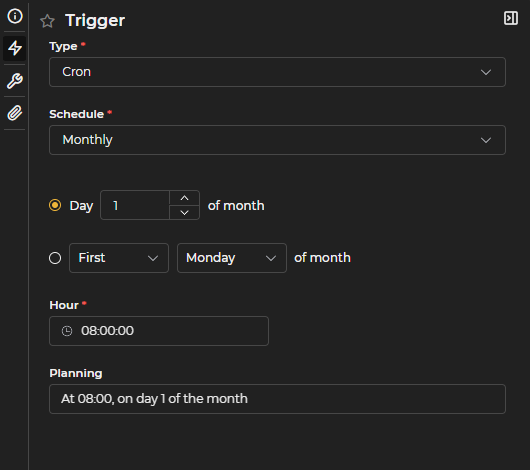
Figure 9.7: Monthly Configuration
In the monthly section, you can choose between two options:
- The specific day of the month on which the automation runs.
- A specific day of the week: two dropdowns let you select the ordinal (first, second, third, or fourth) and the day of the week, forming an expression like first Monday of the month.
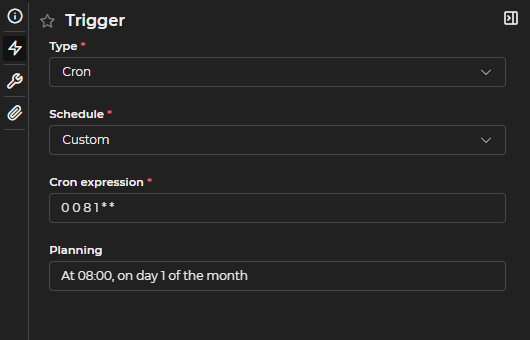
Figure 9.8: Custom Schedule
With Custom, you enter a cron expression directly in the Cron Expression field, made up of 6 fields (second, minute, hour, day of month, month, day of week). For example: 0 0 8 * * 1.
Each field accepts an exact value, an asterisk (*, any value), a comma-separated list (1,15), a range (1-5), or a step interval with / (for example, */15 in the minute field means "every 15 minutes"). The valid ranges are: second and minute (0–59), hour (0–23), day of month (1–31), and month (1–12).
It is important that it be saved in Published status for the automation to run periodically.
Query
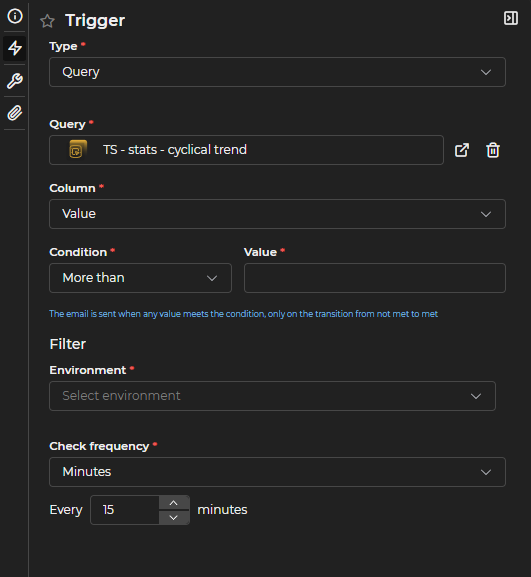
Figure 9.9: Query-Type Trigger
- Query: The LUCA query whose result will be evaluated.
- Column: The query's output column to which the condition will be applied.
- Condition: Greater than, Greater than or equal to, Equal to, Less than or equal to, or Less than.
- Value: The value against which the selected column is compared.
The email will be sent when a value meets the condition, only when it transitions from not met to met.
Additionally, if the selected query has filters (input variables) configured, they will need to be filled in here.
Check Frequency: Determines how often the condition is evaluated. It can be Minutes, Hours, Daily, or Weekly. For Minutes and Hours, you specify how often the condition is checked. For Daily, you specify the time at which it is checked. For Weekly, you specify the time and at least one day of the week.
On each check, the query (or chart) is executed again and the condition is evaluated over the entire result obtained at that moment, not just the data that arrived since the previous check. A single value meeting the condition is enough for it to be considered satisfied.
Chart
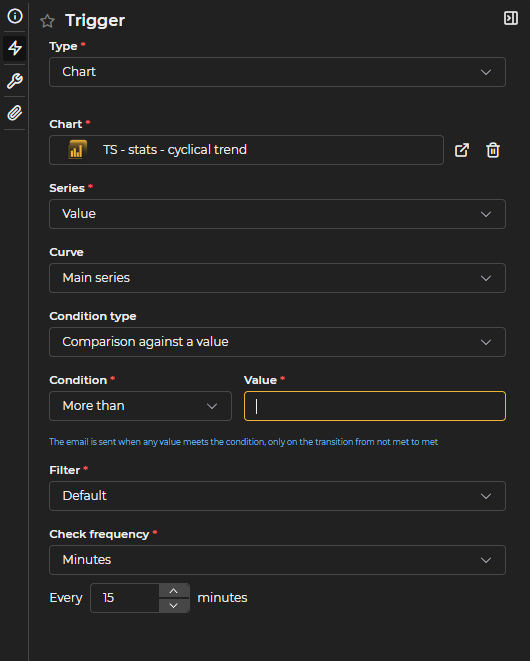
Figure 9.10: Chart-Type Trigger
-
Chart: The LUCA chart whose series will be evaluated.
-
Series: The chart series to which the condition will be applied.
-
Curve: Only if the chart has predictions configured for the chosen series. Lets you choose whether the condition is evaluated on the Main series or on the Predictions calculated for that series.
-
Condition Type: The available options depend on the chart type and the selected series.
- Compare against a value: Condition and Value are filled in, just as in a Query-type trigger. Available for any chart and series.
- Compare against a function y=f(x): Condition and a f(x) Expression are filled in (for example,
2*x + 100). If the series' X axis is temporal, x takes the value of each point's timestamp in epoch milliseconds (86400000 ms equals 1 day). Only available on basic charts whose X axis is not of type categorical (i.e., date, linear, or logarithmic) and with a line or area type series. - Compare against another series/statistic: Condition and a comparison series are filled in (another series from the same chart, or a statistic calculated on it). Not available when Curve is set to Predictions, since the prediction is posterior in time to the rest of the series and comparing them would not make sense.
noteWhen Curve is set to Predictions, only Compare against a value and Compare against a function y=f(x) are available — useful, for example, to be alerted when a prediction deviates above or below what was expected.
-
Filter: One of the filters configured on the chart.
-
Check Frequency: Same options as in a Query-type trigger.
Configuration

Figure 9.11: Action Selector
The Action field defines what the automation does when triggered:
- Send an email: the fields in the central editor (To, Subject, body) are filled in and the Attachments tab appears.
- Execute a query: the central editor and the Attachments tab disappear —no email is sent— and the following fields are shown:
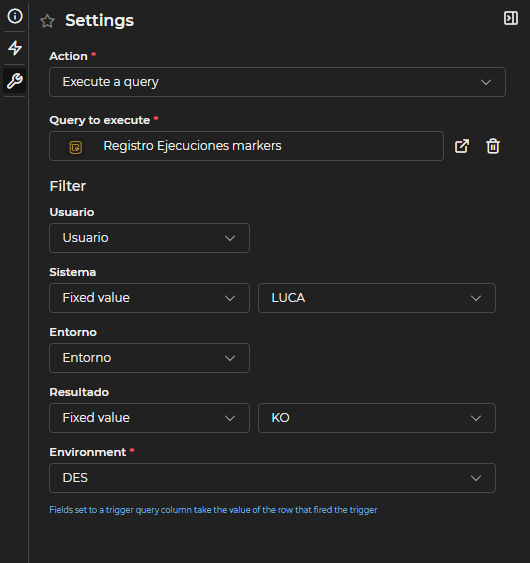
Figure 9.12: Execute a Query Configuration
-
Query to Execute: The LUCA query that will run when the automation is triggered.
-
Filter: Shows the filters (input variables) belonging to the selected query.
For each filter, you choose its value source:
- Fixed value: the value is entered manually.
- Column from the trigger's query: takes the value from a column returned by the Trigger's query or chart, from the row that fired the automation. Only columns of the same type as the filter can be selected. This option only makes sense when the Trigger is of type Query or Chart, since a Cron Trigger has no associated row.
Email
When the Action is Send an email, the central editor is where you define the To, Subject, and body of the message.
 Figure 9.13: Email Configuration
In the To field, you can search among existing LUCA users or include email addresses for unregistered external users. For the latter, the full address must be typed for it to appear as an option and be added to the list.

Figure 9.14: Unregistered Email
The provided editor is used for the email body, allowing different text sizes, colors, formatting, and lists to be applied.
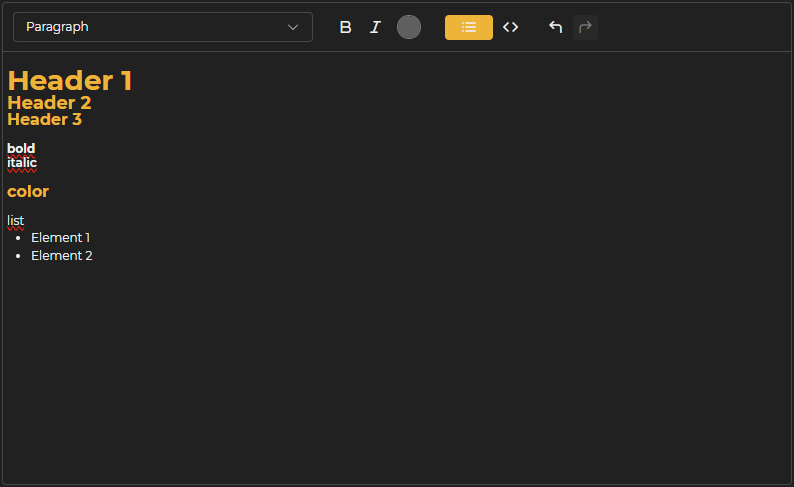 Figure 9.15: Editor
Attachments
Tab visible only when the Action is Send an email.
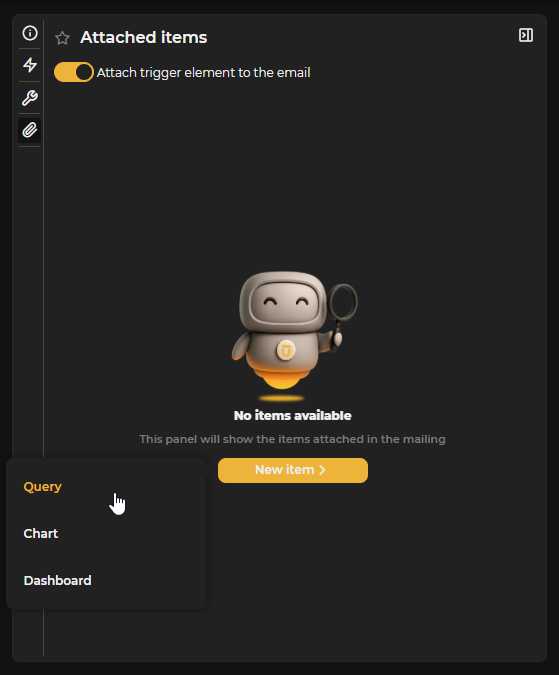
Figure 9.16: New Attachment
Attach the trigger's element to the email: Automatically attaches the query or chart used in the Trigger. Only available when the Trigger is of type Query or Chart; with a Cron-type Trigger there is no associated element and this option disappears.
The New Element button lets you additionally attach queries, charts, or dashboards unrelated to the trigger. As many elements as needed can be added.
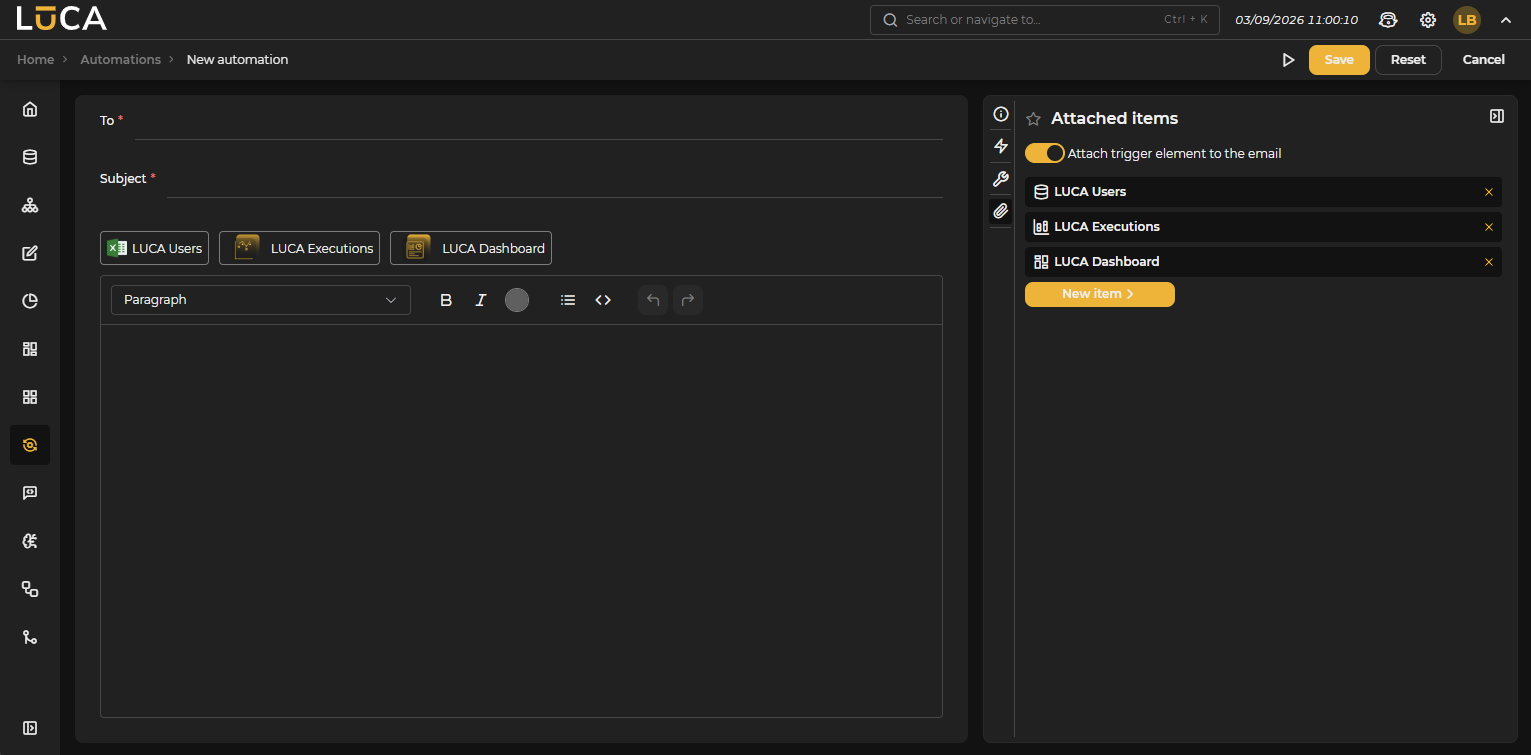
Figure 9.17: Attachments Added
The selected attachments appear as chips in the central editor, next to To and Subject.
Automation Execution
Each automation runs according to what is defined in its Trigger: periodically if it is of type Cron, or when the evaluated condition is met if it is of type Query or Chart. For this, it must be saved in Published status.
From the management screen, its execution can be forced to run immediately.