10. Chats
The Chats functionality in LUCA BDS allows users to interact with artificial intelligence models to make inquiries and receive real-time responses.
This section includes conversation management through the chats history and its tools, model management, and configuration of Data Connections.
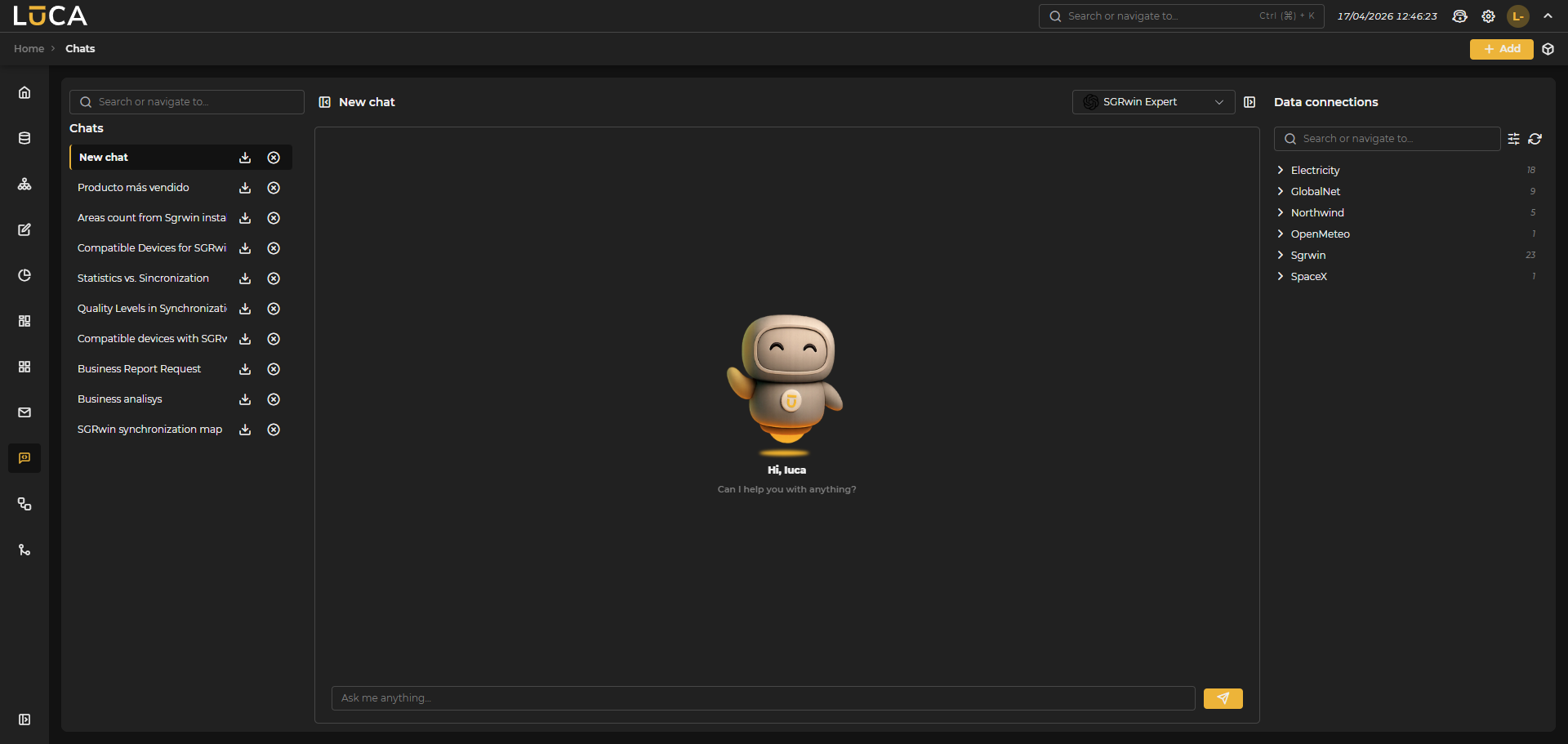
Figure 10.1: Chats Tab
Chats (History)
The chat history keeps a record of all conversations, providing tools to manage and organize interactions with AI models. The title is automatically generated with the first chat interaction.
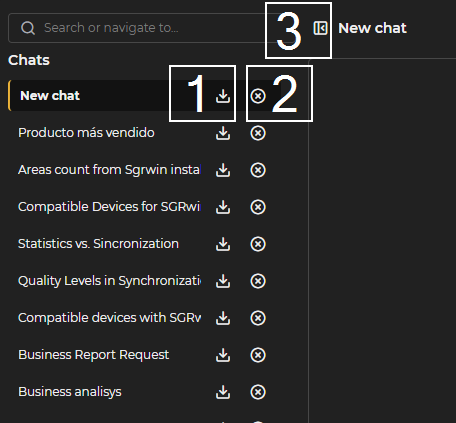
Figure 10.2: Chat History
Download Chat
By clicking on the download button (1), a copy of the chat is saved in txt format within the computer's downloads folder.
Delete Chat
Next to the download button is the delete button (2), which removes the entire conversation.
Collapse Chat List
To the left of the chat title, in the central panel, we find the collapse button (3) for the chat list. If it is collapsed, it will serve to expand it.
Manage Models
To access this section, click on the Manage Models button.
Figure 10.3: Manage Models Button
Upon accessing, the left side of the window displays the tabs Public, Private, and Deployments. The Public tab is preselected.
Figure 10.4: Administration Window
On the left, the group organizer appears since models, as elements of the application, are also associated with a group.
Depending on the selected tab in the model administration screen, the available models list for each type and a model search field are shown at the top.
The section for Public models allows the management of models that feed from public APIs of major providers.
In the Private tab, the list consists of custom models created from the elements previously deployed in the Deployments tab. This allows for adapting and configuring specific models according to the needs of each group, leveraging private resources.
Public, Private, and Deployments Tabs
Above the list of models are the following buttons:
Figure 10.5: Add Button
- Add: Clicking this button opens a context window that allows choosing the type of model to deploy. Clicking on one of them loads in the central panel the corresponding configuration form (with slight differences in the deployments tab) that allows creating a new model:
Figure 10.6: Properties
- Properties ** Model : Select the model from the list using the corresponding icon. ** Version : Choose the available version for the model from the dropdown. ** Name : Assign an identifying name to the model. ** Endpoint : Indicate the address where calls to the model will be sent. ** API Key : Enter the key configured for access to the model. ** Include metadata : By activating this option, the model can access both the data generated during the execution of SQL queries as well as the query itself that was performed. This allows for expanding the available context and improving control over the obtained results, facilitating more precise responses adapted to the information processed in real time. If the option is disabled, the model will only receive the final result of the query, without access to intermediate data or the executed query. ** Group : Select the group in which the model will be included.
Figure 10.7: Prompt
- Prompt
** System Prompt : Defines the base message that the system will use to contextualize the interaction with the model.
** User Prompt : Specifies the message that the user inputs as a query or instruction. Default "
<|query|>". ** Assistant Prompt : Indicates the message that the assistant (model) will use as a response or guide. Default "<|context|>". ** Token Limit : Sets the maximum number of tokens that can be used per week. When disabled, it works without limits.
Figure 10.8: Parameters
- Parameters ** Parameters : Select a parameter from the list. ** Value : Add a value. ** Selected Parameters : Displays the previously configured parameters.
The available parameters for model configuration are as follows:
- frequency_penalty: Penalizes the repetition of words or phrases. High values reduce repetitions, low values allow more freedom.
- logit_bias: Allows favoring or prohibiting certain tokens (words). It is passed as a map of token identifiers and their biases.
- logprobs: Returns the logarithmic probability of each generated token, useful for debugging and analysis.
- top_logprobs: Number of alternative tokens and their probabilities to return at each step, along with
logprobs. - max_completion_tokens: Limits the tokens that the response can generate, controlling the maximum length of the output.
- n: Number of distinct responses that the model should generate for the same input.
- presence_penalty: Penalizes the repetition of already mentioned topics, promoting greater variety in the response.
- response_format: Defines the output format. It can be
"text","json","xml", etc. - stop: List of sequences that, if they appear, automatically stop the generation.
- temperature: Controls the randomness of the response. Low values (
0.0) make the output more deterministic; high values (>1) make it more creative or unpredictable. - top_p: An alternative to
temperature, limits the options to a subset of tokens whose cumulative probability does not exceed the specified value.
The Deploy option of the Add button has a particular form.
In the properties section, Model, Version, Name for the model, Server (the client in which the AI model server previously configured in Administration > Clients is deployed), and a Group in which to include it are selected.
Figure 10.9: Deployment Properties
In the parameters, the API Key is entered, and the Hardware to be used for running the model (CPU or GPU) is selected.
Figure 10.10: Deployment Parameters
The Deployments tab maintains a simplified add form because model configuration is added in the Connect button, which gives access to a form similar to that of Public and Private. In Restart, the process of stop and start for the respective model is initiated. Once deployed, they appear in the Private tab where they can be configured as experts.
Figure 10.11: Connect and Restart
Figure 10.12: Edit Button
- Edit: Modifies the configuration of the highlighted model.
Figure 10.13: Delete Button
- Delete: Removes the selected model.
Figure 10.14: New Chat Button
- New Chat: Starts a conversation (disabled from the deployments tab) with the selected model from the list.
Figure 10.15: Reload Button
- Reload: Updates the list of models.
Figure 10.16: Live Button
- Live: Real-time mode.
SQL and LUCA Experts
Additionally, in the case of Public and Private, you can choose whether the model becomes default for certain types of queries or chats, functioning as an expert. The system incorporates a default selector that allows choosing among the different models created. In the Manage Models section, both in the Public and Private tabs, the selectors appear situated above the specifications of each model. To select a model as the default, simply activate the corresponding selector. This way, queries directed at experts are handled by the selected models.
Figure 10.17: Experts
Types of available experts:
-
SQL Expert: The model marked as SQL expert is responsible for responding to requests made in the console chat of the queries section.
-
LUCA Expert: The model selected as the LUCA expert handles specific queries related to the functionality and use of the LUCA platform, located in the top bar next to the application desktop icon.
New Chat
The system allows the creation of new chats from different access points to facilitate interaction with models.
- From Chat Tab
Figure 10.18: From Chat
A new chat can be initiated directly from the main Chats tab.
- From Manage Models
Figure 10.19: From Models
It is also possible to create a new chat from the model management section, allowing the selection of a specific model for the conversation. To do this, a model must first be selected from the list.
Context
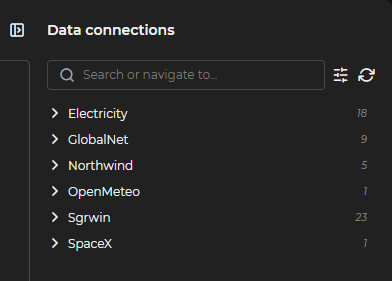
Figure 10.20: Context
The context functionality allows for providing additional information to models to improve the accuracy and relevance of the responses.
Queries
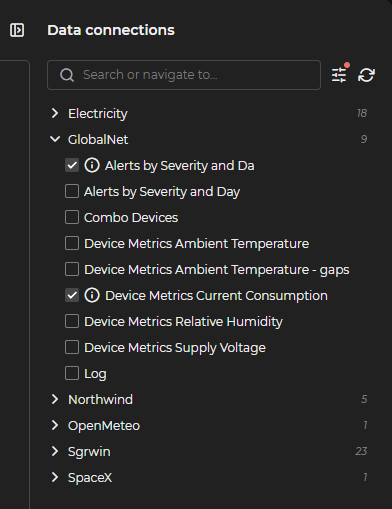
Figure 10.21: Queries
It allows including existing queries as context for the conversation. When expanding the section, all available queries are displayed, listed and grouped. Once selected, a red indicator appears next to the parameters button, indicating that they need to be configured before they can be used as context.
Parameters
Figure 10.22: Parameters
Configuration of specific parameters for queries. These are the input parameter values for the queries and a maximum query size.
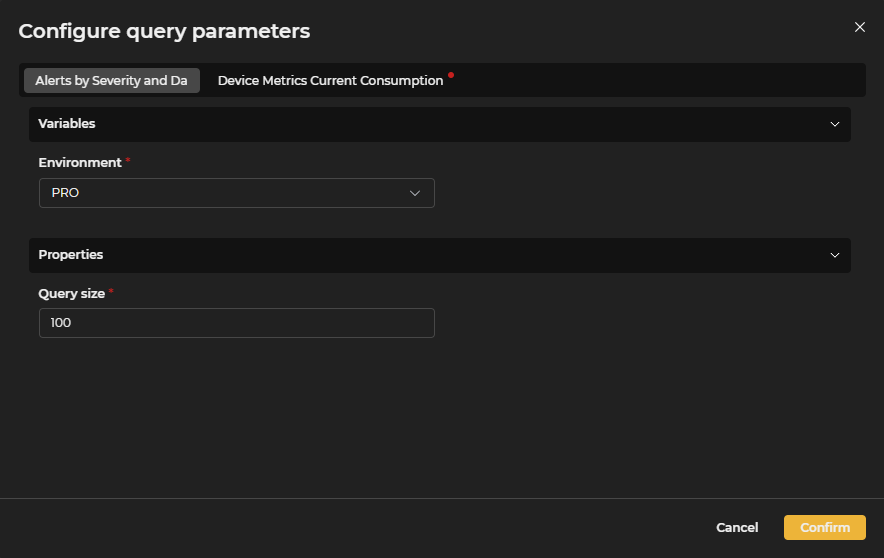
Figure 10.23: Parameters Configuration
Once the parameters for the selected queries have been configured, the Confirm button is pressed. If the configuration is correct, an orange verification icon appears next to each query, indicating that they are ready to be used as context.
Figure 10.24: Send Configuration
Search Tool
Figure 10.25: Search
Search tool to locate specific elements within the available context.
Refresh
Figure 10.26: Refresh
Function to update the context with more recent information. It removes previous selections and parameter configurations and retrieves the latest changes in the stored queries.
Collapse Context
Figure 10.27: Collapse
Option to hide or show the Data Connections section.
Ask
Figure 10.28: Ask
Main functionality that allows making inquiries to AI models and obtaining responses based on the provided context and the capabilities of the selected model.
Figure 10.29: Selector
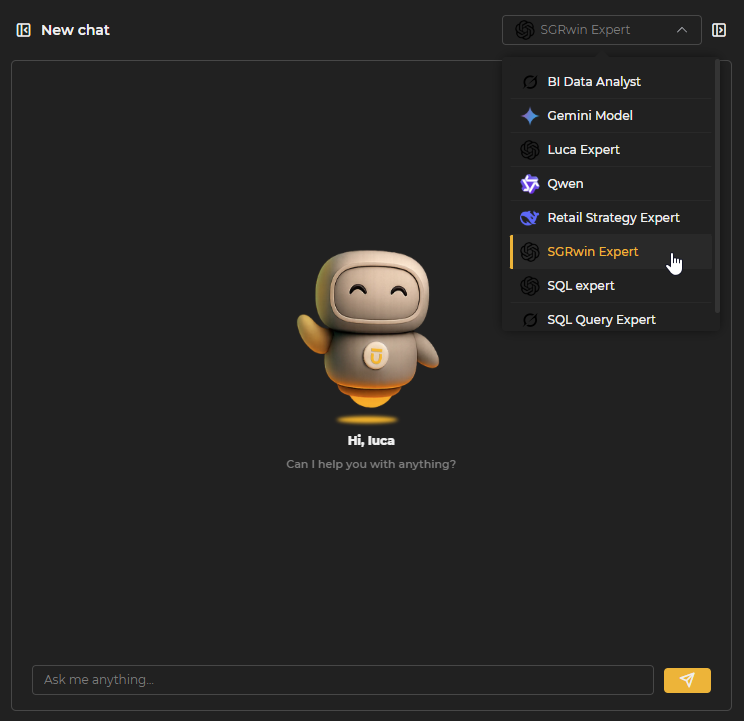
The model selector allows, through a dropdown, to choose which of the created models to make the inquiry.