2. Administration Screen
Most of LUCA's modules — Queries, Trees, Forms, Graphs, Dashboards, Applications, Email Reports, and Datasources — share the same administration screen structure. This section describes its general functioning. Each module may present slight variations that are detailed in its respective section.
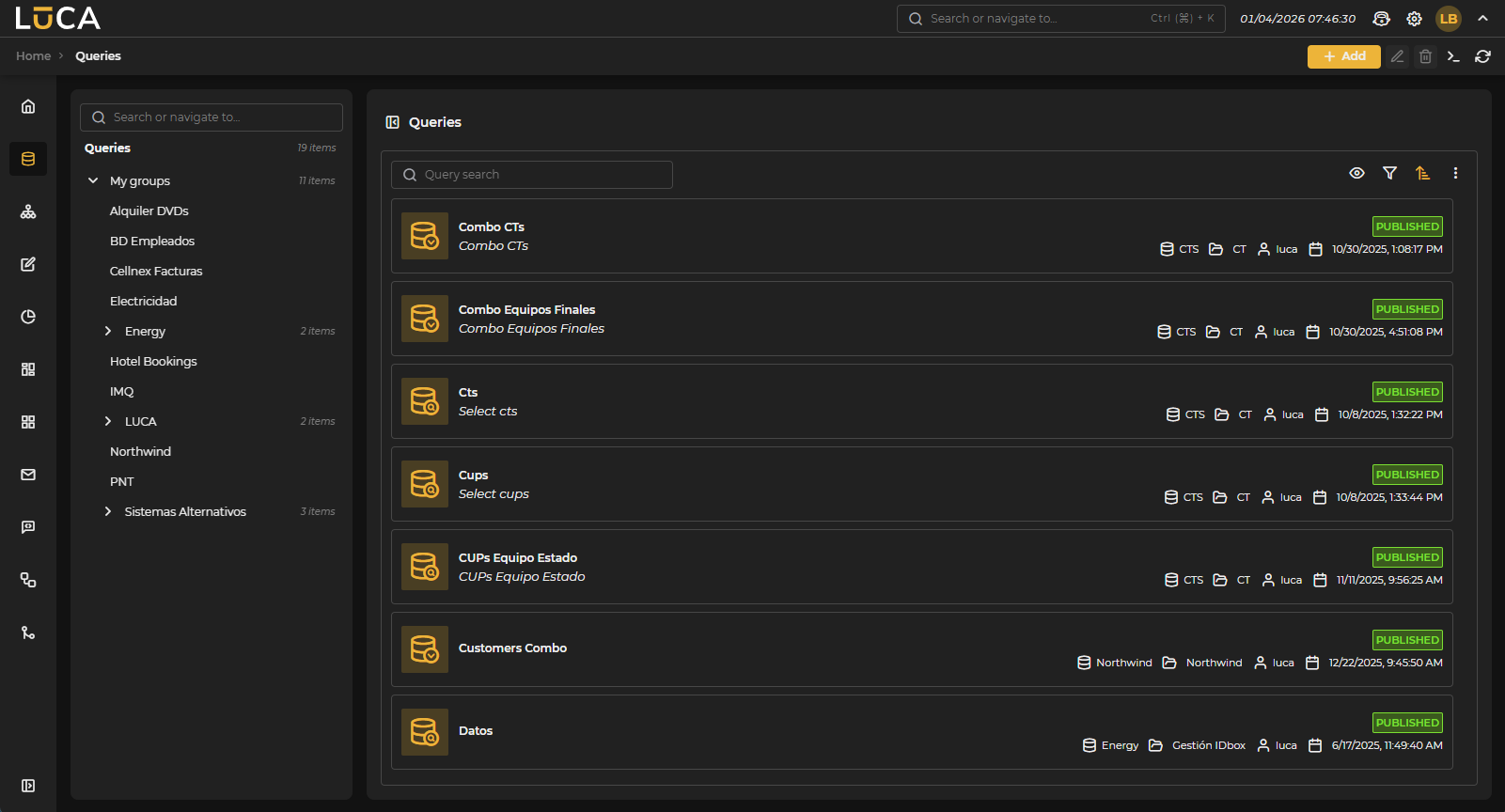 Figure 2.1: Administration screen of queries
Users can only see the groups and items to which they have access. A user has access to an item when it belongs to a group for which they have permissions.
Group Tree
On the left side, the group tree is displayed. It includes a search feature to quickly locate groups. Clicking on a group filters the item list to show only those that belong to that group. Groups can be expanded and collapsed to facilitate navigation. The counter next to the group name indicates the number of items it contains.
Item List
The central part shows the items available to the user. At the top, there is a search feature to filter by name or description, and on the right, the view controls:

Figure 2.2: View controls
- Eye: filters the list by item status. When expanded, it shows the switches Published and In editing, allowing the user to show or hide the items in each status. A counter indicates how many statuses are active. The Reset button restores all filters.
- Funnel (filter): available only in some modules. It expands an additional filtering panel under the search bar with module-specific fields (for example, System and Type in queries). Each filter has a trash button to clear it individually.
- Sort: allows sorting the list by Name, Creation date, or Modification date, in ascending or descending order.
- Three dots (more options): expands additional actions on the selected item:
- Clone: creates a copy of the item. Available in queries, graphs, dashboards, and applications.
- Create link: generates a link to share the item.
- Usage: shows in which other LUCA items the selected item is being used.
- Export: exports the selected item to a file.
- Import: imports items from an export file.
Each item in the list shows information available according to its type:
- Icon representing the type of item and the associated datasource when applicable.
- Name and description.
- Status: Published (available for execution) or In editing (in the process of creation or modification).
- Datasource, group, editing user, and last edited date.
By double-clicking on an item, it is executed directly. Right-clicking opens a context menu with the available options for that item: execute, edit, and delete.
Toolbar
In the top right corner, the list controls are found:

Figure 2.3: Toolbar
- + Add: creates a new item.
- Edit (pencil): edits the selected item.
- Delete (trash can): deletes the selected item.
- Console (
>_): Opens the SQL console. - Refresh: refreshes the results in the list.