9. Mailing
Mailings or email reports allow planning email sends that include exports of previously created Queries. These emails can contain a customizable body to include additional context.
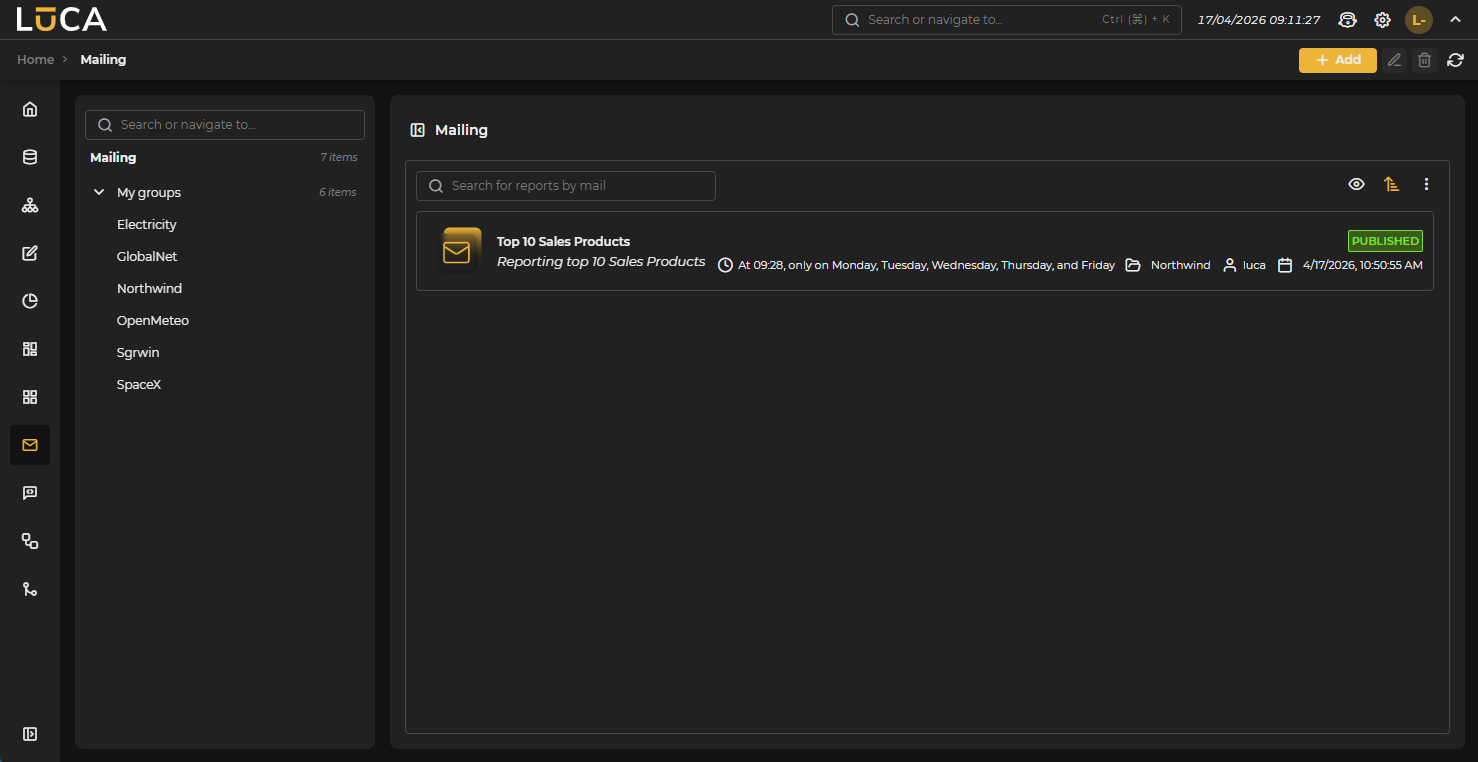 Figure 9.1: Mailings Management
For more information about the general management screen, see this section.
In addition to all the common options found with other LUCA elements, mailings have the ability to view all report executions. You can check whether the execution completed successfully or contained errors and, in that case, consult the corresponding error message. To open the executions screen of a mailing, access the context menu of the three dots and select the Executions option.
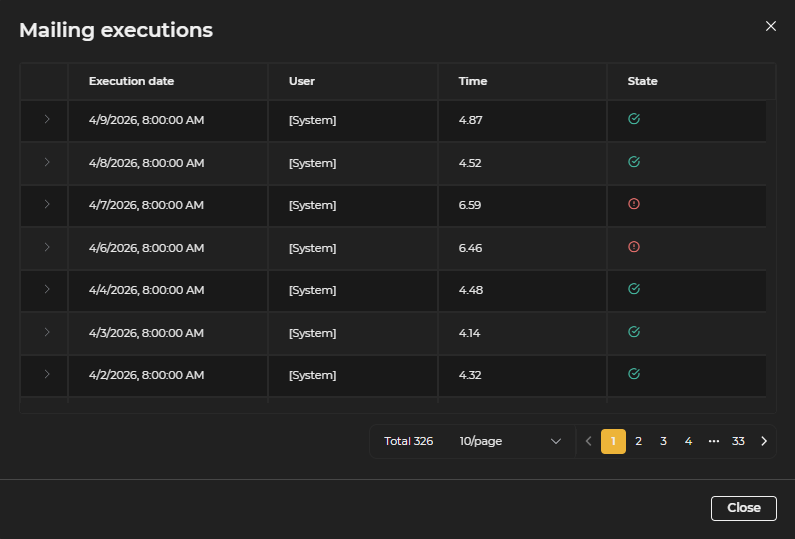 Figure 9.2: Report Executions
Creation and Editing of Email Reports
The mailing creation screen has the following structure:
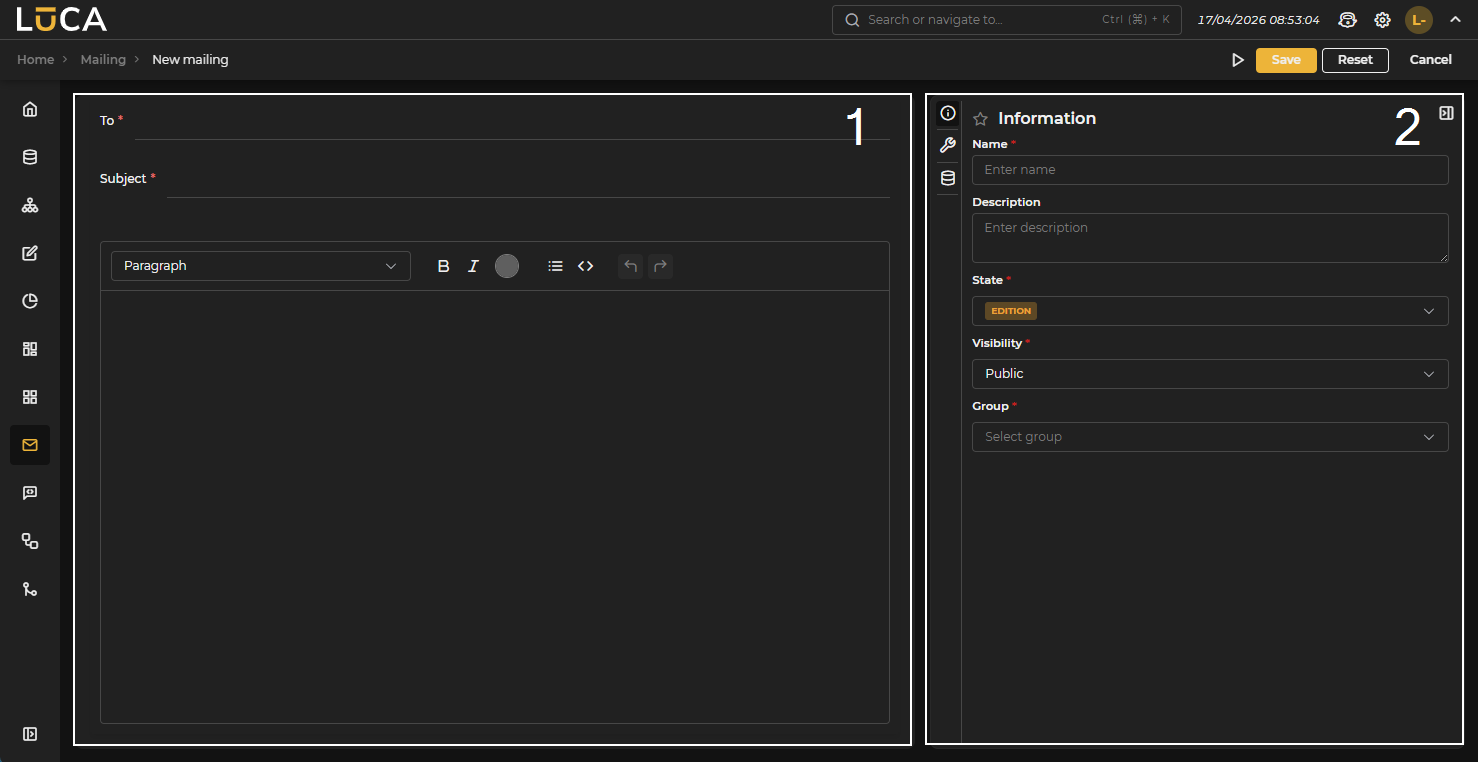 Figure 9.3: Mailing Creation
Editor (1): In the central part of the screen is displayed the email configuration.
Configuration (2): On the right side of the screen is the mailing configuration section, divided into three menus.
Above the configuration section, the following buttons appear:
- Execution: Saves and executes the query.
- Save: Saves the query information.
- Reset: Clears the data entered in the form.
- Cancel: Closes the editor and returns to the query management screen.
The execution button tests the mailing by only sending the resulting email to the current user instead of all the emails indicated in 'To'.
Information
This configuration is shared among all LUCA elements, for more information go to Information tab.
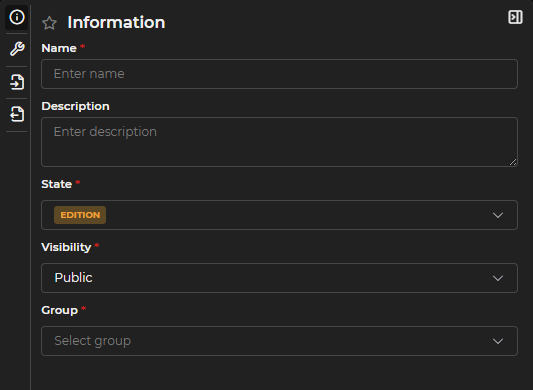
Figure 9.4: Information Form
Configuration
In the configuration section, the planning of the email send is defined. All emails are sent periodically and repeatedly over time.
To configure the scheduling, a form is available where the sending can be planned on a weekly or monthly basis.
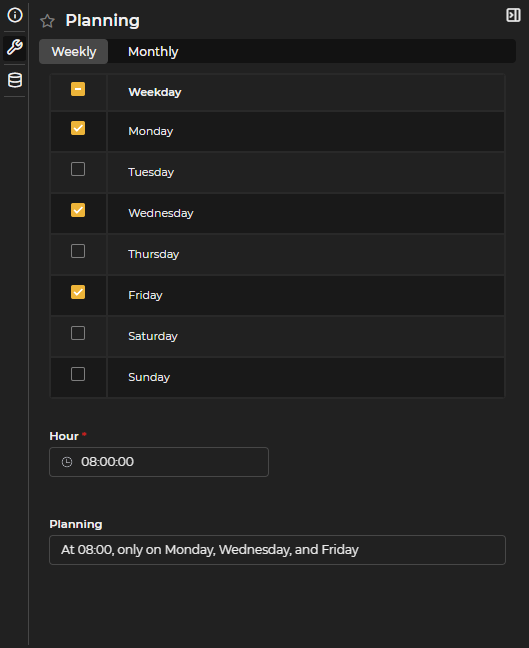
Figure 9.5: Weekly Configuration
In the weekly section, the days of the week and the time when the report is sent are chosen.
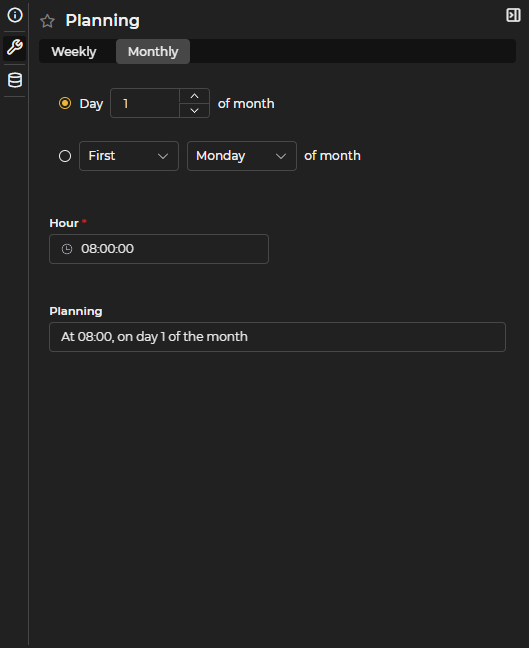
Figure 9.6: Monthly Configuration
In the monthly section, two options can be selected:
- A specific day of the month when the report is sent.
- A specific day of the week: by using two dropdowns, the ordinal (first, second, third, or fourth) and the day of the week are selected, composing an expression like first Monday of the month.
It is important that it is saved in 'Published' status for the mailing to be sent periodically.
Queries
In the Queries section, the queries that are attached as Excel files to the sent email are configured.
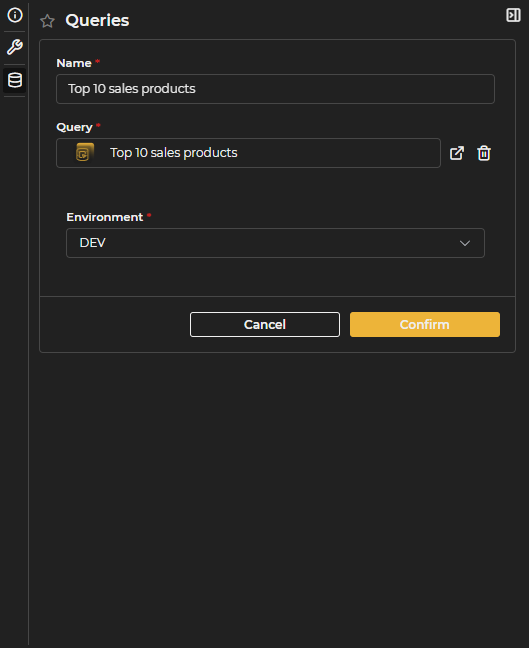
Figure 9.7: Query Configuration
As many queries as necessary can be defined and a filter can be configured for each that will be executed.
Email
For email configuration, you must define the To, the Subject, and the body of the message.
 Figure 9.8: Email Configuration
In the To field, you can search among the existing users in LUCA or include emails of unregistered external users. For the latter, it is necessary to write the full address for it to appear as an option and to add it to the list.

Figure 9.9: Unregistered Email
For the body of the email, the provided editor is used, allowing the application of different text sizes, colors, formats, and the addition of lists.
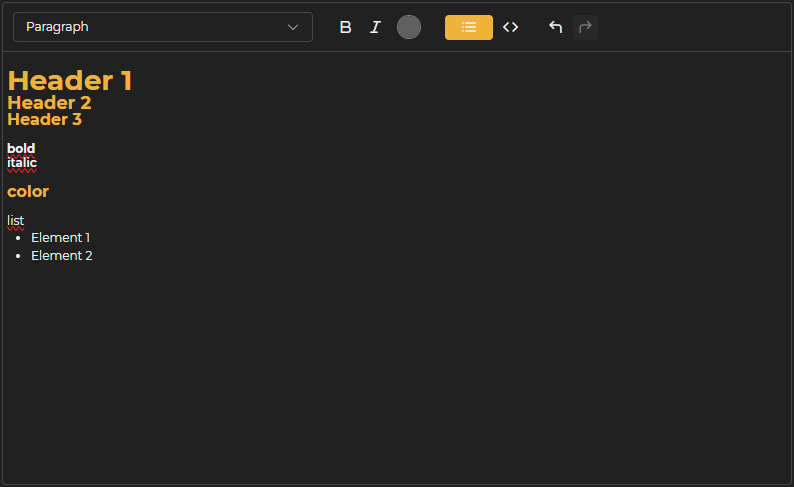 Figure 9.10: Editor
Execution of Reports
Email reports are executed automatically according to the scheduling defined in their configuration. It is important that the mailing is saved in Published status for the reports to be sent automatically.
From the mailings management, you can force the execution of a report to run immediately and send it to all the users defined in its configuration.