12. Datasources
A datasource can be defined as a source of information that groups one or more databases. All queries must be associated with one of them, on which they will subsequently be executed. A datasource supports multiple databases to accommodate different environments on which to run the same query, for example, on a Production and Preproduction environment.
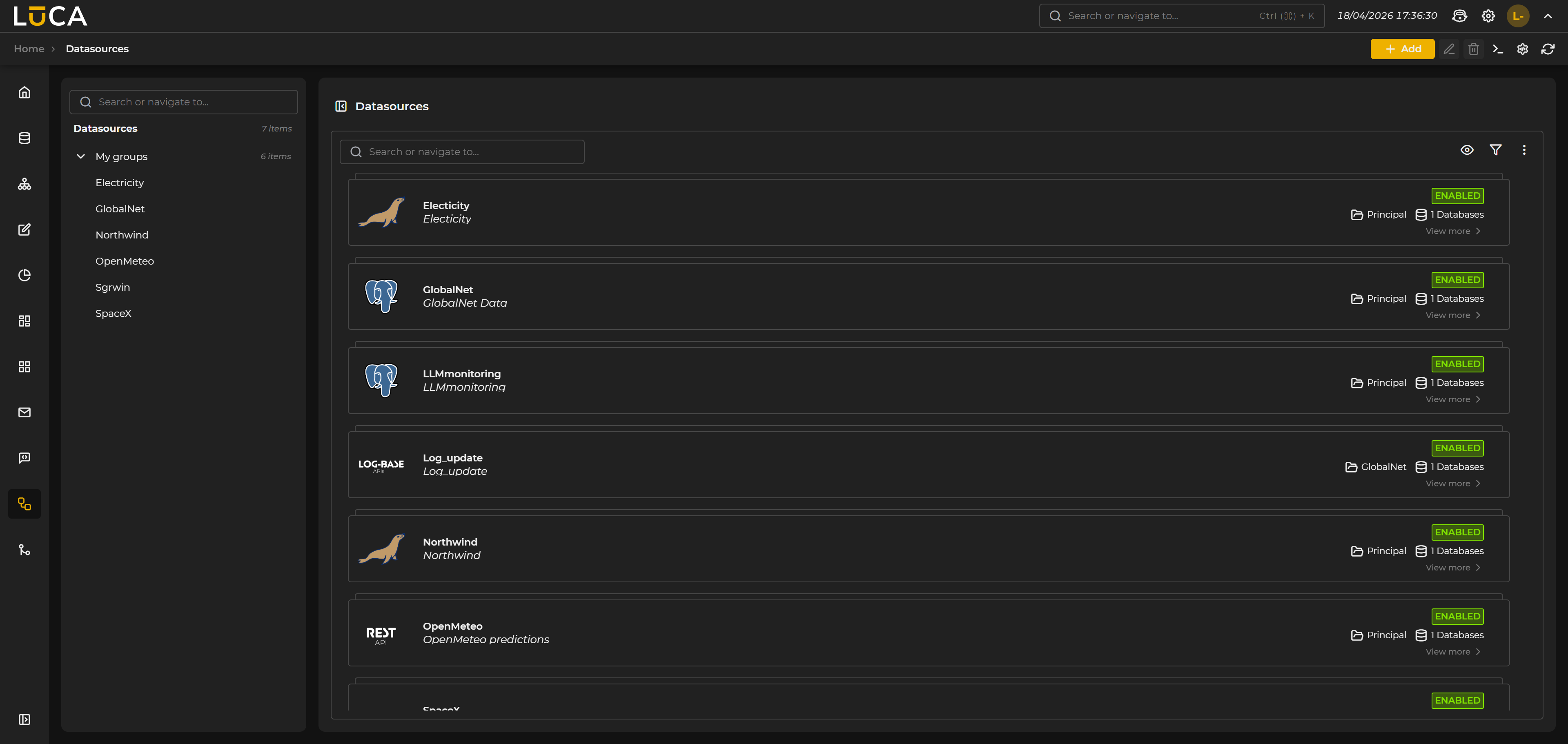 Figure 12.1: Datasource Administration
For more information about the general administration screen see this section.
The most common datasources are of the Database type, as they provide the most options when executing queries. The various supported types are detailed below:
Table 11.1: Types of datasource
| Category | Type |
|---|---|
| Databases | MySQL / MariaDb Oracle Postgres SQL Server Redshift DB2 AS400 DB2 Trino Neo4j |
| HTTP | REST SOAP Log |
Creation and Editing of Datasources
The datasource creation view presents the following structure:
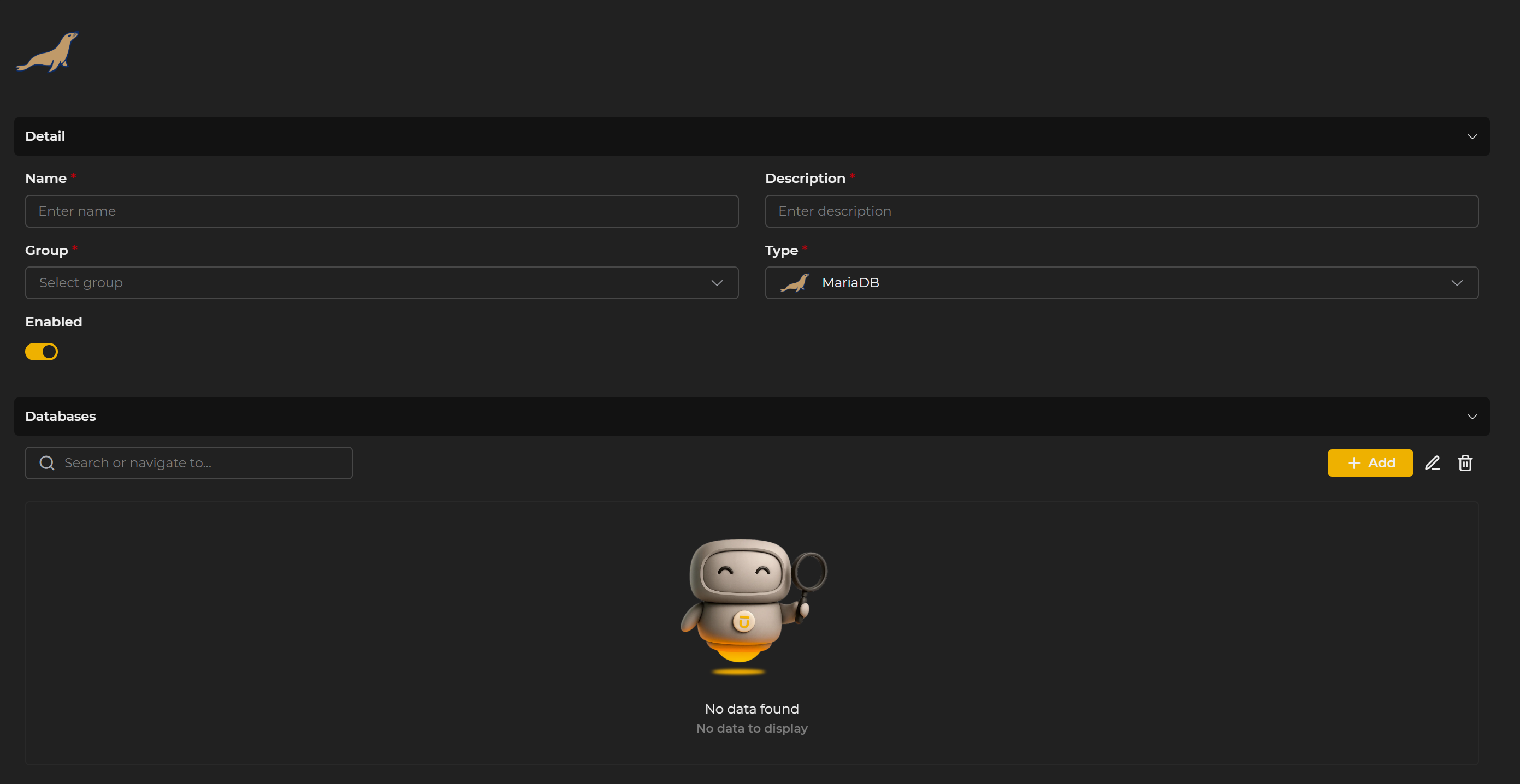 Figure 12.2: Datasource Creation
The form is organized into two sections:
Detail Contains the general fields of the datasource:
Name: Identifying name of the datasource.
Description: Description of the datasource.
Group: Group to which the datasource belongs, allowing controlled access management.
Type: Type of datasource to be created. The list of types is defined in Table 11.1. Types of datasource.
Active: Allows activation or deactivation of the datasource. When deactivated, all related queries and elements will no longer be available for execution.
Databases Section from which the databases associated with the datasource are managed. Includes a search box and buttons to add, edit, and delete databases. To add a new database, the + Add button must be clicked.
All changes made to the datasource must be saved by clicking the Save button in the upper toolbar.
The toolbar in the datasource screen includes, in addition to the usual buttons for create, edit, delete, and refresh, two additional buttons:
- SQL Console (
>_): opens the SQL console associated with the selected datasource, allowing statements to be executed directly on the active database. For more information see SQL Console. - Environments (settings icon): opens the environment manager, from which the available environments can be created and managed to associate with databases.
Environments
Environments are used to identify the connection string on which the query will be executed. When a datasource has several associated databases, a combo box will appear to select the desired environment when executing a query.
Access management is done from the Environments button in the datasource screen toolbar. This opens a modal with a list of available environments:
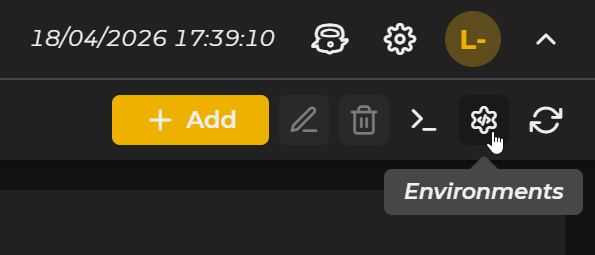
Figure 12.3: Environment Management
From this modal, environments can be created, edited, and deleted. To create a new one, the Add button is clicked, opening a form with two fields:
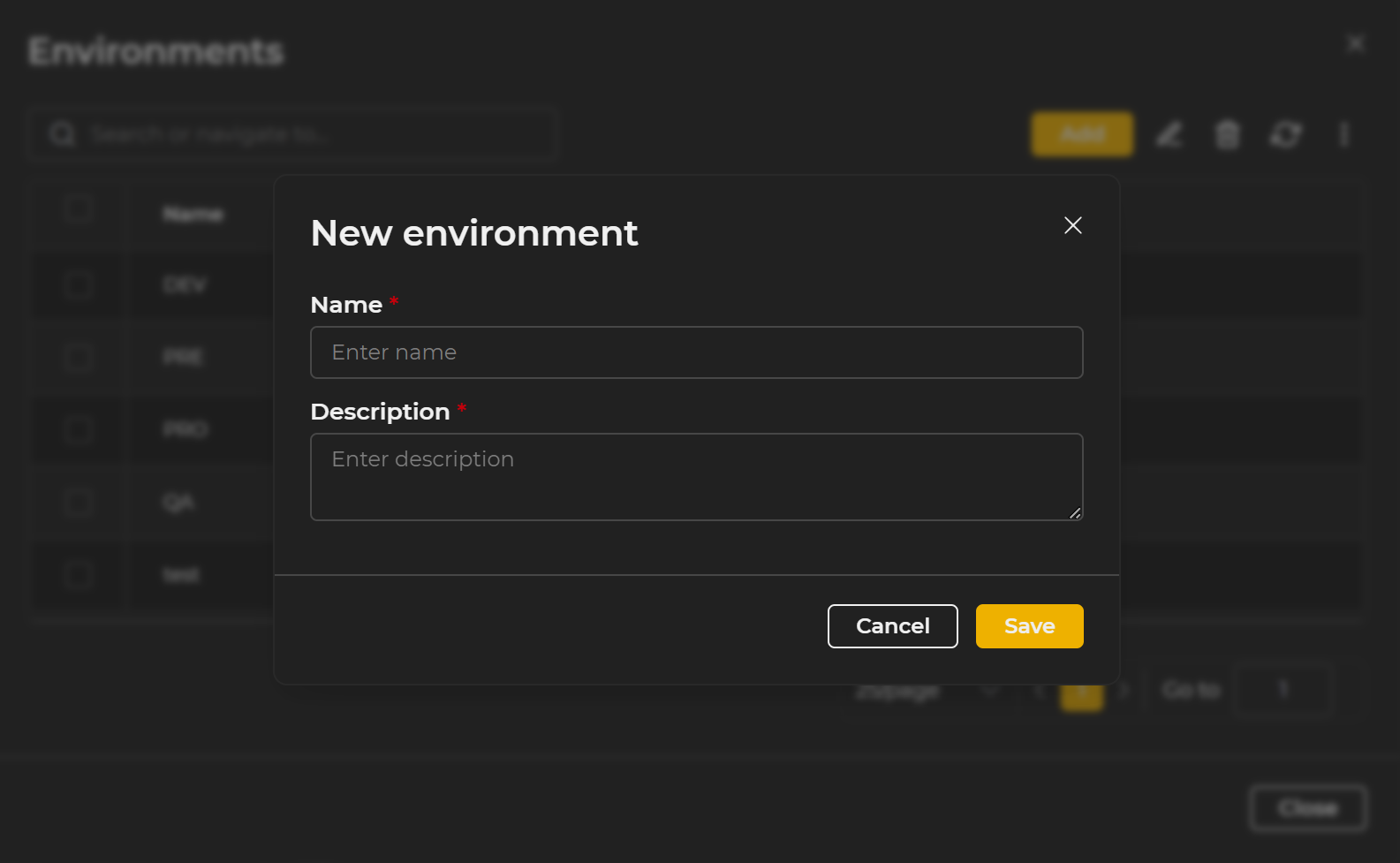 Figure 12.4: New environment
Name: Identifier of the environment. This will be the text displayed in the selection combo when executing queries.
Description: Description of the environment.
Databases
Databases or connection strings represent the way we connect to data to extract the necessary information in LUCA reports. There are two main groups: connection strings to relational databases and connections to services exposed via http/s.
When clicking + Add in the Databases section of the datasource, a modal with the creation form opens:
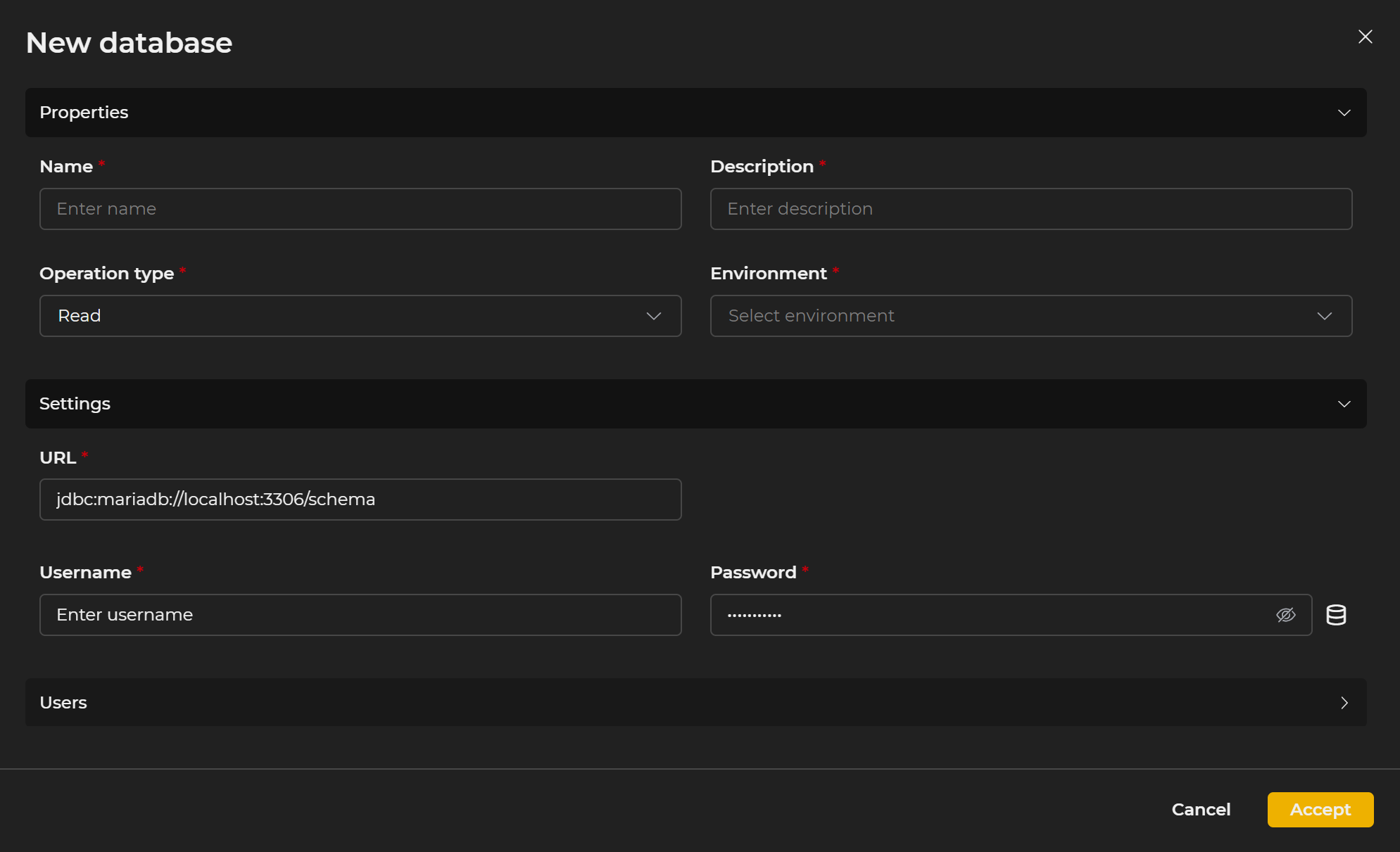 Figure 12.5: New database
The form is divided into the following sections:
Properties Contains the general fields of the database:
Name: Identifying name of the database.
Description: Description of the database.
Operation type: Indicates the actions that can be performed on the database:
- Read: Only select and combo type queries can be executed. Insert, update, or delete queries will never be executed.
- Write: Only insert, update, or delete type queries can be executed.
- Read/Write: All types of queries can be executed.
Environment: Environment associated with the database. Two databases with the same environment cannot be assigned to the same datasource.
Configuration Fields specific to connection depending on the type of datasource to which the database belongs. For more details see the sections Databases and Http.
Users Allows assigning the database to individual users, independent of permissions inherited by profile.
Changes made in the modal are confirmed by clicking OK. After that, it is necessary to save the datasource for the changes to persist.
When editing an existing database, the Assignments tab also appears, which shows a summary of all users who have access to the database, either by direct assignment or by having inherited it through a profile.
Databases
Url: Represents the JDBC type URL necessary to connect to the database.
User: User with permissions on the database indicated in the URL.
Password: Password of the database user.
Next to the password field is the Advanced Configuration button, which allows adjusting connection pool parameters:
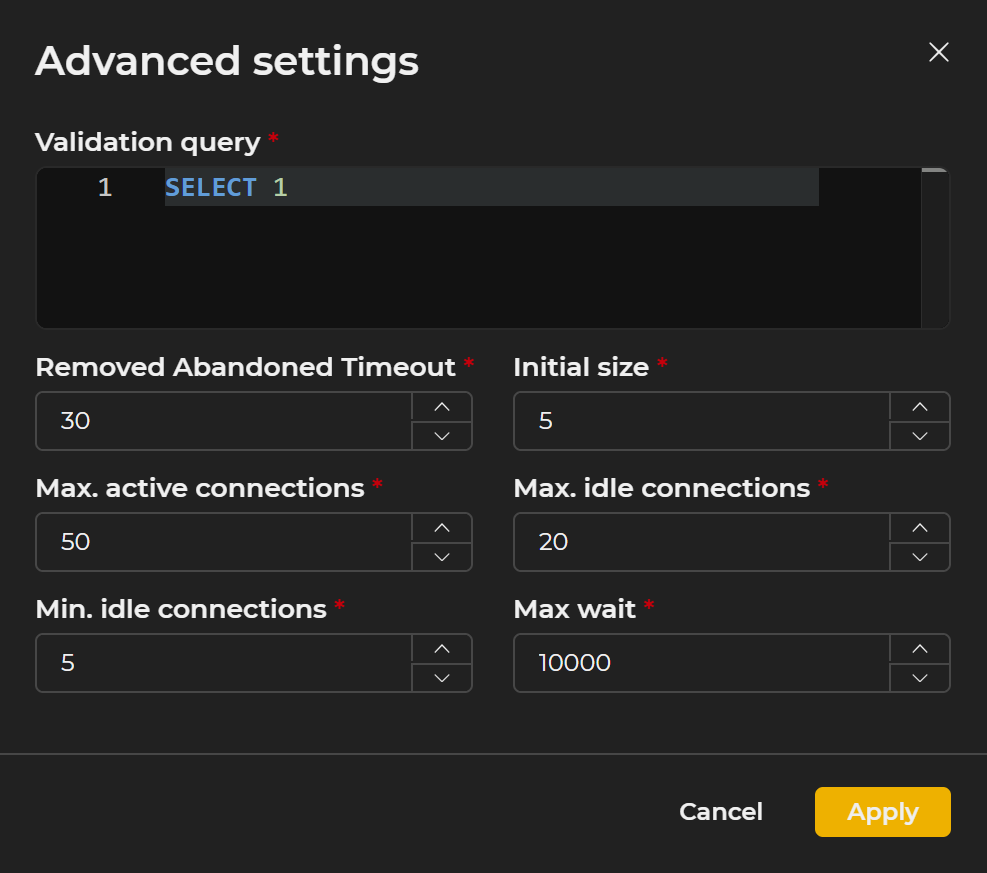
Figure 12.6: Advanced database configuration
Validation Query: Query that is executed to check if a connection from the pool is valid. Simple queries like SELECT 1 in MySQL or SELECT 1 FROM DUAL in Oracle.
Idle Timeout: Time in seconds before an inactive connection is closed. It must be at least equal to the maximum execution time of the heaviest query.
Initial Size: Number of connections opened to the database when creating the database, waiting to be used.
Max Active Connections: Maximum number of simultaneous active connections.
Max Idle Connections: Maximum number of idle connections in the pool.
Min Idle Connections: Minimum number of idle connections that are maintained in the pool.
Max Wait: Maximum time in milliseconds to wait for obtaining a connection from the pool.
The default values for these parameters are those shown in the image. Depending on the type of database, the available fields may vary slightly.
Http
Protocol: http or https.
Domain: Domain where the http service is located.
Port: The port through which the connection to the service will be made. By default, it will be 80 for http and 443 for https.
Base URL: Common path that is concatenated with the domain. By default, it will be /
Security: Type of security required to connect to the service:
- None: No security is needed.
- Http Basic: Basic http authentication. The user and password are sent as
base64(user:password)in the Authorization header of the request. - NTLM: Microsoft NTLM authentication.
- WS User Token: WS Security authentication with user and password.
- WS X.509 Encryption Signing: WS Security authentication via encrypted and signed X509 certificate.
- OAuth 2.0 - Username Password: OAuth 2.0 authentication using the flow link:username and password.
- OAuth 2.0 - Client Credentials: OAuth 2.0 authentication using the flow link:client credentials.
- OAuth 2.0 - Password without client (Deprecated): OAuth 2.0 authentication using the username and password flow without needing to include a client-id and client-secret.
Max Active: Maximum number of active connections.
Max Idle Time: Maximum time, in milliseconds, for the connection lifespan.