13. Links
Links allow sharing LUCA elements with other people. There are two types:
- Internal Links: Allow sharing elements among LUCA users.
- Public Links: Allow sharing elements with people who do not have a LUCA account.
The link generation window has two clearly defined sections for each type of link. The visibility of the public links section requires the permission Generate public links. Similarly, the Permanent checkbox requires the permission Generate permanent links.
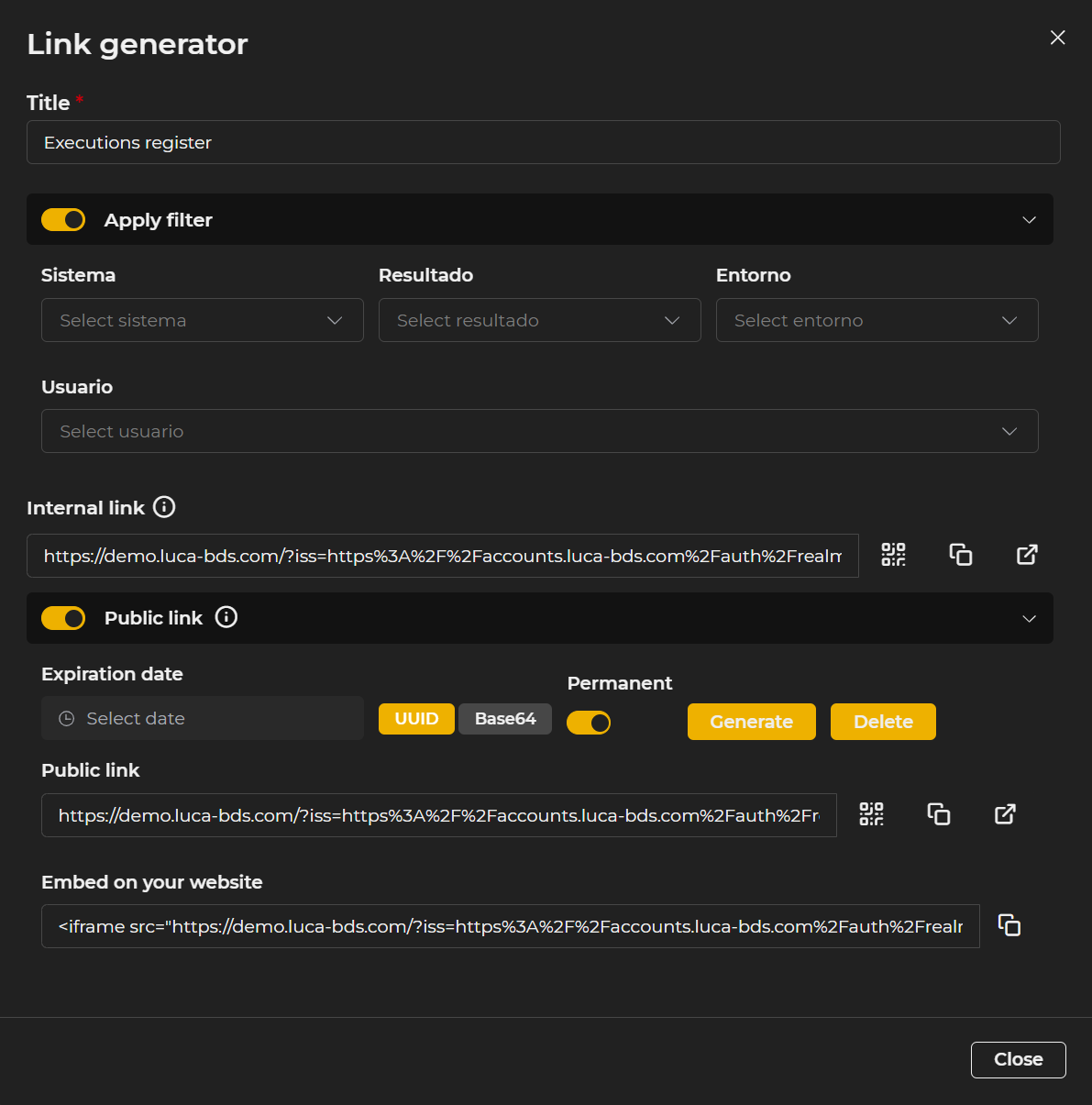 Figure 13.1: Link Generation
Internal Link
Title: The title of the element will be used as the tab name when accessing the link and as the filename when exporting. Filters: Shows the current values of the filters for the element. The Include filters in the link checkbox allows these to be modified once the link is accessed. Link options: The internal link has three actions:
- Generate QR code
- Go to link
- Copy link
Public Link
To activate this section, the appropriate permission is required, and the Public link switch must be toggled on.
Expiration date: The date until the public link will be available. It can be omitted by checking the Permanent checkbox, provided the appropriate permission is held. UUID/Base64 Selector: Determines the type of public link to generate:
- UUID: Generates a link with a unique identifier. The filters are set according to the initial configuration but can be modified once the link is executed.
- Base64: Encodes the configuration within the link itself. Allows modifying the filters by directly editing the encoded URL.
Generate: Once the properties are configured, the Generate button will create the public link with the following options:
- Public link with the same actions as the internal link (QR, go to link, copy)
- Code to embed the element in a webpage, with a quick copy button
Delete: After the link is generated, the Delete button appears next to the Generate button. It allows deleting the created public link.
Application Links
Application links are a special case. Unlike other elements, the link generator for applications includes additional options to control navigation and access level.
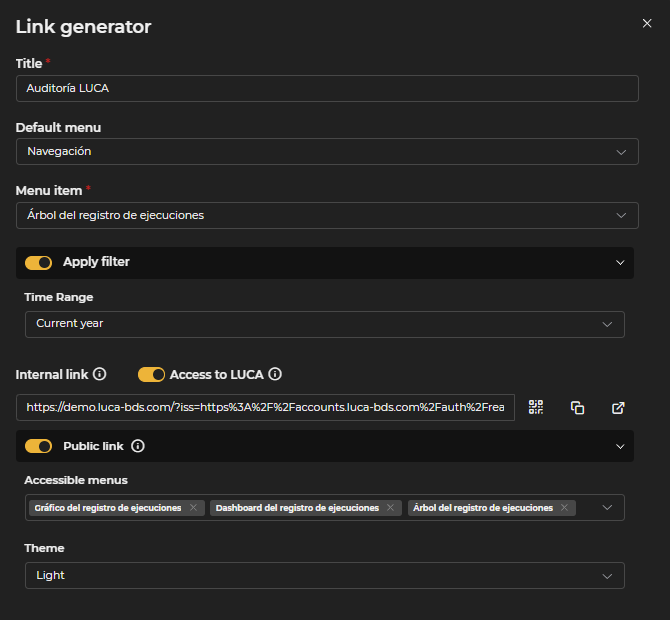 Figure 13.2: Application Link Generation
Default menu: Menu that will be preselected when the link is accessed. Menu item: Specific item within the selected menu that will load by default.
Internal Link
In addition to the standard options, application internal links include an Access to LUCA switch. When enabled, the link gives the recipient access to the full LUCA interface, not just the application.
Public Link
In addition to the standard options, application public links allow configuring:
- Accessible menus: Selection of which application menus the recipient can navigate to.
- Theme: Default visual theme (light or dark) applied when the link is accessed.
Links are generated from the administration screen of each module. See the Three dots (more options) section for more information.