4. Trees
Trees allow navigation through queries from different datasources, facilitating access to information distributed across multiple origins.
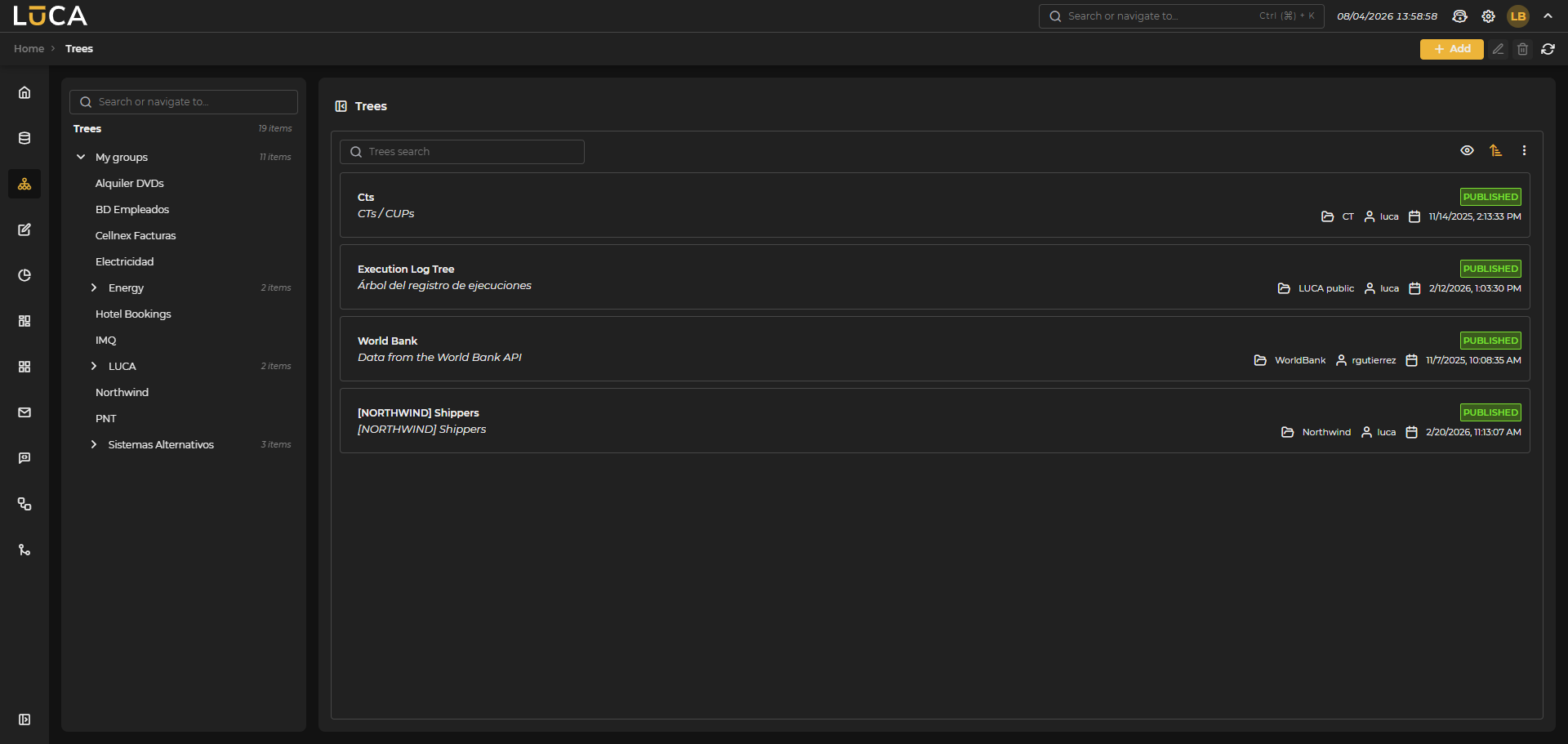 Figure 4.1: Tree Management
For more information about the general administration screen, see this section.
Tree Creation and Editing
The tree creation view presents the following structure:
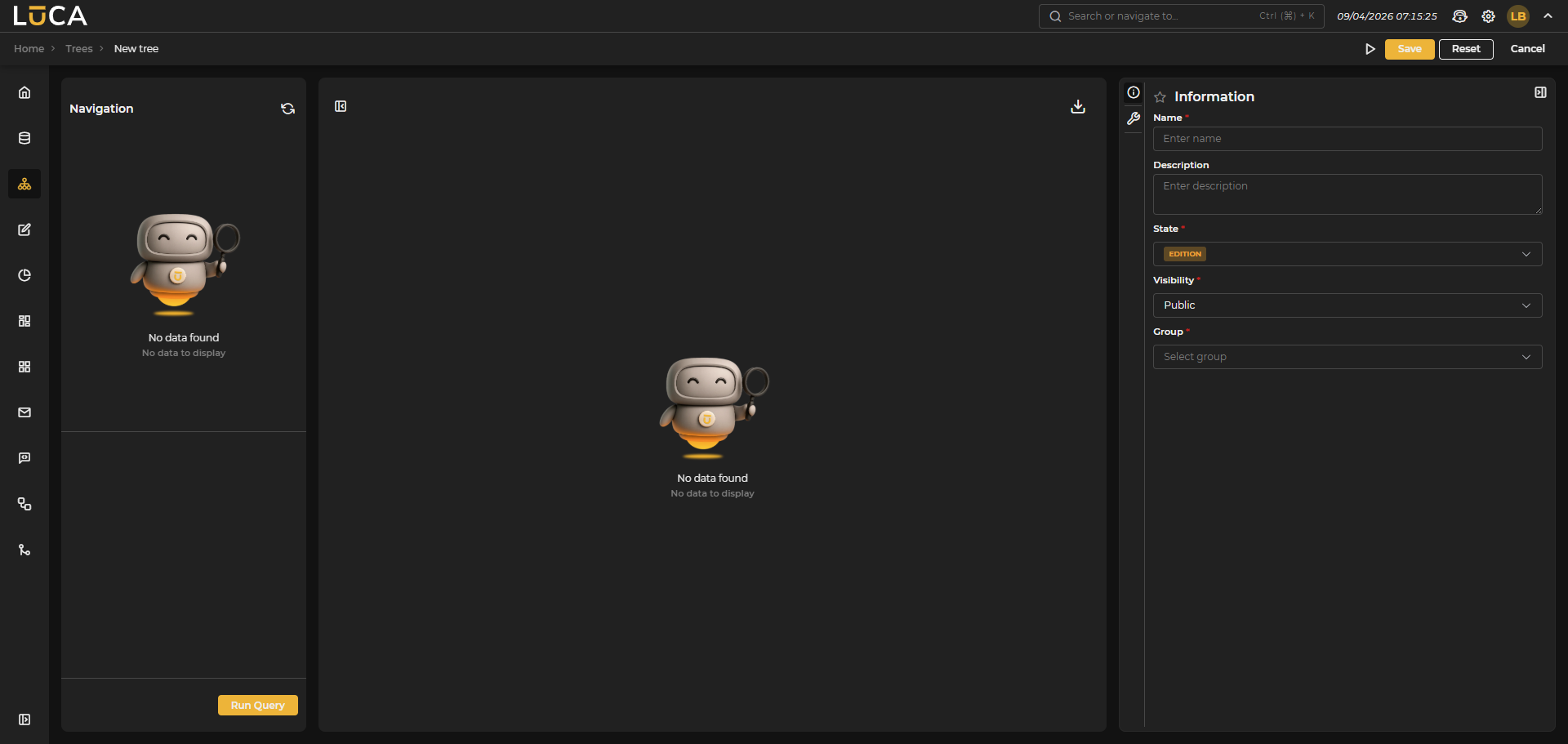 Figure 4.2: Tree Creation
Navigation (1): On the left side of the screen, the tree structure is displayed, which is used to navigate through the queries that compose it. When creating a new tree, this area will be empty. Filters and Execution (2): Below the navigation are all the filters that the main query uses during execution and the run query button. Results (3): The central area is where the execution of the tree elements is displayed. Next to the title, the share button is shown, which allows data to be exported in different formats (csv and Excel). Configuration (4): On the right side of the screen is the tree configuration section, which is divided into two menus.
Regarding the configuration section, we find the following buttons:
- Execute: Saves and runs the query.
- Save: Saves the query information.
- Reset: Clears the data entered in the form.
- Cancel: Closes the editor and returns to the query management screen.
Information
This configuration is shared by all LUCA elements. For more information, go to Information tab.
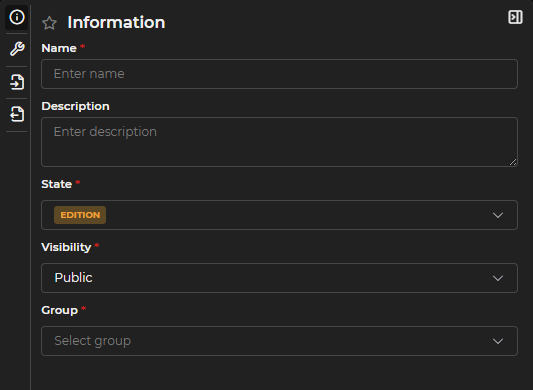
Figure 4.3: Information Form
Configuration
A tree consists of a main query and nested queries or graphs in tree form. Multiple levels can be established by creating submenus. First, a main query is selected, and then one or more submenus can be created. These submenus can be queries or graphs that display data based on the links between the parent query and the child, and they can also have new submenus.
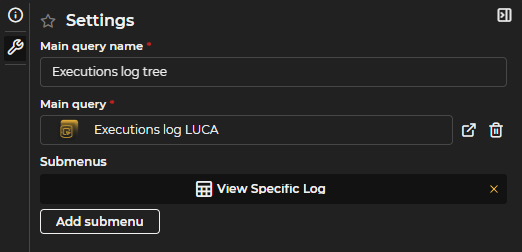
Figure 4.4: Tree Configuration
- Main Query Name: name displayed in the tree representation.
- Main Query: the first query of the tree from which subsequent queries or graphs are executed.
- Submenus: as many as desired can be created, both at the same level and at lower levels. Submenus have the following characteristics:
- Name: name of the submenu.
- Type: can be a query or a graph.
- Query: selection of the desired query or graph.
- Variable Links: link between the input variables of the query or graph with the output variables of the upper level query in the tree. Only output variables of the same type as the input variable are displayed.
- Default Value: default value for the input variables of the query or graph.
- Output Format: in query-type submenus, only one output variable can be displayed by applying a format. The available formats are: Text, Xml, Html, Json, SQL, URL. To add a format, select the variable, the type of output format, and click Add format. To remove an existing format, a Remove format button will appear in the same location. For example, if an output variable returns text that contains Xml, instead of displaying all columns of the query, the output of the Xml can be selected and formatted to make the value more readable, as LUCA will format the text and apply colors according to the chosen format.
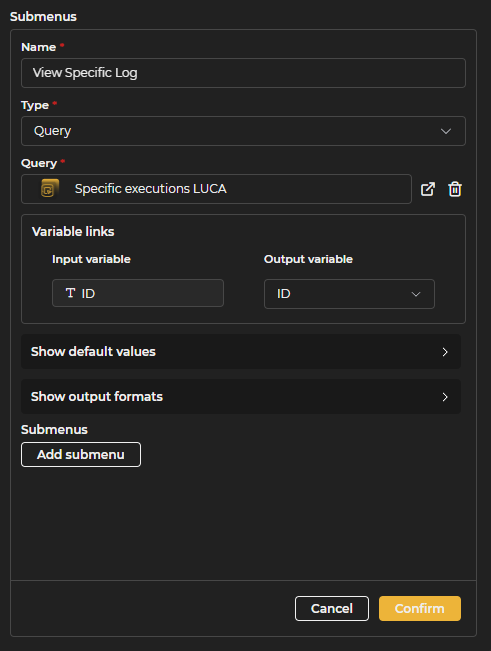
Figure 4.5: Submenus
Executing a Tree
To start executing a tree, you must press the Play button, which will execute the main query.
On the left side of the screen are the navigation menu and the filters for the query, along with the execution button.
To navigate through the tree, select the record from which you want to start and then click the desired menu option from the navigation panel.
 Figure 4.6: Tree Navigation