11. Models
The Models section allows managing the AI models available in LUCA, including public models from external providers, private custom models, and deployments.
Upon accessing, the left side of the window displays the tabs Public, Private, and Deployments. The Public tab is preselected.
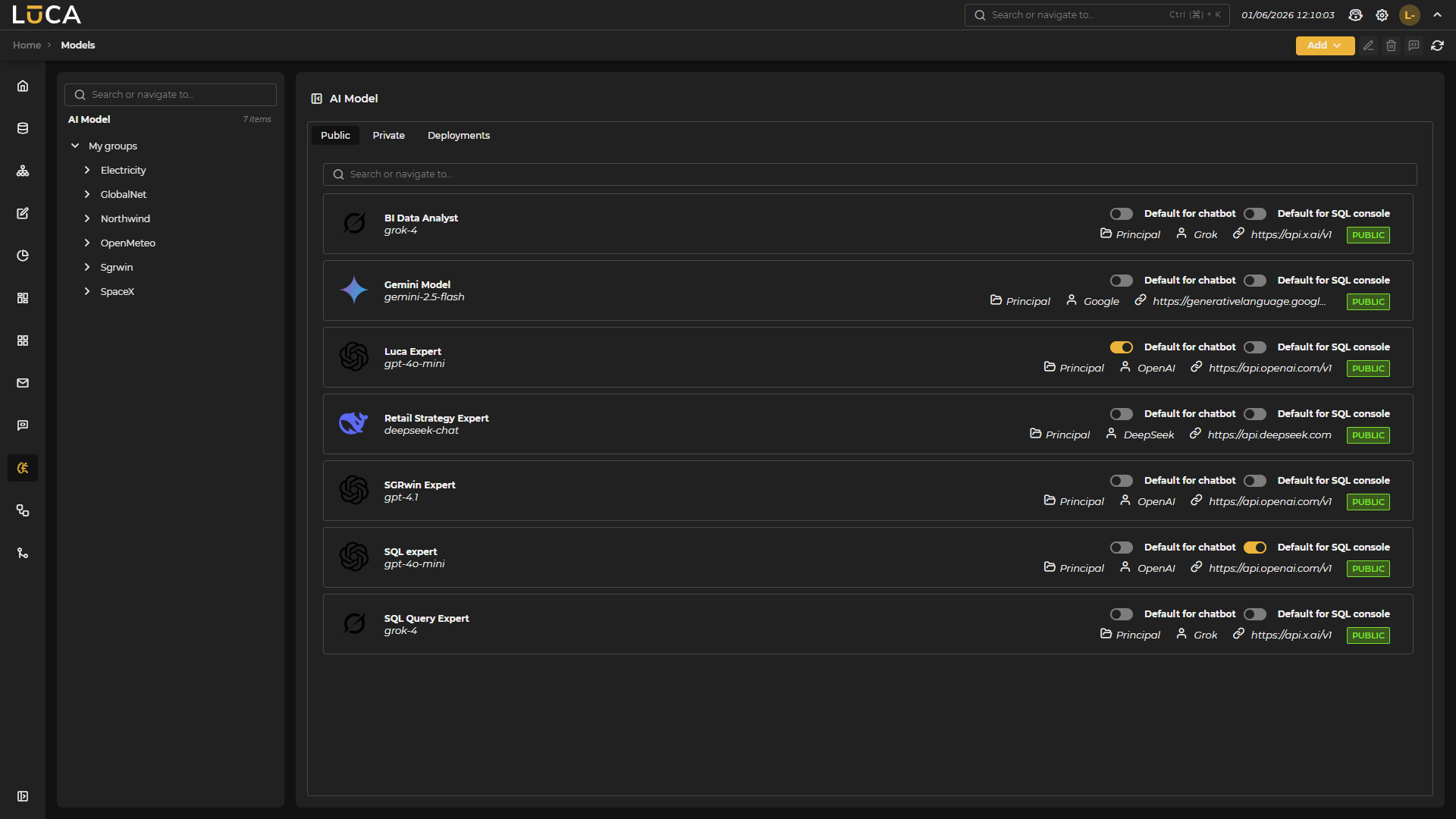 Figure 11.1: Administration Window
On the left, the group organizer appears since models, as elements of the application, are also associated with a group.
Depending on the selected tab in the model administration screen, the available models list for each type and a model search field are shown at the top.
The section for Public models allows the management of models that feed from public APIs of major providers.
In the Private tab, the list consists of custom models created from the elements previously deployed in the Deployments tab. This allows for adapting and configuring specific models according to the needs of each group, leveraging private resources.
Public, Private, and Deployments Tabs
Above the list of models are the following buttons:
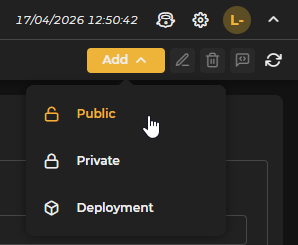
Figure 11.2: Add Button
- Add: Clicking this button opens a context window that allows choosing the type of model to deploy. Clicking on one of them loads in the central panel the corresponding configuration form (with slight differences in the deployments tab) that allows creating a new model:
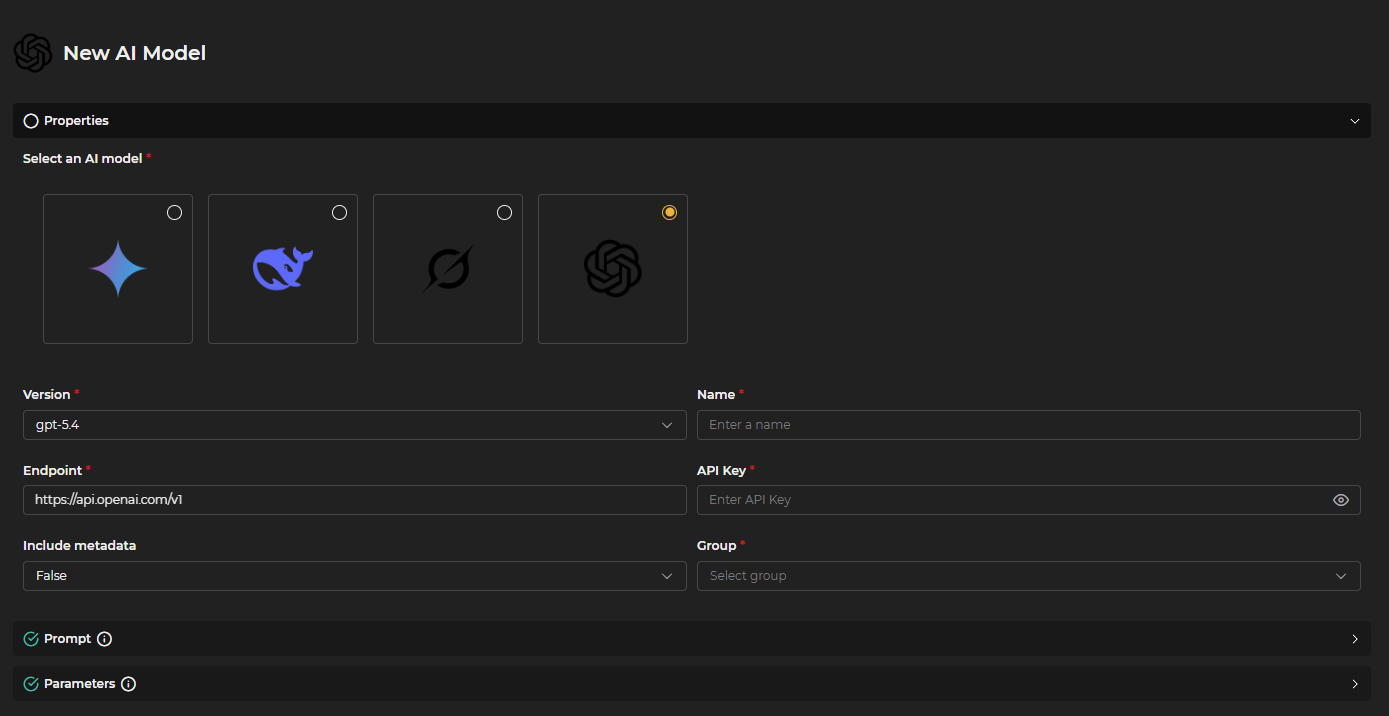 Figure 11.3: Properties
- Properties
- Model : Select the model from the list using the corresponding icon.
- Version : Choose the available version for the model from the dropdown.
- Name : Assign an identifying name to the model.
- Endpoint : Indicate the address where calls to the model will be sent.
- API Key : Enter the key configured for access to the model.
- Include metadata : By activating this option, the model can access both the data generated during the execution of SQL queries as well as the query itself that was performed. This allows for expanding the available context and improving control over the obtained results, facilitating more precise responses adapted to the information processed in real time. If the option is disabled, the model will only receive the final result of the query, without access to intermediate data or the executed query.
- Group : Select the group in which the model will be included.
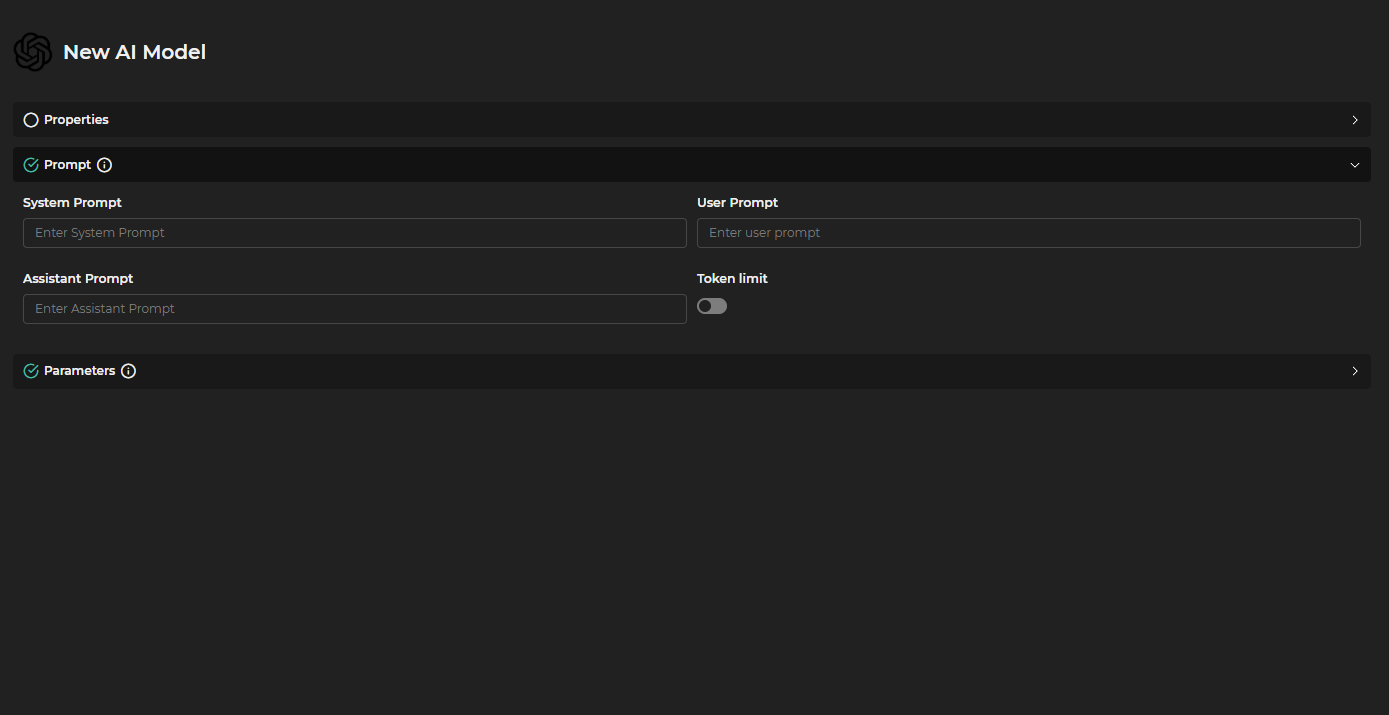 Figure 11.4: Prompt
- Prompt
- System Prompt : Defines the base message that the system will use to contextualize the interaction with the model.
- User Prompt : Specifies the message that the user inputs as a query or instruction. Default "
<|query|>". - Assistant Prompt : Indicates the message that the assistant (model) will use as a response or guide. Default "
<|context|>". - Token Limit : Sets the maximum number of tokens that can be used per week. When disabled, it works without limits.
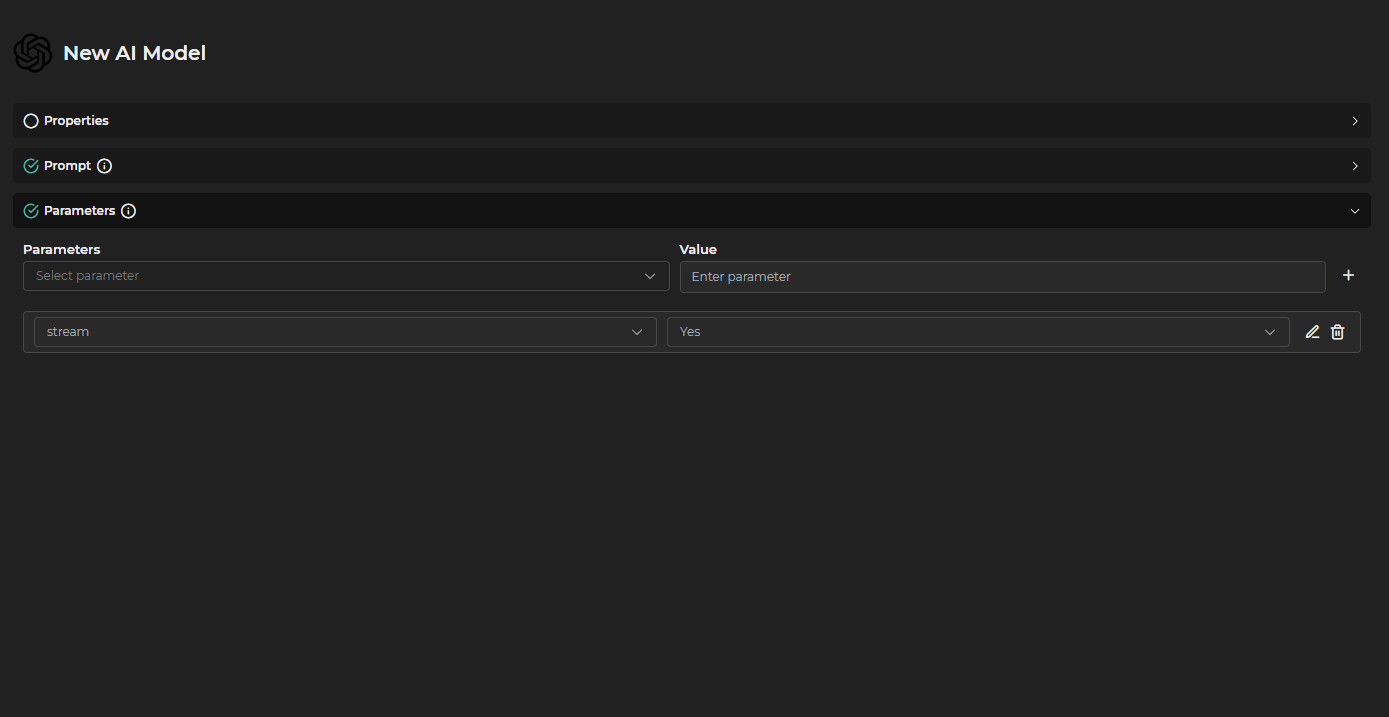 Figure 11.5: Parameters
- Parameters
- Parameters : Select a parameter from the list.
- Value : Add a value.
- Selected Parameters : Displays the previously configured parameters.
The available parameters for model configuration are as follows:
- frequency_penalty: Penalizes the repetition of words or phrases. High values reduce repetitions, low values allow more freedom.
- logit_bias: Allows favoring or prohibiting certain tokens (words). It is passed as a map of token identifiers and their biases.
- logprobs: Returns the logarithmic probability of each generated token, useful for debugging and analysis.
- top_logprobs: Number of alternative tokens and their probabilities to return at each step, along with
logprobs. - max_completion_tokens: Limits the tokens that the response can generate, controlling the maximum length of the output.
- n: Number of distinct responses that the model should generate for the same input.
- presence_penalty: Penalizes the repetition of already mentioned topics, promoting greater variety in the response.
- response_format: Defines the output format. It can be
"text","json","xml", etc. - stop: List of sequences that, if they appear, automatically stop the generation.
- temperature: Controls the randomness of the response. Low values (
0.0) make the output more deterministic; high values (>1) make it more creative or unpredictable. - top_p: An alternative to
temperature, limits the options to a subset of tokens whose cumulative probability does not exceed the specified value.
The Deploy option of the Add button has a particular form.
In the properties section, Model, Version, Name for the model, Server (the client in which the AI model server previously configured in Administration > Clients is deployed), and a Group in which to include it are selected.
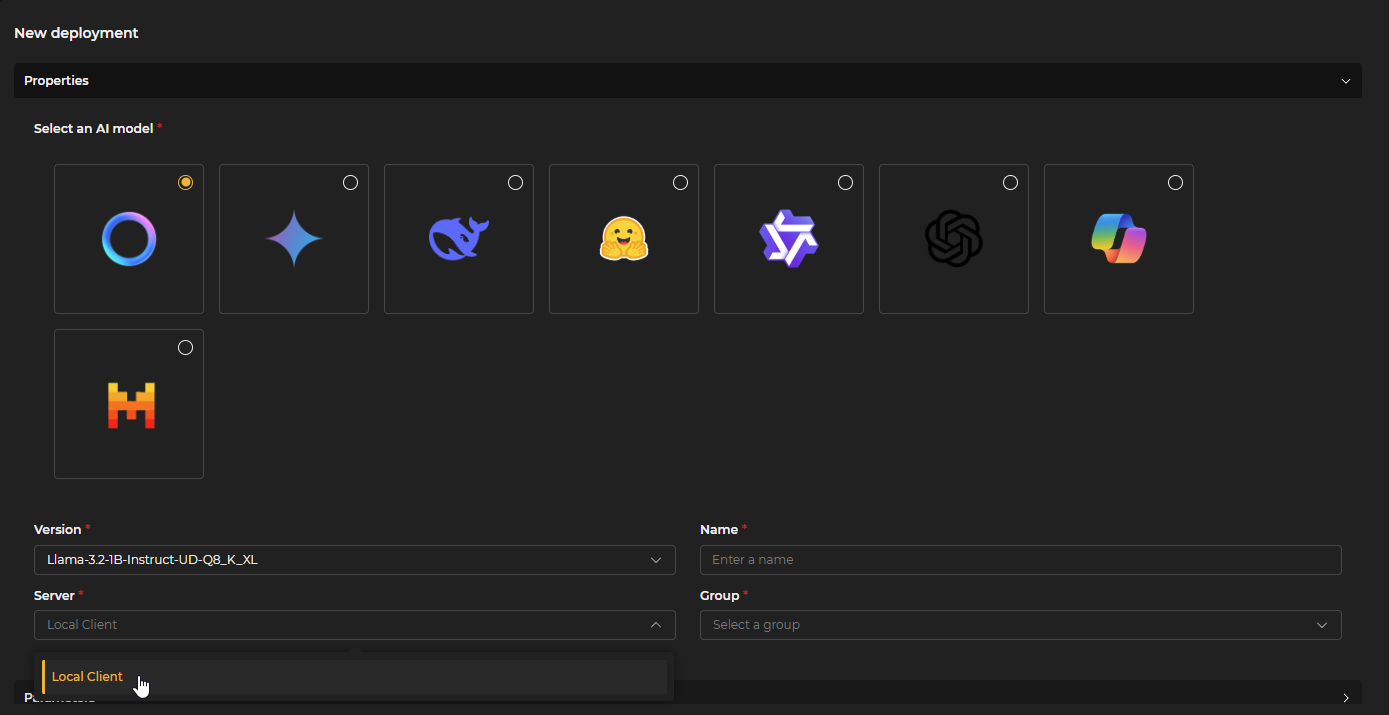 Figure 11.6: Deployment Properties
In the parameters, the API Key is entered, and the Hardware to be used for running the model (CPU or GPU) is selected.
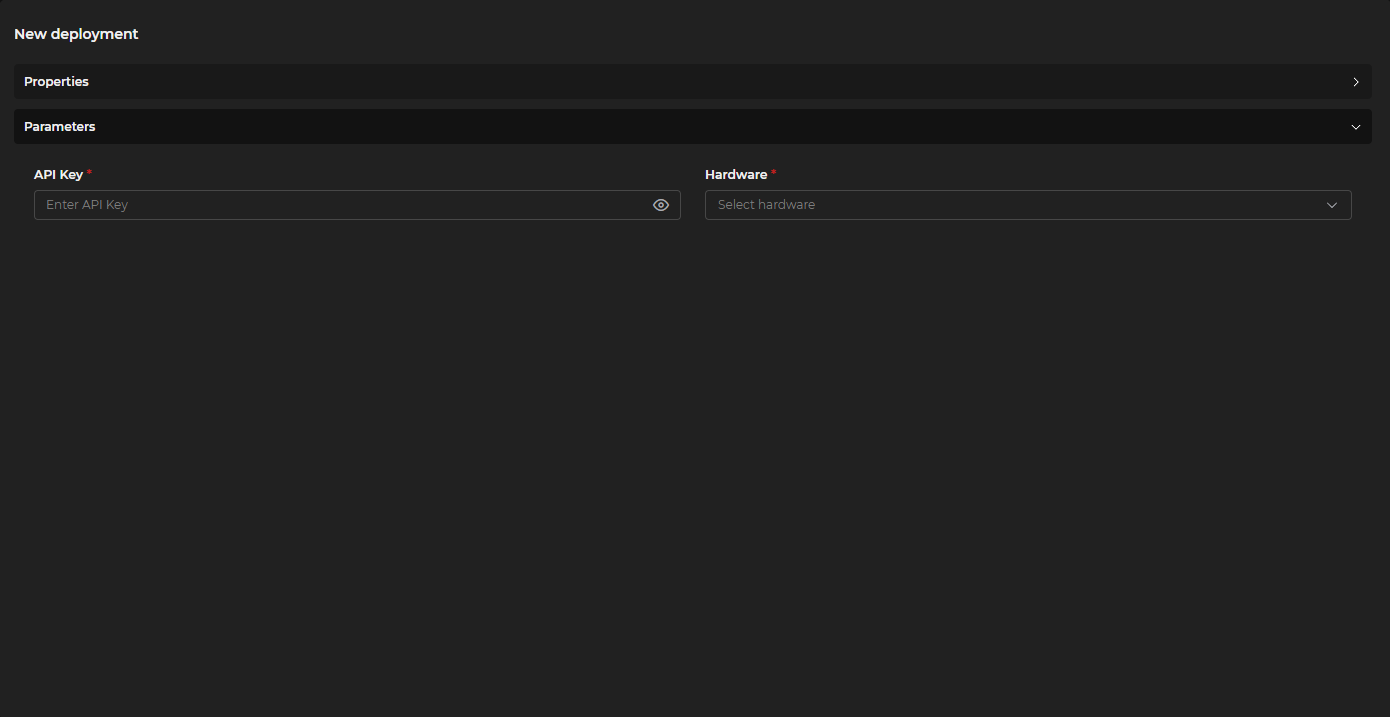 Figure 11.7: Deployment Parameters
The Deployments tab maintains a simplified add form because model configuration is added in the Connect button, which gives access to a form similar to that of Public and Private. In Restart, the process of stop and start for the respective model is initiated. Once deployed, they appear in the Private tab where they can be configured as experts.
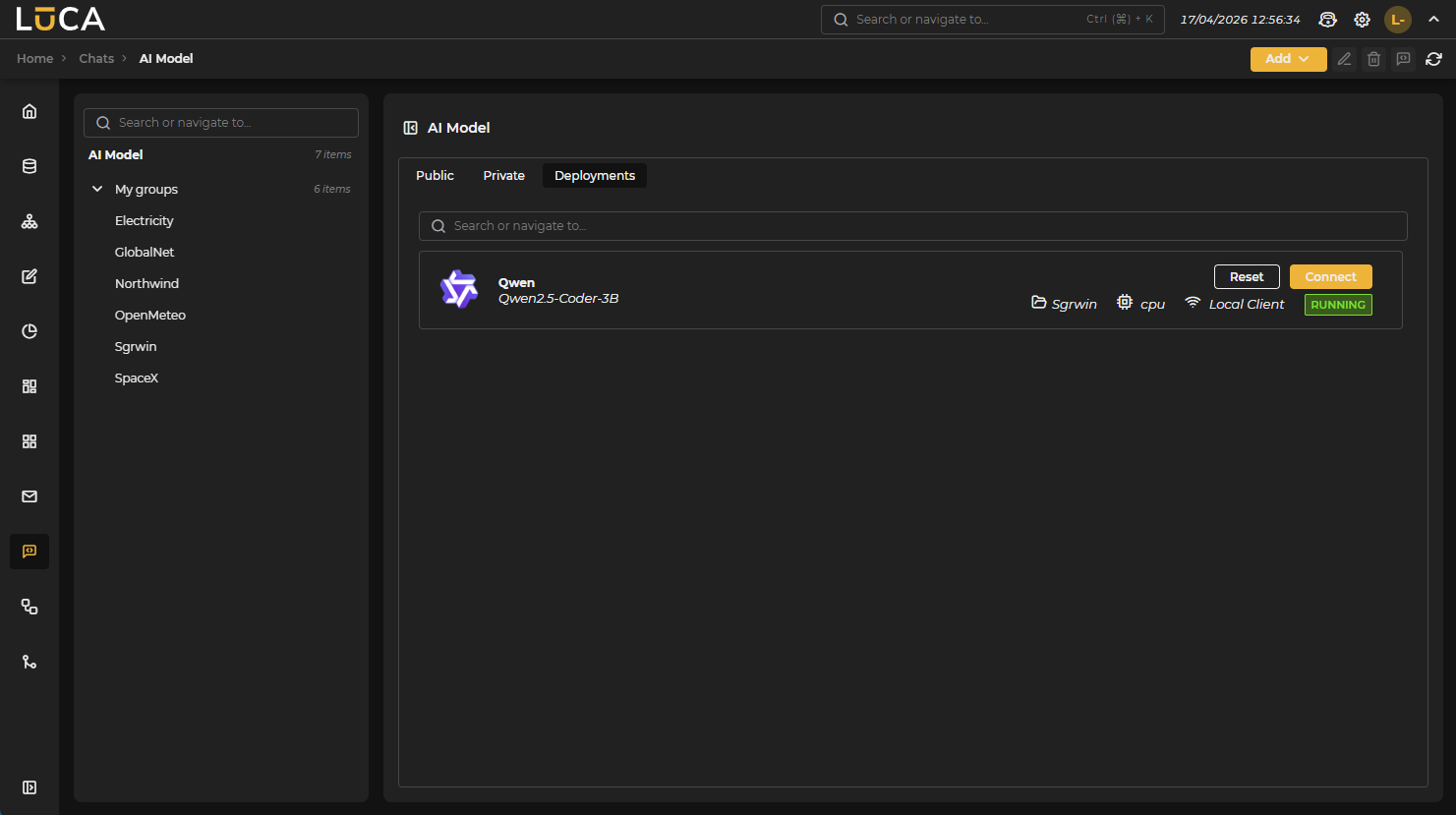 Figure 11.8: Connect and Restart

Figure 11.9: Edit Button
- Edit: Modifies the configuration of the highlighted model.

Figure 11.10: Delete Button
- Delete: Removes the selected model.

Figure 11.11: New Chat Button
- New Chat: Starts a conversation (disabled from the deployments tab) with the selected model from the list.

Figure 11.12: Reload Button
- Reload: Updates the list of models.
SQL and LUCA Experts
Additionally, in the case of Public and Private, you can choose whether the model becomes default for certain types of queries or chats, functioning as an expert. The system incorporates a default selector that allows choosing among the different models created. In the Models section, both in the Public and Private tabs, the selectors appear situated above the specifications of each model. To select a model as the default, simply activate the corresponding selector. This way, queries directed at experts are handled by the selected models.
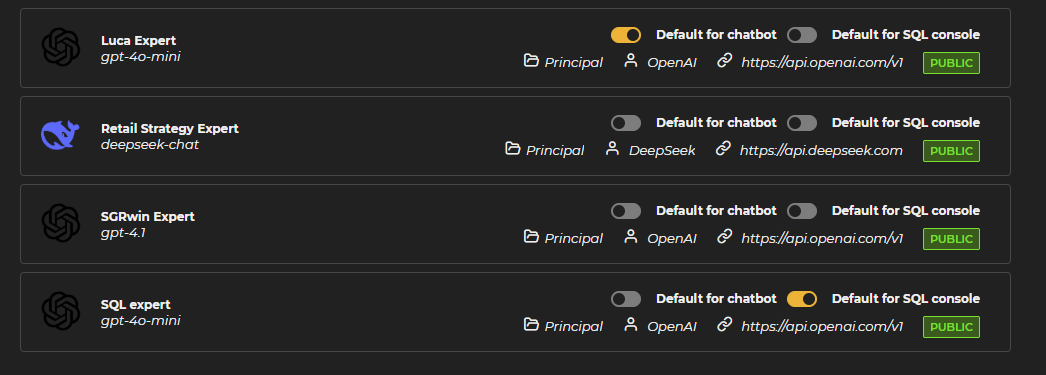 Figure 11.13: Experts
Types of available experts:
-
SQL Expert: The model marked as SQL expert is responsible for responding to requests made in the console chat of the queries section.
-
LUCA Expert: The model selected as the LUCA expert handles specific queries related to the functionality and use of the LUCA platform, located in the top bar next to the application desktop icon.